Someone is locked out by an IP rule
Someone sees "Access denied from your network address" or "Too many login attempts" when they sign in. Find the IP rule, auto-block or lockout that stops them, and lift it.
- Applies to
- Core 12.0 and later
- Who can do this
- Administrator, Platform owner
- Permission
feature.core. ip_rule.edit
On this page
Symptom
Someone can't sign in. Under the email field, they see one of these messages:
- Access denied from your network address. Please contact your administrator. An IP rule or an IP block refuses their address. Work through checks 1 to 4.
- Too many login attempts. Please try again in N seconds. Brute-force protection has locked the account or the address for a while. Go to check 5.
From Social Login 2.1.2, a sign-in with Google or another provider is refused the same way: the person comes back to the Sign-In screen with the first message at the top, and in your mobile app the sign-in is refused with it. From Social Login 2.1.3, a refused first sign-in doesn't create an account either. From Core 12.8.5, your mobile app's own sign-in, with a password, is refused with the first message too, and an app that's already signed in can't renew its sign-in from that address. From Core 12.8.6, so are signing up in the app, entering the emailed sign-up code and the two-factor code step. From Core 12.8.7, so is the sign-up form, with the message under the email field, and no account is created. The checks below are the same, except that only the global rules can refuse a sign-up, because the account doesn't exist yet: skip check 3.
The REST API refuses requests from the address for the same reason, with a 403 status. From Core 12.8.7, that includes the web API's sign-in and sign-up, which then issue no token. From Core 12.8.6 the answer carries the first message and the error code UNAUTHORIZED, like every other API error. Before, it said Access denied from your network address. with no error code.
You need to fix this from an account and a network that still work. Ask the person for the IP address they're signing in from. A site such as a "what is my IP" page shows it.
Check these, in order
1. Their address was blocked automatically
Repeated failed sign-ins from one address make Laramin block it for everyone.
Open Configurations › Security › Blocked IPs and search for the address. An automatic block has a reason that starts "Auto-blocked after repeated failed login attempts".
Fix: Open the row's actions menu and select Edit. Set Status to Released, then select Save. An automatic block lifts by itself at the time its Reason gives after "Expires at:". IP Rules shows the same time in its Expires column. To let the person in sooner, release it now.
2. A global block rule matches their address
A block rule can cover a whole range, so search for part of the address as well.
Open Configurations › Security › IP Rules. Look for rules with Type set to Block and Scope set to Global whose IP Address / CIDR covers their address.
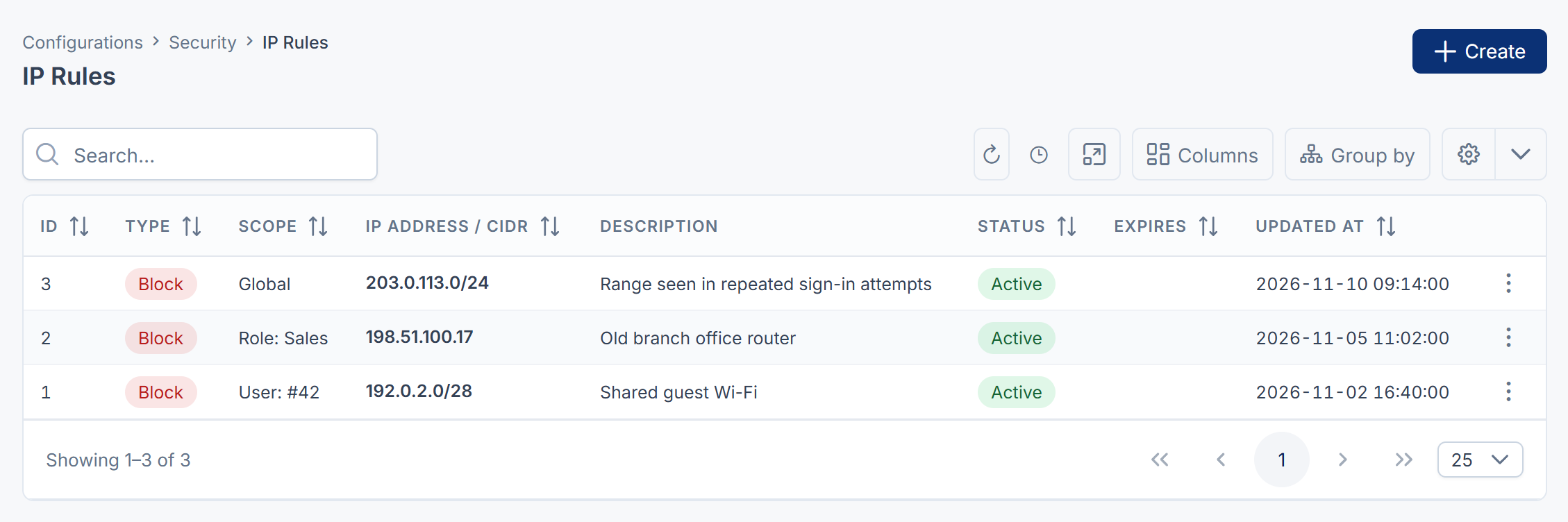
Fix: Edit the rule and set Status to Inactive, or narrow the range. A break-glass setting doesn't help here. An explicit block refuses everyone, super admins included.
3. A user or role rule doesn't include their address
If the person has their own rules (Scope shows "User: #" followed by their user ID), only those rules decide. If not, the rules for their roles decide. When those rules contain any Allow rule, the person can sign in only from an allowed address.
Fix: Add an Allow rule for their address at the same scope, or set the rule that's too narrow to Inactive. See Create an IP rule.
4. The site is in allow-list mode
In Configurations › Security › Security Settings, check IP policy mode. With Allow-list only, only addresses on a global Allow rule can sign in.
Fix: Add a global Allow rule for their network, or set IP policy mode back to Block-list only and select Save changes.
5. Their account or address is locked after failed attempts
This lockout isn't an IP rule, so it isn't in either list. With Enable brute-force protection on, Laramin locks an email address or an IP address after Max login attempts failures (5 by default) for Lockout duration (minutes) (15 by default). Sign-in is also limited to 5 attempts a minute for each email and address, and 15 a minute for each address.
Fix: Ask the person to wait for the time in the message, then try again with the right password. If they've forgotten it, they can reset it from the sign-in screen once the lockout ends.
6. Everyone shows up with the same address
If Laramin runs behind a load balancer, CDN or reverse proxy that it hasn't been told about, every visitor appears to come from the proxy's address. One auto-block of that address then locks out everyone.
Fix: Ask whoever manages your server to set TRUSTED_PROXIES in the environment file to the proxy's address range. Then release the blocked proxy address in Blocked IPs.
Nobody can sign in at all
If every administrator is refused, for example after you switched to Allow-list only with Super-admin break-glass bypass turned off, nobody can fix it from the admin, and you can't reach Support Center either.
Module: Contact Brine Webs support: [support contact]. Include your workspace address and what you see on screen. If you can still sign in, raise a ticket from Support Center in your Laramin app instead.
Danger: Don't turn off Super-admin break-glass bypass while IP policy mode is Allow-list only, unless you're sure every super admin's address is on an allow rule.
Still not working?
Raise a ticket from Support Center in your Laramin app. Include this page's link, the address the person signs in from, the exact message they see, and what you checked.
Thanks. That helps us decide what to write next.
Thanks for telling us what was missing.
You already answered for this article today. Thanks.
We got a lot of answers from your network just now. Try again in a few minutes.
We couldn't send that. Check your connection and try again.
Links in this article
Printed from help.laramin.in. The online article may have changed since.