Set up your tax rules
Add a tax rule for each country, or state, you sell to, give it its tax items, and see a worked GST example with CGST, SGST and IGST. Also how to change, stop and delete a rule, and every field.
- Applies to
- Billing 2.0 and later
- Who can do this
- Administrator
- Permission
feature.bill. tax_rule. create - Where
- Billing › Tax Rules
On this page
A tax rule says what your business charges customers in one country, or in one state of it. It holds one or more tax items, such as CGST and SGST, each with its own rate. Billing reads the customer's country and state from their billing account and applies the matching rule to every order and invoice. See How Billing works out tax.
Careful: An invoice for a customer whose country has no active rule can't be issued. Add a rule for every country you bill, including the ones where you charge no tax. A rule with no items charges zero.
Before you start
- Switch to the business the rules are for. Tax rules belong to one business, and you can't add them in All Workspaces. See Switch workspace.
- You need
feature.to add a rule andbill. tax_rule. create feature.to add its items. Changing them needs the matchingbill. tax_rule_item. create editpermissions. - The country must be active in your Laramin, or it isn't offered. See Manage currencies and locations.
- For a rule for one state, find how your customers' state is written. Open a customer in Billing › Billing Accounts and look at State under Tax Details, for example
Karnataka.
Add a tax rule
-
Go to Billing › Tax Rules.
-
Select New Tax Rules.
-
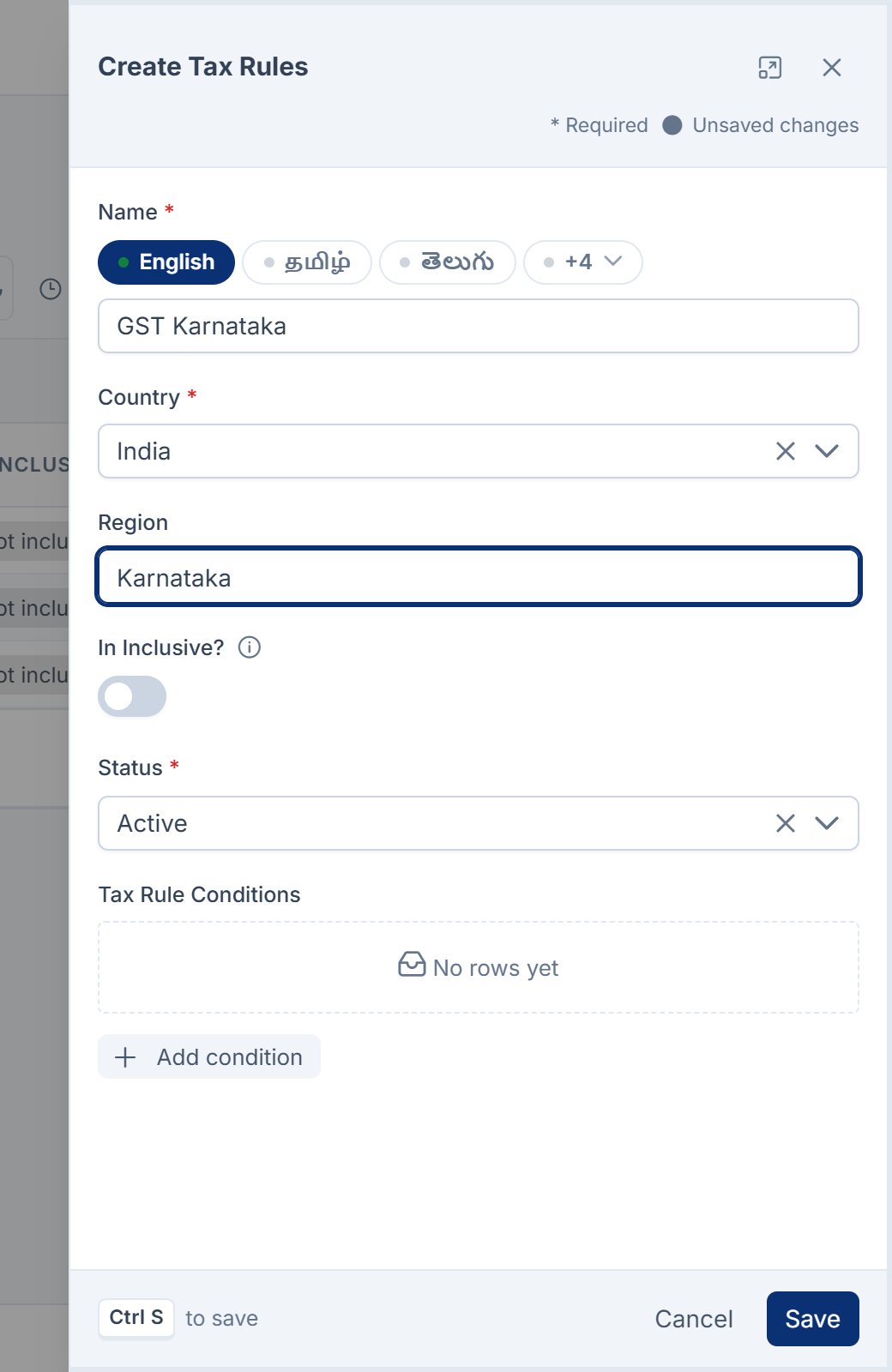
In Name, enter a name your team will recognize, such as
GST Karnataka. -
In Country, choose the country.
-
In Region, enter the state exactly as it's written on your customers' billing accounts. Capitals don't matter. Leave Region empty for a rule that covers the whole country.
-
Leave In Inclusive? off if your prices don't include tax. Turn it on if they do, and Billing takes the tax out of the price instead of adding it.
-
Leave Status as Active.
-
Select Save.
If the business already has an active rule for that country and region, Laramin says This business already has an active tax rule for that country and region. Deactivate or delete the existing rule first.
Add its tax items
-
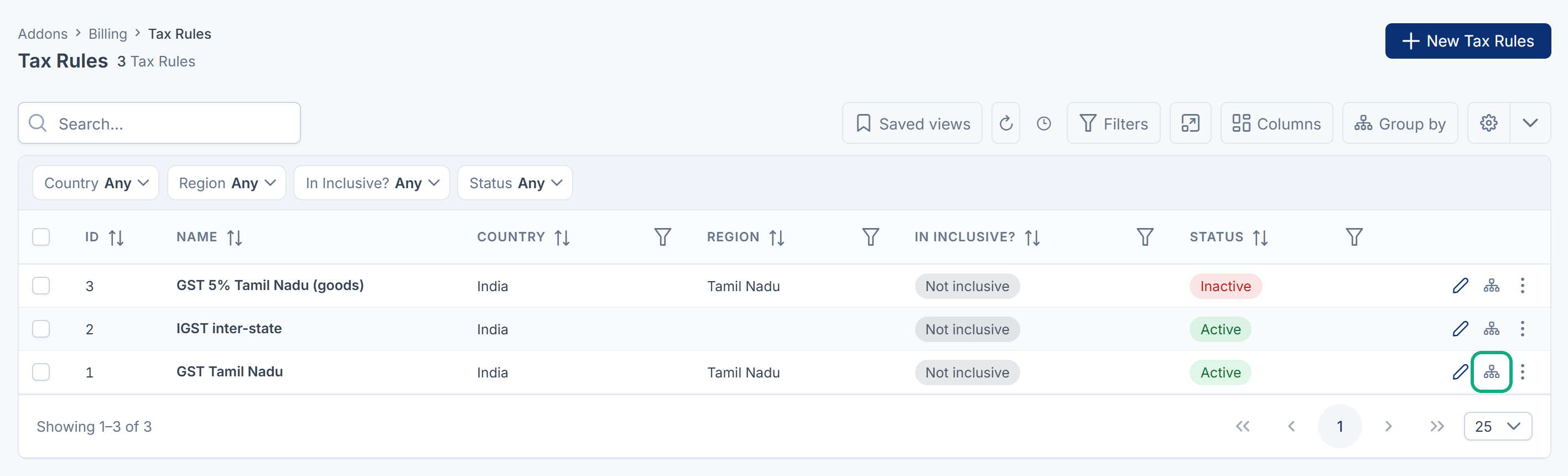
In the rule's row, select Tax Rule Items.
-
Select New Tax Rule Items.
-
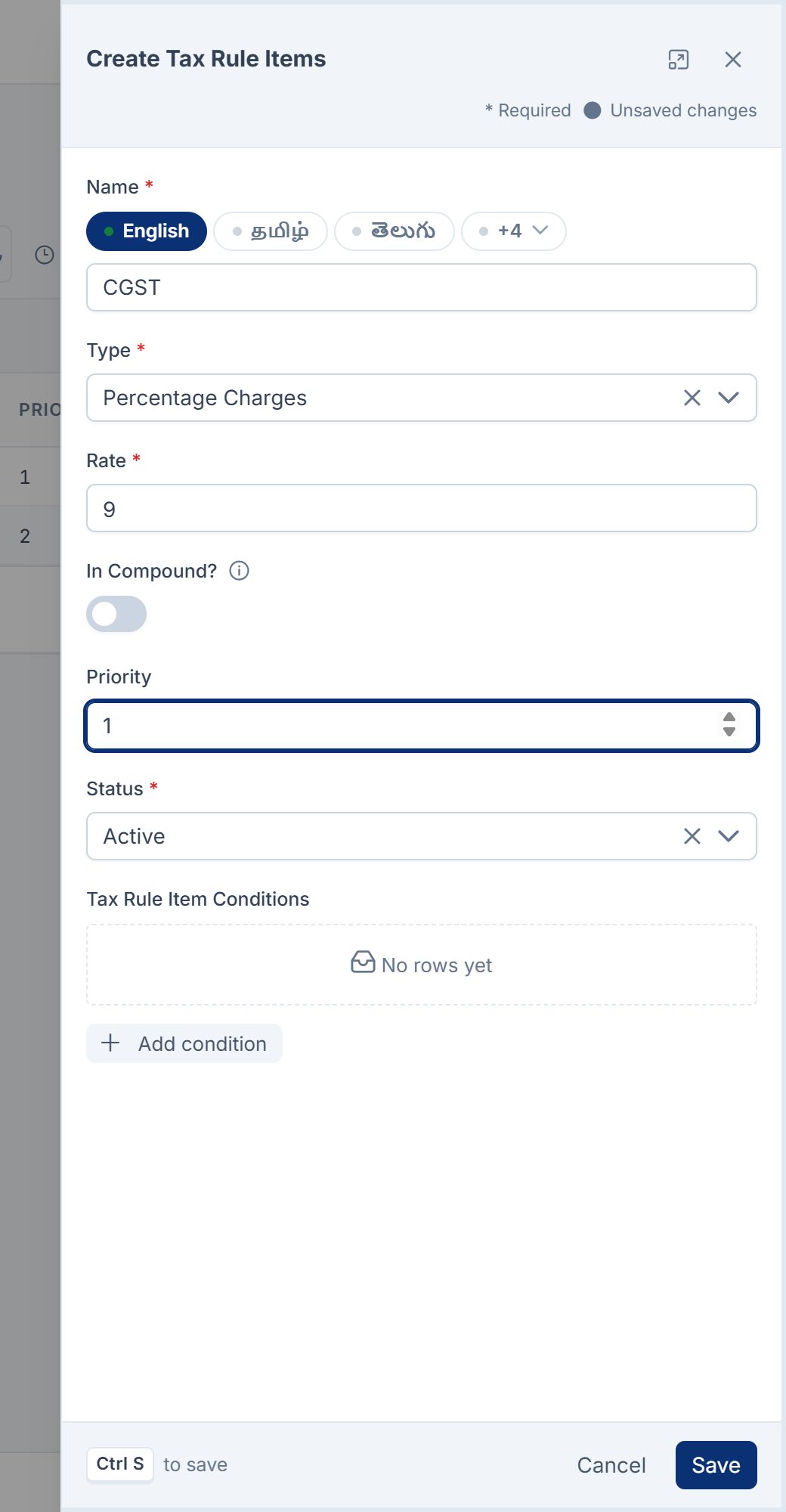
In Name, enter the name to print on invoices, such as
CGST. -
In Type, choose Percentage Charges for a rate, or Fixed Charges for an amount.
-
In Rate, enter the percentage, such as
9, or the amount in the document's currency. -
Leave In Compound? off unless this item is charged on top of the items before it.
-
In Priority, enter the order to apply it in. Lower numbers go first.
-
Select Save.
-
Repeat for each item.
A change applies to orders and invoices created from then on. Documents already created keep the tax they were given.
Example: GST for a business in Karnataka
Your business is registered in Karnataka. A sale to a customer in Karnataka is charged CGST and SGST. A sale to a customer in another state is charged IGST. You need two rules:
| Rule | Country | Region | Items |
|---|---|---|---|
GST Karnataka | India | Karnataka | CGST, Percentage Charges, 9, Priority 1. SGST, Percentage Charges, 9, Priority 2. |
GST other states | India | (empty) | IGST, Percentage Charges, 18, Priority 1. |
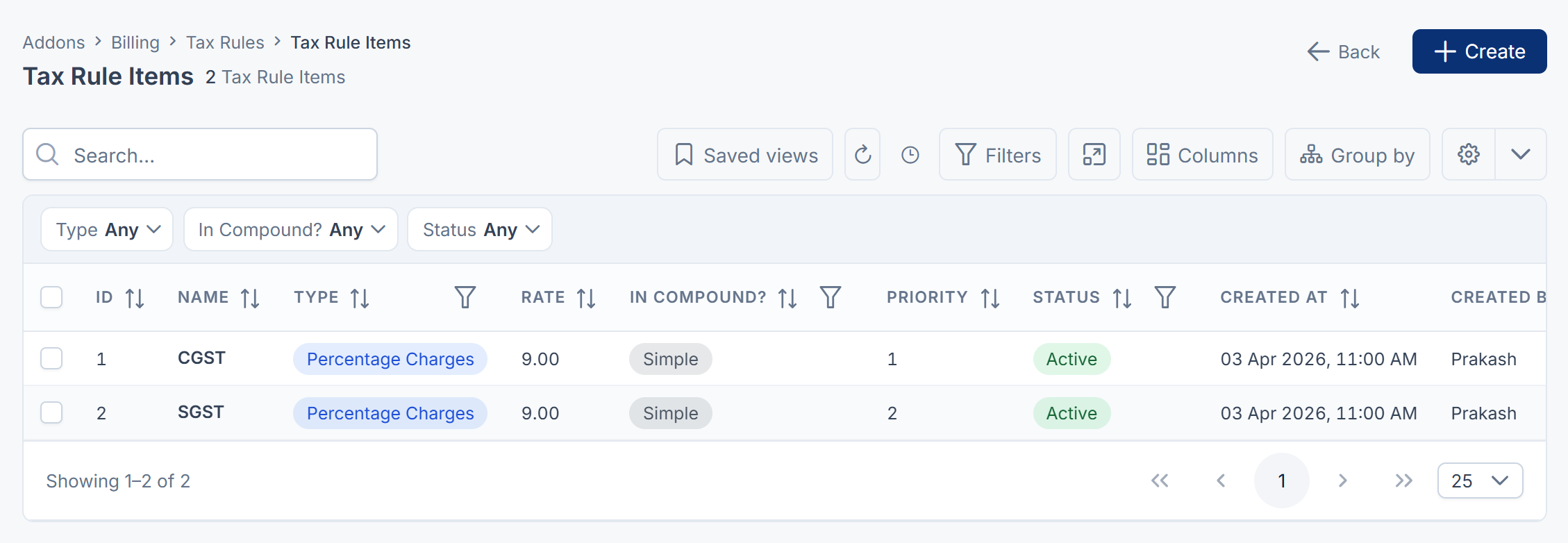
A customer whose state is Karnataka gets the first rule, because a rule for their state wins over the country-wide one. Every other customer in India gets the second.
For a line of ₹10,000.00, prices without tax:
| Customer | Tax | Total |
|---|---|---|
| Lotus Interiors, Karnataka | CGST (9%) ₹900.00 and SGST (9%) ₹900.00 | ₹11,800.00 |
| Harbor Foods, Tamil Nadu | IGST (18%) ₹1,800.00 | ₹11,800.00 |
With In Inclusive? on, a price of ₹1,180.00 already holds the tax: Billing works out ₹1,000.00 before tax and ₹180.00 of tax, split as CGST ₹90.00 and SGST ₹90.00.
To bill customers outside India without tax, add a rule for each of their countries with no items.
Your GSTIN goes on the invoice from your server settings, not from a tax rule. See Billing permissions and server settings.
Change, stop or delete a rule
- Change it: select the rule's row and change its fields. Issued invoices keep their tax.
- Stop it for a while: set Status to Inactive. Customers it covered then have no rule, so their new invoices can't be issued until another rule applies.
- Stop one item: set the item's Status to Inactive. If a rule has no active items left, it charges zero.
- Delete it: select Delete. Deleted rules move to Trashed, where you can Restore them. See Delete and restore records in bulk.
- Remove it for good: first delete its items for good, then the rule. Otherwise Laramin says This tax rule still has … item(s). Delete them before removing the rule permanently. A deleted rule can't get new items until you restore it.
Tax rule fields
| Field | What it does | Rules |
|---|---|---|
| Name | The rule's name. Printed on a document only when its items have no names. | Required, up to 255 characters. Can't be Others. Must be unique in the language you're working in, across every business and including deleted rules, so name rules after the business too, such as GST Karnataka (Example Traders). |
| Country | The customer country the rule covers. | Required. Active countries only. |
| Region | The customer state the rule covers. Empty means the whole country. | Up to 255 characters. Matched against the billing account's State. |
| In Inclusive? | Inclusive: prices already include the tax. Not inclusive: tax is added to the price. | Can't be combined with a compound item. |
| Status | Active or Inactive. Only an active rule is used. | One active rule per country and region in each business. |
| Tax Rule Conditions | Pairs of Key and Value, added with Add condition. | Conditions are saved, but Billing 2.0.0 doesn't use them when it works out tax. |
The list also shows Created At, Created By, Updated / Del At and Updated By. On the Trashed view, the last two show when the rule was deleted and by whom.
Tax item fields
| Field | What it does | Rules |
|---|---|---|
| Name | The name printed on invoices, such as CGST. | Required, up to 255 characters, unique within the rule. Can't be Others. |
| Type | Percentage Charges: a percentage of the line. Fixed Charges: an amount added once to each line, whatever its quantity. | Required. |
| Rate | The percentage, or the fixed amount in the document's currency. | Required, 0 to 999.99. |
| In Compound? | Compound: charged on the line plus the items applied before it. Simple: charged on the line only. | |
| Priority | The order items are applied in. Lower first. It matters for compound items. | A whole number. Default 0. |
| Status | Active or Inactive. Only active items are charged. | |
| Tax Rule Item Conditions | Pairs of Key and Value. | Saved but not used, as for the rule's conditions. |
Thanks. That helps us decide what to write next.
Thanks for telling us what was missing.
You already answered for this article today. Thanks.
We got a lot of answers from your network just now. Try again in a few minutes.
We couldn't send that. Check your connection and try again.
Links in this article
Printed from help.laramin.in. The online article may have changed since.