Changes aren't saved because Demo Mode is on
You see "That change was not saved" or "Exports are off in the demo", or buttons are disabled. Find out whether that's expected, how to switch Demo Mode off, and what to check when it won't switch off.
- Applies to
- Demo Mode 1.3 and later
- Who can do this
- Platform owner, Administrator, Team member
On this page
Symptom
One of these:
- A dialog says That change was not saved.
- A dialog says Exports are off in the demo.
- Save, delete, import or export buttons are disabled, and pointing at one shows Disabled in the demo.
- A message says "This application is currently running in Demo Mode. Changes are disabled in this environment.", or your own demo message.
- An app or script calling the API gets a
403response with"demo_mode": true.
A colored ribbon with Demo Mode across the top of the page confirms it.
Check these, in order
1. This Laramin is a demo
That's what Demo Mode is for: visitors can look but not change. Nothing you typed is lost: select Back to the form and the form is as you left it. See How Demo Mode works.
Fix: If this Laramin isn't meant to be a demo, ask a super admin to switch Demo Mode off. See Set up and turn on Demo Mode.
2. You're a super admin and need to change a setting
Demo Mode blocks every settings panel except its own, for super admins too.
Fix: Set Demo Mode Status to Inactive and select Save changes. Make your change, then turn Demo Mode back on.
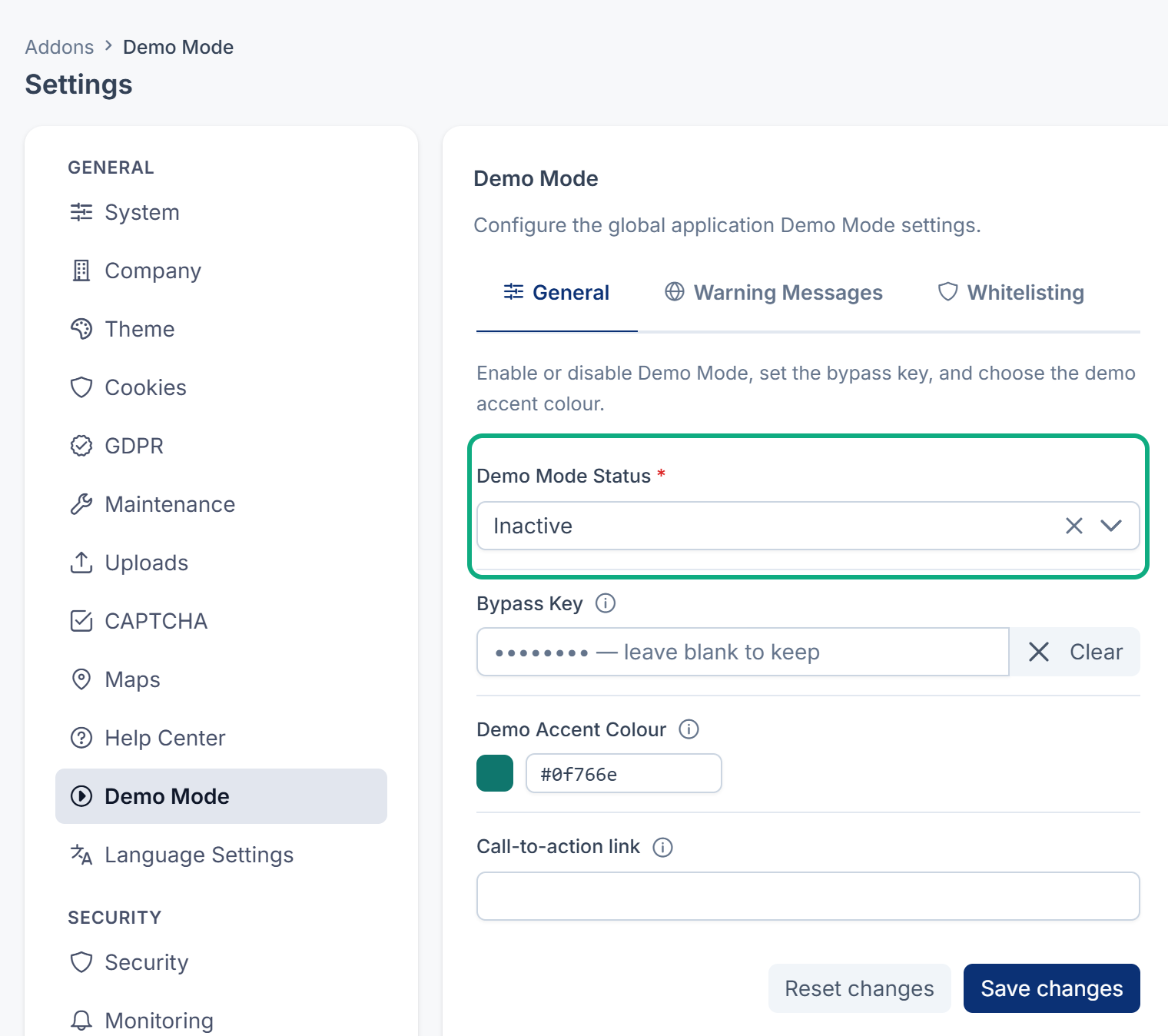
3. Demo Mode won't switch off
If Demo Mode Status shows Locked and the panel says Demo mode is locked by the environment, the server's .env file decides, and the panel can't change it.
Fix: Ask whoever runs your server to remove DEMO_MODE from the .env file, or set it to false, and to clear the configuration cache if they use one (php artisan config:clear). They can also run php artisan demomode:toggle inactive when Demo Mode isn't locked.
4. Something you whitelisted is still refused
- Whitelisted Modules needs the add-on's folder name, such as
BlogorPropertyCrm, not its menu label. - Whitelisted Routes matches route names, such as
blog.posts.store. It doesn't match URI paths, even though the field's hint says it does. - An export is refused separately from a save. Whitelisted entries are allowed to export, but anything else is blocked while exports are blocked.
Fix: Correct the entry on the Whitelisting tab and select Save changes.
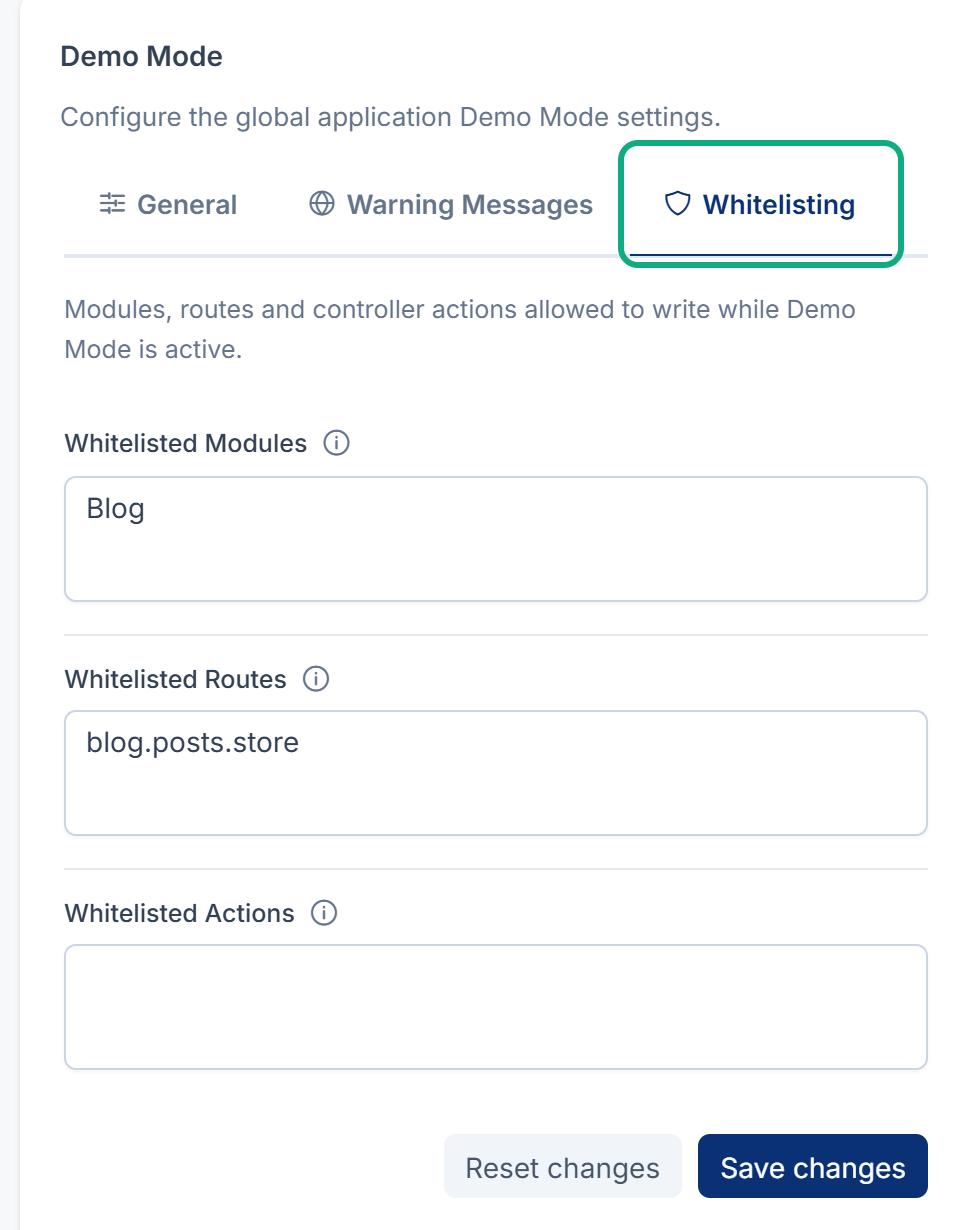
5. The bypass key doesn't work
- A key in the server's
.envfile (DEMO_) is used instead of the panel's Bypass Key.MODE_ BYPASS_ KEY - The key must match exactly, and each request must carry it, as
?demo_bypass=plus the key or in anX-Demo-Bypassheader. Adding it to the address of a page doesn't make that page's buttons work.
Fix: Check which key is in use. The Bypass Key hint names the last four characters of the stored one.
6. Your language choice keeps resetting
In a demo, the interface language changes for your session only and isn't saved to your account. That's expected: visitors often share one account. See Change the interface language.
Still not working?
Ask your administrator. Raising a ticket from Support Center is a change too, so it's refused while Demo Mode is on: a super admin switches Demo Mode off first, then can raise a ticket. Include this page's link, what you tried to save and the exact message. Never send your bypass key.
Thanks. That helps us decide what to write next.
Thanks for telling us what was missing.
You already answered for this article today. Thanks.
We got a lot of answers from your network just now. Try again in a few minutes.
We couldn't send that. Check your connection and try again.
Links in this article
Printed from help.laramin.in. The online article may have changed since.