Follow a client's timeline
See everything that has happened with one client, from their first inquiry to the requirement it became and the properties they listed, by searching the Property CRM timeline for them.
- Applies to
- Property CRM 5.2 and later
- Who can do this
- Team member
- Permission
feature.pcrm. timeline.view - Where
- Property CRM › Timeline
On this page
The client's own page shows how to reach them and their relationship with your business. It doesn't list their inquiries, requirements or properties. To follow one client's story, search the Timeline for them. It shows what happened to your inquiries, properties and requirements, day by day.
Before you start
- You need
feature.. Property CRM Admin, Manager, Agent and Viewer have it. Telecaller doesn't.pcrm. timeline.view - The timeline shows only the kinds of record you're allowed to list. If you can't list any of them, it says There is nothing here you are allowed to see.
- Have the client's name or mobile number.
Steps
-
In the Platform Administration sidebar, open Property CRM › Timeline.
The Property CRM sidebar has no Timeline entry, so people who work only in the Property CRM experience have no menu path to it. Ask an administrator who can enter Platform Administration to look a client up for you.
-
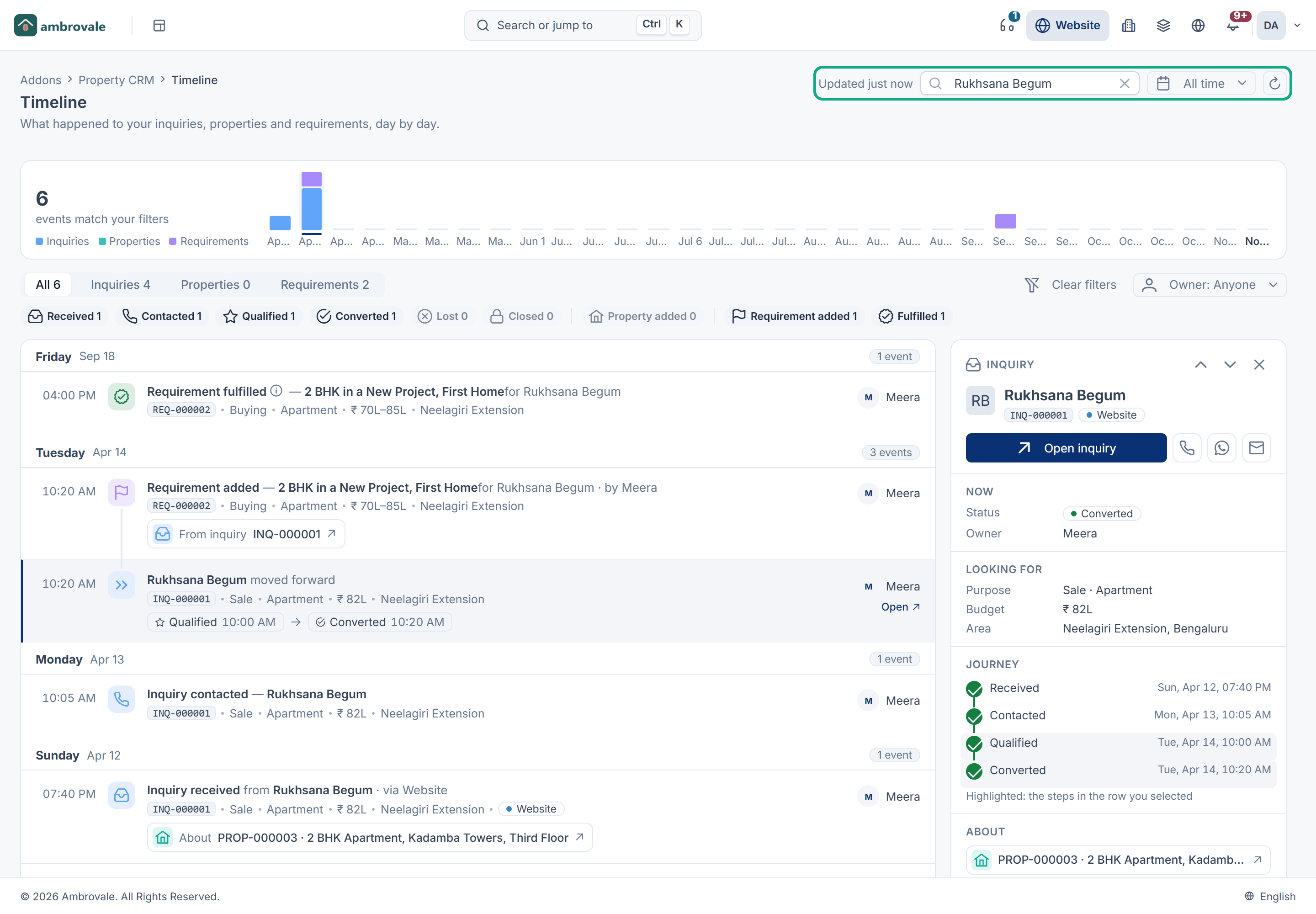
Open the period menu and choose All time. The search looks only in the chosen period.
-
In Find a code, name or phone, type the client's name.
-
Optional: under Kind of record, choose Inquiries, Properties or Requirements to see only one kind.
-
Select an event. The record opens in the preview beside the feed, and the feed stays where it is.
-
To work on the record, select Open inquiry, Open property or Open requirement.
Press / to jump to the search box, and Esc to close the preview.
What the search finds
| Kind of record | Found by |
|---|---|
| Inquiry | Its code, the name, mobile or email the person gave |
| Property | Its code, its title or its owner's name |
| Requirement | Its code, its title or its buyer's name |
A mobile number finds only inquiries, because properties and requirements don't store one. To find a client's properties and requirements by phone, use the lists instead, as the last section of this page shows.
Read the timeline
Each event is one step in a record's life:
| Event | When it's dated |
|---|---|
| Inquiry received | The inquiry was logged, by a person or from your website. |
| Inquiry contacted | It first moved to Contacted. |
| Inquiry qualified | It first moved to Qualified. |
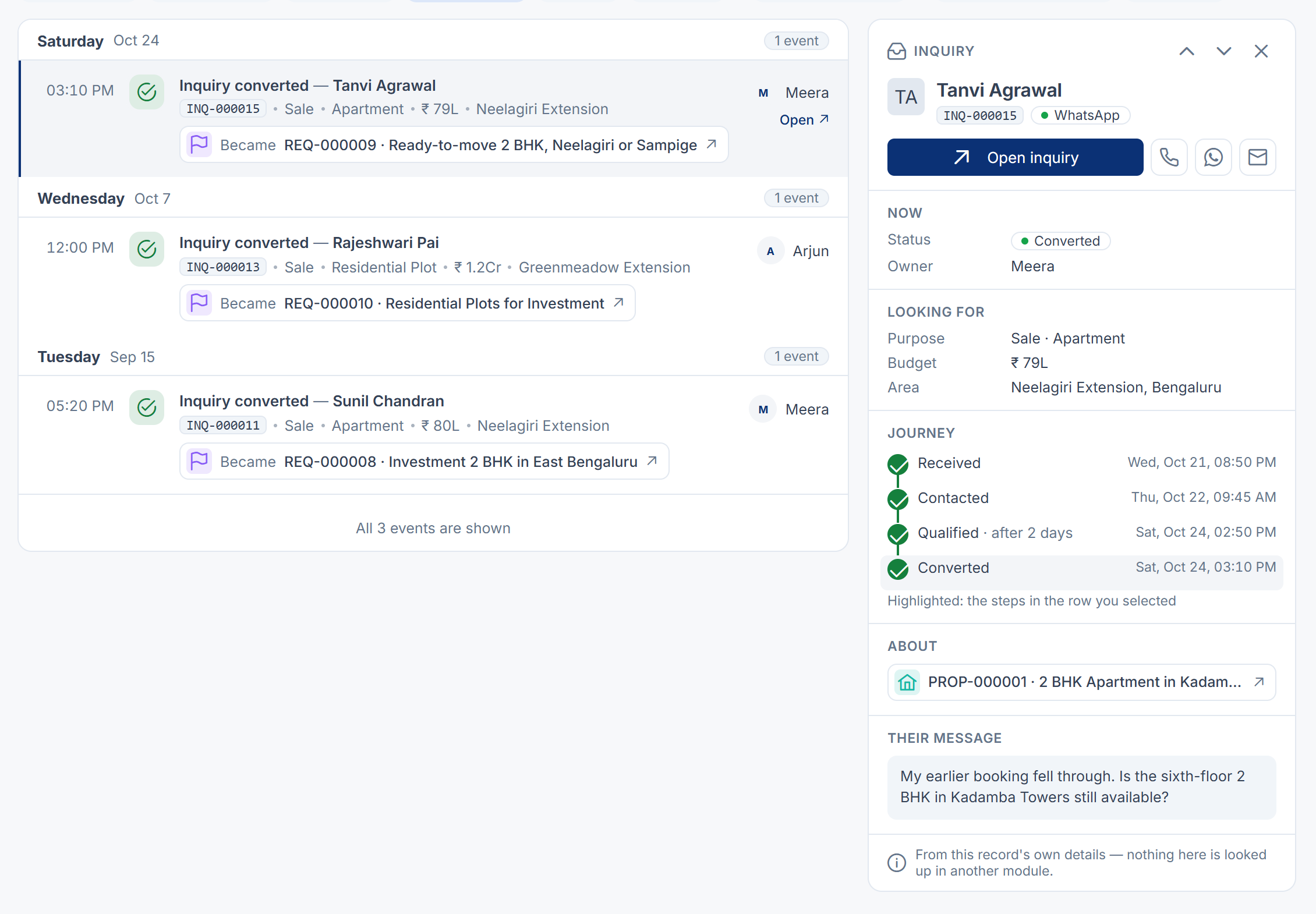
| Inquiry converted | It was converted. The row says what it Became: the requirement, or the client. |
| Inquiry lost | It was marked Lost, with the loss reason. |
| Inquiry closed | It was closed. |
| Property added | The property was created. |
| Requirement added | The requirement was created. If it came from an inquiry, the row says From inquiry. |
| Requirement fulfilled | The requirement became Fulfilled, by a completed sale or rental or by an edit. |
The preview shows where the record stands Now, its details, and its Journey: the steps it has been through and how many days each took. The steps in the row you selected are highlighted.
Some things aren't in the timeline:
- Edits, follow-ups, tasks and site visits.
- When a property was sold or rented. The app doesn't date those changes.
- Earlier losses, closes and fulfilments. If an inquiry was reopened and lost again, only the last loss shows. If a requirement is reopened, its Requirement fulfilled event disappears.
A record deleted after an event keeps the event, marked deleted, without a link.
Owner narrows the feed to Mine, the records you own now. People who can assign inquiries can also choose Unassigned.
Find the same client in the lists
Each list can be filtered by the people on it. See Filter a list.
| List | Filter by |
|---|---|
| Properties | Owner name or Owner mobile |
| Requirements | Buyer name or Buyer phone |
| Inquiries | Mobile or Name |
Phone numbers match however they were typed: "98765 43210" finds "+91 98765-43210".
Thanks. That helps us decide what to write next.
Thanks for telling us what was missing.
You already answered for this article today. Thanks.
We got a lot of answers from your network just now. Try again in a few minutes.
We couldn't send that. Check your connection and try again.
Links in this article
Printed from help.laramin.in. The online article may have changed since.