Read and manage your notifications
Open your notifications from the bell in the header, mark them read, filter the full inbox by type and date, and delete what you no longer need.
- Applies to
- Core 12.0 and later
- Who can do this
- Administrator, Team member
- Where
- Header › Notifications › View all notifications
On this page
Laramin collects your notifications in one feed. In-app notifications are listed as System. Messages sent to you by Email, SMS, WhatsApp or Push appear as delivery records.
Before you start
- Sign in to Laramin.
Check new notifications
- In the header, select the bell, Notifications.
- Open a notification to read it. Opening it marks it as read.
- To mark everything as read, select Mark all read.
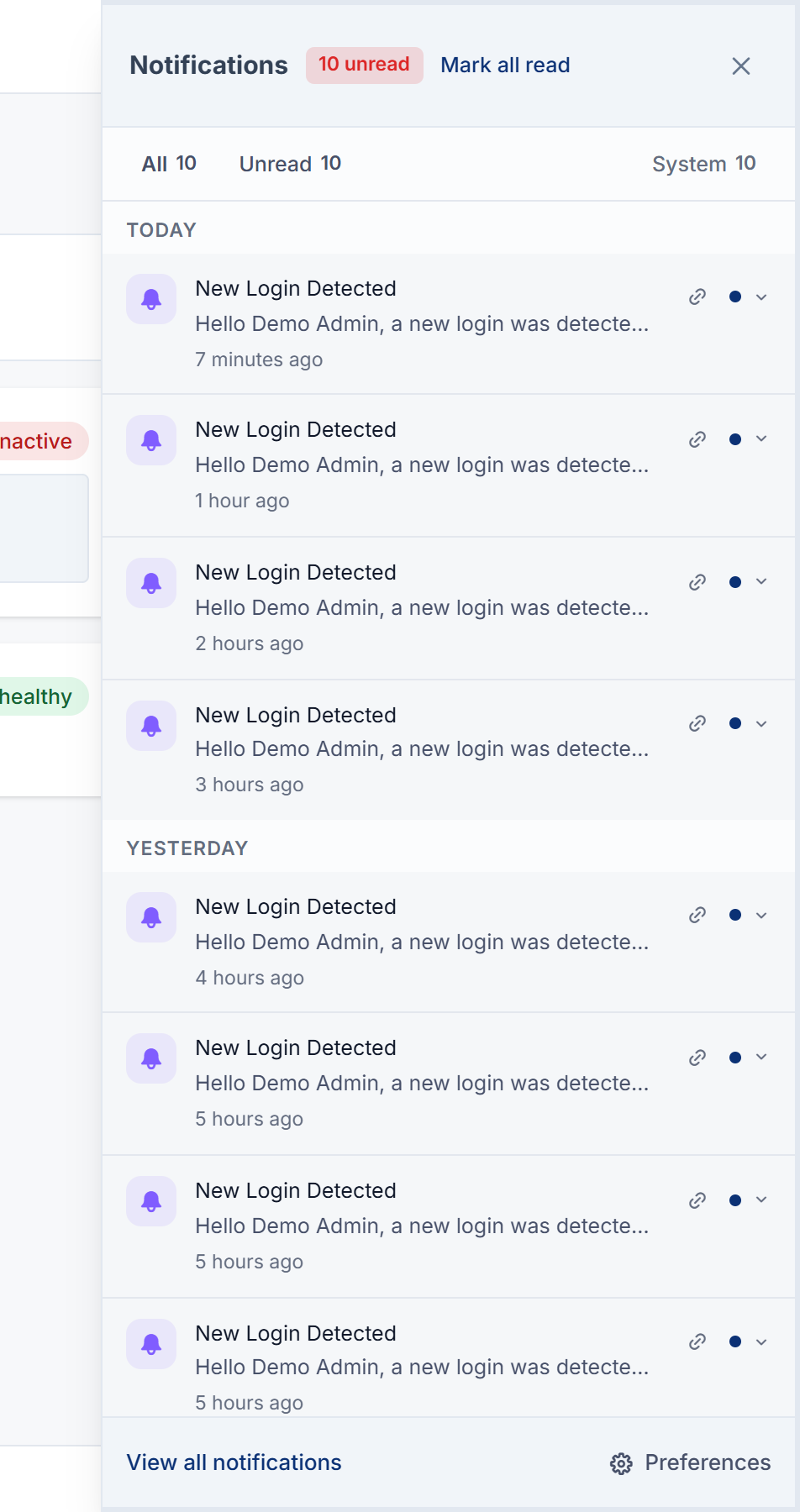
Open your full inbox
- In the Notifications panel, select View all notifications. The Profile hub opens on Notifications.
- Read the Overview: the Total, Unread and Read counts.
- To see one kind only, choose it in Filter by type.
- To narrow by date, pick a range in Date range, then select Apply.
- To remove your filters, select Clear filters.
Notifications are grouped under Today, Yesterday and Earlier.
Act on a notification
- To read a long or formatted message, select View. If the notification has a link, select Open link in the viewer.
- To delete an in-app notification, select Delete and confirm "Delete this notification?"
- To mark every unread notification as read, select Mark all read.
Reading, viewing or following a notification marks it as read.
Tip: Only System notifications can be marked read or deleted here. Email, SMS, WhatsApp and Push records are read-only, because you read those in their own channel.
What happens next
If you have a lot of notifications, the inbox may say "Showing the most recent notifications." Narrow Date range to reach older ones.
Thanks. That helps us decide what to write next.
Thanks for telling us what was missing.
You already answered for this article today. Thanks.
We got a lot of answers from your network just now. Try again in a few minutes.
We couldn't send that. Check your connection and try again.
Links in this article
Printed from help.laramin.in. The online article may have changed since.