Backup settings
Every field on the Storage Destinations and Automatic Schedules panels, from the database export mode and archive password to retention, destination details and schedules.
- Applies to
- Backup 1.1 and later
- Who can do this
- Platform owner
- Where
- Backups › Storage Destinations
On this page
Both panels open in the Settings hub, under the Backups group. To see them you need View Settings (feature.), and to change them Edit Settings (feature.). Select Save changes to save a panel.
Fields for passwords and secret keys are never shown again after you save them. Leave one empty to keep the saved value.
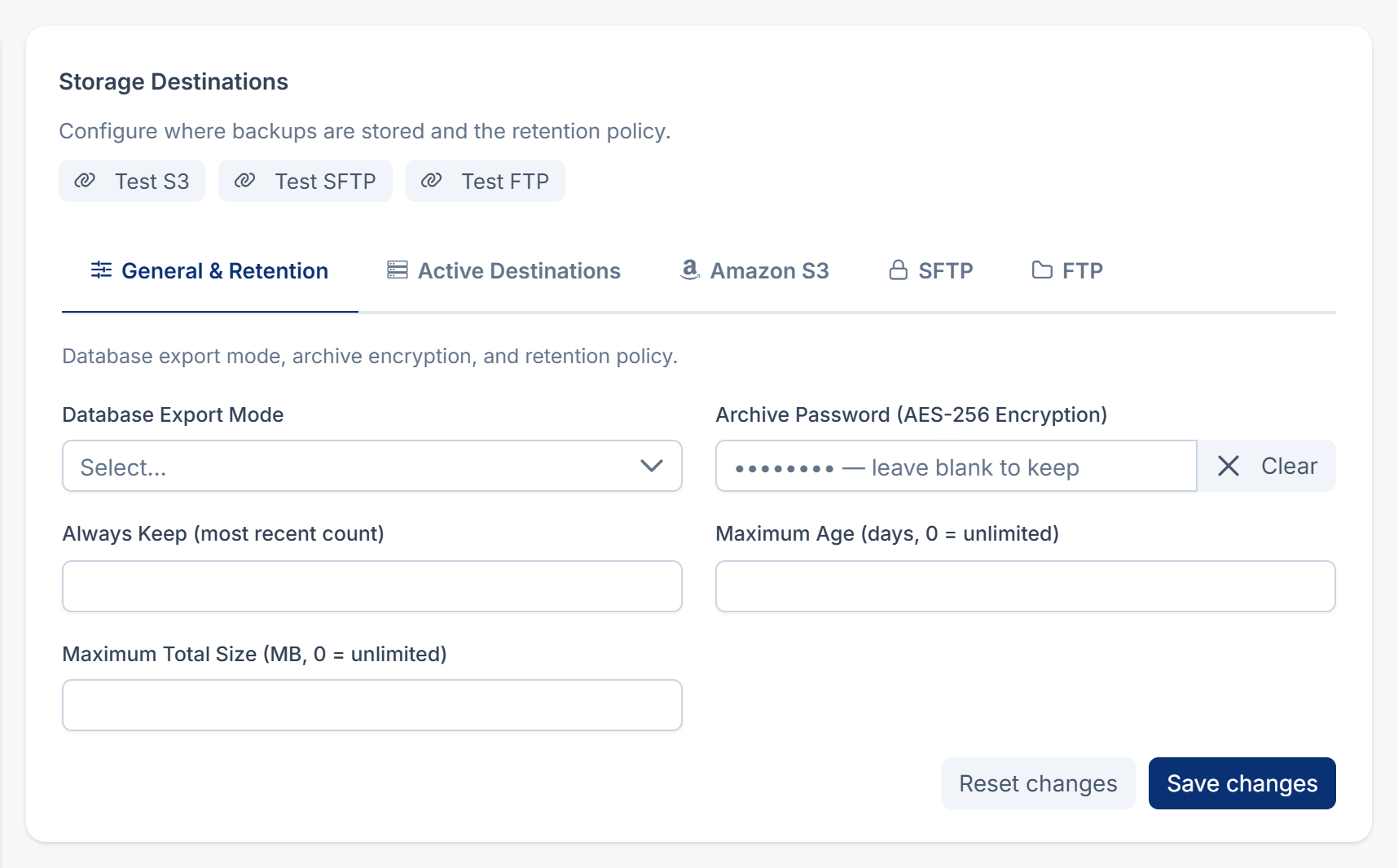
Storage Destinations: General & Retention
| Field | What it does | Default | Notes |
|---|---|---|---|
| Database Export Mode | How Laramin copies the database. PDO Fallback (Default — Highly Portable) works on any server. CLI Binaries (Requires mysqldump/mysql CLI) is faster, but needs those programs on the server. | PDO | Restores also use this mode. |
| Archive Password (AES-256 Encryption) | Encrypts each backup archive with this password. You need it to open a downloaded archive. | Empty (no encryption) | Keep the password somewhere safe outside Laramin. Incremental archives aren't encrypted. A restore opens an encrypted archive with the password saved here. If you change it, put the old one back before you restore an older archive. See Restore a backup. |
| Always Keep (most recent count) | The number of most recent backups the retention policy never deletes. | 7 | |
| Maximum Age (days, 0 = unlimited) | Backups older than this are deleted, unless they're among the most recent ones you always keep. | 30 | 0 keeps backups of any age. |
| Maximum Total Size (MB, 0 = unlimited) | When all Completed and Partial backups together are bigger than this, the oldest are deleted until they fit. | 5000 | 0 turns the size limit off. The most recent ones you always keep are never deleted to save space. |
The retention policy runs after each backup that ends Completed or Partial. It deletes the archive from every destination and removes it from the list. The most recent Full or Files backup is always kept, because incremental backups need it.
Storage Destinations: Active Destinations
| Field | What it does | Default |
|---|---|---|
| Active Storage Destinations | Where each backup is stored. Choose any of Local (Required), Amazon S3 / Wasabi / MinIO, SFTP and FTP. | Local (Required) |
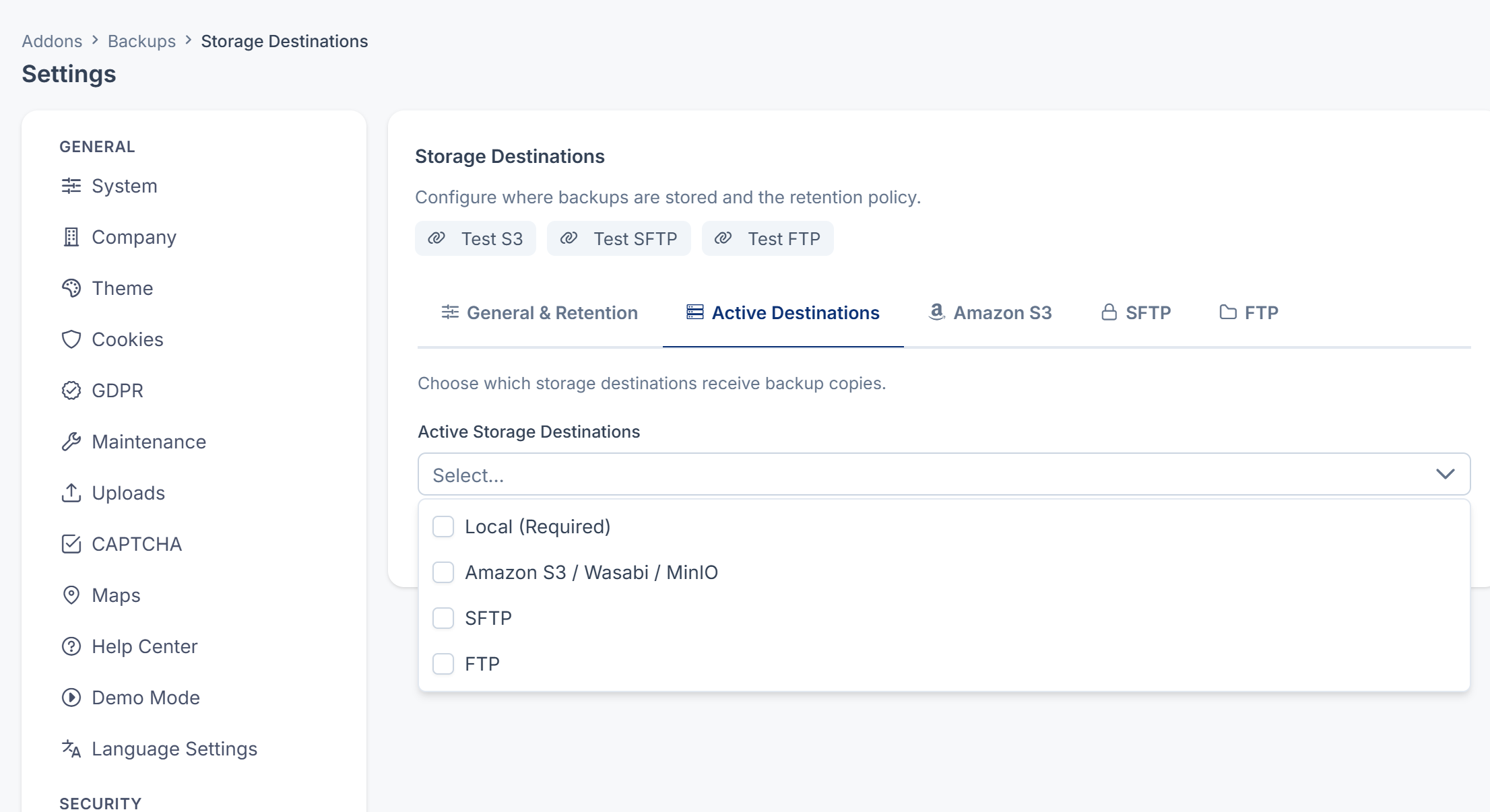
Laramin always keeps a copy on its own server, even if you remove Local (Required) from the list. Downloads and restores use that copy. A destination can only be added once its required details are saved.
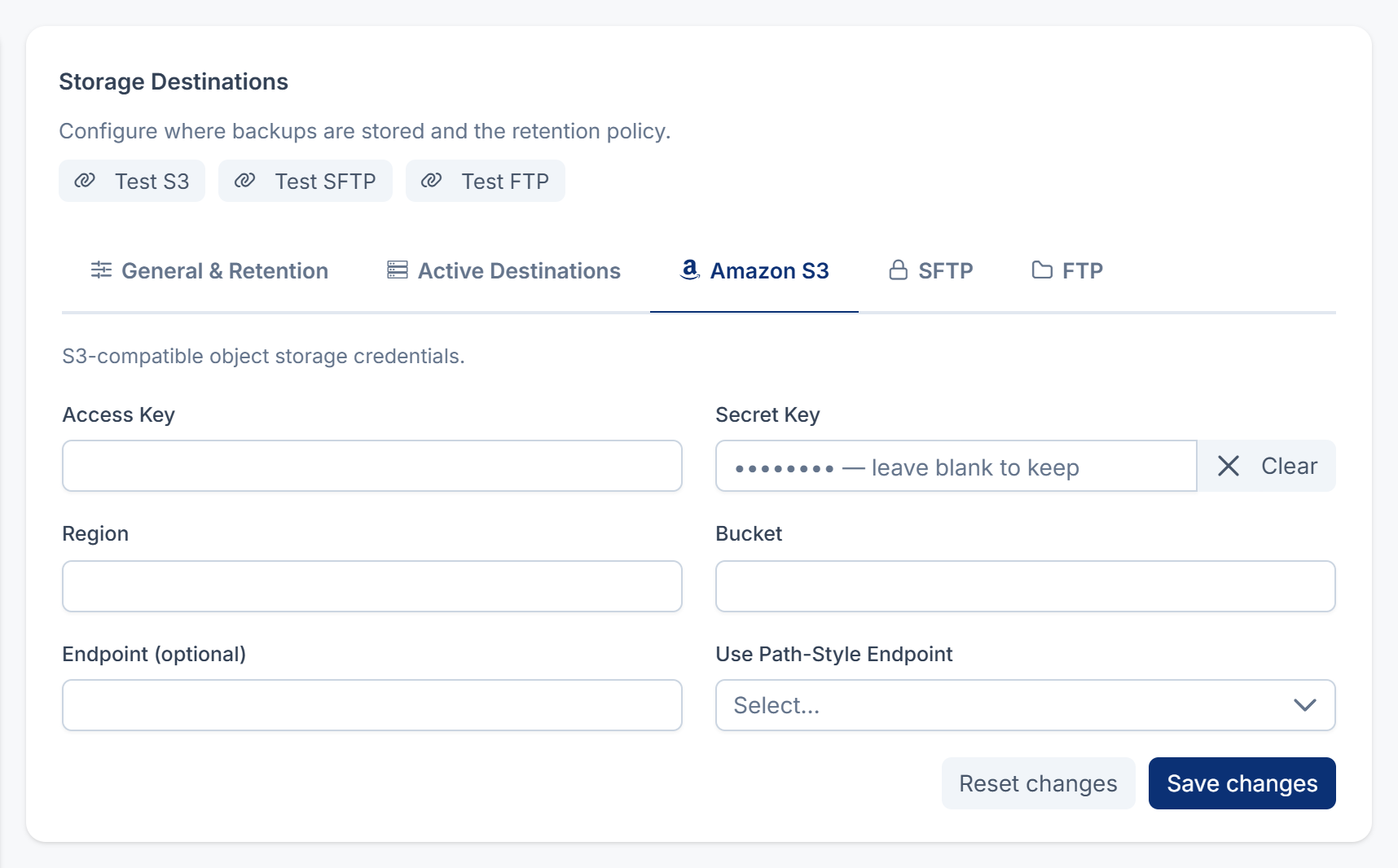
Storage Destinations: Amazon S3
| Field | What it does | Default |
|---|---|---|
| Access Key | The access key from your storage provider. Required. | |
| Secret Key | Its secret. Required. | |
| Region | The bucket's region, for example eu-west-1. | us-east-1 |
| Bucket | The bucket that receives the backups, for example example-backups. Required. | |
| Endpoint (optional) | The address of an S3-compatible service such as Wasabi or MinIO, for example https://s3.example.com. Leave it empty for Amazon S3. | |
| Use Path-Style Endpoint | Yes for providers that need path-style addresses, such as most MinIO servers. | No |
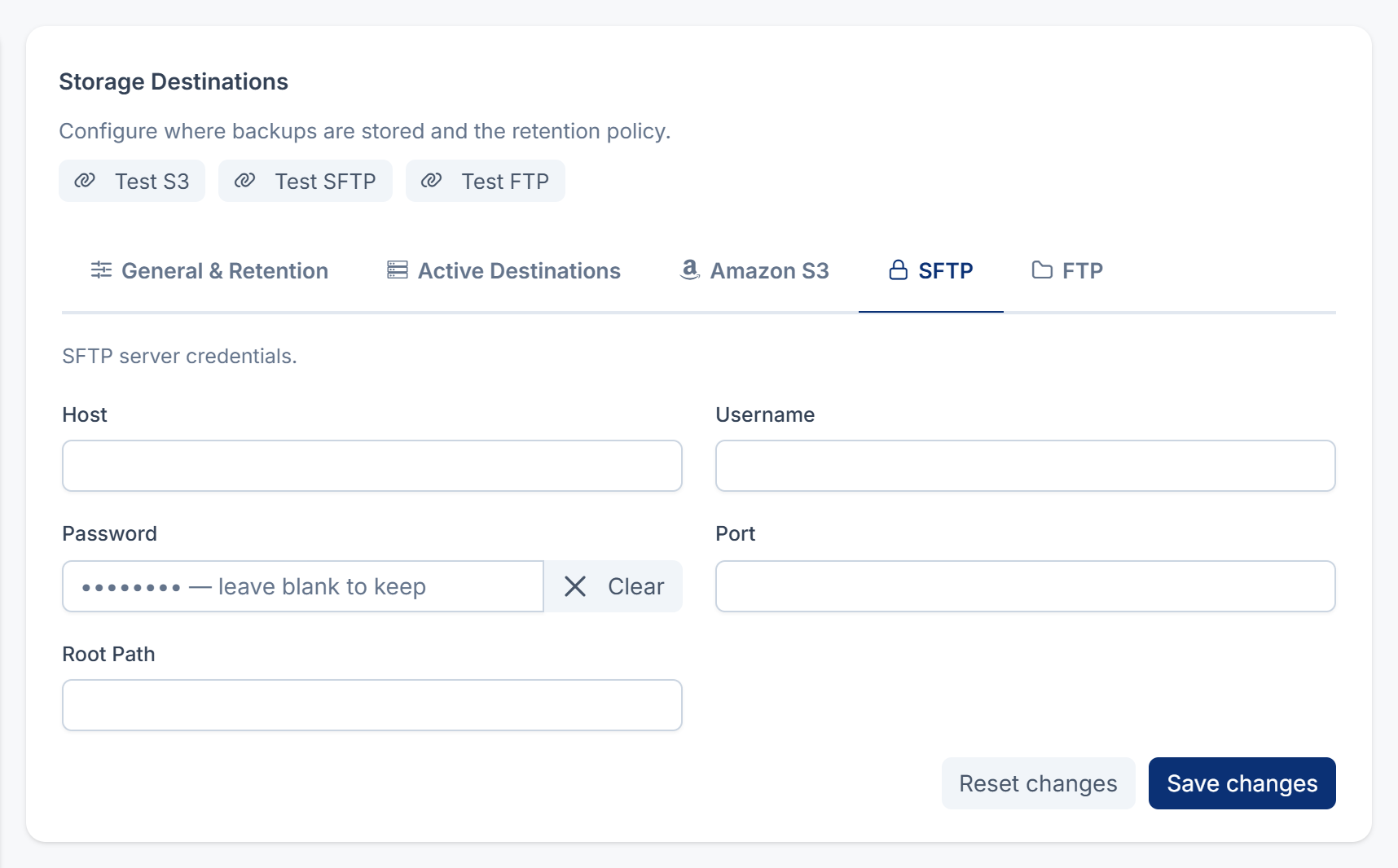
Storage Destinations: SFTP and FTP
The SFTP and FTP tabs have the same fields.
| Field | What it does | Default |
|---|---|---|
| Host | The server's name, for example backup.. Required. | |
| Username | The user to sign in as. Required. | |
| Password | That user's password. | |
| Port | The server's port. | 22 for SFTP, 21 for FTP |
| Root Path | The folder that receives the backups, for example /backups. | / |
FTP uses passive mode without encryption. Use SFTP when you can.
Test buttons
Test S3, Test SFTP and Test FTP sit above the tabs. Each writes a small file to that destination and deletes it again, using the details you last saved. You see Connection to S3 succeeded. (or SFTP, or FTP), Missing required credentials for S3. Save them first., or Connection failed: and the reason.
Automatic Schedules
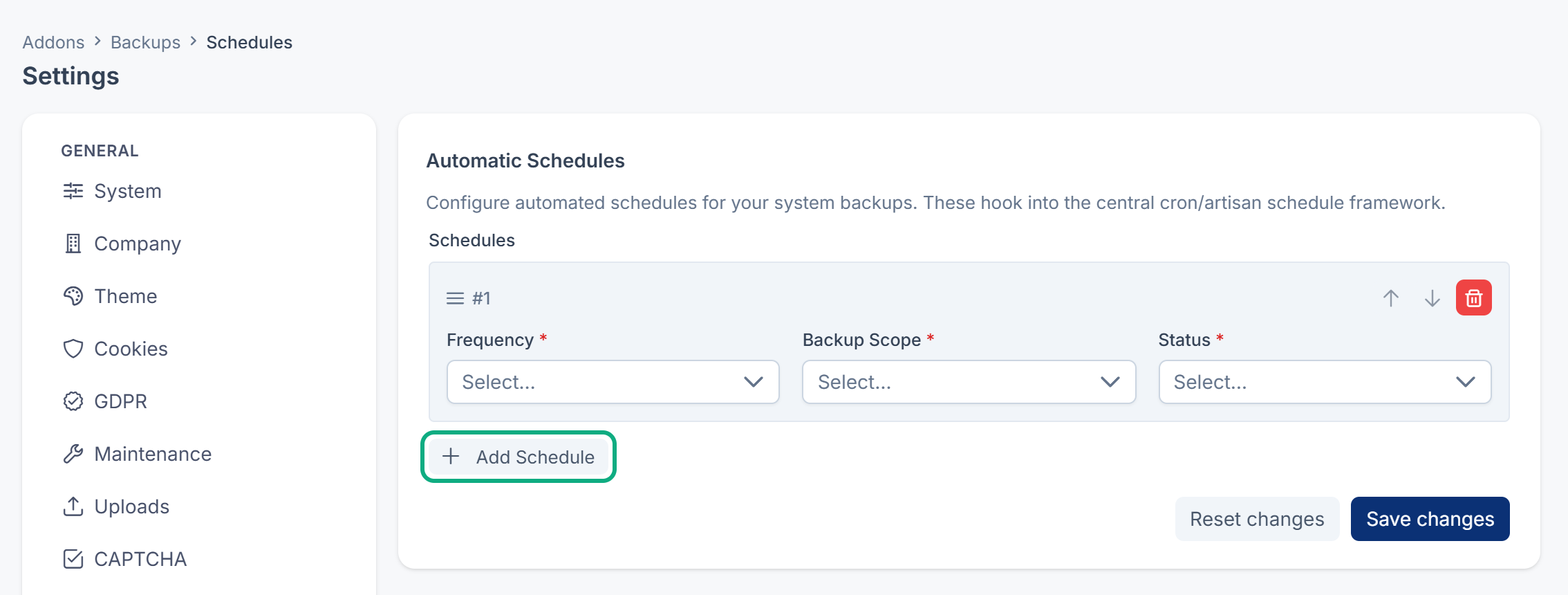
Open it from Backups › Schedules. Select Add Schedule to add a row. Each row has these fields:
| Field | Options | Notes |
|---|---|---|
| Frequency | Every Minute (Testing), Hourly, Daily, Weekly, Monthly | Daily, Weekly and Monthly run at midnight in your Laramin's time zone. Weekly runs on Sunday, Monthly on the first of the month. |
| Backup Scope | Full, Database, Files, Incremental | Every Active row runs, so a Daily and a Weekly row can have the same scope. Two rows with the same scope and the same frequency run once. |
| Status | Active, Disabled | Only Active rows run. |
Schedules need the server's scheduler cron job. See Schedule backups to cloud storage.
Permissions
| Permission | Allows |
|---|---|
feature. | Opening Backups History and Restore Logs. |
feature. | Downloading a backup and reading a restore's process log. |
feature. | Starting a backup by hand. |
feature. | Running a dry run or a restore. |
feature. | Deleting a backup and its archive files. |
feature. | Opening Storage Destinations and Automatic Schedules. |
feature. | Changing them and testing a destination. |
Thanks. That helps us decide what to write next.
Thanks for telling us what was missing.
You already answered for this article today. Thanks.
We got a lot of answers from your network just now. Try again in a few minutes.
We couldn't send that. Check your connection and try again.
Links in this article
Printed from help.laramin.in. The online article may have changed since.