How the settings hub works
Every installation setting lives in one Settings hub, split into panels. Learn how to move between panels, who can see or change each one, and how saving works.
- Applies to
- Core 12.0 and later
- Who can do this
- Administrator, Platform owner
On this page
In short
All of Laramin's installation settings open in one place, the Settings hub. It is split into panels such as System, Company and Theme. Each panel has its own pair of permissions, one to view it and one to change it. You save one panel at a time.
How it works
Getting to a panel
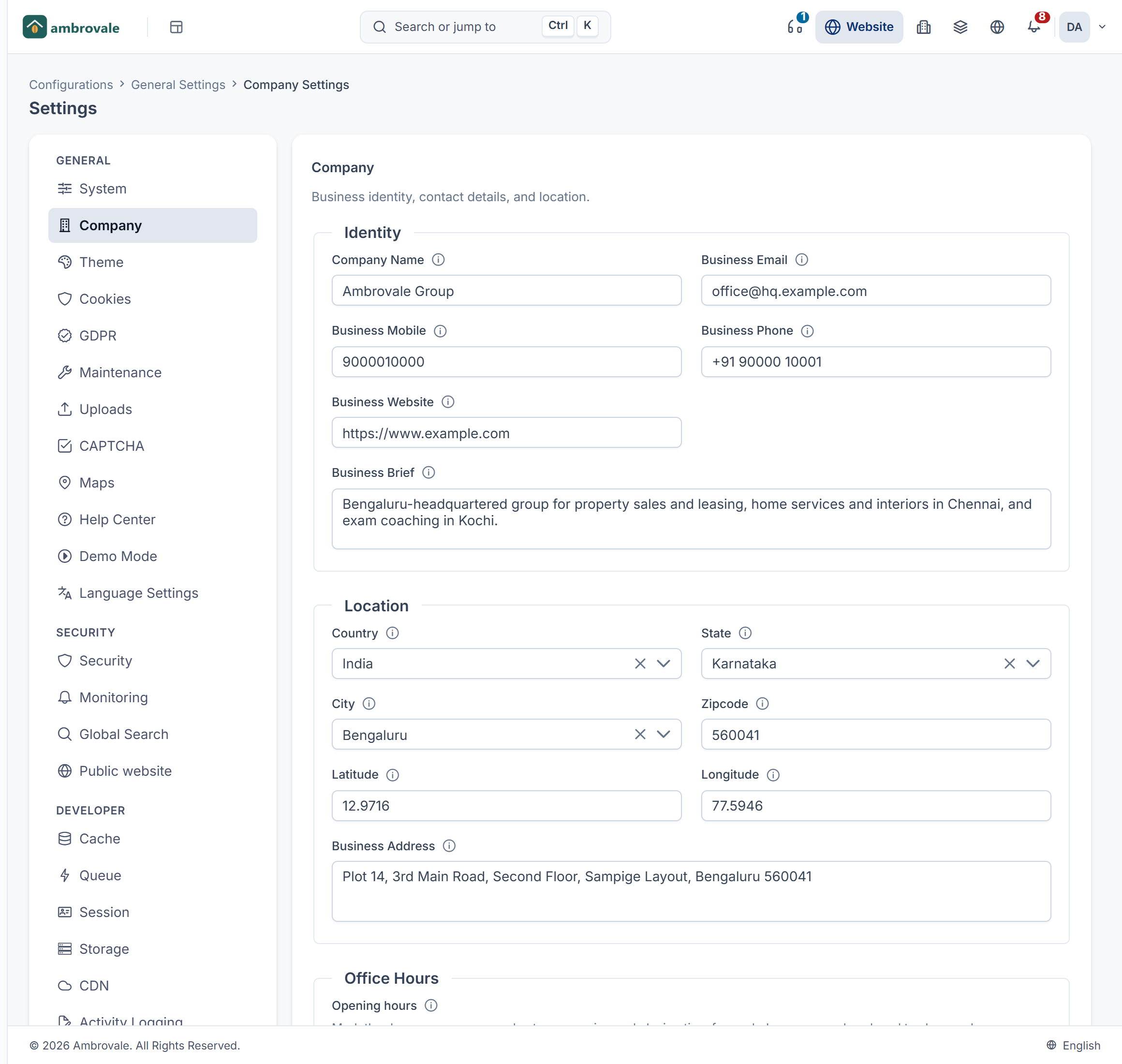
The sidebar entries under Configurations › General Settings, such as System Settings or Company Settings, all open the same hub, on the panel you chose. The panel's address is /admin/, for example /admin/, on an installation that keeps the standard /admin path.
Inside the hub, a list on the left shows every panel you may open, under group headings:
| Group | Panels covered in this category |
|---|---|
| General | System, Company, Theme, Cookies, Maintenance, Uploads, Maps, Help Center |
| Security | Public website |
The same list also holds panels covered elsewhere, such as CAPTCHA, GDPR, security and developer settings. If you can't open any panel, the hub says You do not have access to any settings.
Who can see and change a panel
Each panel has two permissions, in the pattern feature. and feature.. In the role editor they appear under General Settings or Security Settings as, for example, View System and Edit System.
| Panel | Permission name |
|---|---|
| System | feature. |
| Company | feature. |
| Theme | feature. |
| Cookies | feature. |
| Maintenance | feature. |
| Uploads | feature. |
| Maps | feature. |
| Public website | feature. |
| Help Center | feature.. Super admins only: it's left out of the Administrator role. See Connect your installation to the Help Center. |
With view but not edit, the panel opens with You have read-only access to this panel. and you can't save.
Saving
Change the fields you need, then select Save changes. You see Settings saved. To throw away what you've typed since you opened the panel, select Reset changes.
Each field has an info tooltip that explains it. If a value isn't accepted, the field says why and nothing on the panel is saved.
Some panels ask you to confirm before they save, or tell you afterwards what the save changed. A few also list what stopped a save, under This can't be done right now.
Secret values
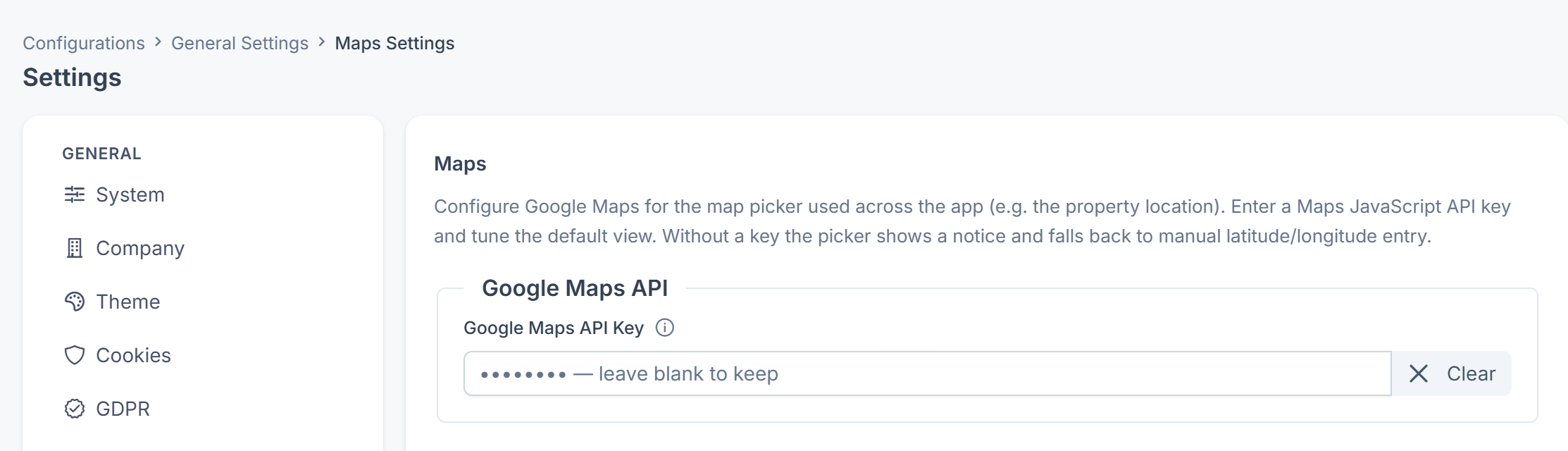
A field that holds a secret, such as the Google Maps API Key, never shows the stored value. It shows •••••••• — leave blank to keep. Leave it blank to keep the current value, type a new one to replace it, or select Clear to remove it when you save.
Settings a workspace can change for itself
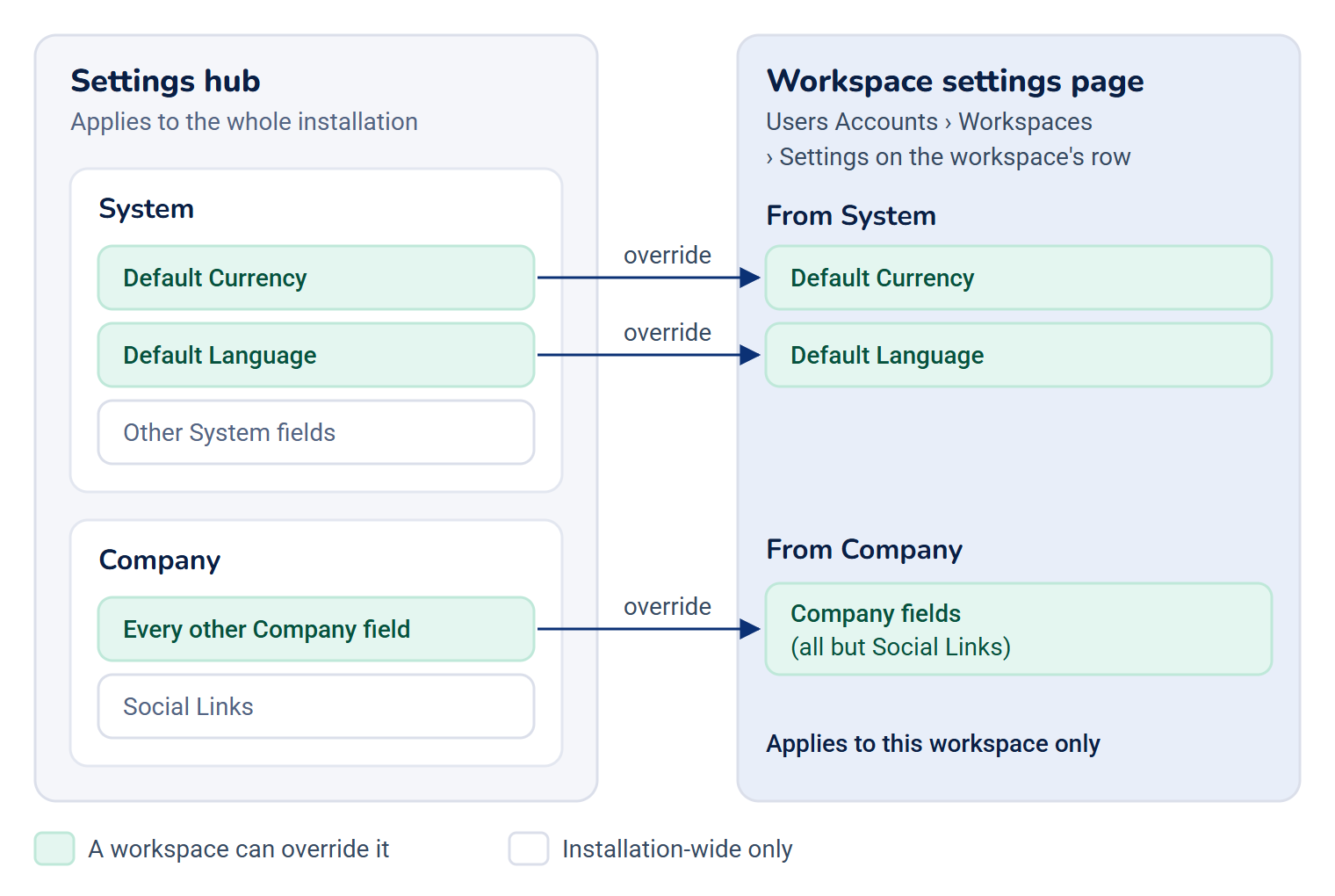
Most settings apply to the whole installation. A few belong to a business, so each workspace can override them:
- On Company: every field except Social Links.
- On System: Default Currency and Default Language.
A workspace's overrides are set on that workspace's own settings page, not in the hub. To reach it, open Users Accounts › Workspaces and select Settings on the workspace's row.
How it relates to
- What each field on System and Company does: System and company settings.
- File types and sizes people may upload: File upload settings.
- Permissions come from roles. A role is chosen when you create a user.
Next steps
Thanks. That helps us decide what to write next.
Thanks for telling us what was missing.
You already answered for this article today. Thanks.
We got a lot of answers from your network just now. Try again in a few minutes.
We couldn't send that. Check your connection and try again.
Links in this article
Printed from help.laramin.in. The online article may have changed since.