Set up Google Maps
Add a Google Maps API key so the map picker works on forms, then choose the map's type, starting position and behaviour.
- Applies to
- Core 12.0 and later
- Who can do this
- Administrator, Platform owner
- Permission
feature.core. maps.edit - Where
- Configurations › General Settings › Maps Settings
On this page
Before you start
- In the Google Cloud Console, create an API key with the Maps JavaScript API turned on, and billing set up. To let people find a place by its pincode, also turn on the Geocoding API.
- Restrict the key to your site's addresses (HTTP referrers) and to those APIs. The key is used in the visitor's browser, so anyone can see it. The restriction is what stops others from using it.
Without a key, the map picker on forms shows a notice and you type the latitude and longitude by hand.
Steps
- Open Configurations › General Settings › Maps Settings. The Maps panel opens.
- Under Google Maps API, paste your key in Google Maps API Key.
- Under Default View, choose a Map Type: Roadmap, Satellite, Hybrid or Terrain.
- Set Default Zoom, a whole number from 1 to 21.
- Set Default Centre Latitude (−90 to 90) and Default Centre Longitude (−180 to 180). The map opens here when a form has no location yet.
- In Region Bias, enter a 2-letter country code, for example
IN, to favour results from that country. Leave it blank for no bias. - Under Behaviour, choose whether to turn on:
- Locate by pincode: typing a pincode on a form moves the map to that area. It uses the Geocoding API.
- Draggable marker: people can drag the pin to fine-tune the exact spot.
- Select Save changes.
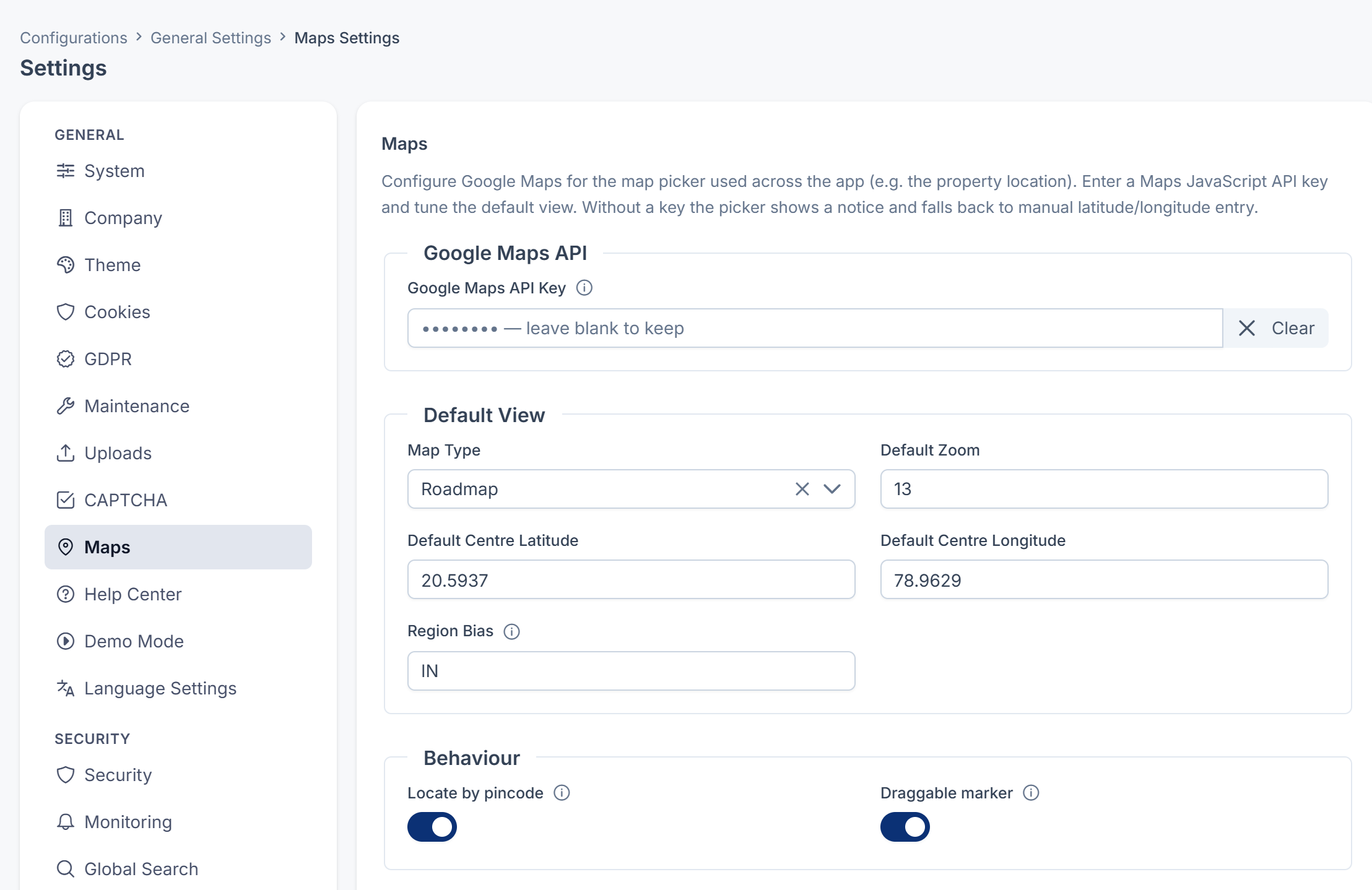
Defaults on a new installation
| Field | Default |
|---|---|
| Map Type | Roadmap |
| Default Zoom | 13 |
| Default Centre Latitude | 20.5937 |
| Default Centre Longitude | 78.9629 |
| Region Bias | IN |
| Locate by pincode | On |
| Draggable marker | On |
What happens next
Map pickers across the app, such as a property's location, show a Google map. The saved key isn't shown again on the panel. To keep it, leave the field blank when you save other changes. To replace it, type the new key. To remove it, select Clear.
Thanks. That helps us decide what to write next.
Thanks for telling us what was missing.
You already answered for this article today. Thanks.
We got a lot of answers from your network just now. Try again in a few minutes.
We couldn't send that. Check your connection and try again.
Links in this article
Printed from help.laramin.in. The online article may have changed since.