Cookies settings
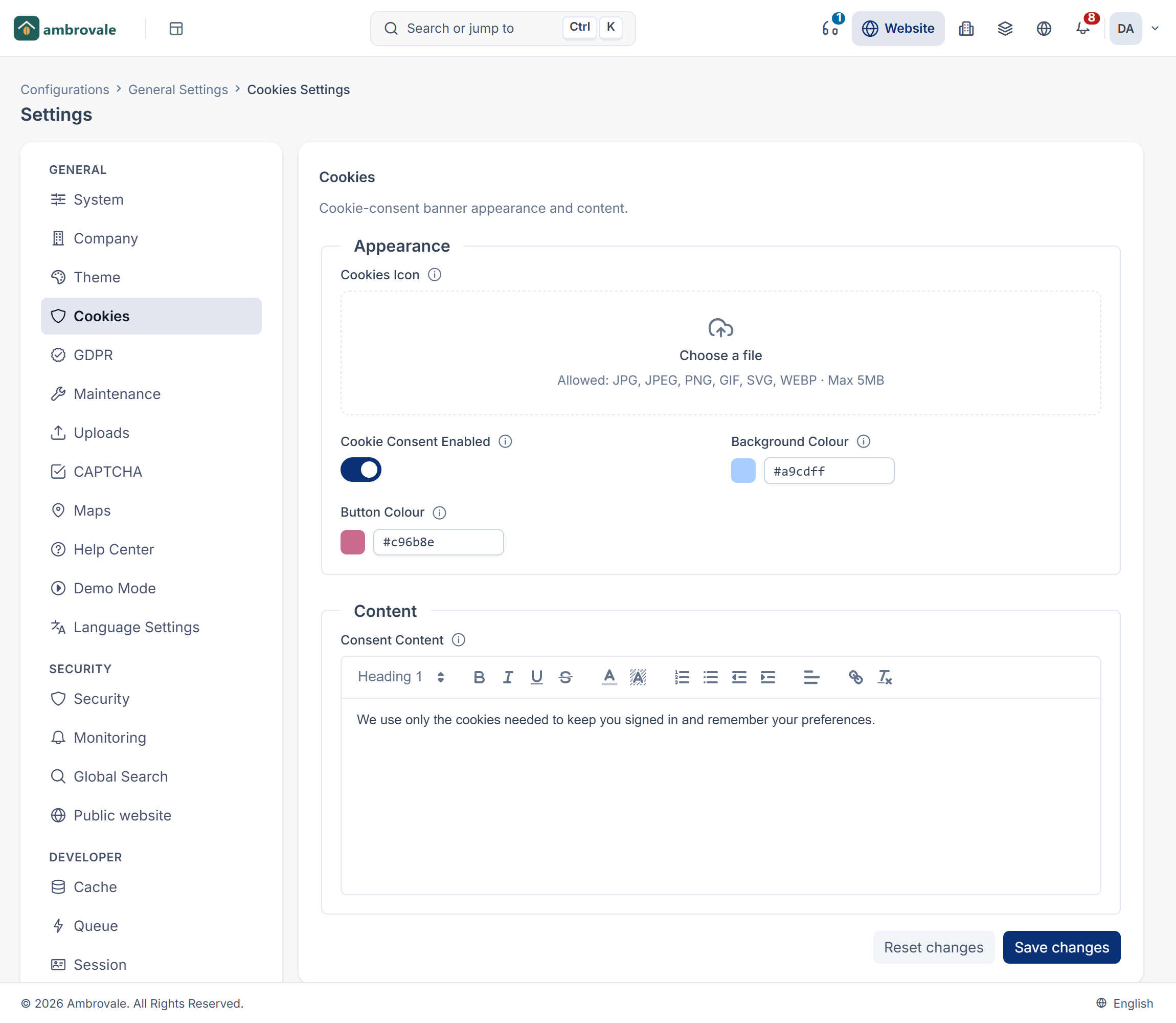
The fields on the Cookies panel, which describe a cookie-consent banner's look and message for a website or app that reads Laramin's public settings.
- Applies to
- Core 12.0 and later
- Who can do this
- Administrator, Platform owner
- Where
- Configurations › General Settings › Cookies Settings
You need feature. to change this panel.
Careful: These settings don't switch on the cookie banner inside Laramin's own admin. That banner is turned on with the cookie-consent setting on the GDPR & Privacy Settings panel. The Cookies panel's values are published through Laramin's public settings, for a website or app of your own that draws its own banner. Nothing in Laramin or its add-ons reads them.
| Section | Field | What it does | Default | Notes |
|---|---|---|---|---|
| Appearance | Cookies Icon | The icon shown on the banner. | — | An image. Follows the Images limits in File upload settings. |
| Cookie Consent Enabled | Turns the banner on or off. | Off | ||
| Background Colour | The banner's background colour. | #a9cdff | ||
| Button Colour | The colour of the banner's accept button. | #c96b8e | ||
| Content | Consent Content | The message visitors see in the banner. | — | Formatted text. Shown only while Cookie Consent Enabled is on. Unsafe HTML is removed when you save. |
Change the banner
- Open Configurations › General Settings › Cookies Settings.
- Turn on Cookie Consent Enabled. Consent Content appears.
- Write the message in Consent Content, and set the colours and icon.
- Select Save changes.
Thanks. That helps us decide what to write next.
Thanks for telling us what was missing.
You already answered for this article today. Thanks.
We got a lot of answers from your network just now. Try again in a few minutes.
We couldn't send that. Check your connection and try again.
Links in this article
Printed from help.laramin.in. The online article may have changed since.