System and company settings
Every field on the System and Company panels, what it changes, its default on a new installation, and its limits.
- Applies to
- Core 12.0 and later
- Who can do this
- Administrator, Platform owner
- Where
- Configurations › General Settings › System Settings / Company Settings
On this page
To change these panels you need feature. or feature.. See How the settings hub works.
System
The System panel holds the installation's identity, its regional defaults and how money is written.
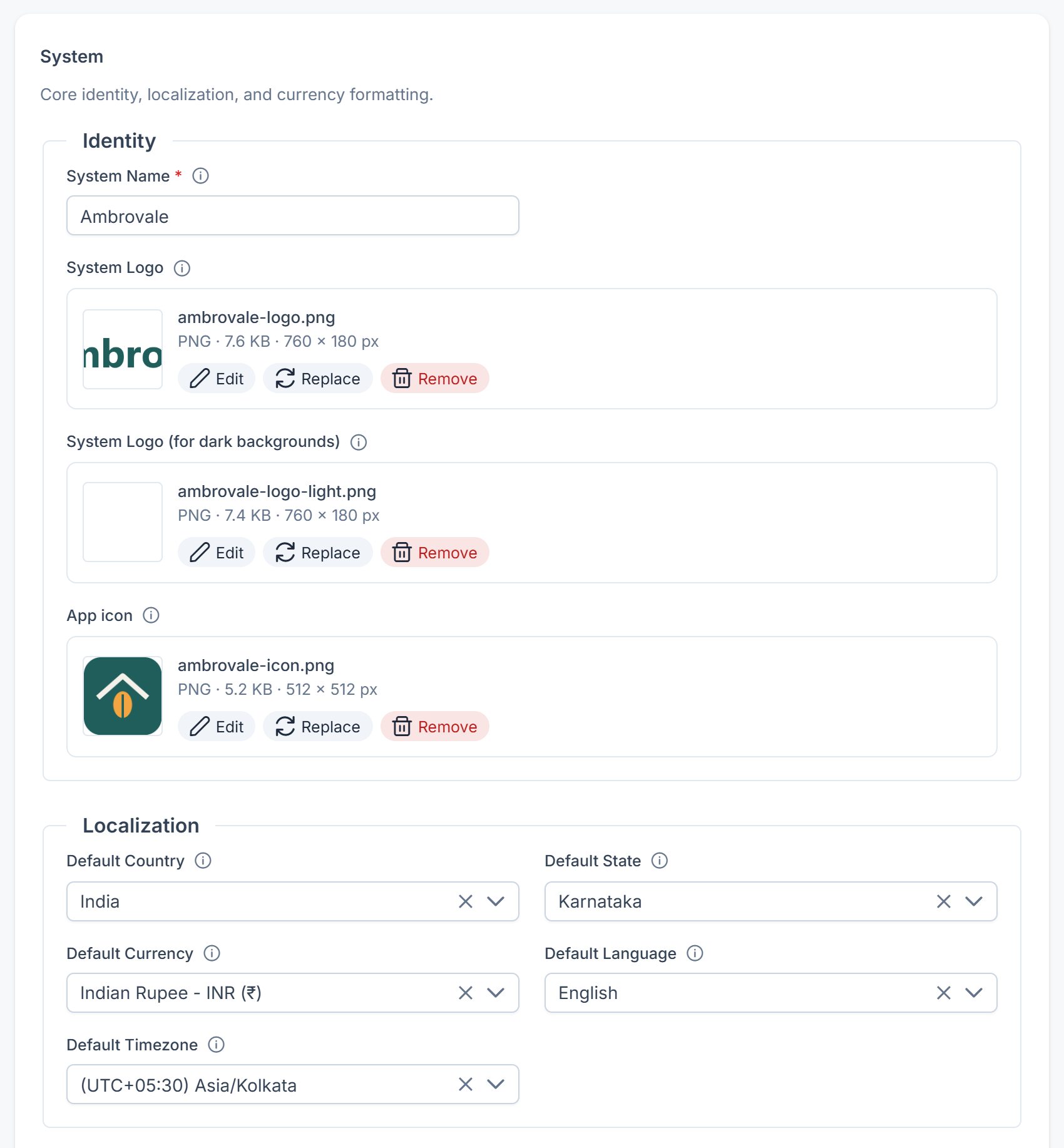
Identity
| Field | What it does | Default | Notes |
|---|---|---|---|
| System Name | The application name in the browser title, emails and the admin header. | Laramin Starter Kit | Required. 5 to 255 characters. |
| System Logo | The main logo, used on light backgrounds such as the sign-in screen and the sidebar. | — | Follows the Images limits in File upload settings. |
| System Logo (for dark backgrounds) | The alternate logo for dark backgrounds. | — | As above. |
| App icon | The icon browser tabs and phone home screens show. | A monogram of the system name | A square PNG or WebP, from 512 × 512 up to 4096 × 4096 pixels, and up to 2 MB. You crop it to a square when you upload it. New in 12.2. |
Localization
| Field | What it does | Default | Notes |
|---|---|---|---|
| Default Country | The country preselected in address forms and pickers. | India | Lists only countries with Status set to Active. |
| Default State | The state or region preselected for that country. | Tamil Nadu | Lists the states of the chosen Default Country. |
| Default Currency | The base currency for prices and reports. | INR | Lists only active currencies. A workspace can override it. |
| Default Language | The language of the sign-in screen until a visitor chooses one there. It doesn't set anyone's own language: new accounts start in English (unless the mobile app sends a language at sign-up), and each person picks theirs in the header or their profile. | English (en) | Lists the active languages. A workspace can override it. |
| Default Timezone | The time zone used to show and store dates and times. | Asia/Kolkata | A workspace's own time zone is set on the workspace. |
Currencies and countries are managed in Master Settings. See Manage currencies and locations.
Date & Time Formats
| Field | What it does | Default |
|---|---|---|
| Default Date Format | How calendar dates are shown across the app. | jS M, Y, for example 5th Nov, 2026 |
| Default Time Format | How times of day are shown. | g:i A, for example 3:45 PM |
| Default Date & Time Format | How a date and time together are shown. | F j, Y, g:i A, for example November 5, 2026, 3:45 PM |
You choose each format from a list of presets.
Currency Formatter
| Field | What it does | Default | Notes |
|---|---|---|---|
| Currency Display | Show amounts with the currency's Symbol ($) or its Code (USD). | Symbol | Required. |
| Currency Placement | Where the symbol sits: Left, Right, Left (with space) or Right (with space). | Left (with space) | Required. |
| Number Grouping Format | Indian — 1,50,00,000.00 or International — 15,000,000.00. | Indian | Required. Changes presentation only. |
| Thousand Separator | The character between groups of digits, such as the comma in 1,000. | , | Required. Up to 5 characters. |
| Decimal Separator | The character before the decimals, such as the dot in 1.50. | . | Required. Up to 5 characters. |
| Decimal Places | How many decimals monetary amounts show. | 2 | Required. 0 to 6. |
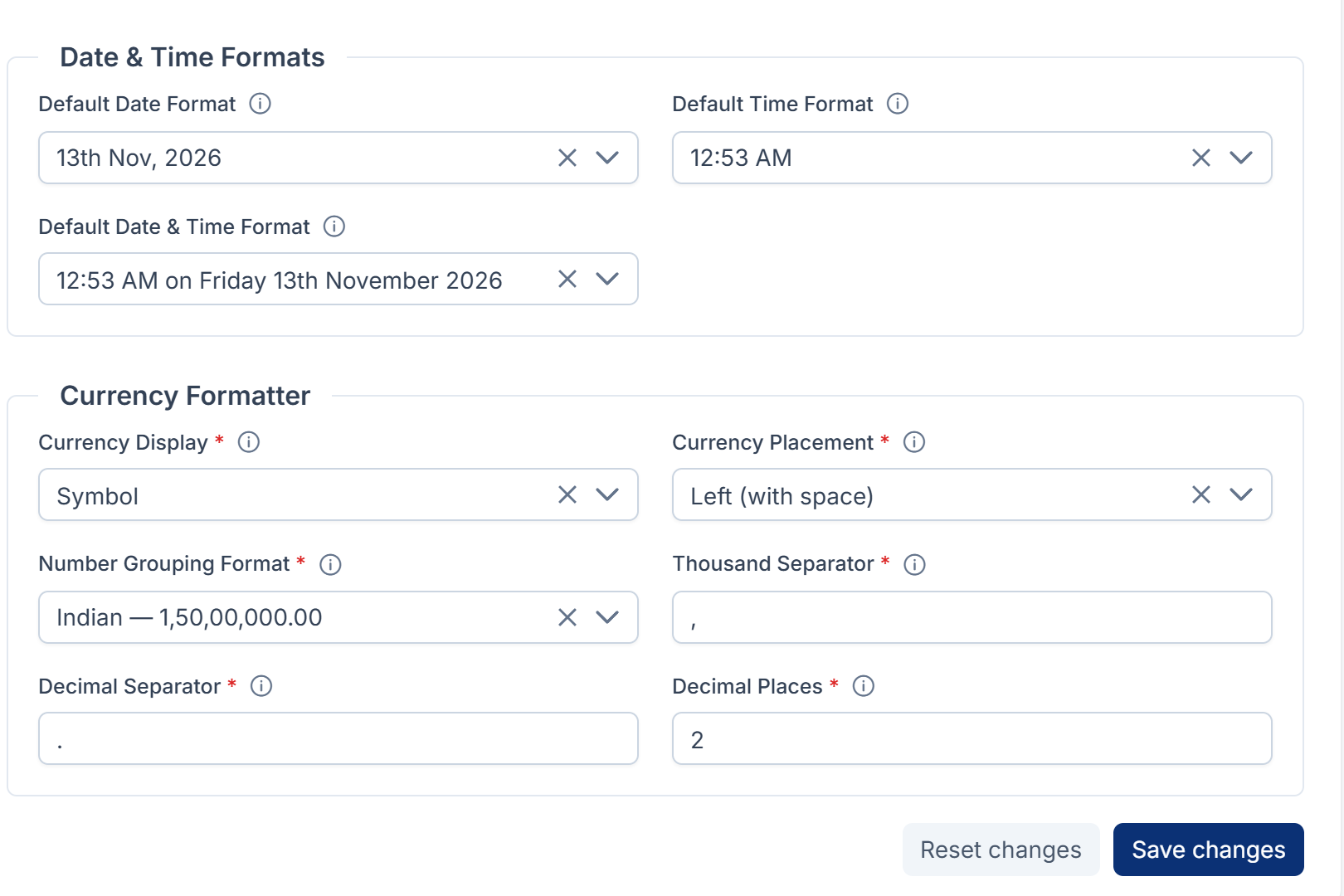
When you save, Laramin also stores the symbol of the chosen Default Currency, so you don't set it separately.
Company
The Company panel holds your business's details. Every field except Social Links can be overridden by a workspace, so each branch can show its own name, address and hours.
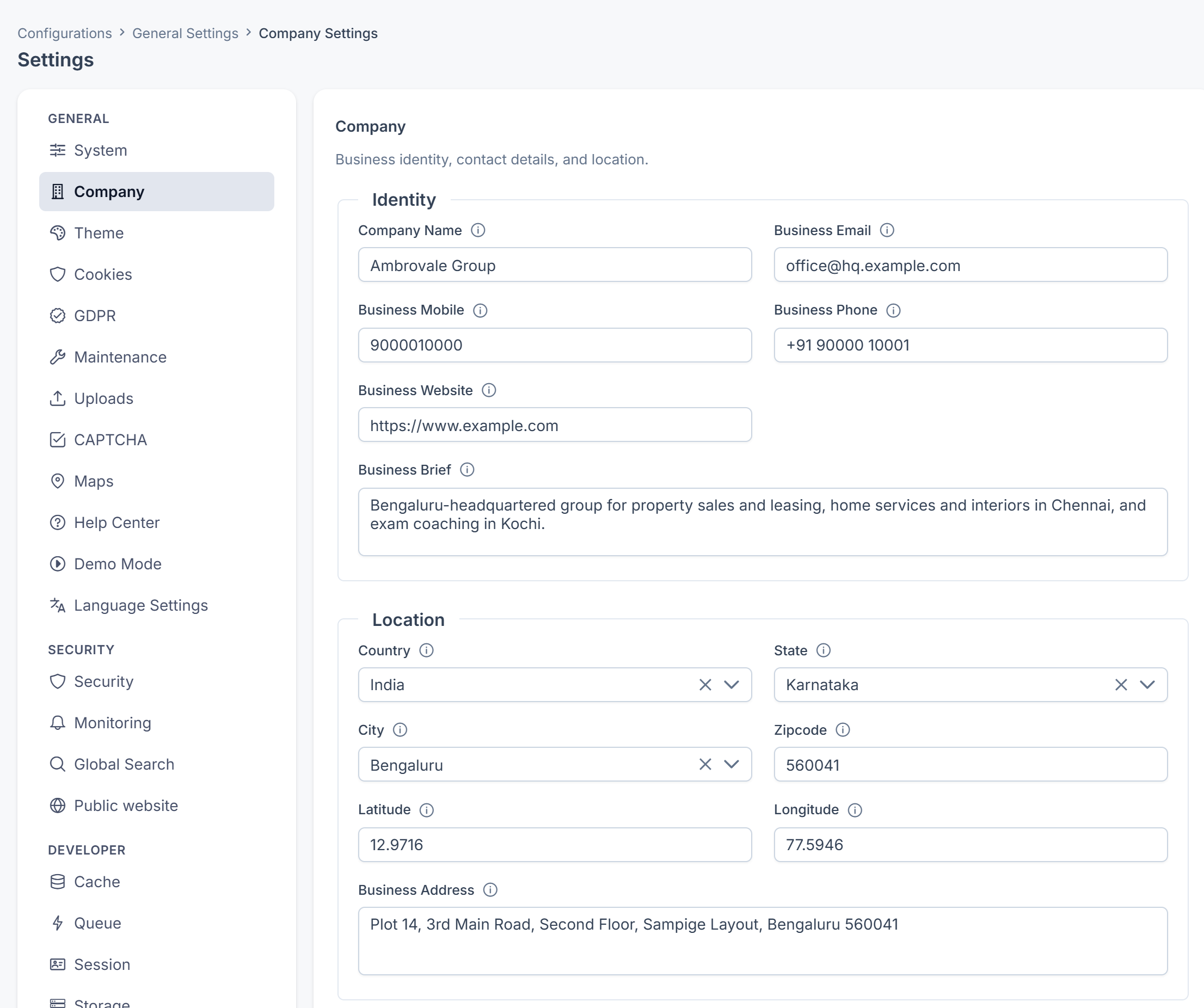
Identity
| Field | What it does | Notes |
|---|---|---|
| Company Name | Your registered or trading name. | Up to 255 characters. |
| Business Email | The main contact email shown to customers. | Must be a valid email address. |
| Business Mobile | A mobile number, including the country code. | Up to 255 characters. |
| Business Phone | A landline or office number. | Up to 255 characters. |
| Business Website | Your public website address. | Up to 255 characters. |
| Business Brief | A short description, used in profiles and metadata. | Up to 1,000 characters. |
Location
| Field | What it does | Notes |
|---|---|---|
| Country | Where the business is based. | Active countries only. |
| State | The state or region within that country. | Filled from the chosen Country. |
| City | The city within that state. | Filled from the chosen State. |
| Zipcode | The postal or ZIP code. | Up to 20 characters. |
| Latitude | The map latitude, in decimal degrees. | Up to 30 characters. |
| Longitude | The map longitude, in decimal degrees. | Up to 30 characters. |
| Business Address | The full street address. | Up to 1,000 characters. |
Office Hours
| Field | What it does | Notes |
|---|---|---|
| Opening hours | Mark each day Open or Closed, and set one Opens and Closes time for each open day. | Copy Monday to Tuesday – Friday fills the weekdays in one step. The closing time must be after the opening time. Leave every day closed to show no hours anywhere. |
| Hours note | A line shown beside the hours, for example "Saturday mornings by appointment". | Up to 255 characters. |
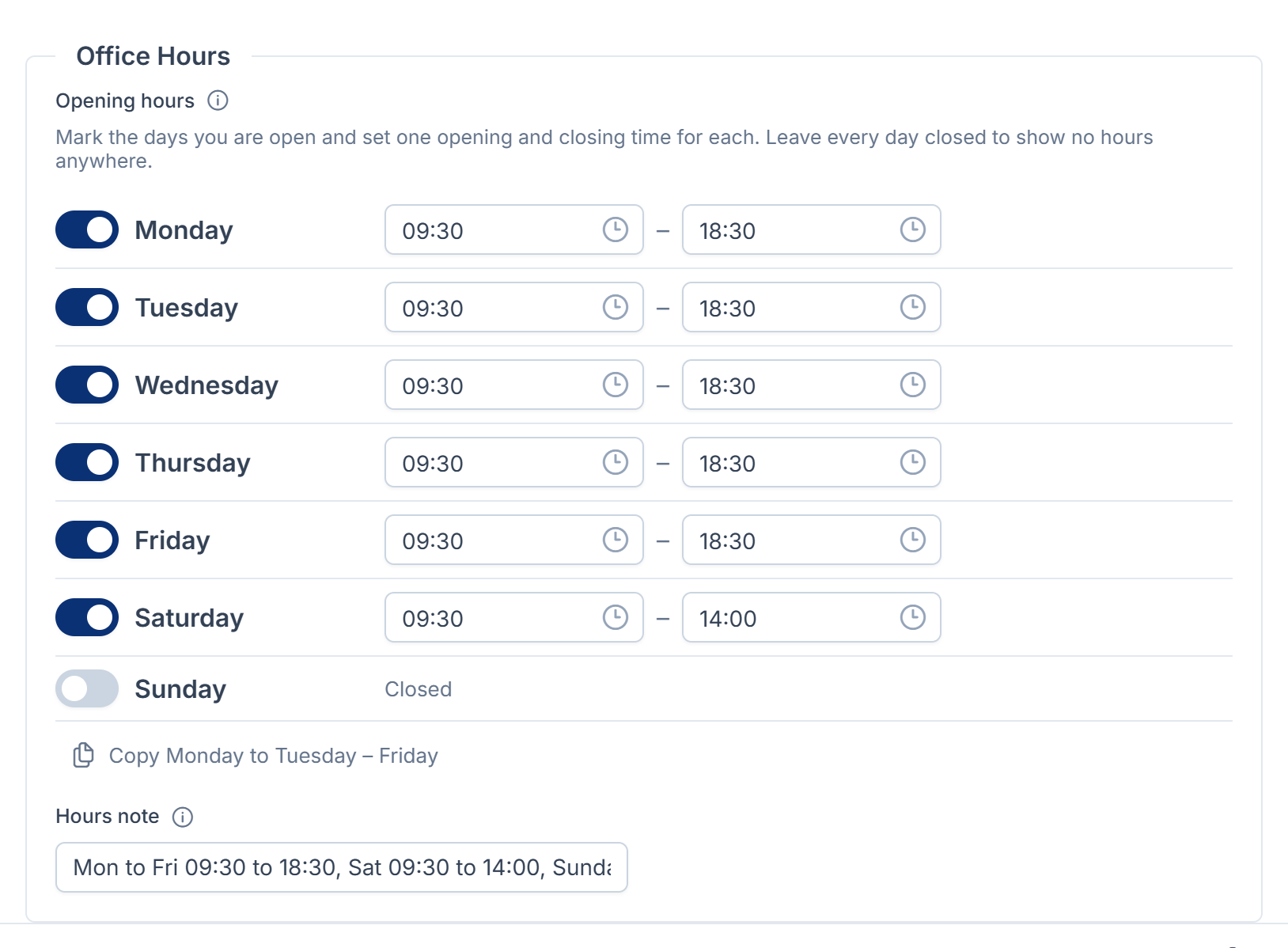
A workspace that overrides the hours replaces the whole week. It can't change only one day.
Social Links
| Field | What it does | Notes |
|---|---|---|
| Social Links | Your social media links. Select Add Social Link, choose a Platform and enter its Link URL. | Up to 20 links. Each platform can be used once. The URL must be a valid web address. You can drag links to reorder them. |

The platforms are Facebook, X (Twitter), Instagram, LinkedIn, YouTube, TikTok, Pinterest, WhatsApp, Telegram, GitHub and Website.
Thanks. That helps us decide what to write next.
Thanks for telling us what was missing.
You already answered for this article today. Thanks.
We got a lot of answers from your network just now. Try again in a few minutes.
We couldn't send that. Check your connection and try again.
Links in this article
Printed from help.laramin.in. The online article may have changed since.