Turn on maintenance mode
Show visitors a maintenance page while you work on Laramin, now or in a scheduled window, and choose which IP addresses can still get in.
- Applies to
- Core 12.7 and later
- Who can do this
- Administrator, Platform owner
- Permission
feature.core. maintenance_ mode.edit - Where
- Configurations › General Settings › Maintenance Mode
On this page
Before you start
Maintenance mode closes every page of Laramin, not just the public website. That includes the admin and its REST API. While it is on, only these get through:
- super admins. The sign-in page stays open, so a super admin can sign in at any time.
- anyone whose IP address is in Bypass IPs
- if Bypass IPs is empty, the server itself (127.0.0.1 or ::1)
Everyone else, administrators included, sees the maintenance page. They can still sign in, but they see the maintenance page instead of the admin until it ends.
The mobile app is closed to super admins too: it gets the maintenance answer unless the phone's address is in Bypass IPs. See The app shows a maintenance screen.
Payment providers and other services that send Laramin webhooks aren't affected, so payments made during maintenance are still recorded.
Tip: If nobody can sign in to switch it off, someone with access to the server can run php artisan app:maintenance off. It also clears a scheduled window. php artisan app:maintenance on turns it on.
Steps
- Open Configurations › General Settings › Maintenance Mode. The Maintenance panel opens.
- Optional: under Schedule & Access, enter in Bypass IPs the addresses that should still get in, for example your office's. Each one can be an IP address or a CIDR range such as
203.0.113.0/24. Separate them with commas or new lines. - Under Maintenance Page, add a Maintenance Image and a Maintenance Title if you want them.
- Write the message visitors will see in Maintenance Content.
- Turn on Maintenance Mode.
- Select Save changes.
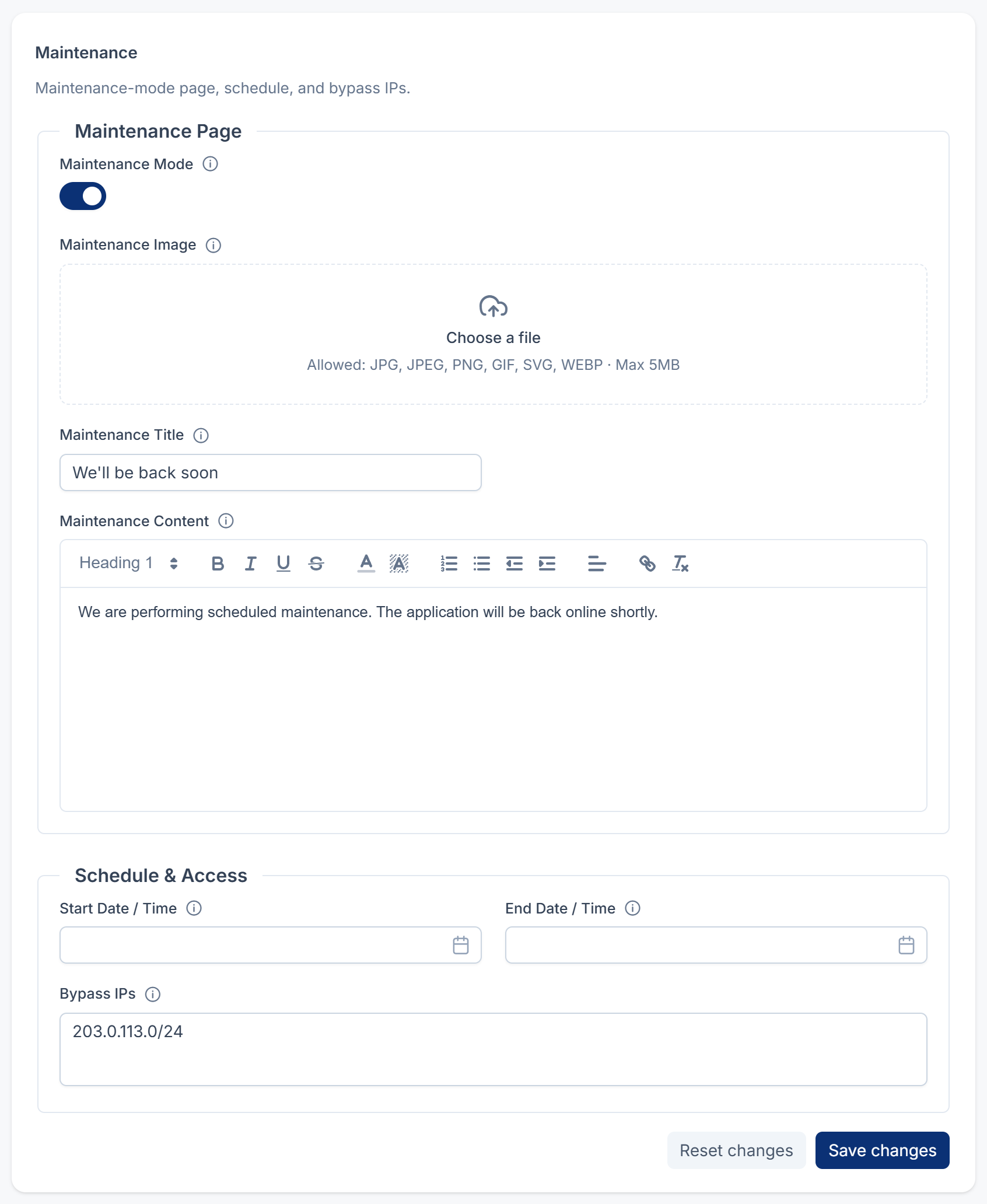
Tip: You can prepare the image, title and message with Maintenance Mode off and save them. They're used the next time maintenance starts.
Schedule a maintenance window instead
-
Leave Maintenance Mode off.
-
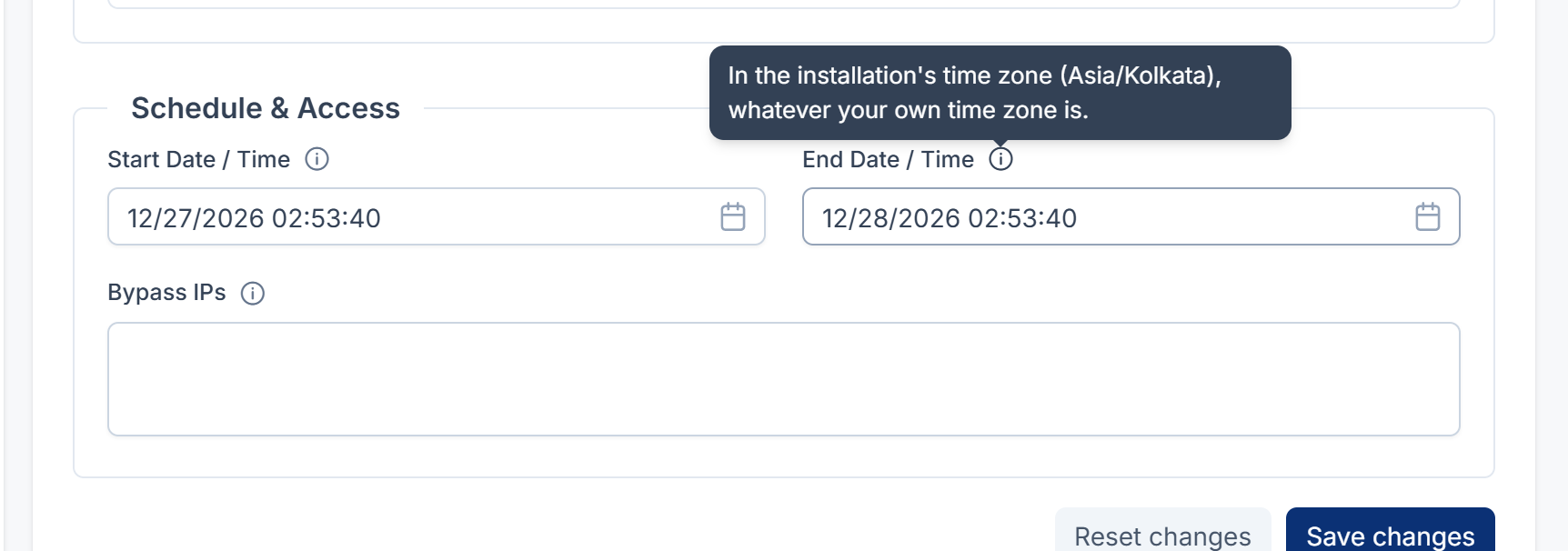
Set both Start Date / Time and End Date / Time. The end can't be before the start.
-
Select Save changes.
Laramin closes between those two times and opens again by itself afterwards. You need both times: a start time on its own does nothing.
The times are read in the installation's time zone, the Default Timezone on the System panel, whatever time zone you're in yourself. The tooltip on each field names it. See System and company settings.
What happens next
Visitors see the maintenance page, with your image, title and message, and the system name in the browser tab. The page tells search engines not to index it.
Apps and other programs that call the API get a 503 response with the code MAINTENANCE, so a mobile app can show its own maintenance screen. The answer says when maintenance ends, if you set an end time, and asks them to try again then. Without an end time, it asks them to try again in an hour.
To end maintenance early, turn Maintenance Mode off. If a scheduled window is still running, clear its start and end times too. Then select Save changes. Or run php artisan app:maintenance off on the server, which does both.
Thanks. That helps us decide what to write next.
Thanks for telling us what was missing.
You already answered for this article today. Thanks.
We got a lot of answers from your network just now. Try again in a few minutes.
We couldn't send that. Check your connection and try again.
Links in this article
Printed from help.laramin.in. The online article may have changed since.