The app shows a maintenance screen
The mobile app shows its maintenance screen, or "We are temporarily offline for updates", when you didn't expect it. Three different switches can cause it; find the one that's on.
- Applies to
- Core Mobile 2.0 and later
- Who can do this
- Platform owner, Administrator
- Permission
feature.cm. maintenance.edit - Where
- Core Mobile › Dashboard (Platform Administration)
On this page
Symptom
The app shows its maintenance screen, with your Maintenance Message or with We are temporarily offline for updates. We'll be back online shortly. Thank you for your patience., although you didn't plan maintenance, or it should have ended.
Three switches in two places can cause it. Only the first one actually closes your Laramin to the app. The other two only tell the app, and the app decides what to show.
Check these, in order
1. Your Laramin's own maintenance mode is on
If the app shows We are temporarily offline for updates., your Laramin itself is in maintenance. It closes the whole API, so nobody can use the app, super admins included: on the web a super admin still gets in, but not in the app. Only a phone whose network address is in Bypass IPs gets through.
Open Configurations › General Settings › Maintenance Mode and check both:
- Maintenance Mode is on.
- A Start Date / Time and End Date / Time window is set and running now. The window works by itself, so a forgotten window still closes the app.
Fix: Turn Maintenance Mode off, clear the window's times, and select Save changes. If nobody can sign in to do that, someone with access to the server runs:
Couldn't copy. Select the code and press Ctrl+C (⌘+C on a Mac).
php artisan app:maintenance offIt also clears the window. See Turn on maintenance mode. If the website or the admin also shows the maintenance page when it shouldn't, see The maintenance page shows when it shouldn't.
Careful: Testing from the server itself? While Bypass IPs is empty, requests from the server (127.0.0.1) always get through, so a check made there can look fine while every phone is shut out.
2. Maintenance Mode is on in Core Mobile's App Settings
In Core Mobile › Dashboard, select Configure on App Settings. Maintenance Mode there only tells the app it's under maintenance. Your Laramin still answers it.
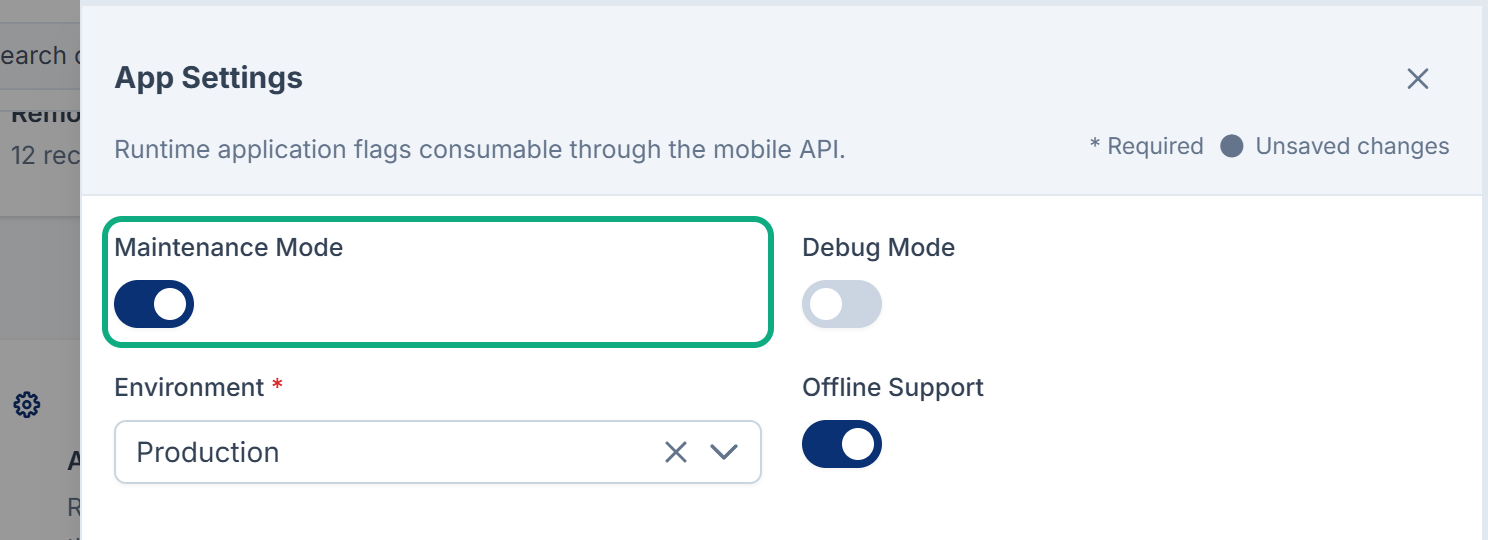
Fix: Turn Maintenance Mode off and select Save changes.
3. A maintenance window is still set in Maintenance Management
In Core Mobile › Dashboard, select Configure on Maintenance Management. While Maintenance Scope is Global, Android Only or iOS Only, the app receives the window and the Maintenance Message, even after End Time has passed. Whether it still shows its maintenance screen then is up to the app.
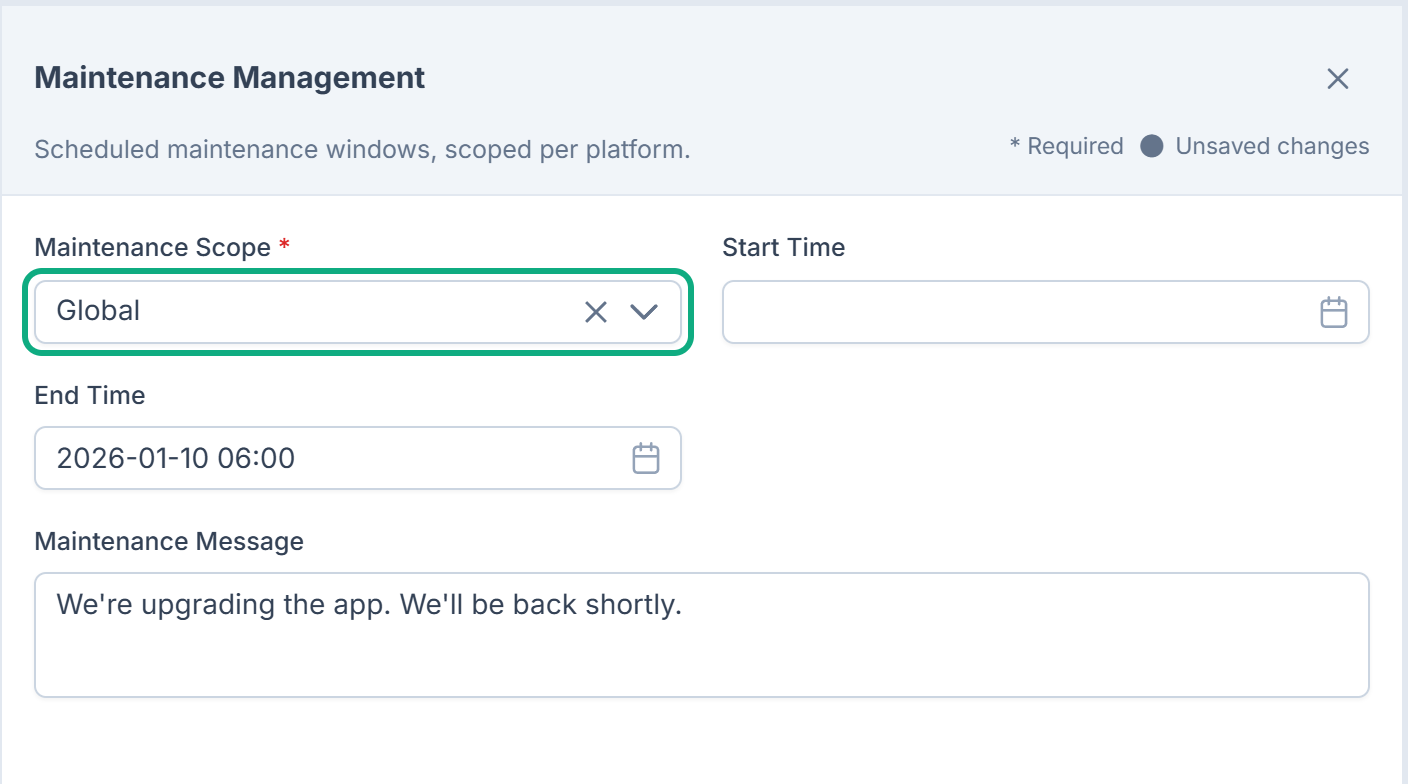
Fix: After the window, set Maintenance Scope to None and select Save changes.
Still not working?
The app may keep its settings until it starts again. Close it completely and reopen it. See The app doesn't show your changes.
Raise a ticket from Support Center in your Laramin app. Include this page's link, the exact text the app shows, and what the three switches above are set to.
Thanks. That helps us decide what to write next.
Thanks for telling us what was missing.
You already answered for this article today. Thanks.
We got a lot of answers from your network just now. Try again in a few minutes.
We couldn't send that. Check your connection and try again.
Links in this article
Printed from help.laramin.in. The online article may have changed since.