Someone can't sign in to the mobile app
Sign-in works on the web but not in your mobile app, or nobody can sign in to the app at all. Find the app's message below and fix the cause.
- Applies to
- Core Mobile 2.0 and later
- Who can do this
- Administrator, Platform owner
- Permission
feature.core. user.edit - Where
- Users Accounts › Users
On this page
Symptom
Someone can't sign in to your mobile app, although they may sign in on the web without trouble. Ask them for the exact message. The app shows your Laramin's message, or its own words for the same case, so ask the app's developers if the text differs.
| The app says | Go to |
|---|---|
| Mobile authentication is not configured. Everyone gets it, even with a wrong password. | 1 |
| Sign-in is temporarily unavailable. Please try again shortly. | 1 |
| Verify your email address to continue. We can send you a new verification link. Or the app asks for a code. | 2 |
| Invalid credentials or inactive account. Right after entering the emailed code. | 3 |
| API access is disabled for your account. Ask an administrator to enable it. | 3 |
| Your password has to be changed before you can sign in. Use "Forgot password" to choose a new one. | 4 |
| Your administrator requires two-factor authentication. Set it up to continue. | 5 |
| The provided two factor authentication code was invalid. Or: This sign-in has expired. Please sign in again. | 5 |
| Too many failed attempts. Please try again in … minutes, or contact support to verify your identity. | 6 |
| Your account has been deactivated. Contact an administrator for help. | 7 |
| Invalid credentials or inactive account. | 7 |
| Access denied from your network address. Please contact your administrator. | 8 |
| They were signed in, and the app signed them out. | 9 |
Tip: The app checks more than the web does. Before it signs someone in, their email address must be verified and Enable API Access must be on. Neither is needed on the web, and accounts you create on Users Accounts › Users start with neither. Super admins skip both checks.
Check these, in order
1. The mobile sign-in isn't set up on your server
If everyone gets Mobile authentication is not configured., your Laramin has no mobile sign-in client. Installations made with Core 12.8.1 or earlier never got one. From Core 12.8.2 the installer sets it up, but upgrading doesn't add it to an existing installation.
Fix: Ask whoever runs your server to check it:
Couldn't copy. Select the code and press Ctrl+C (⌘+C on a Mac).
php artisan auth:mobile-client --checkIt changes nothing. It answers either The mobile sign-in is set up (client N). Nothing to change., or The mobile sign-in isn't set up: with the reason. If it reports a problem, they run:
Couldn't copy. Select the code and press Ctrl+C (⌘+C on a Mac).
php artisan auth:mobile-clientIt creates what's missing and writes PASSPORT_ and PASSPORT_ to the server's settings file. If it says the configuration is cached, they also run php artisan config:cache. Running it again changes nothing.
Sign-in is temporarily unavailable. Please try again shortly. means the server has a client but couldn't sign the person in with it, for example because its signing keys are missing or the secret doesn't match. The same --check names the reason, and the same command repairs it. Your Laramin's security log has a line starting Mobile token issuance failed.
Once it's set up, a wrong password gets the normal Invalid credentials or inactive account. Social sign-in from the app needs the same client.
2. The email address isn't verified
Accounts created on Users Accounts › Users start unverified: their Account state reads Pending verification. There's no way for an administrator to mark an address verified.
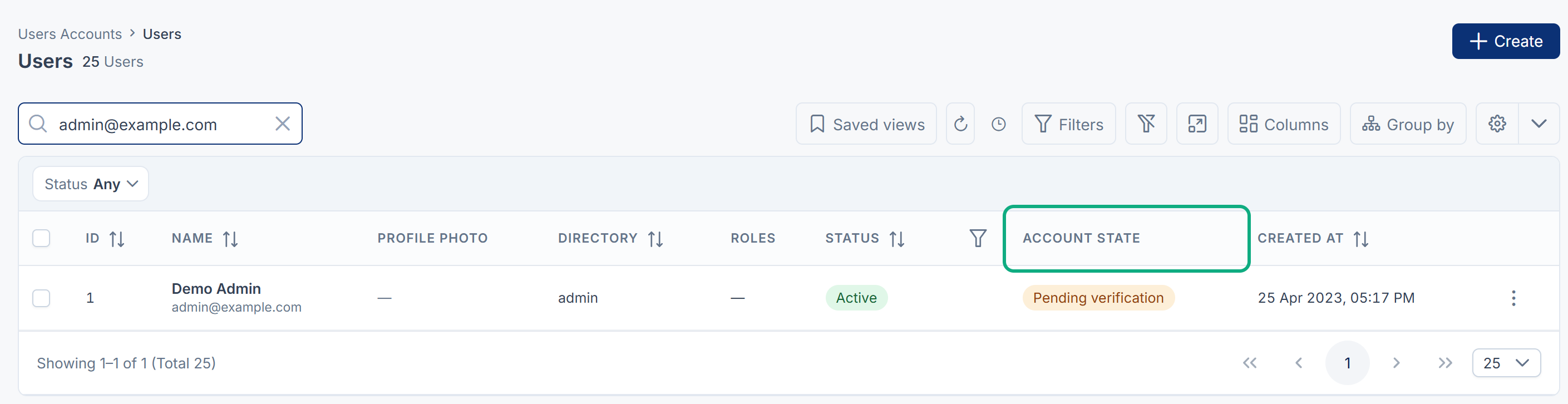
After the right password, the app is told Verify your email address to continue., and your Laramin emails the person a 6-digit code. The message mentions a link, but the email holds a code.
Fix: The person enters the code in the app. A code is good for 60 minutes. After 5 wrong codes the app is told Too many incorrect attempts. Request a new code to continue. Signing in again sends a fresh code.
If the code never arrives, your Laramin's own mail isn't working. These codes don't go through Notification Manager. See Emails from Laramin don't arrive.
3. API access is off for the account
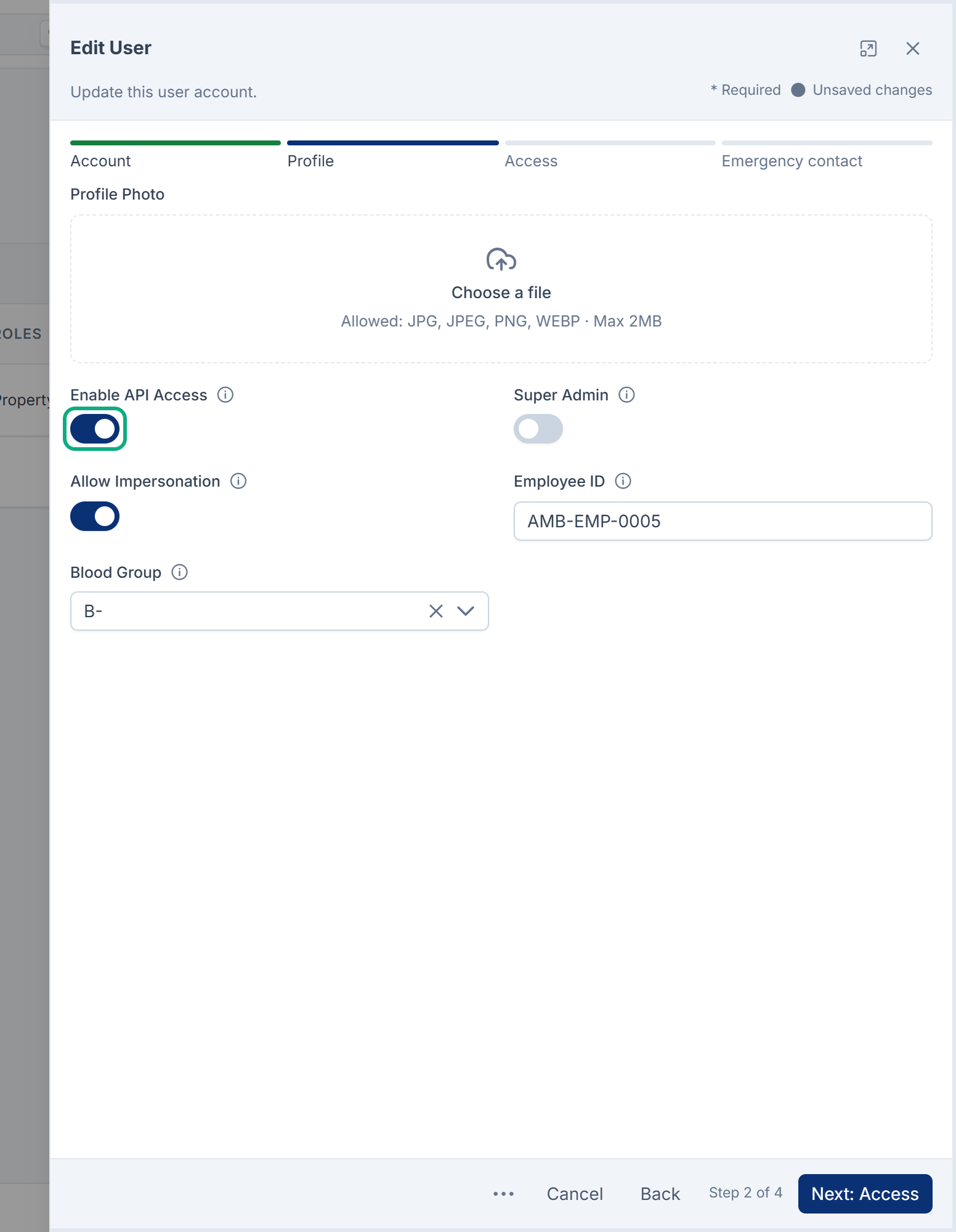
Enable API Access is off for every account created on Users Accounts › Users, unless someone switched it on. Accounts created from the app get it automatically.
The person meets it like this: entering the emailed code (step 2) verifies their address, but the app answers Invalid credentials or inactive account. The next sign-in answers API access is disabled for your account. Ask an administrator to enable it.
Fix:
-
In Users Accounts › Users, open the person's row actions and select Edit.
-
Select Next: Profile.
-
Turn on Enable API Access.
-
Select Next: Access, then Save.
Then they sign in again. See Edit a user. Turn it on before someone's first app sign-in, so the emailed code is all they need.
4. A password change is required
An administrator set a temporary password with Set password. On the web, the person is taken to Set a New Password. The app refuses until the password is changed.
Fix: Either of these:
- They sign in on the web and choose a new password. See Set a new password when Laramin asks. Then they sign in to the app with it.
- They select Forgot password in the app. It emails a reset code through your Laramin's own mail, as in step 2.
5. Two-factor authentication
- Your administrator requires two-factor authentication. Set it up to continue.: Require two-factor authentication is on in Security settings, and the person hasn't set it up. Fix: they sign in on the web and set it up under Profile › Security. See Set up two-factor authentication. Super admins and portal users aren't asked.
- The provided two factor authentication code was invalid.: the code is wrong. Often the phone's clock is off. Fix: set the phone to set its time automatically, then try a fresh code.
- This sign-in has expired. Please sign in again.: the code step lasts 5 minutes and allows 5 tries. Fix: sign in again.
- They've lost their authenticator: see You can't sign in because you lost your authenticator app, or Reset a user's two-factor authentication.
6. Too many failed attempts
The account is locked for the time in the message, after too many wrong attempts. Max login attempts and Lockout duration (minutes) in Security settings decide how many and how long. The right password doesn't lift the lock early.
Fix: Wait for the time in the message, then try again.
7. The account is inactive, or the password is wrong
- Your account has been deactivated. Contact an administrator for help.: the account's Status is Inactive. Fix: select Activate in the row's actions menu. See Edit a user.
- Invalid credentials or inactive account.: the email or password is wrong. The app gives the same answer for an address that has no account. Fix: check the address, or use Forgot password.
8. An IP rule refuses their network address
From Core 12.8.5, your IP rules apply to the app's sign-in as they do on the web. Laramin checks the phone's network address before the password, so the right password doesn't help. An app that's already signed in can't renew its sign-in from that address either. From Core 12.8.6, the two-factor code step is checked again, before the code, so a phone that changed network after the password, or a rule added in between, gets the same message; and an app that's already signed in gets this message on its next request from that address. A phone on mobile data has a different address from the office Wi-Fi.
Fix: Find the rule that refuses their address and change it, or ask them to sign in from a network you allow. See Someone is locked out by an IP rule.
On Core 12.8.4 and earlier, the app's password sign-in didn't check IP rules, so it worked from an address your rules refuse, and every later request from there was refused.
9. The app signed them out
The app's sign-in ends when the person's password changes: when they change it on the web, reset it, or an administrator uses Set password. After the upgrade to Core 12.8, whoever runs your server may also have ended, once, the app sign-ins that people with two-factor authentication had opened with a password alone.
Fix: They sign in again, with their code if they use two-factor authentication.
Other messages
- Upgrade Required. This application version is no longer supported.: see The app asks everyone to update.
- We are temporarily offline for updates.: see The app shows a maintenance screen.
- Too Many Attempts.: too many requests in a short time. Sign-in attempts from phones on one network can share one allowance. See API rate limits.
- Account creation is not available on this app.: see People can't create an account in the app.
Still not working?
Raise a ticket from Support Center in your Laramin app. Include this page's link, the exact message, the time of the attempt, and whether the same person can sign in on the web. Never send a password, code or client secret.
Thanks. That helps us decide what to write next.
Thanks for telling us what was missing.
You already answered for this article today. Thanks.
We got a lot of answers from your network just now. Try again in a few minutes.
We couldn't send that. Check your connection and try again.
Links in this article
Printed from help.laramin.in. The online article may have changed since.