Core Mobile configuration settings
The 13 configuration sections on the Core Mobile dashboard, field by field, with which ones your app actually receives. Also the platform API key, and every Core Mobile permission.
- Applies to
- Core Mobile 2.0 and later
- Who can do this
- Platform owner, Developer
- Where
- Core Mobile › Dashboard (Platform Administration)
On this page
Open a section
- In the Platform Administration sidebar, select Core Mobile › Dashboard. The Dashboard shows the app's Environment, Maintenance, Feature flags and Active theme, then a tile for each section under Configurations.
- On a section's tile, select Configure. The section opens in a side panel.
- Change what you need, then select Save changes. You see, for example, "Release Control updated successfully."
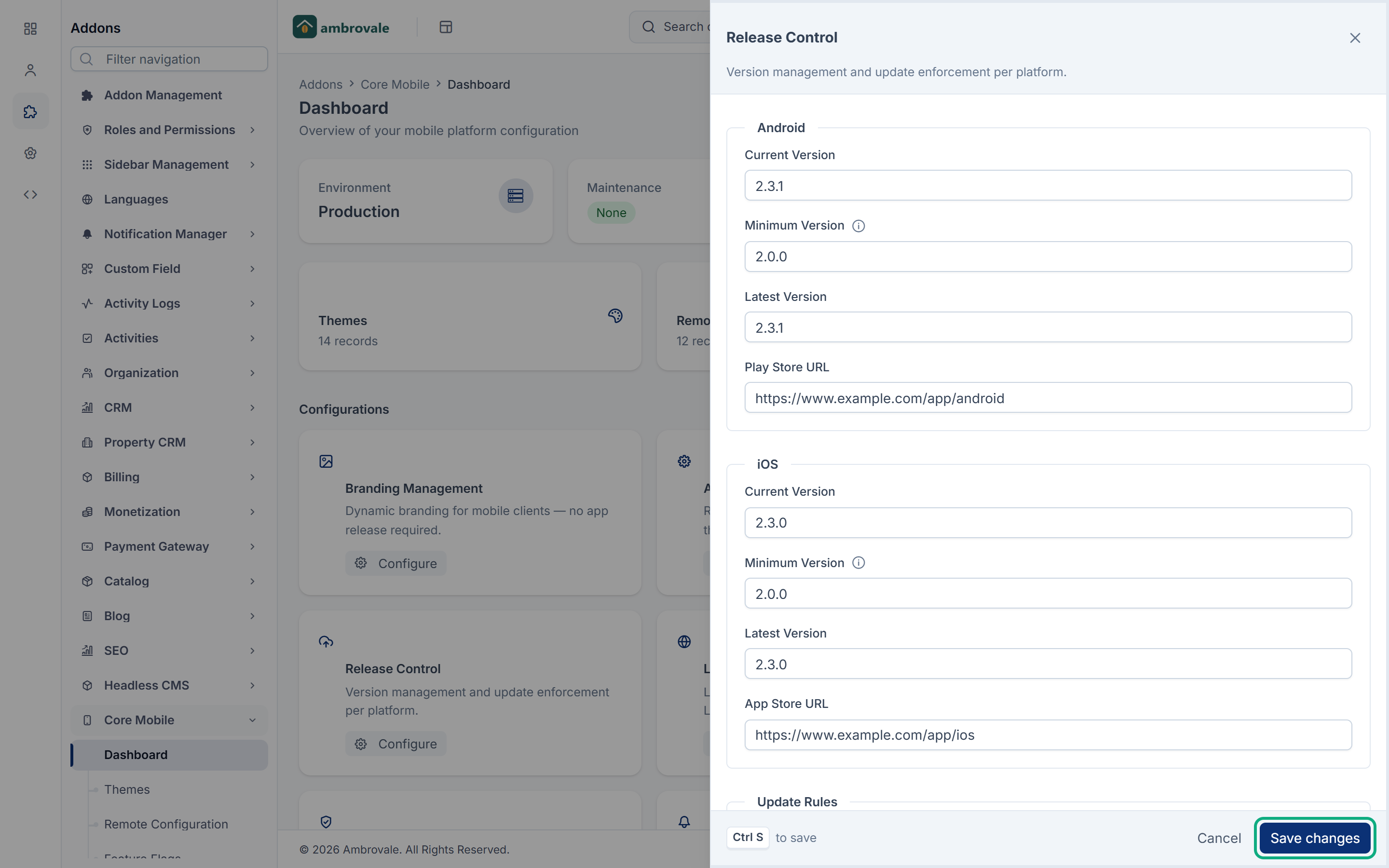
You only see the tiles you may view. A tile marked View only opens without Save changes.
Several sections start with example values, such as the app name Core Mobile and the company Laramin Inc. Replace them before your app goes live.
What reaches the app
| Section | Sent to the app |
|---|---|
| Branding Management, App Settings, Release Control, Localization, Maintenance Management | Yes, in the app's start-up settings. |
| Contact & Support | Yes, except the social links. |
| API Security | Only the Platform API Key, which the app sends back to prove it's yours. |
| Theme Settings, API Configuration, Push Notifications, Analytics & Monitoring, Offline Experience, Device Capability | No. Core Mobile saves them, but no mobile answer includes them, so an app can't read them. Before Core 12.8, an app could read them through the older settings list, GET /api/. |
The theme the app receives comes from Core Mobile › Themes, not from Theme Settings. See Change the app's theme, remote settings and feature flags.
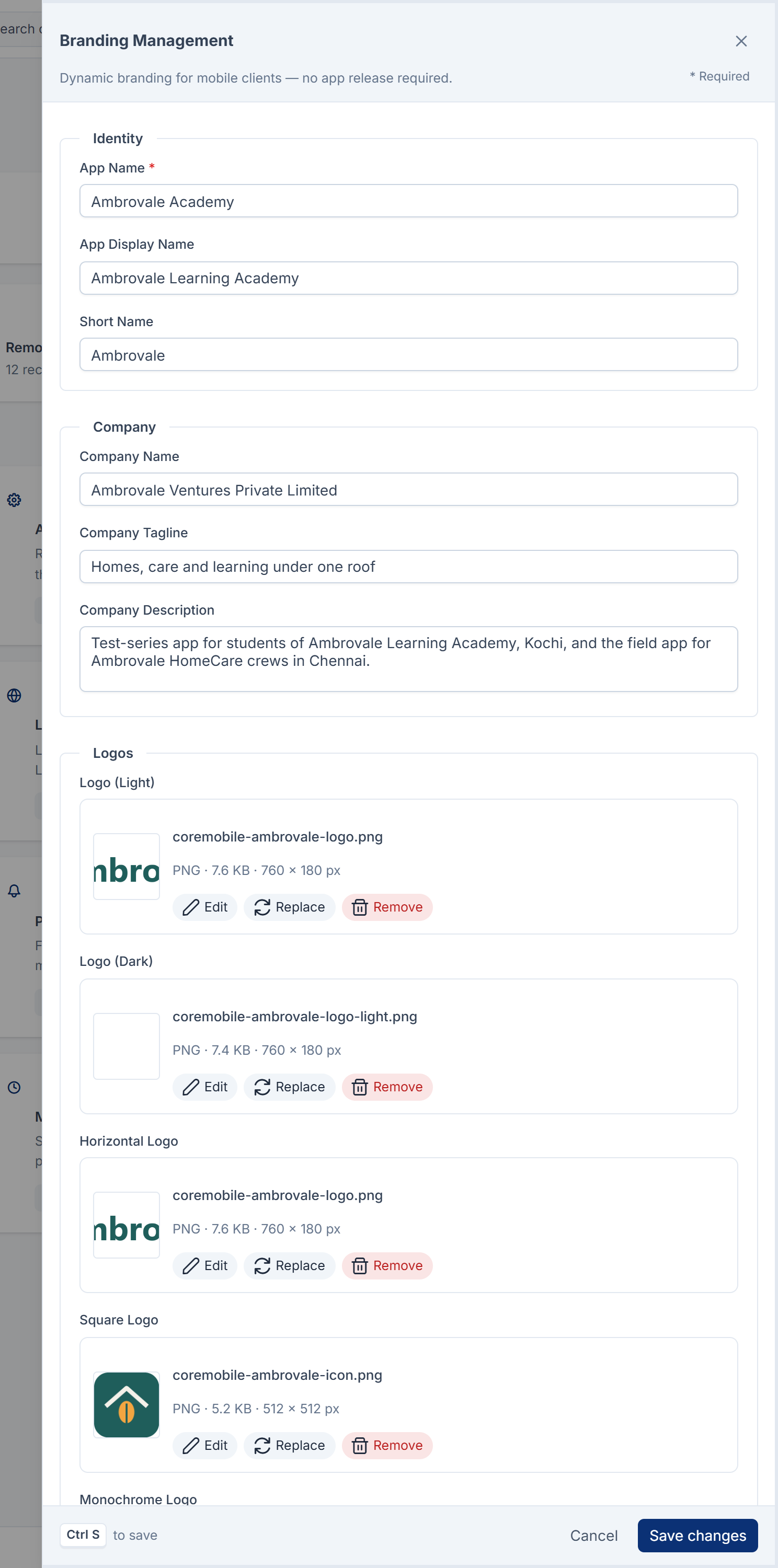
Branding Management
| Field | What it does |
|---|---|
| App Name | The app's name. Required, up to 100 characters. |
| App Display Name, Short Name | Longer and shorter versions of the name, for places with more or less room. |
| Company Name, Company Tagline, Company Description | Your business, as the app shows it. |
| Logo (Light), Logo (Dark), Horizontal Logo, Square Logo, Monochrome Logo | Logo images for light and dark backgrounds and different shapes. The app receives their full addresses. |
App Settings
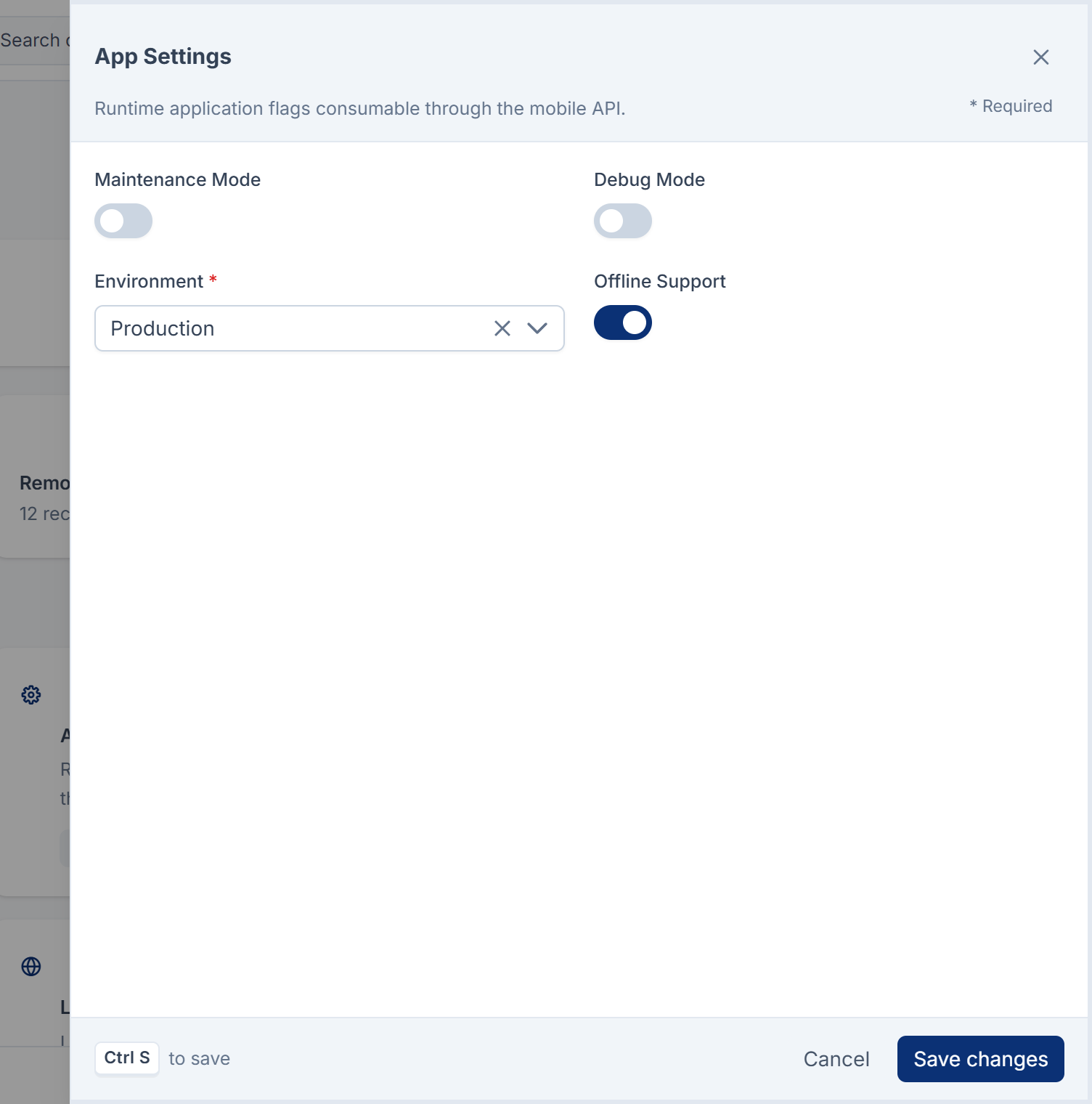
| Field | What it does | Default |
|---|---|---|
| Maintenance Mode | Tells the app it's under maintenance. | Off |
| Debug Mode | Tells the app to show extra information for developers. | Off |
| Environment | Production, Staging or Development. | Production |
| Offline Support | Tells the app it may work offline. | On |
The app also receives whether Allow mobile app sign-up is on in Core's Security settings. See Security settings.
Release Control
One set for Android and one for iOS, then Update Rules.
| Field | What it does |
|---|---|
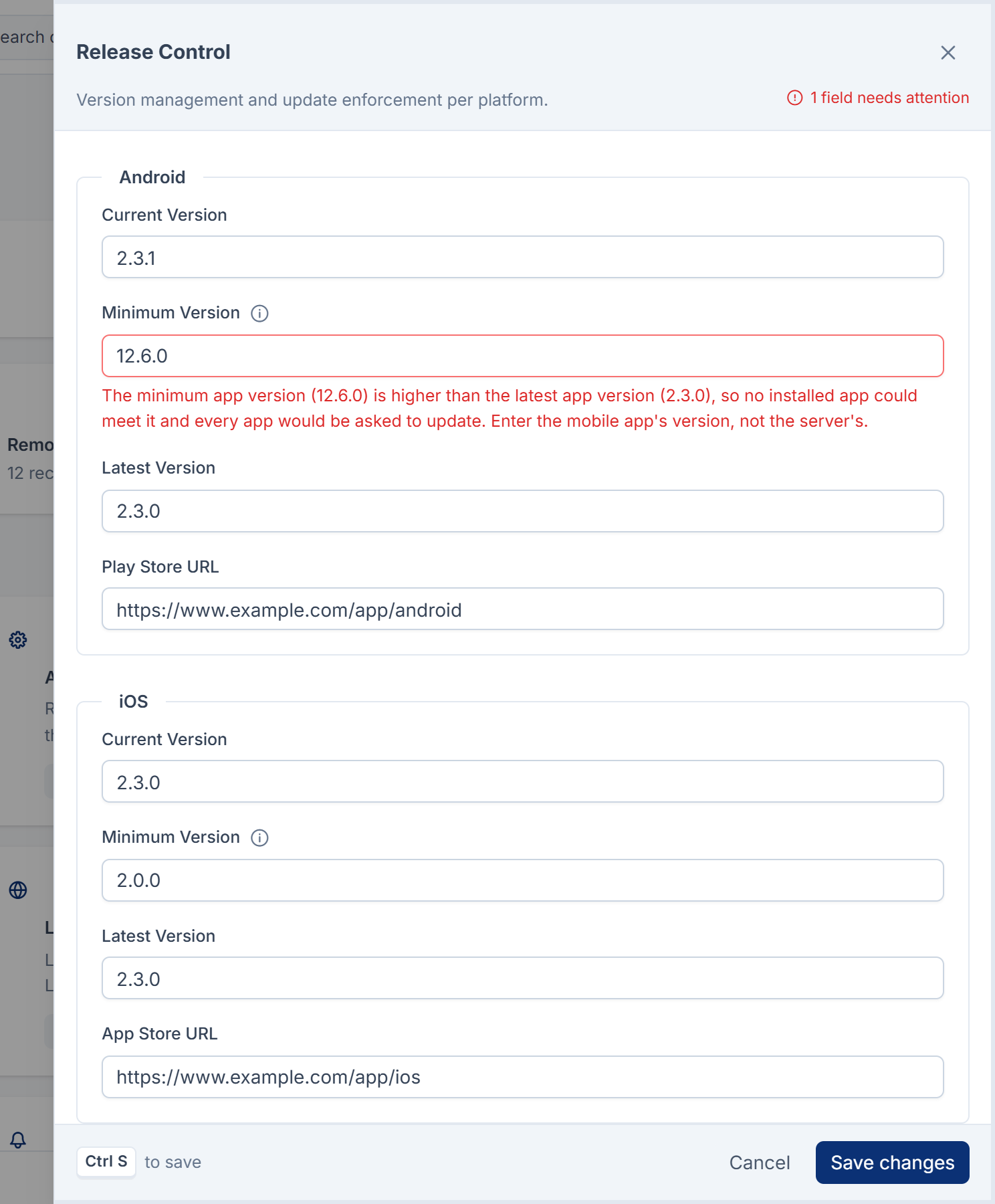
| Current Version, Minimum Version, Latest Version | Versions of the mobile app, such as 2.3.0, up to 20 characters. Starts at 1.0.0. Minimum Version is the oldest app that may still connect. Enter the app's version, not your Laramin's. |
| Play Store URL / App Store URL | Where the app sends people to update. |
| Force Update | Tells the app an update is required. |
| Soft Update | Tells the app to suggest an update. |
| Update Message | The message the app shows with an update. |
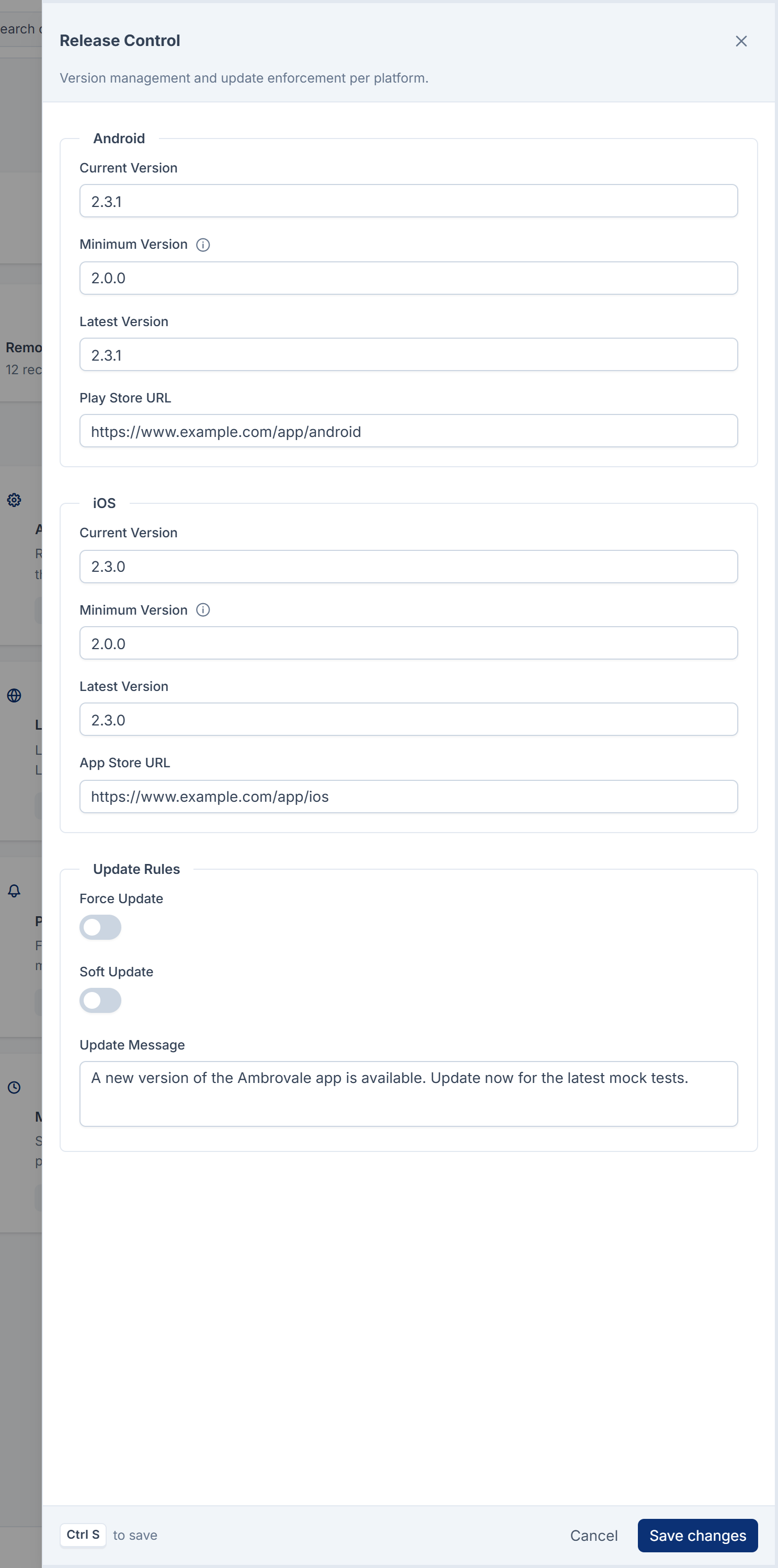
The app decides what to do with Force Update, Soft Update and the Update Message. Minimum Version is also enforced by your Laramin: an older app that says its version is refused, and asked to update.
Saving refuses a Minimum Version higher than the platform's Latest Version (or its Current Version, when Latest Version is empty), because no installed app could meet it. You see The minimum app version … is higher than the latest app version … Enter the mobile app's version, not the server's.
Localization
| Field | What it does | Default |
|---|---|---|
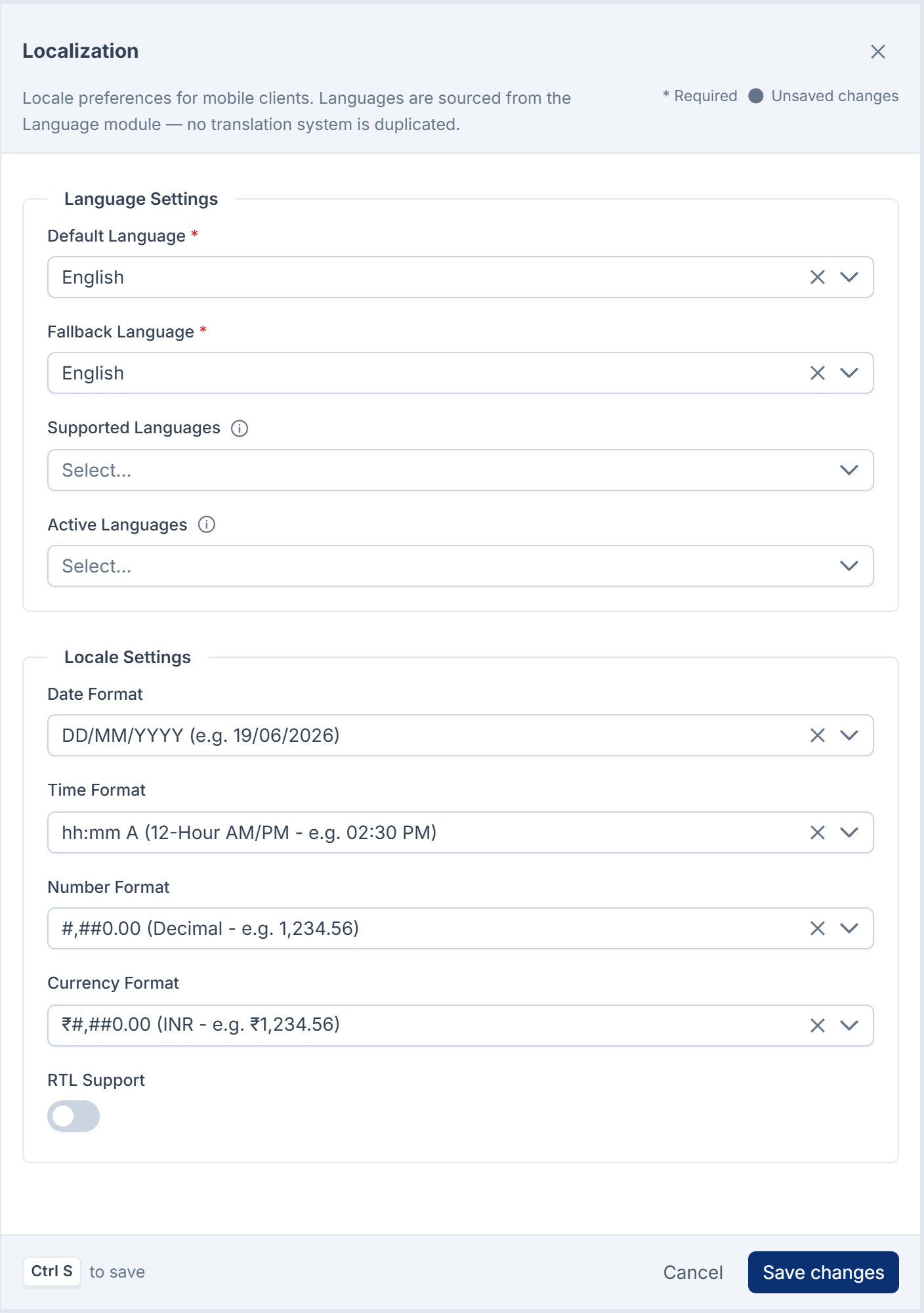
| Default Language, Fallback Language | The app's language, and the one used when text is missing. Chosen from the languages your Laramin publishes. If one stops being published, the app gets your Laramin's default language instead. | English |
| Supported Languages, Active Languages | The languages the app offers. Leave them empty to offer every language your Laramin publishes, or choose some of those. | Empty: every published language |
| Date Format, Time Format, Number Format, Currency Format | Chosen from a list. The app receives the format patterns. | |
| RTL Support | Tells the app to support right-to-left languages. | Off |
Saving refuses a language your Laramin doesn't publish: … is not a published language on this site, so the app cannot use it. Publish it in Languages first, or remove it. See Add a language.
If your Laramin had Core Mobile before version 2.1.0, Supported Languages and Active Languages may still hold only English, so the app offers English only. To offer every published language, clear both lists and select Save changes, or ask whoever runs your server to run php artisan coremobile:reset-. That command clears a list only if it holds English alone.
Contact & Support
| Group | Fields |
|---|---|
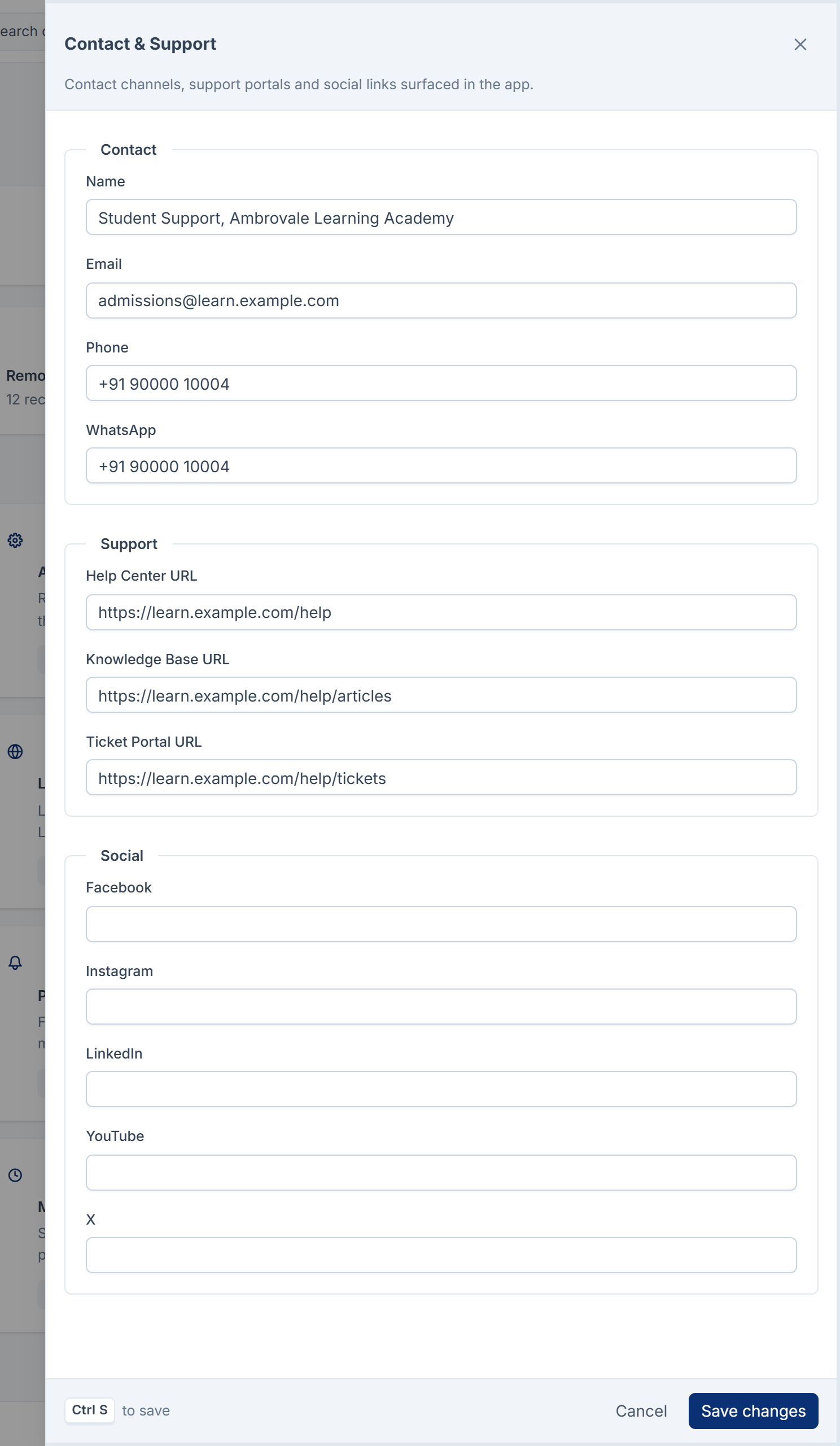
| Contact | Name, Email, Phone, WhatsApp |
| Support | Help Center URL, Knowledge Base URL, Ticket Portal URL |
| Social | Facebook, Instagram, LinkedIn, YouTube, X. Saved, not sent to the app. |
Maintenance Management
| Field | What it does | Default |
|---|---|---|
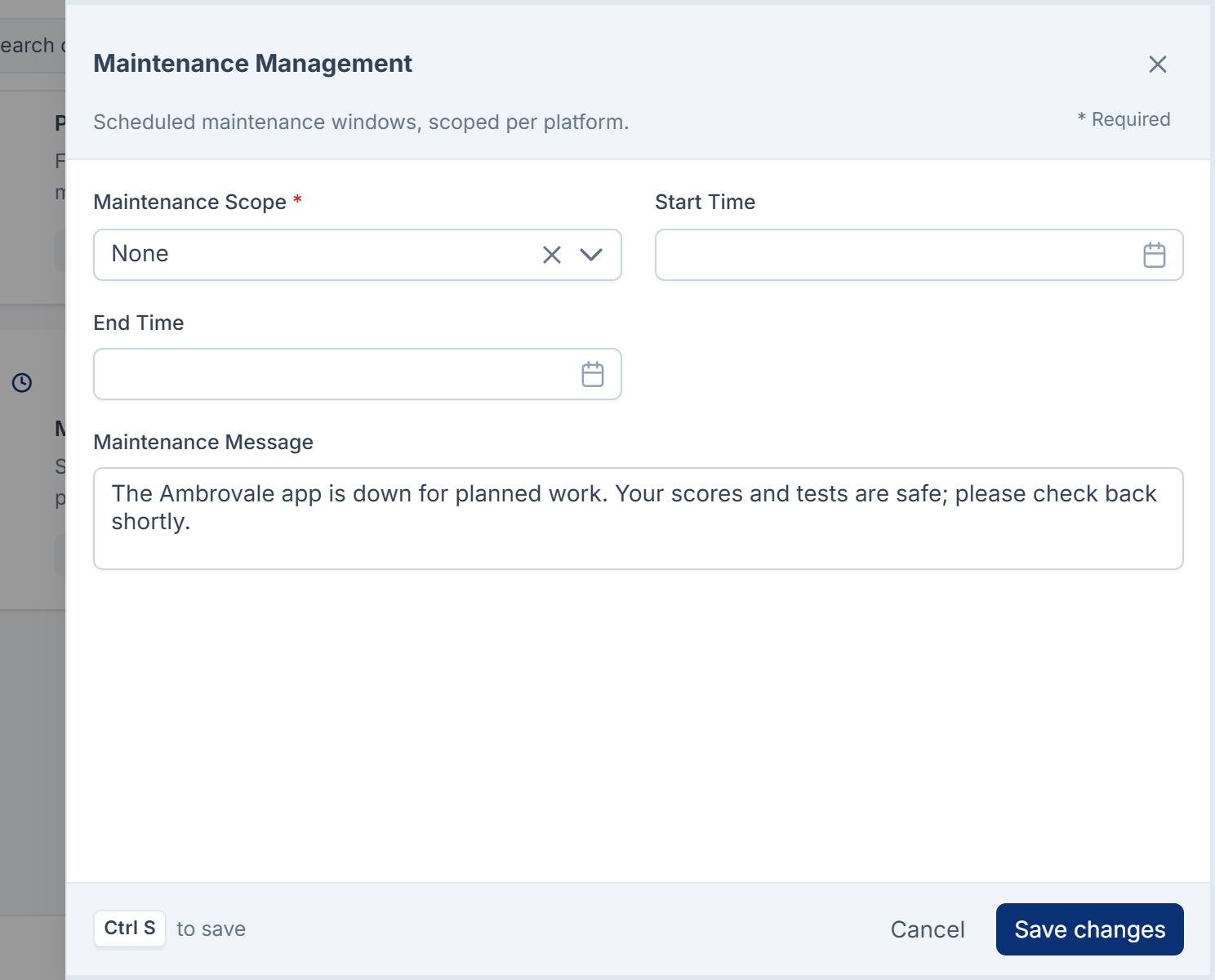
| Maintenance Scope | None, Global, Android Only or iOS Only. | None |
| Start Time, End Time | The maintenance window, in your Laramin's time zone. The app receives the times with the time zone, so every phone starts and ends maintenance at the same moment, wherever it is. | |
| Maintenance Message | What the app shows. | "We are performing scheduled maintenance. Please check back shortly." |
The app decides what to do with these values. To close your Laramin's API itself, see Turn on maintenance mode.
API Security
| Field | What it does | Default |
|---|---|---|
| Platform API Key | The key apps send, as an X-Api-Key header or a bearer token, to read settings before anyone signs in. At least 24 characters. Stored encrypted and never shown again: leave the box empty to keep the current key. | Empty |
| Generate new key | Replaces the key with a new random one when you save. | |
| JWT Expiry (s), Refresh Expiry (s), API Key Rotation (days) | Saved for reference. | 3600, 1209600, 90 |
| Root Detection, Jailbreak Detection, Emulator Detection, Screenshot Blocking | Saved for reference. | Off |
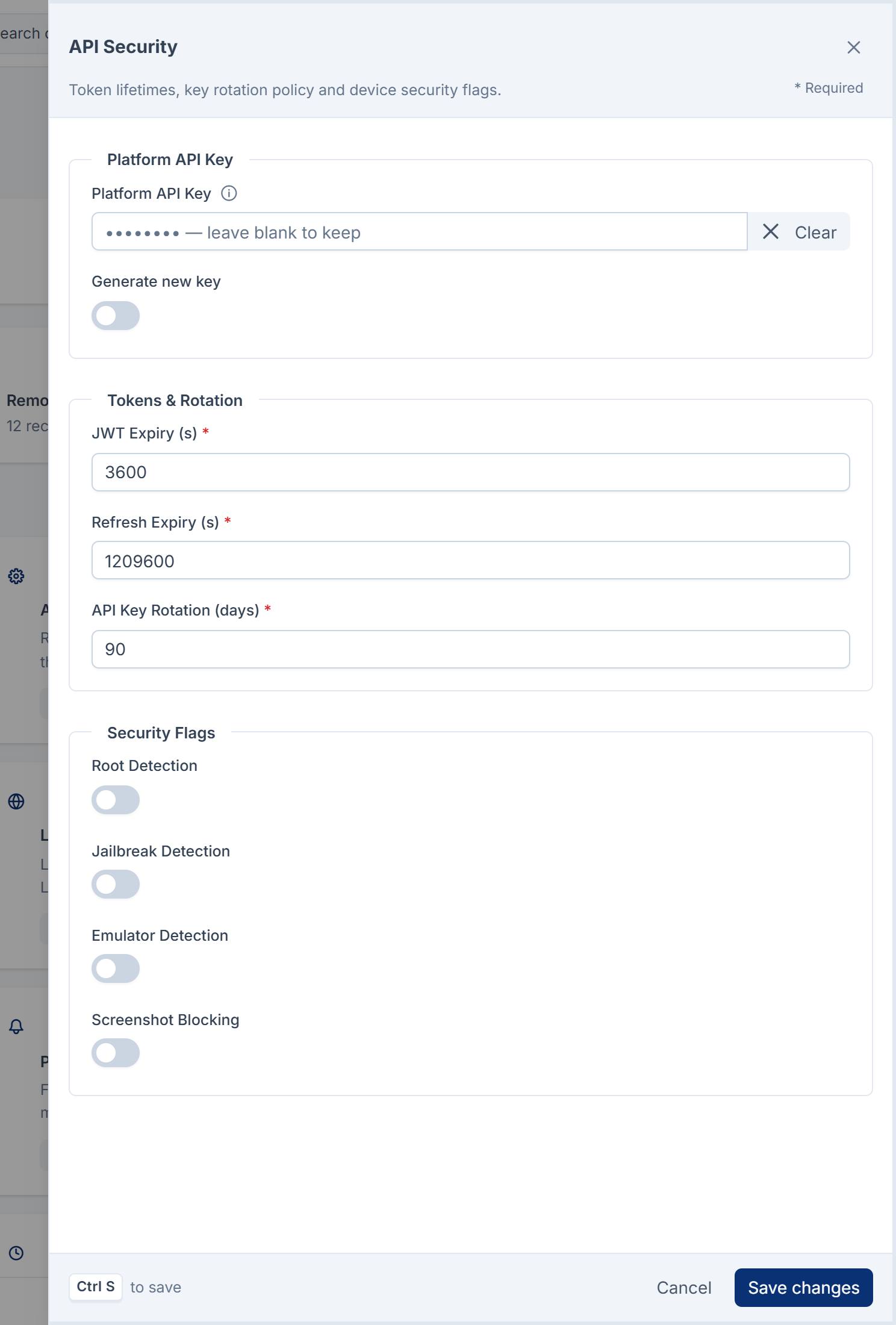
The Platform API Key isn't only for Core Mobile: it's the key your Laramin's whole API accepts from any app or program that isn't signed in. When it's empty, the server's PLATFORM_API_KEY setting is used. When both are empty, only signed-in requests are accepted, so an app can't load its settings before sign-in.
Careful: Changing the key stops every app and program that uses the old one, straight away, for anything it asks before someone signs in. People already signed in to the app stay signed in: from Core 12.8, keeping them signed in doesn't need the key. Core Mobile 2.1.0 never shows a key made with Generate new key: saving only says API Security updated successfully., and the form never displays the key. So nobody can give it to the app. Type your own long, random key instead, and keep a copy where your developers can reach it safely.
Sections that aren't sent to the app
| Section | Fields | Defaults |
|---|---|---|
| Theme Settings | Active Variant, Font Family, Border Radius, Elevation, Animations, Shadow Configuration, Font Sizes (JSON), Font Weights (JSON), Line Heights (JSON) | Light, Inter, 8, 2, on |
| API Configuration | API Base URL, API Version, Timeout (s), Retry Count, Retry Delay (s), Polling Interval (s), Sync Frequency (s) | empty, v1, 30, 3, 2, 60, 300 |
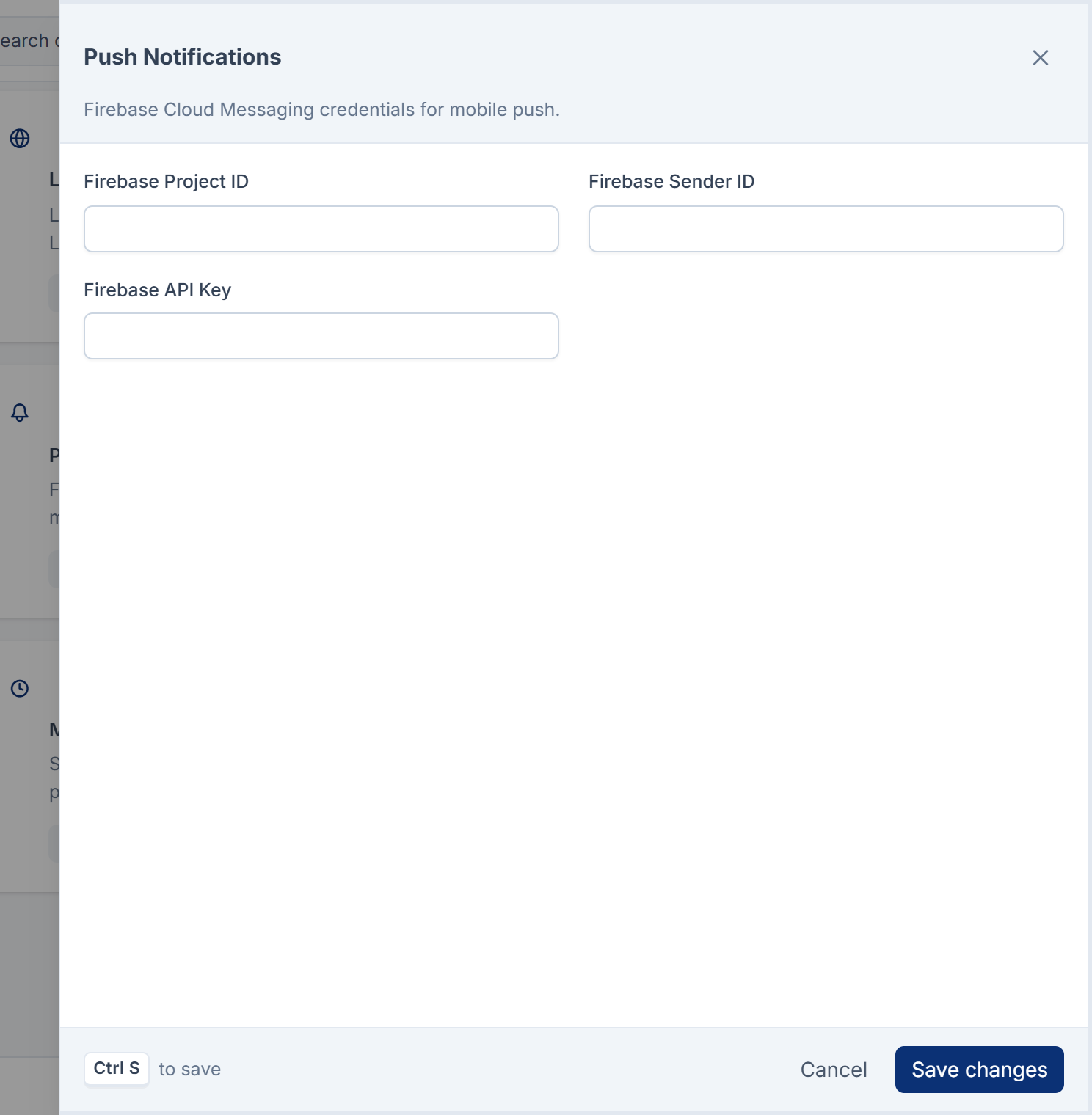
| Push Notifications | Firebase Project ID, Firebase Sender ID, Firebase API Key | empty |
| Analytics & Monitoring | Firebase Analytics, PostHog, PostHog Key, Mixpanel, Mixpanel Token, Crash Reporting, Performance Monitoring, User Consent Required, Tracking Enabled | all off except User Consent Required |
| Offline Experience | Cache Duration (s), Sync Interval (s), Retry Count, Offline Banner Message | 3600, 900, 3 |
| Device Capability | GPS, Camera, NFC, Bluetooth, Microphone, Required Permissions, Optional Permissions | all off |
Permissions
Each configuration section has a pair of permissions, feature. and feature., labeled View and Manage, for example View Release Control and Manage Release Control:
| Section | <section> |
|---|---|
| The Dashboard itself | dashboard (View Mobile Dashboard) |
| Branding Management, App Settings, Release Control, Localization | branding, app, release, localization |
| API Configuration, API Security, Push Notifications | api, security, push |
| Contact & Support, Analytics & Monitoring, Maintenance Management | contact, analytics, maintenance |
| Offline Experience, Device Capability | offline, device |
| Theme Settings | theme, shared with Themes below |
The other screens each have seven permissions, feature., .view, .create, .edit, .delete, .restore and .remove, labeled List, View, Create, Edit, Soft Delete, Restore and Force Delete:
| Screen | <resource> | Covers |
|---|---|---|
| Themes | theme | Themes |
| Remote Configuration, Feature Flags | remote_config | Both screens |
| Mobile Experience Rules | rules | Rules |
| Audiences | audience | Audiences |
| Onboarding | onboarding | Flows and their slides |
| Navigation | nav | Menus and their items |
| App Dashboards | mobile_dashboard | Dashboards and their widgets |
In the role editor, they're under five groups: Mobile Branding, Theme & Localization, Mobile App, Release & Device, Mobile API, Security & Push, Remote Config & Experience Rules and Mobile Analytics, Maintenance & Support. To give them, see Give someone a role.
Careful: Manage API Security lets someone change the key every app uses to reach your Laramin. Give it only to people who look after your apps.
Thanks. That helps us decide what to write next.
Thanks for telling us what was missing.
You already answered for this article today. Thanks.
We got a lot of answers from your network just now. Try again in a few minutes.
We couldn't send that. Check your connection and try again.
Links in this article
Printed from help.laramin.in. The online article may have changed since.