Add a language
Add a language to your Laramin, choose whether staff can use it, whether your content and website offer it, and how its script looks. Also: change, switch off or delete a language.
- Applies to
- Language 1.3 and later
- Who can do this
- Platform owner, Administrator
- Permission
feature.lang. language. create - Where
- Languages
On this page
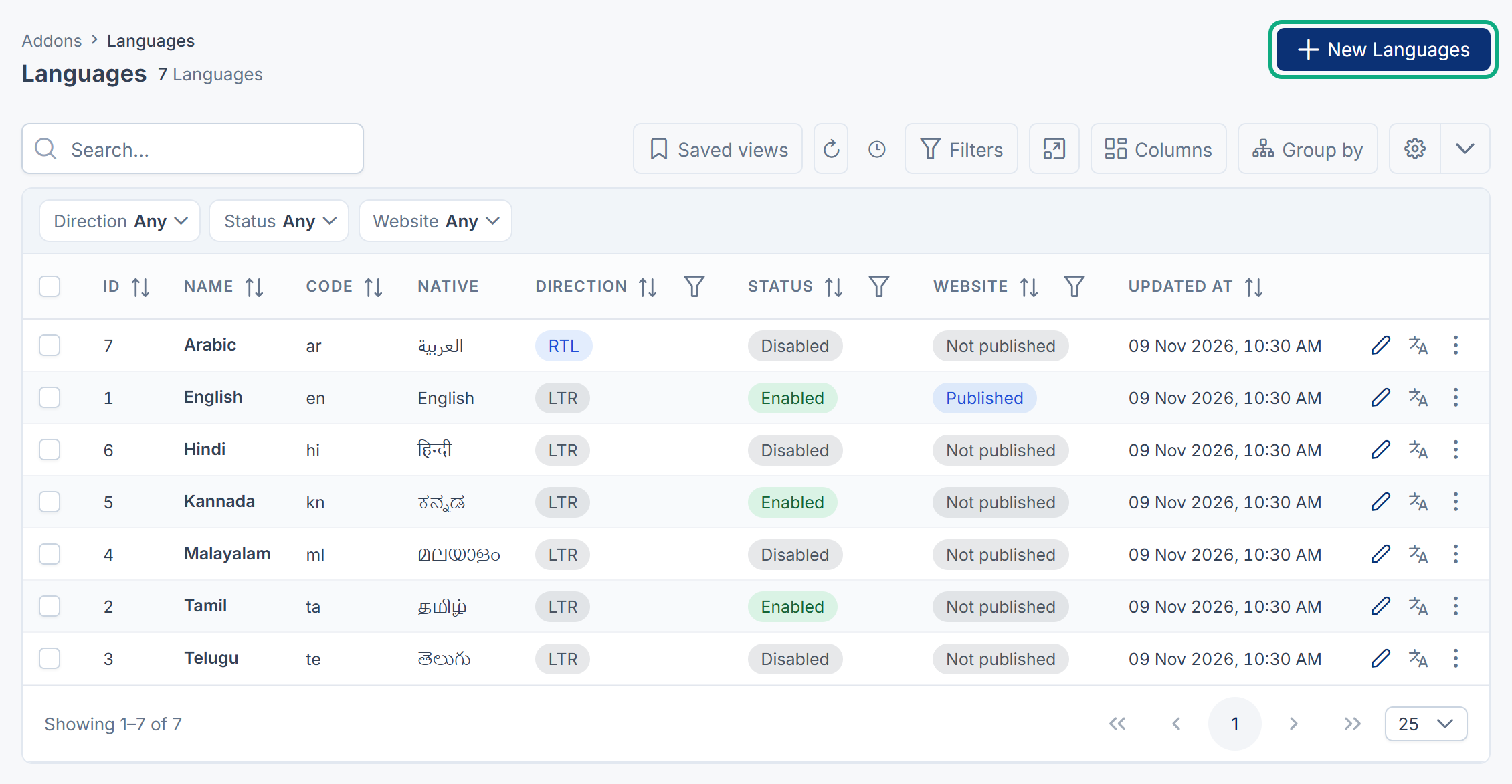
English, Tamil, Telugu, Malayalam, Kannada, Hindi and Arabic are already in the list when Language is first installed. Add a language when you need one that isn't there.
Before you start
- You need Create Language (
feature.) in the Languages group. Changing a language needs Edit Language (lang. language. create feature.).lang. language.edit - Know the language's two-letter code, for example
frfor French orbnfor Bengali. It can't be changed later.
Steps
-
In the sidebar, open Languages.
-
Select New Languages.
-
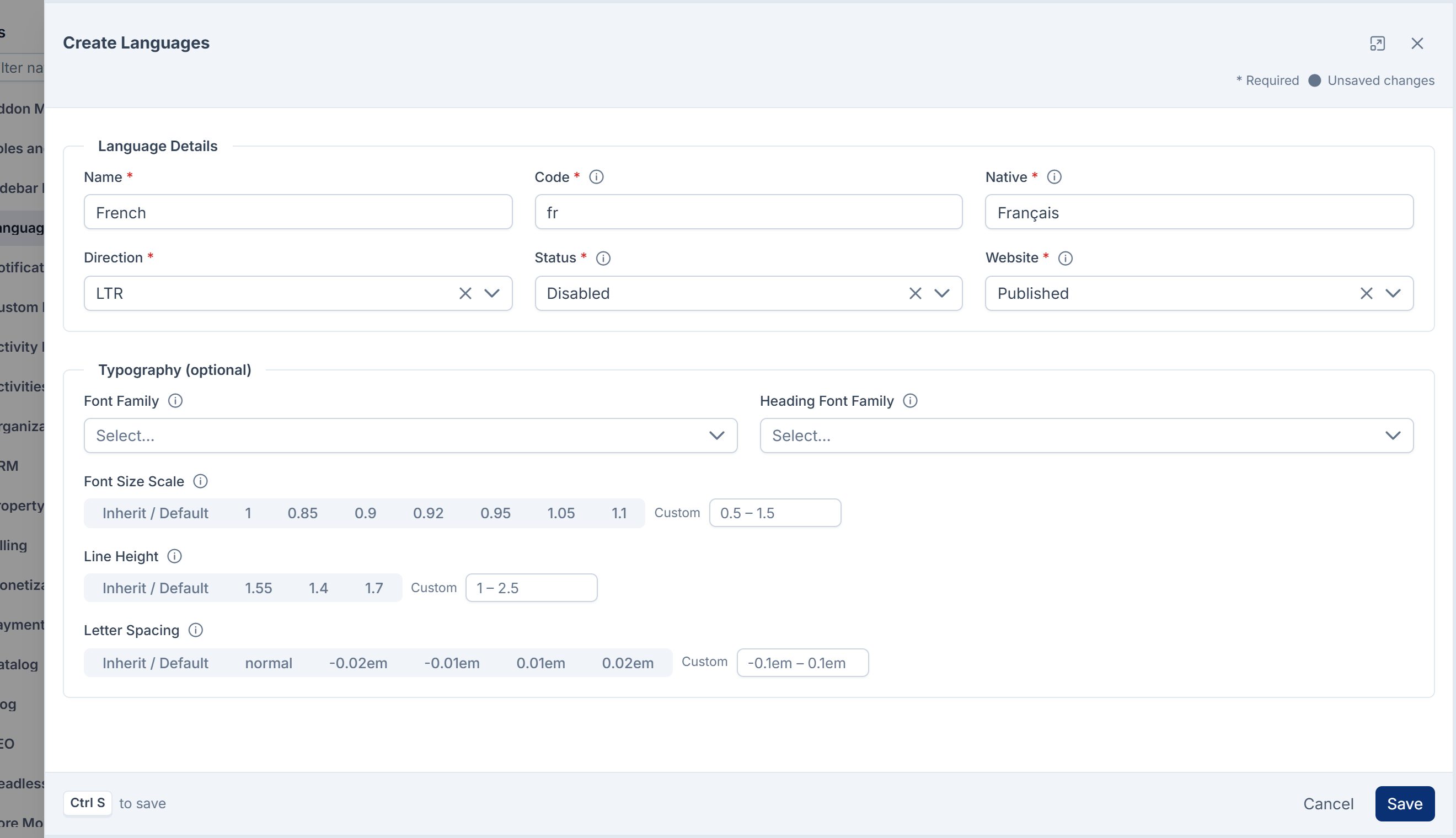
Under Language Details, fill in:
- Name: the language's name in English, for example
French. - Code: two lowercase letters, for example
fr. - Native: the language's name in its own script, for example
Français. People see this in the language lists. - Direction: RTL for languages written right to left, such as Arabic or Urdu. Otherwise LTR.
- Status: Enabled lets staff choose the language for Laramin's screens. Choose Disabled until enough of the screen text is translated.
- Website: Published lets you write content in the language, and offers it to your website.
- Name: the language's name in English, for example
-
Optional: under Typography (optional), choose a Font Family for the script, and adjust Font Size Scale, Line Height or Letter Spacing. Leave them on Inherit / Default for languages written in Latin letters. Leave Letter Spacing blank for Indian scripts and Arabic.
-
Select Save.
You see Language name Created Successfully!
What happens next
- Laramin's screens show in English in the new language until you translate them. See Translate screen text.
- With Website set to Published, a tab for the language appears on forms with translatable fields, once at least two languages are published. See Translate your content.
- With Status set to Enabled, people can switch to it from the header. See Change the interface language.
Change, switch off or delete a language
- Change: open the language's actions menu, select Edit, change what you need, and select Save. Code can't be changed.
- Switch off for staff: set Status to Disabled. It leaves the header menu and the profile list.
- Stop offering it on your website: set Website to Not published. Its tab leaves your forms, and your website is told it's no longer available. Translations already written are kept.
- Delete: open the language's actions menu and select Delete. You need Delete Language (
feature.). English can't be deleted.lang. language. delete
Careful: Deleting removes the language from the list straight away, with no trash to restore it from. Its translation files and translated content stay on your server, and come back into use if you add a language with the same code. If you may need a language again, switch it off instead.
Thanks. That helps us decide what to write next.
Thanks for telling us what was missing.
You already answered for this article today. Thanks.
We got a lot of answers from your network just now. Try again in a few minutes.
We couldn't send that. Check your connection and try again.
Links in this article
Printed from help.laramin.in. The online article may have changed since.