Translate screen text
Translate the menus, buttons, labels and messages on Laramin's screens into a language, for Laramin itself or for one add-on, in the built-in Translation Strings editor.
- Applies to
- Language 1.3 and later
- Who can do this
- Platform owner, Administrator
- Permission
feature.lang. language.edit - Where
- Languages › Translation Strings
On this page
Screen text is everything Laramin itself writes on its screens: menu names, buttons, field labels and messages. Each language has its own translations. Anything you haven't translated shows in English.
Before you start
- You need Edit Language (
feature.) in the Languages group. With only View Language (lang. language.edit feature.), you can open the editor but not save.lang. language.view - The language must already be in the list. See Add a language.
Steps
-
In the sidebar, open Languages.
-
In the language's row, select Translation Strings.
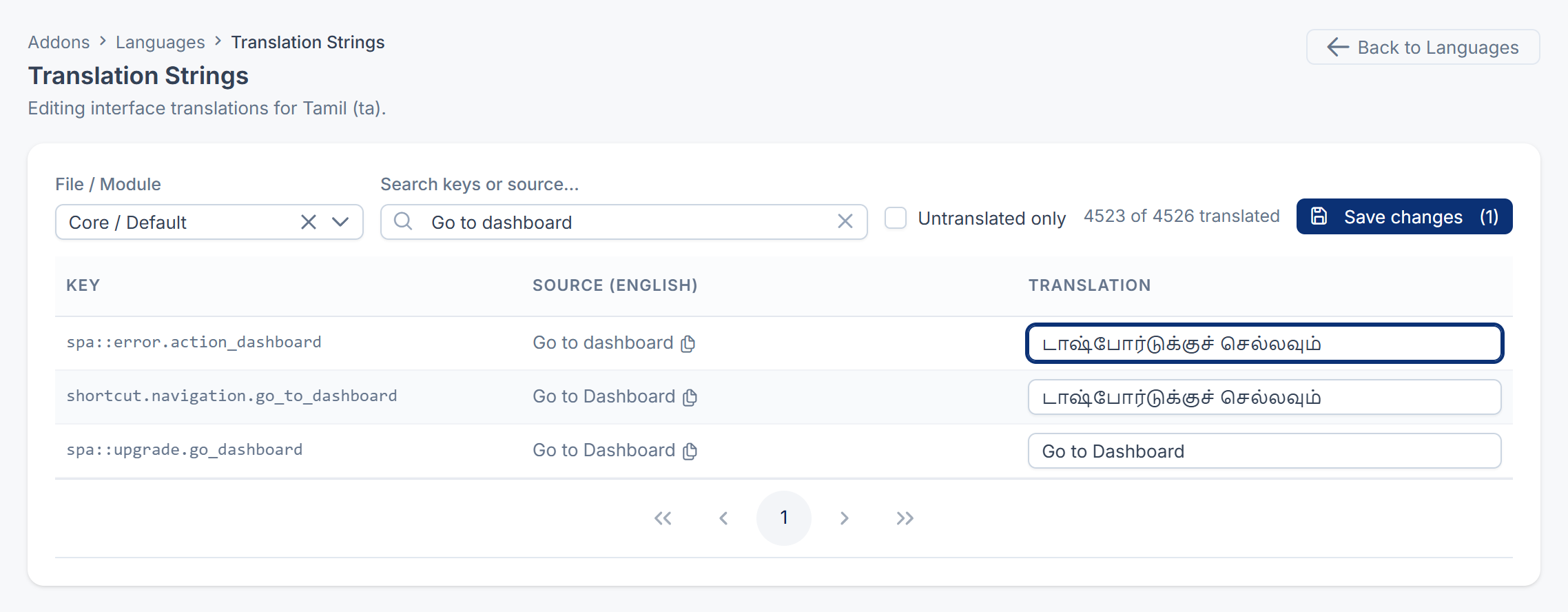
-
In File / Module, choose which screens to work on:
- Core / Default: Laramin's own screens, such as the sidebar, lists, forms and settings.
- name Module: one add-on's screens, for example Blog Module.
-
Find the text to translate:
- Type in the search box to find a key or English wording.
- Turn on Untranslated only to see only what's left.
-
Type each translation in the Translation column, next to its Source (English).
-
Select Save changes.
You see a message that the translations were updated. Reload the page to see them on screen.
Tips
- Keep placeholders as they are. Words like
:name,{count}or{days}are filled in by Laramin. Put them where they belong in your sentence, but don't translate or remove them. Keep any HTML tags, such as<strong>, too. - Save before you switch. Choosing another File / Module reloads the editor, and changes you haven't saved are lost.
- Copy the English. Copy source text, the button next to a source, copies it, so you can paste it and change only part of it.
- Watch the count. done of total translated shows how far you've got in the set you're viewing. The header's language menu shows the share of Core / Default that's translated.
Things to know
- Translations are files on your server. Your Laramin must be able to write to its language folder. If saving fails with Could not save translations., see A translation doesn't show.
- Clearing a translation doesn't remove it. A translation you empty is skipped when you save, so the old one stays. To show the English wording again, paste it as the translation.
- An add-on's own translations aren't listed. The Translation column for an add-on shows only translations saved in this editor. Translations the add-on ships with, for example in Hindi, aren't shown, so a row can look untranslated while the screen already shows it in that language. What you save here replaces the add-on's own wording.
- Upgrades and Core / Default. For languages that come with Laramin, such as Tamil or Hindi, Core / Default translations are saved in the same file a Laramin upgrade delivers, so an upgrade may replace your changes. Keep a note of what you change.
Thanks. That helps us decide what to write next.
Thanks for telling us what was missing.
You already answered for this article today. Thanks.
We got a lot of answers from your network just now. Try again in a few minutes.
We couldn't send that. Check your connection and try again.
Links in this article
Printed from help.laramin.in. The online article may have changed since.