A translation doesn't show
A language is missing from a menu or a form, screen text stays in English, or a translation you saved doesn't appear or won't go away. Find which switch or file is behind it.
- Applies to
- Language 1.3 and later
- Who can do this
- Platform owner, Administrator
- Permission
feature.lang. language.edit - Where
- Languages
On this page
Symptom
One of these:
- A language is missing from the header's language menu, the sign-in screen or the profile.
- A language has no tab on a form.
- Screen text stays in English after you choose a language.
- A translation you saved doesn't appear, comes back after you clear it, or disappeared after an upgrade.
- Translation Strings opens empty, with This action is unauthorized. and Could not load translations.
- Translations you typed disappeared when you changed File / Module.
- You changed Default Language, but people still see Laramin in the old language.
Check these, in order
1. The language is missing from a menu
Open Languages and check the language's Status.
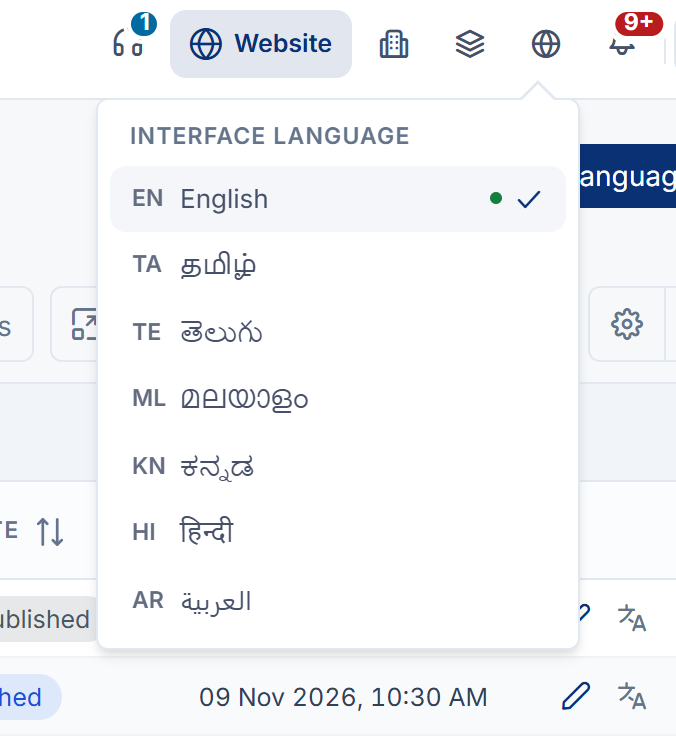
- The header menu, the profile and the Default Language list only show languages set to Enabled.
- The sign-in screen shows its Language list only when more than one language is Enabled.
- The header menu only appears while the Language add-on is on.
Fix: Edit the language, set Status to Enabled, and select Save.
2. The language has no tab on a form
- The language's Website must be Published. Status doesn't matter here.
- At least two languages must be Published. With one, forms show no tabs at all.
- The field itself must be translatable. Fields without tabs have one value for every language.
Fix: Edit the language, set Website to Published, and select Save. Then reload the form.

3. Screen text stays in English
Text without a translation shows in English. Open the language's Translation Strings, choose the right File / Module, and turn on Untranslated only.
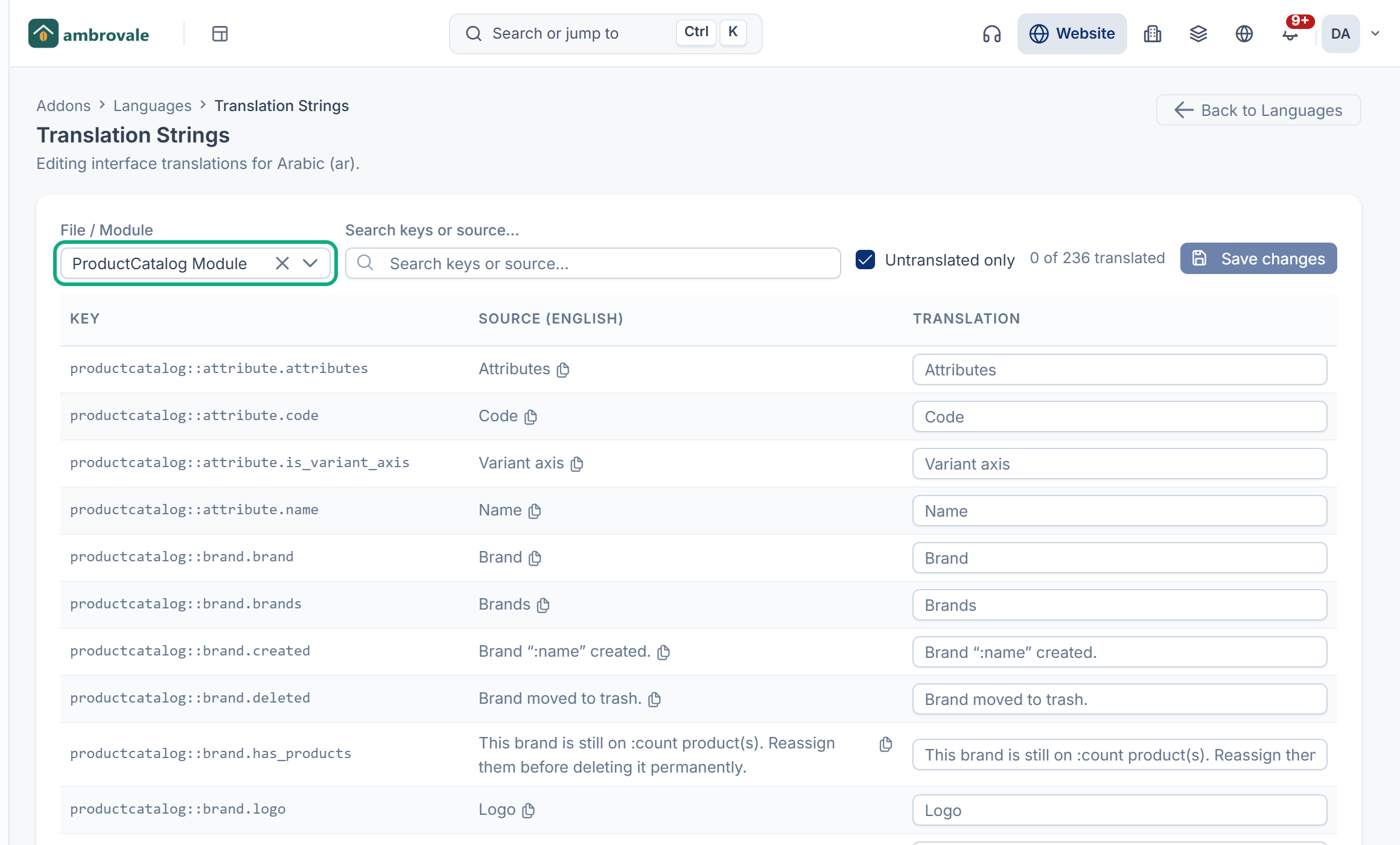
- Text on an add-on's screens is under that add-on's name Module, not Core / Default.
- Some English text, such as names you typed yourself, is content, not screen text. Translate it on the record's form. See Translate your content.
After saving translations, reload the page.
4. A saved translation doesn't appear
-
The translation lost a placeholder. If the English has
:nameor{count}and your translation changed it, the text may show wrongly. Copy the placeholder back exactly. -
Saving failed. If you saw Could not save translations., your Laramin can't write to its language folder. Ask whoever manages your server to let the web server write to the
resources/langfolder and itsmodulesfolder.
5. A translation won't go away
Emptying a translation and saving keeps the old one: an empty box is skipped when you save. To show the English wording again, paste the Source (English) text as the translation and save.
6. Translations disappeared after an upgrade
For languages that come with Laramin, such as Tamil or Hindi, Core / Default translations are saved in the same file that Laramin ships for that language, so an upgrade may replace it. Translate the text again, and keep a note of your changes for the next upgrade. Add-on translations are saved in separate files that upgrades don't deliver.
7. Translation Strings opens empty
Everyone who can open Languages sees each language's Translation Strings link, but opening the editor needs View Language (feature.). Without it, the editor stays empty, and you see This action is unauthorized. and Could not load translations.
Fix: Ask an administrator to give your role View Language, and Edit Language (feature.) as well if you need to save translations. See Language fields, settings and permissions.
8. Typed translations disappeared when you changed File / Module
Changing File / Module loads the other file straight away. Translations you typed but didn't save are dropped, without a warning.
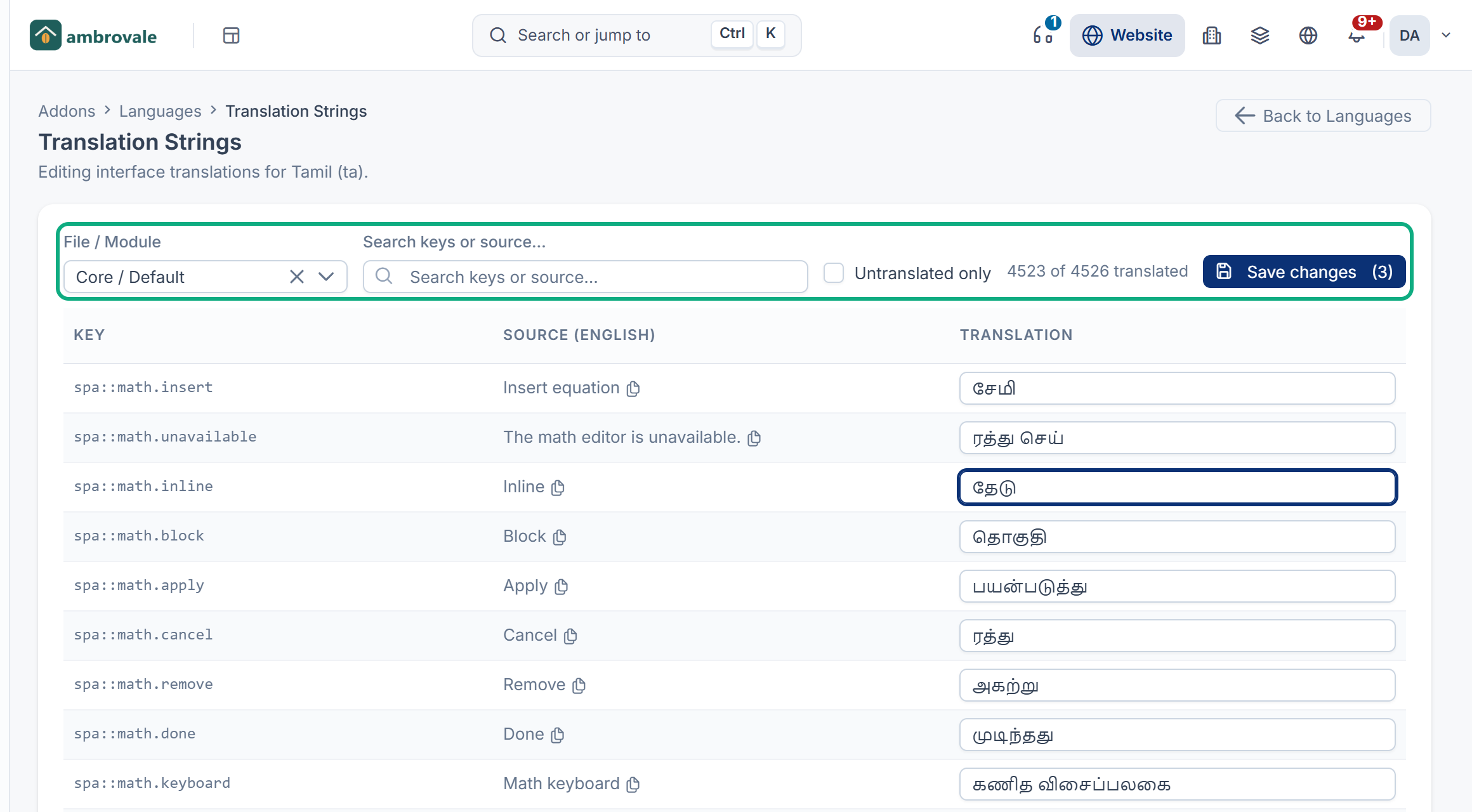
Fix: Select Save changes before you change File / Module. The button shows how many changes are waiting, for example Save changes (3). Type the lost translations again.
9. Changing Default Language didn't change anyone's language
Each person's own language wins over Default Language in System settings. People choose theirs in the header or in their profile, and Laramin saves it to their account. An account created on the Users screen starts in English, whatever Default Language says.
Default Language shows on the sign-in screen, until someone chooses a language there.
Fix: Ask each person to choose the language in the header's Interface language menu, or in Language in their profile. See Change the interface language.
Still not working?
Raise a ticket from Support Center in your Laramin app. Include this page's link, the language, the File / Module and key of the text, and a screenshot of the screen where it's wrong.
Thanks. That helps us decide what to write next.
Thanks for telling us what was missing.
You already answered for this article today. Thanks.
We got a lot of answers from your network just now. Try again in a few minutes.
We couldn't send that. Check your connection and try again.
Links in this article
Printed from help.laramin.in. The online article may have changed since.