How Core Mobile works
Core Mobile is where you change what your mobile apps show, such as their name, logos, theme, onboarding slides, menus, home dashboard and feature switches, without releasing a new app. Learn what it sends, to whom and when.
- Applies to
- Core Mobile 2.0 and later
- Who can do this
- Platform owner, Developer
On this page
In short
Core Mobile is a settings server for mobile apps. You decide here what your app is called, how it looks, which slides it shows on first run, what's in its menus and on its home screen, and which features are switched on. The app reads those settings from your Laramin each time it starts, so a change reaches people's phones without a new release in the app stores.
Core Mobile has no app of its own. It works with a mobile app built to read its settings. If your app doesn't read a setting, changing it here does nothing on the phone.
How it works
The screens
Core Mobile has its own group in the Platform Administration sidebar:
| Menu item | What you manage there |
|---|---|
| Dashboard | An overview, and 13 configuration sections, such as Branding Management and Release Control, each opened from a tile. See Core Mobile configuration settings. |
| Themes | The app's colors, type and shapes, as one or more themes. |
| Remote Configuration | Named values the app reads, such as a maximum upload size. |
| Feature Flags | On and off switches for features in the app. |
| Mobile Experience Rules | Rules saved for later. Core Mobile 2.1.0 doesn't use them yet. |
| Audiences | Groups of app users, defined by rules such as "on iOS" or "app version 2.0 or newer". |
| Onboarding | The slides the app shows on first run. |
| Navigation | The app's bottom bar and side drawer menus. |
| App Dashboards | The app's home screen, built from widgets. |
What the app asks for
When it starts, the app asks your Laramin for its settings in one go: app settings, branding, the default theme, languages and formats, support contacts, version and update rules, feature flags, remote configuration and maintenance details. It asks separately for the onboarding flow, a menu and the home dashboard, because those depend on who's asking.
Each request says which platform and app version it comes from, and can say the country and kind of device. If someone is signed in, your Laramin also knows their roles and permissions. That's what targeting uses.
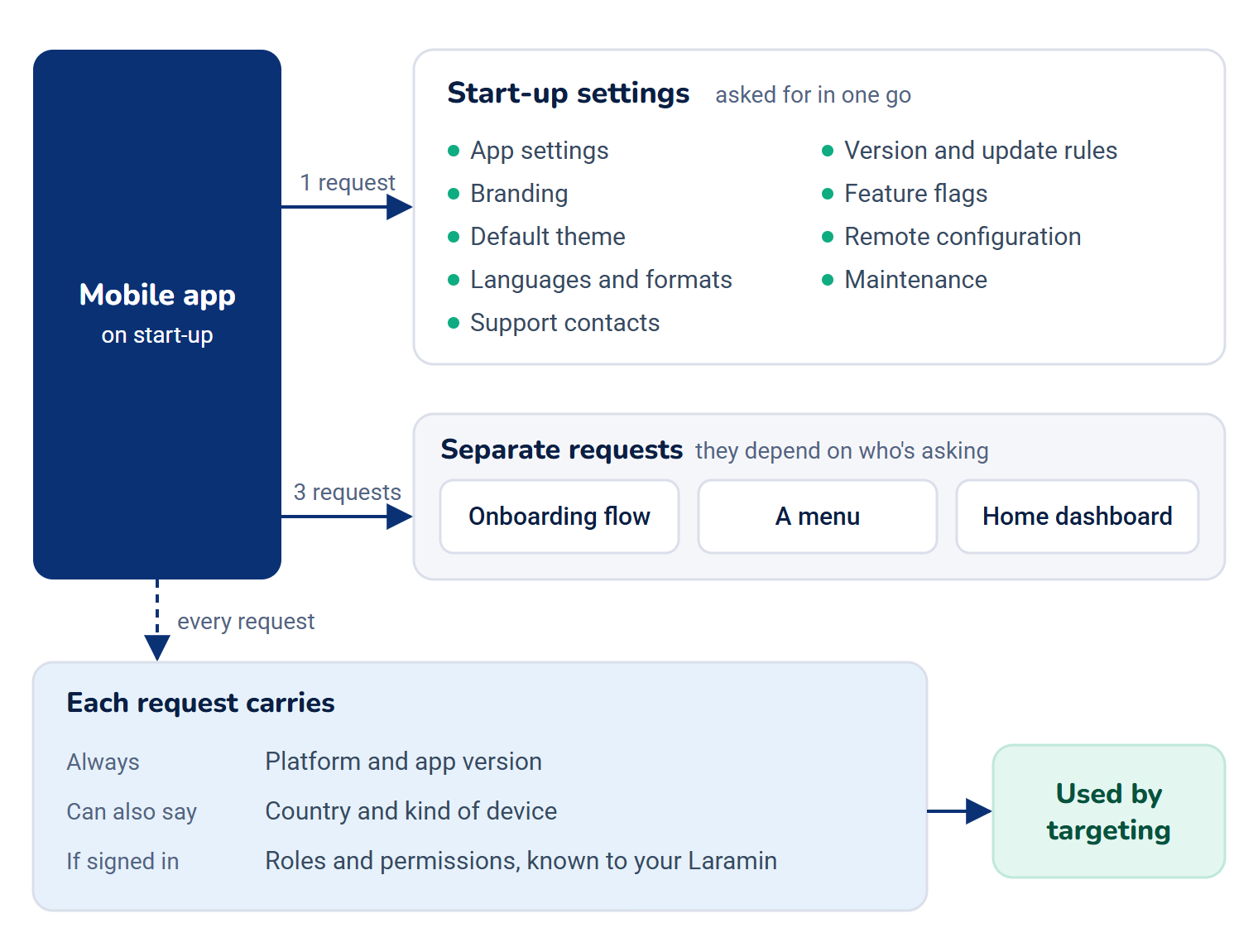
Before anyone signs in, the app proves it's yours with your platform API key. See API Security in Core Mobile configuration settings.
When changes reach the app
A saved change is in the very next answer your Laramin gives. When the app asks again is up to the app: most ask on start-up. The onboarding, menu and dashboard answers can tell the app "nothing changed", so asking often costs little.
When you switch off a remote configuration value, or delete it or a feature flag, it's simply left out of the answer. The app then falls back to whatever its own default is.
Publishing and targeting
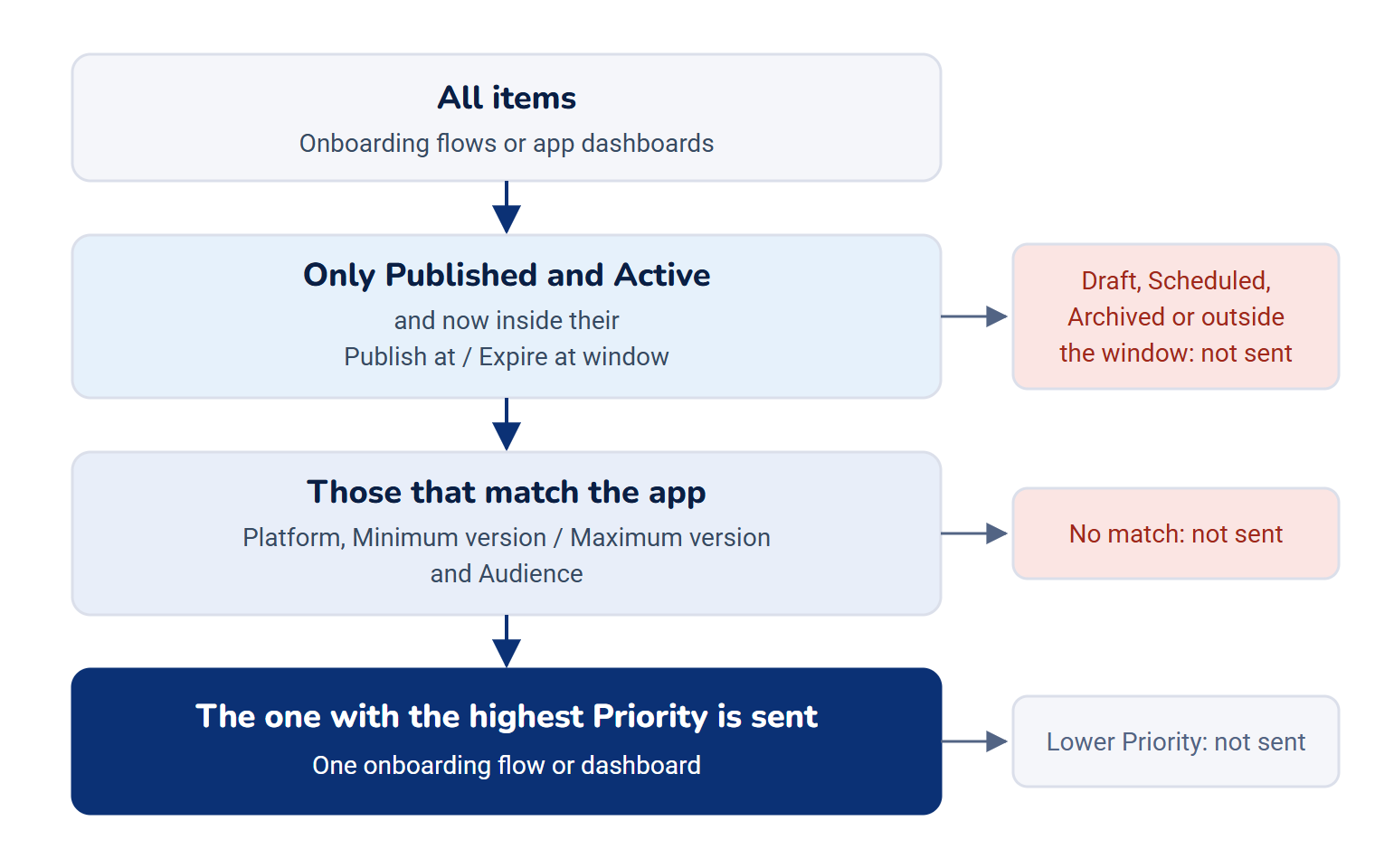
Onboarding flows and app dashboards have a Status: Draft, Scheduled, Published or Archived. Only Published ones are sent, and only between their Publish at and Expire at times when you set them. In Core Mobile 2.1.0, a flow or dashboard set to Scheduled is never sent, even after its Publish at time. To schedule one, set it to Published with a future Publish at.
Onboarding flows, menu items and dashboards can also be limited to:
- a Platform: iOS, Android or Web, or all platforms,
- a Minimum version and Maximum version of the app. An app that doesn't say its version gets nothing that has a version limit,
- an Audience. If the audience is switched off or deleted, the item is shown to nobody.
See Show content to an audience.
What Core Mobile doesn't do
- It doesn't send push notifications. Push Notifications only stores your Firebase details.
- It doesn't push updates to phones. Release Control tells the app the latest version, and whether to force or suggest an update. The app decides what to do. Only Minimum Version is enforced by your Laramin: an older app that says its version is refused, and asked to update.
- It doesn't close the app for maintenance. Maintenance Management tells the app about a maintenance window. Your Laramin's own maintenance mode does close the API: see Turn on maintenance mode.
- Some sections never reach the app. Theme Settings, API Configuration, Push Notifications, Analytics & Monitoring, Offline Experience and Device Capability, and the social links in Contact & Support, are saved but not sent by any of Core Mobile's answers. See Core Mobile configuration settings.
Examples Core Mobile comes with
Core Mobile starts with examples, so a test app has something to show:
- 11 themes, with Default Light as the default,
- remote configuration values
max_upload_sizeandshow_, and feature flagsnew_ dashboard enable_wallet(off) andshow_onboarding(on), - two audiences, iOS Users and Modern App Versions, switched off,
- a published onboarding flow, Laramin Welcome, and a published app dashboard, Laramin Home, with drafts beside them.
Careful: The published examples are sent to every app that asks. Change, archive or delete them before your app goes live.
What to do next
Thanks. That helps us decide what to write next.
Thanks for telling us what was missing.
You already answered for this article today. Thanks.
We got a lot of answers from your network just now. Try again in a few minutes.
We couldn't send that. Check your connection and try again.
Links in this article
Printed from help.laramin.in. The online article may have changed since.