A user can't sign in
Work through the reasons Laramin refuses a sign-in, from a wrong password to an IP rule, and what to do about each one.
- Applies to
- Core 12.0 and later
- Who can do this
- Administrator, Platform owner
- Permission
feature.core. user.edit
On this page
Symptom
The person can't get into Laramin. Ask them for the exact message. Each one below points to a different cause:
| Message | Go to |
|---|---|
| These credentials do not match our records. | 1 |
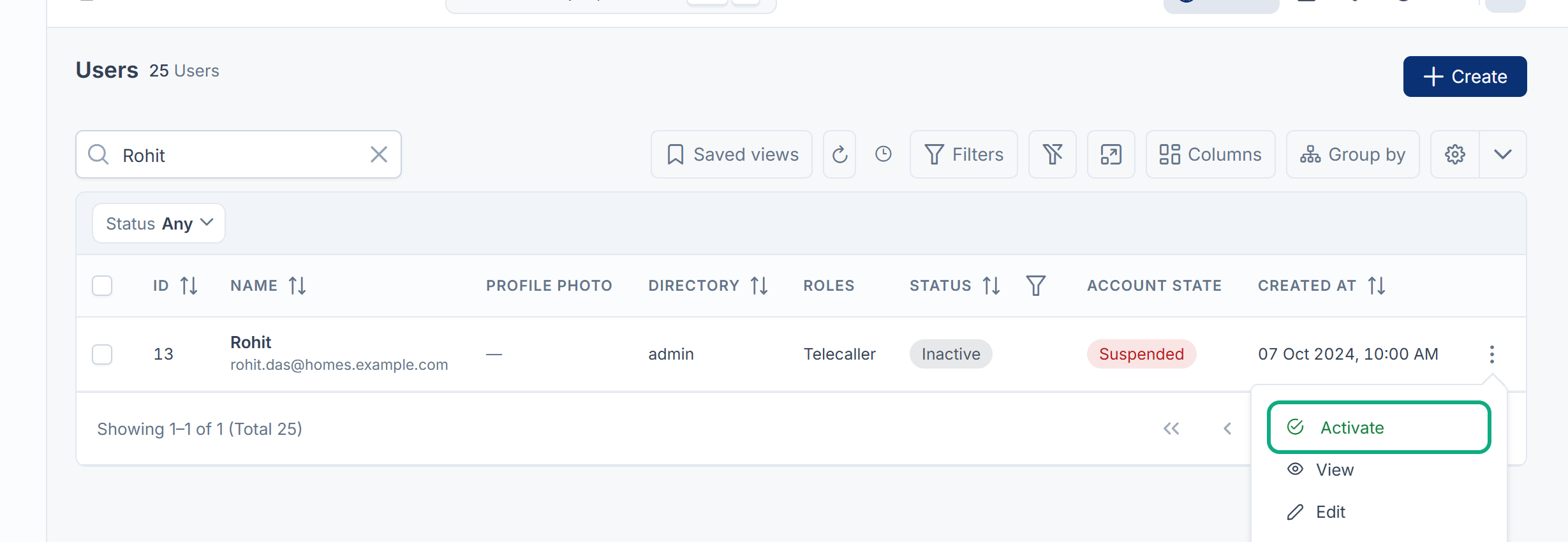
| User account not found/ inactive. Contact your administrator!. | 2 |
| Too many login attempts. Please try again in … seconds. | 3 |
| Access denied from your network address. Please contact your administrator. | 4 |
| Two-Factor Authentication asks for a code they can't give. | 5 |
| Set a New Password, after signing in | 6 |
| No business yet or Nothing to open here, after signing in | 7 |
Tip: If the person is a super admin and you aren't, you can't see their account at all. Ask another super admin to help.
If your public website has its own address, the admin's sign-in isn't there. From Core 12.8.5, signing in on the website's address shows Page not found: sign in on your Laramin's own address. See Choose what your website's home page shows.
Check these, in order
1. The email or password is wrong
Laramin shows These credentials do not match our records. when it can't find the account or the password doesn't match. Look the person up in Users Accounts › Users.
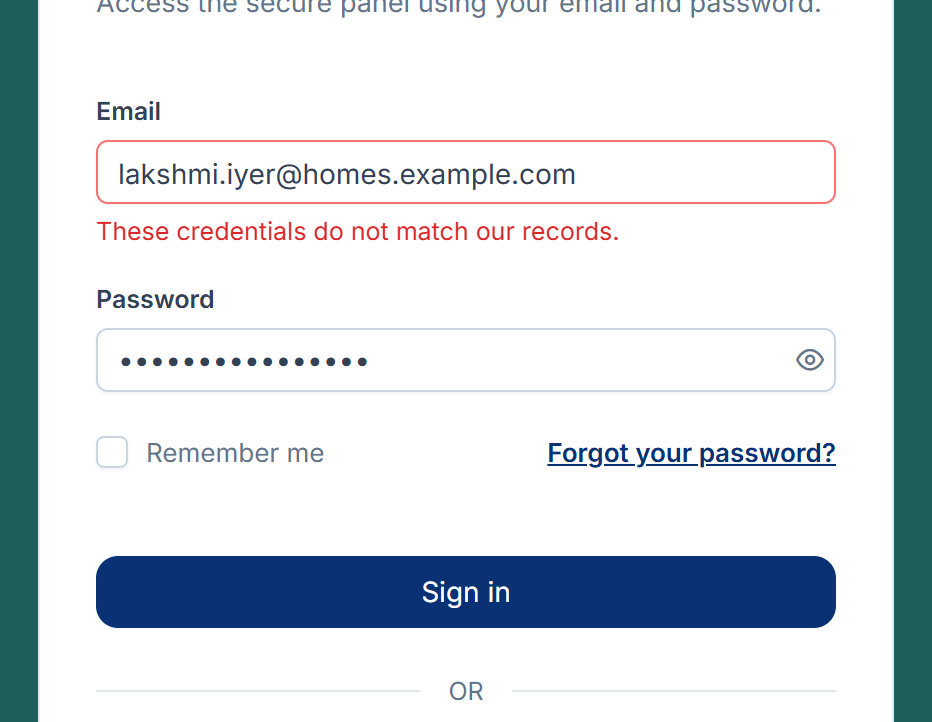
- The account isn't in the list: it may have been deleted. Look in the Trashed view, which you open from the menu next to the gear button. Fix: restore it. See Delete, restore or permanently delete a user.
- The account was created recently: a new account has no password that anyone knows. Fix: send a reset link or set a temporary password. See Reset or set a user's password.
- They've forgotten the password: Fix: they can select Forgot your password? on the sign-in page, or you can reset it for them.
2. The account is inactive
The account's Status is Inactive. Fix: open the row's actions menu and select Activate. See Edit a user.
3. Too many attempts
Laramin allows 5 sign-in attempts a minute for the same email from the same network address, and 15 a minute from one network address in total. Fix: wait for the time in the message, then try again carefully.
4. The network address is blocked
An IP rule blocks the address the person is signing in from. Rules can apply to everyone, to a role or to one user. Laramin checks them before the password. From Social Login 2.1.2, it checks them after a sign-in with Google or another provider too, before any two-factor code, so signing in with a provider doesn't get around them. From Social Login 2.1.3, a first sign-in with a provider from a refused address doesn't create an account. From Core 12.8.5, the mobile app's sign-in is checked the same way, so signing in on a phone doesn't get around them either. From Core 12.8.6, the app checks them again at the two-factor code step, and before someone signs up in the app. From Core 12.8.7, the sign-up form checks your global rules before it creates the account, so someone who can't sign up sees the same message under the email field, and so do the web API's sign-in and sign-up. Fix: someone with access to Configurations › Security › IP Rules and Configurations › Security › Blocked IPs can find the rule that matches the person's address, then change or remove it. They need the List IP Rule (feature.) or List Blocked IP (feature.) permission.
5. Two-factor authentication
The person has two-factor authentication on, so after their password Laramin asks for a code from their authenticator app. From Social Login 2.1.1 it asks after a sign-in with Google or another provider on the web too, the same way.
- They don't have their device: they can select Use a recovery code and enter one of the recovery codes they saved when they set up two-factor authentication.
- They signed in without a code before: they had ticked Trust this device on that device, so Laramin skipped the code there. A trusted device stops being trusted when it expires, when it's revoked, or when an administrator sets the person's password.
- They have neither the device nor a recovery code: reset their two-factor authentication from the Users list. See Reset a user's two-factor authentication.
6. A password change is required
An administrator set a temporary password, so the person sees Set a New Password after signing in. Fix: they choose a new password. It must be at least 12 characters, with uppercase and lowercase letters, a number and a symbol, and must not appear in a list of known breached passwords. Until they do, they can't open anything else.
7. Signed in, but there's nothing to open
-
No business yet: the person isn't an active member of any active workspace. Fix: add them to one. See Create a workspace.
-
Nothing to open here: they can enter the workspace, but no experience is available to them there. Fix: switch to that workspace and give them an experience. See Choose which experiences a user can enter.
Still not working?
Raise a ticket from Support Center in your Laramin app. Include this page's link and what you checked.
Thanks. That helps us decide what to write next.
Thanks for telling us what was missing.
You already answered for this article today. Thanks.
We got a lot of answers from your network just now. Try again in a few minutes.
We couldn't send that. Check your connection and try again.
Links in this article
Printed from help.laramin.in. The online article may have changed since.