Delete, restore or permanently delete a user
Move an account to the recycle bin, bring it back, or remove it for good.
- Applies to
- Core 12.0 and later
- Who can do this
- Administrator, Platform owner
- Permission
feature.core. user. delete - Where
- Users Accounts › Users
On this page
Before you start
- Each action needs its own permission:
- Delete User (
feature.) to delete.core. user. delete - Restore User (
feature.) to restore.core. user. restore - Permanently Delete User (
feature.) to delete forever. The built-in Administrator role doesn't include this one.core. user. remove
- Delete User (
- You can't delete your own account, and only a super admin can delete a super admin's account.
- To stop someone signing in without deleting anything, deactivate their account instead. See Edit a user.
Steps
Delete a user
-
In the menu, open Users Accounts › Users.
-
Open the person's row actions menu (Row actions) and select Delete.
-
In Confirm delete, select Delete.
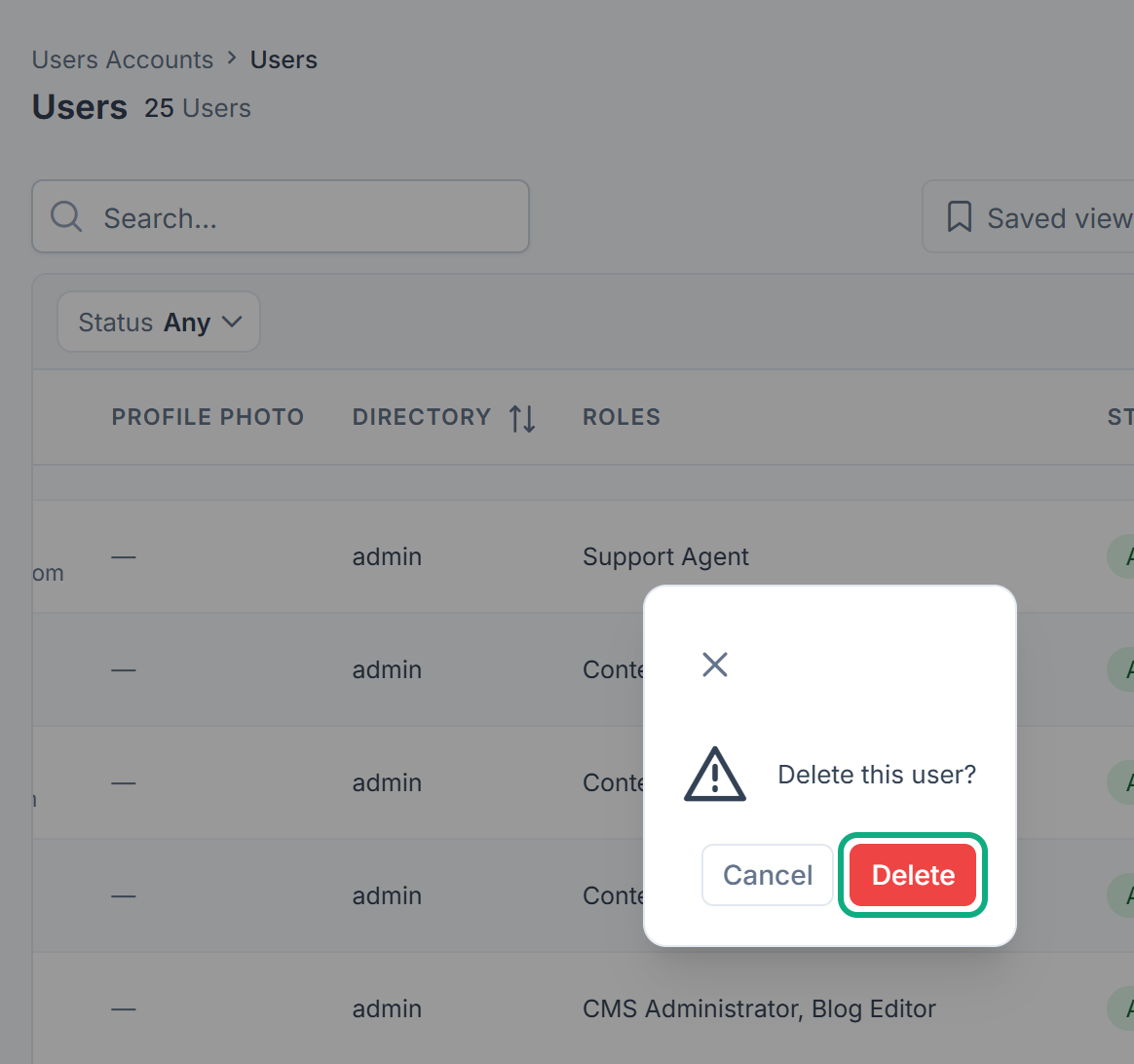
To delete several people at once, tick their rows and select Delete in the bar that appears.
Careful: Deleting a user from the row menu also deletes their profile photo. If you restore the account later, the photo won't come back. Deleting several people from the bar keeps their photos. To keep someone's photo, delete them from the bar, even on their own.
Restore a user
-
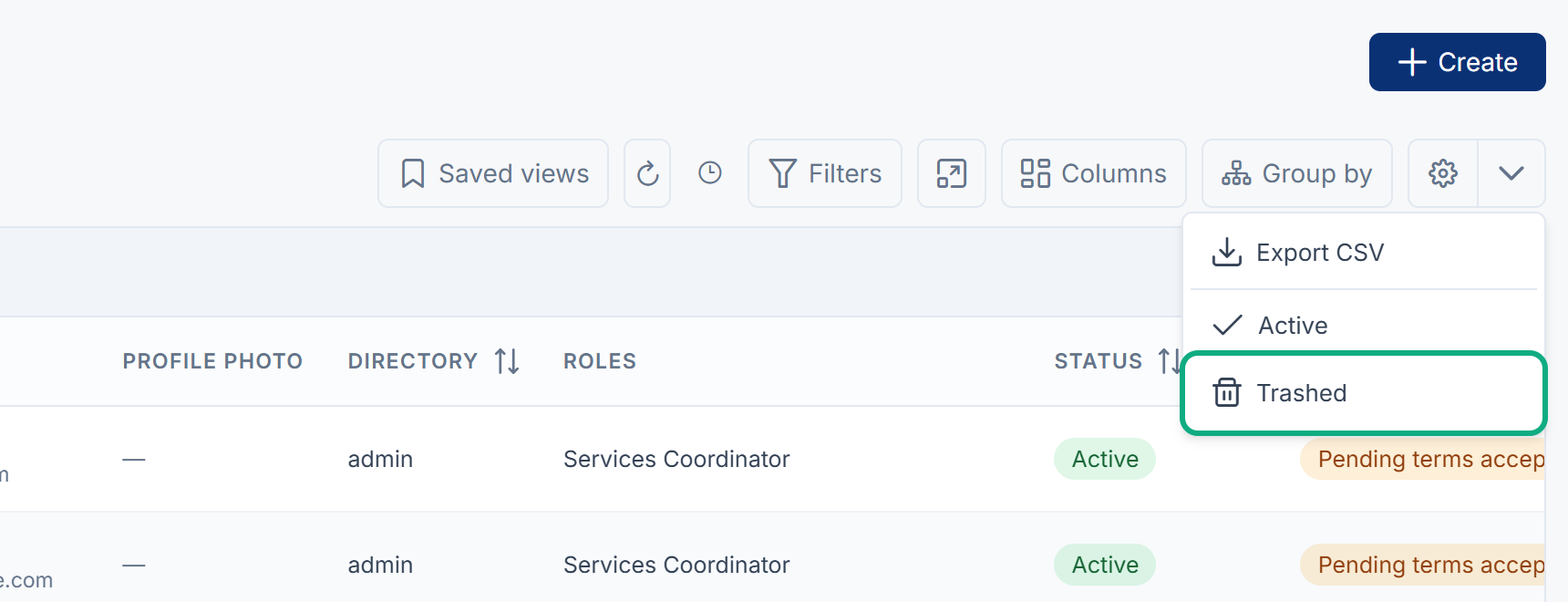
In Users Accounts › Users, open the menu next to the gear button above the list and select Trashed.
-
Open the person's row actions menu and select Restore.
To restore several people, tick their rows and select Restore in the bar that appears. To go back to the normal list, choose Active in the same menu.
Permanently delete a user
-
In Users Accounts › Users, open the menu next to the gear button and select Trashed.
-
Open the person's row actions menu and select Delete forever.
-
In Confirm permanent delete, type the value Laramin asks for. This is the person's name.
-
Select Delete forever.
Danger: Deleting forever can't be undone. When you delete several people forever at once, Laramin asks you to type DELETE instead of a name.
What happens next
A deleted user can't sign in and no longer appears in the list. They stay in Trashed until you restore them or delete them forever. When the recycle bin has no one in it, it says The recycle bin is empty.
Thanks. That helps us decide what to write next.
Thanks for telling us what was missing.
You already answered for this article today. Thanks.
We got a lot of answers from your network just now. Try again in a few minutes.
We couldn't send that. Check your connection and try again.
Links in this article
Printed from help.laramin.in. The online article may have changed since.