Change a workspace's settings
Give one workspace its own company details, opening hours, currency or language, while everything else follows the installation.
- Applies to
- Core 12.0 and later
- Who can do this
- Administrator, Platform owner
- Permission
feature.core. workspace.view - Where
- Users Accounts › Workspaces › Settings
On this page
Before you start
- You need View Workspace (
feature.) to open the settings.core. workspace.view - You see only the sections you can see in the installation's own settings, and you can change only the ones you can edit there. For example, the Company section needs
feature.to see it andcore. company.view feature.to change it.core. company.edit - A workspace's time zone isn't set here. Set it on the workspace itself. See Create a workspace.
Steps
-
In the menu, open Users Accounts › Workspaces.
-
Open the workspace's row actions menu (Row actions) and select Settings.
-
Choose a section. Core offers:
- System: Default Currency and Default Language.
- Company: Company Name, Business Email, Business Mobile, Business Phone, Business Website, Business Brief, Country, State, City, Zipcode, Latitude, Longitude, Business Address, Opening hours and Hours note.
Modules can add sections of their own.
-
Change the fields you want this workspace to have its own value for.
-
Select Save changes.
Each field is labelled Inherited or Overridden. Inherited means it uses the installation's value. Overridden means this workspace has its own.
Go back to the installation's value
-
One field: select Use installation value under the field.
-
A whole section: select Reset … override(s), then Reset to confirm.
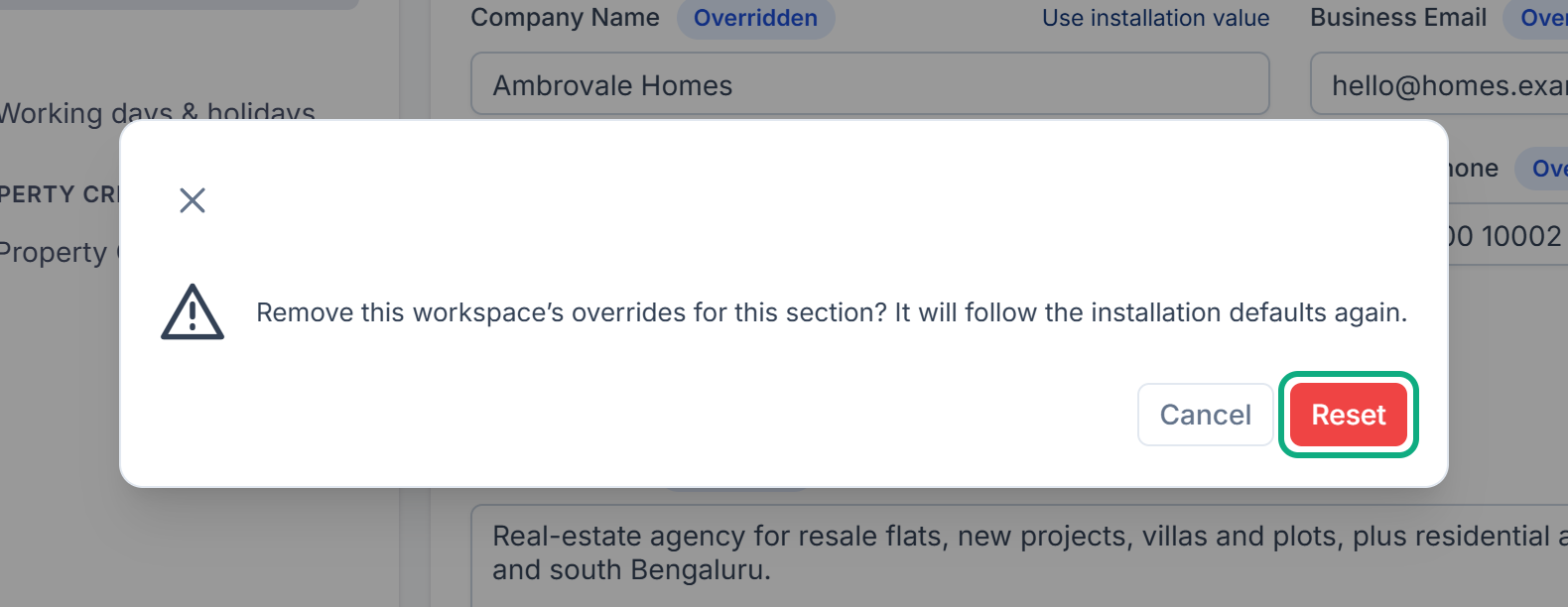
Careful: Emptying a field doesn't make it go back to the installation's value. It saves a deliberate blank, for example a branch that has no website. To follow the installation again, use Use installation value. Some fields can't be blank for a workspace. For those, Laramin asks you to use Use installation value instead.
What happens next
Laramin confirms with Workspace settings saved. From now on, people working in this workspace see its own values. Everyone else sees the installation's.
Opening hours set here replace the installation's whole week. Laramin doesn't combine them day by day.
Thanks. That helps us decide what to write next.
Thanks for telling us what was missing.
You already answered for this article today. Thanks.
We got a lot of answers from your network just now. Try again in a few minutes.
We couldn't send that. Check your connection and try again.
Links in this article
Printed from help.laramin.in. The online article may have changed since.