Sign in as another user
See Laramin exactly as someone else does, for a limited time and with a recorded reason, then return to your own account.
- Applies to
- Core 12.0 and later
- Who can do this
- Administrator, Platform owner
- Permission
feature.core. user. impersonate - Where
- Users Accounts › Users
On this page
Before you start
- You need the Sign in as another user permission (
feature.). The built-in Administrator role doesn't include it. Super admins always have it.core. user. impersonate - You can sign in as someone only if their account is Active, they aren't a super admin, and Allow Impersonation is on for their account. You can't sign in as yourself.
- Have a reason ready. Laramin writes it to the audit trail.
Steps
-
In the menu, open Users Accounts › Users.
-
Open the person's row actions menu (Row actions) and select Impersonate.
-
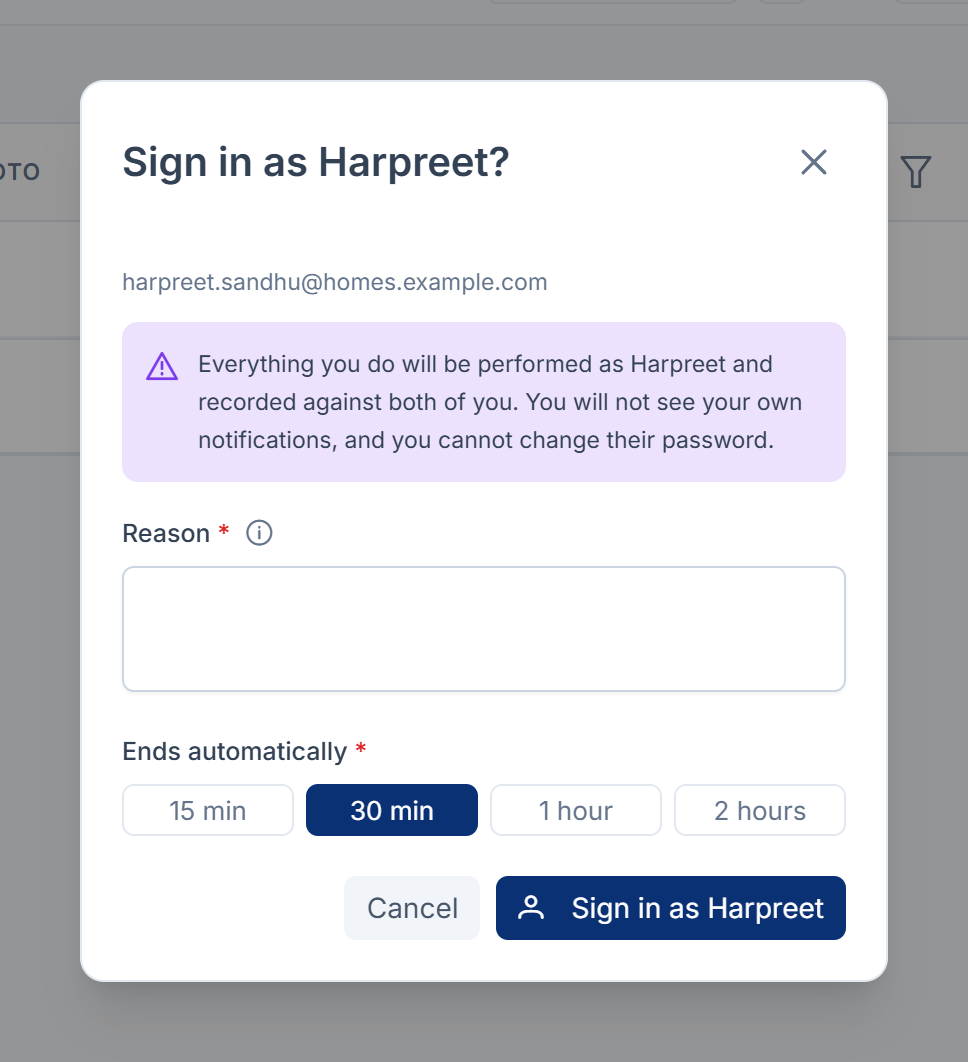
Read the warning in the dialog. Everything you do will be performed as that person and recorded against both of you. You won't see your own notifications, and you can't change their password.
-
In Reason, explain why you need access. Use at least 10 characters, and no more than 500.
-
Under Ends automatically, choose 15 min, 30 min, 1 hour or 2 hours. 30 min is selected for you.
-
Select Sign in as ….
What happens next
Laramin opens the app as that person. A bar across the screen shows "{you} signed in as {them}" and how much time is left.
- Return to my account on the bar ends the session. You can also choose Leave Impersonation from the account menu. Either way, you go back to the page you started from.
- In the last 2 minutes, Extend appears on the bar. It moves the deadline to 30 minutes from now. One impersonation can't last more than 4 hours in total. After that, Laramin says An impersonation cannot run longer than 4 hours in total. Start a new one if you still need access.
- When time runs out, the bar says Time is up - returning to your account. Laramin then signs you back in as yourself, with the message The impersonation window ended, so you are back in your own account.
Laramin records when each impersonation starts, is extended and ends, with your reason.
Careful: You can only start an impersonation from the Users screen. If you open the sign-in-as address directly, Laramin refuses with Start impersonation from the Users screen, so the reason is recorded.
Stop anyone signing in as an account
A super admin can protect an account:
- Edit the user. See Edit a user.
- On the Profile step, turn off Allow Impersonation.
- Select Save.
Nobody can then sign in as that person, even someone who has the impersonation permission.
Thanks. That helps us decide what to write next.
Thanks for telling us what was missing.
You already answered for this article today. Thanks.
We got a lot of answers from your network just now. Try again in a few minutes.
We couldn't send that. Check your connection and try again.
Links in this article
Printed from help.laramin.in. The online article may have changed since.