How workspaces, teams and experiences control access
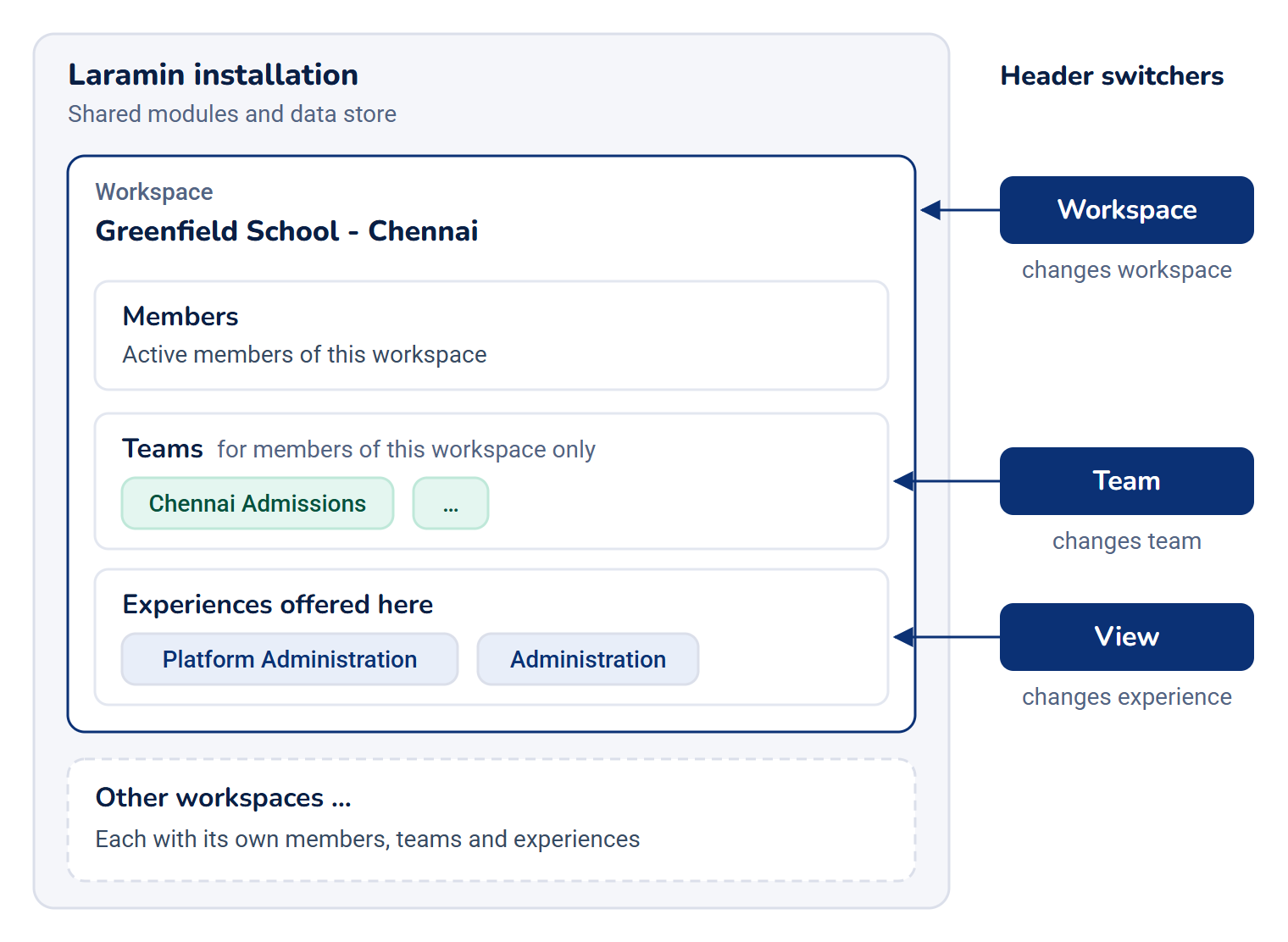
Three ideas shape where each person works in Laramin and what they see: the workspace is the business, the team is a group inside it, and the experience is how the app is arranged for them.
- Applies to
- Core 12.0 and later
- Who can do this
- Administrator, Platform owner
On this page
In short
A workspace is the business you're working in, for example "Greenfield School - Chennai". A team is a workgroup inside one workspace, such as "Chennai Admissions". An experience is how Laramin is arranged for you: its menu, its layout and the page you land on. Roles decide what each person can do. Workspaces, teams and experiences decide where they do it and what they see.
How it works
| Workspace | Team | Experience | |
|---|---|---|---|
| Answers | Which business am I working in? | Which group within it am I working with? | How is the app arranged for me? |
| Who creates it | An administrator, in Users Accounts › Workspaces | An administrator, in Users Accounts › Teams | The module that owns its screens. Nobody can create one in the app |
| Who can enter | Its active members. Super admins can enter every active workspace | Its active members, who must also be members of the team's workspace | People given access to it in that workspace. Super admins can enter every experience |
| Changes what you can do? | Roles can be granted for one workspace only | Roles held in the team are added to your other roles | No |
| Switch it in the header | Workspace | Team | View |
Workspaces
One Laramin installation can run many workspaces. They share the same modules and data store, but each one is a separate business. A person can work in a workspace only if they're an active member of it. Being a member is all they need to switch to it.
- The default workspace is where a session starts when the person hasn't chosen one. Only one workspace can be the default. You can't archive or delete it, so make another workspace the default first.
- Archiving (setting Status to Archived) means nobody can enter the workspace, but records already in it are kept. You can't archive the only active workspace. Its teams stop working too, but nothing in them is changed, so reactivating the workspace brings everything back as it was.
- All Workspaces is a way to read records from every workspace you can enter. It isn't a workspace itself, so new records still need one.
- Settings and time zone: each workspace can have its own time zone and override some installation settings, such as the company details and the default currency. See Change a workspace's settings.
Teams
A team belongs to exactly one workspace, and you can't move it to another. Team membership never gets around workspace membership: someone must be in the workspace before they can be added to one of its teams. If you remove someone from a workspace, their teams there stop working for them, but nothing is deleted.
When you work in a team, Laramin adds the roles you hold in that team to your platform-wide roles. It never takes permissions away. Global means only your platform-wide roles apply. For example, someone who is Administrator everywhere and Sales Manager in Chennai has both roles while working in the Chennai team.
Experiences
Each module that has screens of its own can bring an experience. Core includes two:
| Experience | For | Home page | Who can enter |
|---|---|---|---|
| Platform Administration | The people who run the whole platform | Dashboard | People with feature., and every super admin |
| Administration | The people who run a business day to day | Dashboard | People with feature. |
Each experience has its own "door" permission in the form feature.. You give people access per workspace on the Access step of the Users form. A role can also grant it. If someone can't enter any experience in a workspace, they see Nothing to open here instead of the app.
An experience controls how Laramin looks. It doesn't change what you're allowed to do: Laramin checks your roles on every action, whichever experience you're in. People with Edit Experience Presentation (feature.) can change, for one workspace, whether an experience is offered there, and its sidebar, layout, appearance and home page. Platform Administration can't be switched off.
Where you land when you sign in
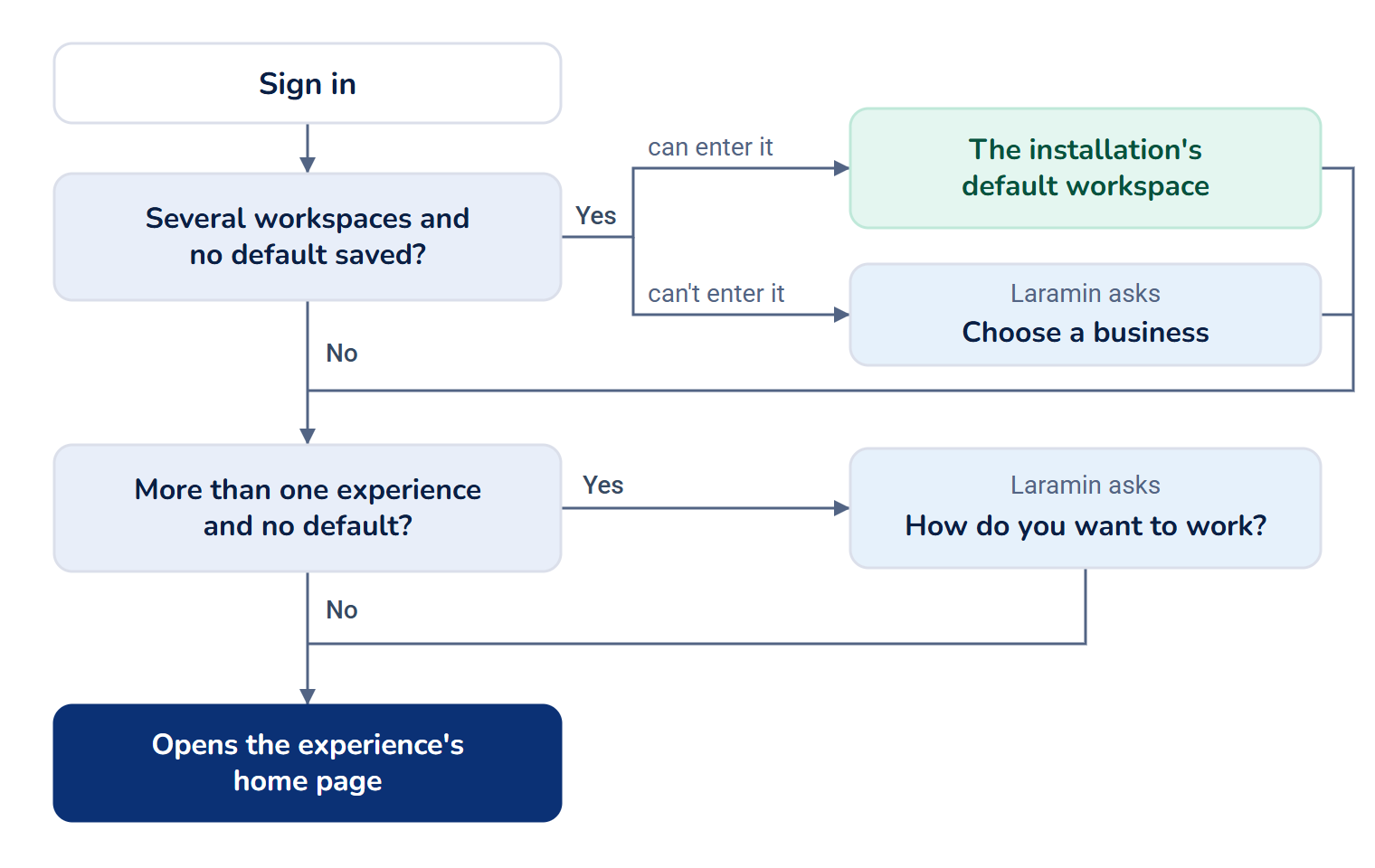
- If you can enter several workspaces and haven't chosen a default, Laramin opens the installation's default workspace, if you can enter it. If you can't, it asks Choose a business.
- If more than one experience is available in that workspace and you haven't chosen a default, it asks How do you want to work?
- It then opens that experience's home page.
How it relates to
- Roles and permissions: these decide what you can do once you're in. See Super admin vs Administrator and Permission key reference.
- The header switchers: Switch workspace, Switch team and Switch to another experience.
Next steps
Thanks. That helps us decide what to write next.
Thanks for telling us what was missing.
You already answered for this article today. Thanks.
We got a lot of answers from your network just now. Try again in a few minutes.
We couldn't send that. Check your connection and try again.
Links in this article
Printed from help.laramin.in. The online article may have changed since.