Reset a user's two-factor authentication
Clear someone's two-factor authentication when they've lost their authenticator app and have no recovery codes left, so they can set it up again.
- Applies to
- Core 12.7 and later
- Who can do this
- Administrator, Platform owner
- Permission
user.reset_two_factor - Where
- Users Accounts › Users
On this page
Before you start
- You need the Reset User Two-Factor permission (
user.) as well as permission to edit users. The built-in Administrator role doesn't include it, so by default only super admins have it.reset_two_factor - Check who is asking. Resetting two-factor authentication removes a layer of protection from the account until the person sets it up again.
- You can't reset your own two-factor authentication here, or a super admin's.
Steps
-
In the menu, open Users Accounts › Users.
-
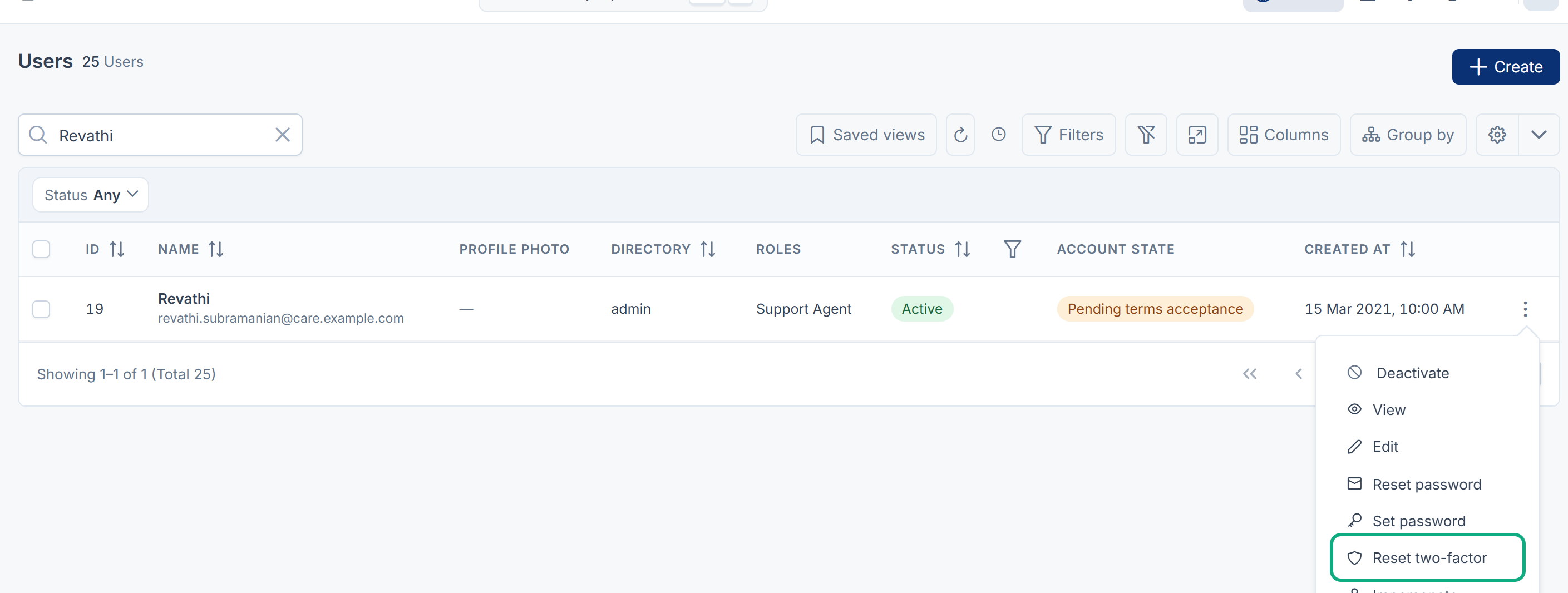
Find the person, open the row's actions menu (Row actions) and select Reset two-factor. The action only appears for people who have two-factor authentication turned on.
-
Read the confirmation, then select Reset two-factor.
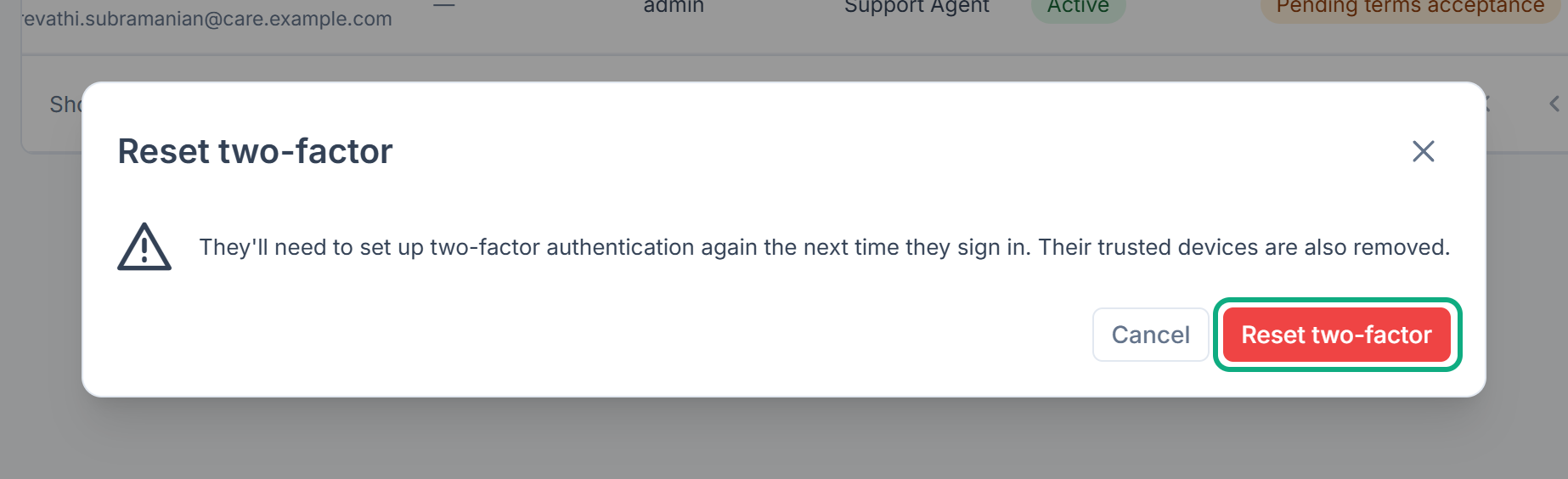
Laramin confirms with "…'s two-factor authentication was reset."
What happens next
- The person signs in with just their password. If Require two-factor authentication is on, Laramin then takes them straight to Profile › Security to set it up again.
- Their trusted devices are removed, so no device skips the new second factor.
- The reset is written to the security log.
Thanks. That helps us decide what to write next.
Thanks for telling us what was missing.
You already answered for this article today. Thanks.
We got a lot of answers from your network just now. Try again in a few minutes.
We couldn't send that. Check your connection and try again.
Links in this article
Printed from help.laramin.in. The online article may have changed since.