Reset or set a user's password
Send someone a link to choose a new password, or give them a temporary password that they must change the next time they sign in.
- Applies to
- Core 12.0 and later
- Who can do this
- Administrator, Platform owner
- Permission
feature.core. user.edit - Where
- Users Accounts › Users
On this page
Before you start
- You need Edit User (
feature.), plus one of these:core. user.edit - Reset User Password (send reset link) (
user.) to send a link.reset_password - Set User Password (admin-typed) (
user.) to type a temporary password.set_password
- Reset User Password (send reset link) (
- The built-in Administrator role doesn't include either of these, so by default only super admins have them. See Super admin vs Administrator.
- You can't use these actions on your own account or on a super admin's account. To change your own password, use the Password screen in your profile.
Choose one of the two methods:
| Method | Use it when | What the person does |
|---|---|---|
| Reset password | They can open their email. | They follow the link in the email and choose a password. The link stops working after 60 minutes. |
| Set password | They can't use email, or you need them signed out everywhere now. | They sign in with the temporary password, then must choose their own. |
Steps
Send a reset link
-
In the menu, open Users Accounts › Users.
-
Open the person's row actions menu (Row actions) and select Reset password.
-
In the confirmation, select Send link.
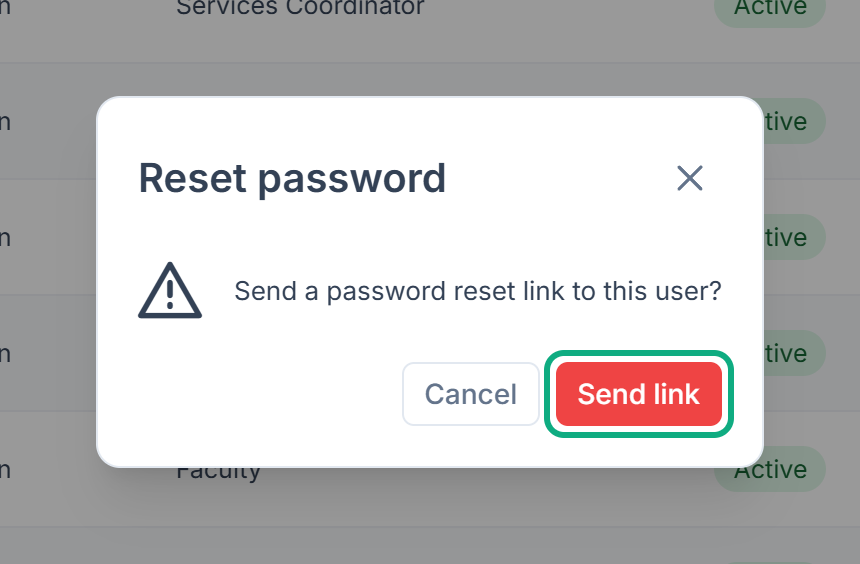
Laramin confirms with "Password reset link has been sent to …".
Set a temporary password
-
In the menu, open Users Accounts › Users.
-
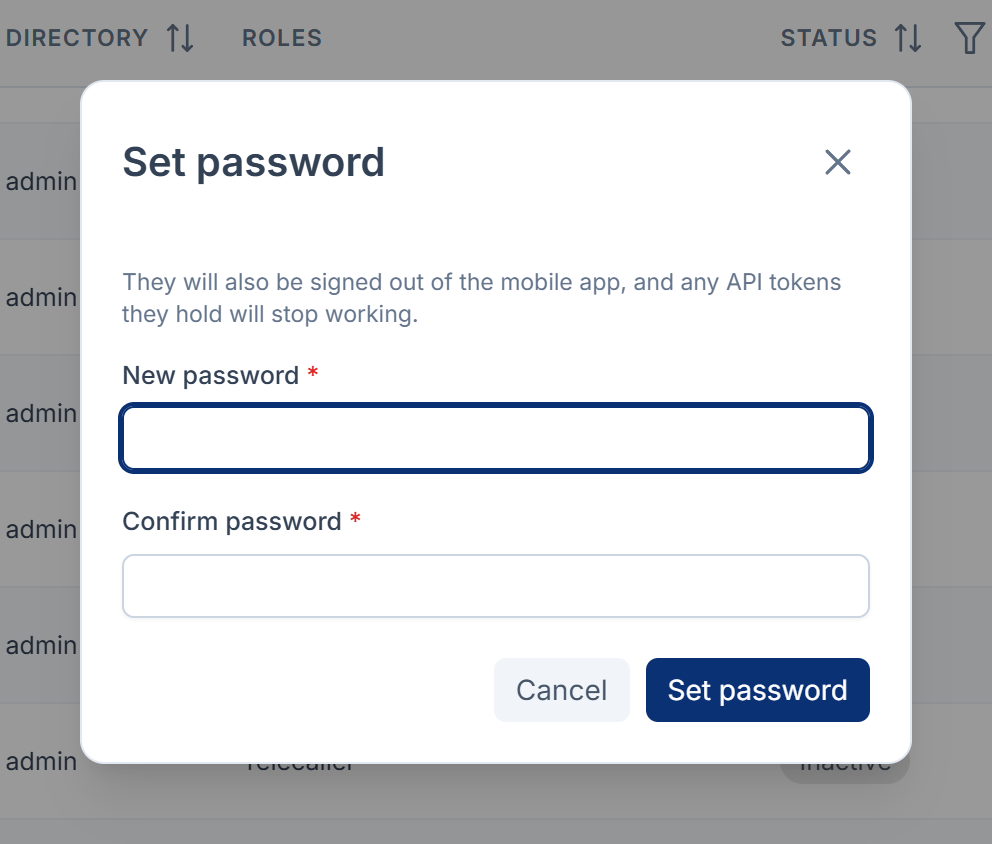
Open the person's row actions menu (Row actions) and select Set password.
The dialog reminds you: "They will also be signed out of the mobile app, and any API tokens they hold will stop working."
-
Type the password in New password. It must:
- be at least 12 characters long
- include both uppercase and lowercase letters
- include a number
- include a symbol
- not appear in a list of passwords exposed in known data breaches
-
Type it again in Confirm password.
-
Select Set password.
Laramin confirms with "Temporary password has been set for …. They must change it on next login."
Careful: Setting a password signs the person out on every device, the mobile app included, and removes all their trusted devices. Their personal API tokens stop working. Their next sign-in asks for a two-factor code again, if they use two-factor authentication. The mobile app won't accept the temporary password: it asks them to choose a new one with Forgot password.
A reset from the email signs them out of the mobile app and stops their API tokens in the same way, once they've chosen the new password.
What happens next
When you set a password, Laramin sends the person the temporary password and the sign-in address through the Notification Manager add-on, on the channels set up there. Without that add-on, nothing is sent, so give them the temporary password yourself, in a safe way. When they next sign in, they see Set a New Password and must choose a new password before they can do anything else.
A newly created account has no password anyone knows. After you create a user, use one of these methods so the person can sign in.
Thanks. That helps us decide what to write next.
Thanks for telling us what was missing.
You already answered for this article today. Thanks.
We got a lot of answers from your network just now. Try again in a few minutes.
We couldn't send that. Check your connection and try again.
Links in this article
Printed from help.laramin.in. The online article may have changed since.