Issue an invoice
Check a draft invoice, issue it so it gets its permanent number, and see what changes: the due date, the ledger, payments and the PDF.
- Applies to
- Billing 2.0 and later
- Who can do this
- Administrator, Team member
- Permission
feature.bill. invoice. issue - Where
- Billing › Invoices
On this page
An add-on, such as Monetization when a subscription renews, creates invoices as drafts. A draft is a demand nobody has received yet: it has no number and can't be paid. Issuing it makes it a real invoice.
Danger: Issuing can't be undone. The invoice gets a permanent number from your business's series, and from then on it can only be reversed with a credit note. Check it first.
Before you start
- You need
feature., plusbill. invoice. issue feature.andbill. invoice.list feature.to find and open it.bill. invoice.view - Switch to the business the invoice belongs to. You can't issue from All Workspaces. See Switch workspace.
- Make sure your seller details are set, including your tax registration number if you have one. They're copied onto the invoice when you issue it. See Billing permissions and server settings.
Steps
-
Go to Billing › Invoices.
-
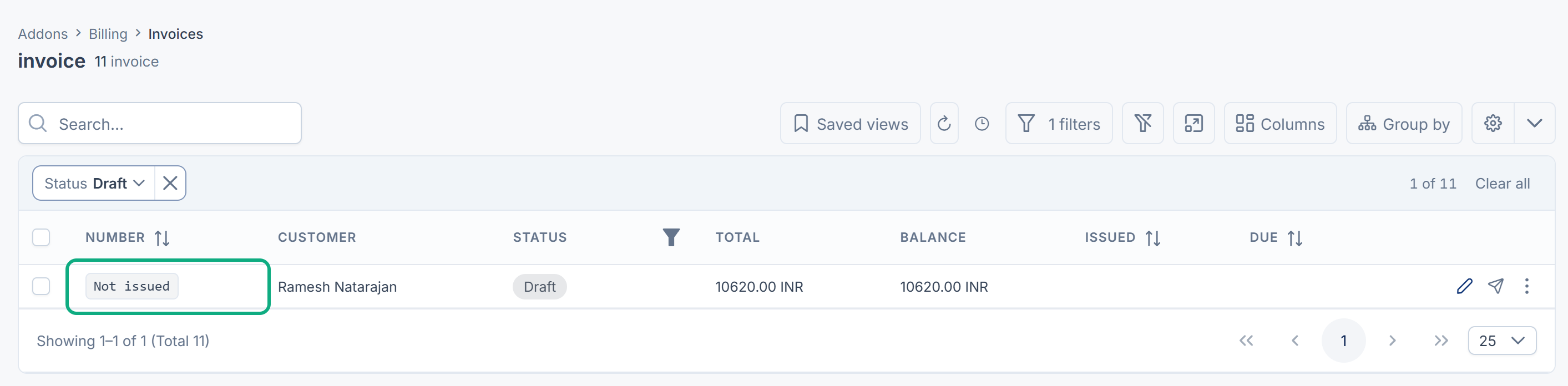
Filter Status to Draft. Drafts show Not issued in the Number column. See Filter a list.
-
Open the invoice and check the Amounts panel: Subtotal, Tax and Total.
-
Select Issue.
-
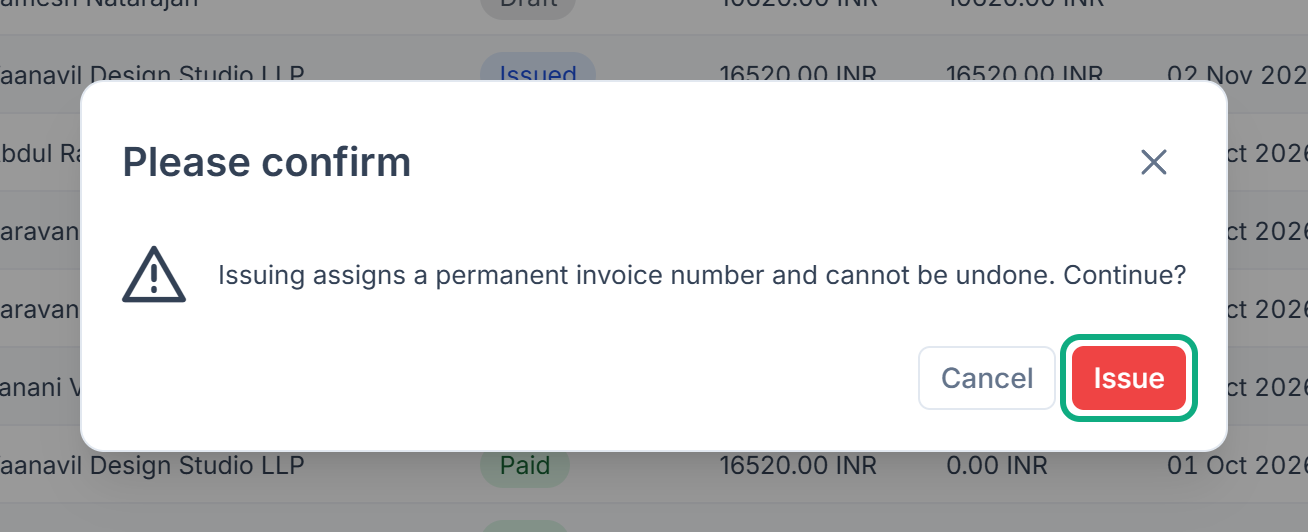
Read the message Issuing assigns a permanent invoice number and cannot be undone. Continue? and select Issue.
Laramin confirms with 1 processed. If you see an error instead, see An invoice can't be issued.
What happens next
- The invoice gets its number, such as
INV-2026-000042, and its status becomes Issued. - Issued shows today's date. Due shows the date the add-on set, or, if it set none, the date your server settings give: 30 days after issue by default.
- An Invoice Issued entry for the total is added to the customer's Ledger.
- Your seller details and the customer's billing details are kept with the invoice as they are now. Later changes to either don't change it.
- The invoice can now be paid. A payment for part of the balance makes it Partially Paid, and one for the rest makes it Paid. Balance shows what's still owed.
- If it isn't fully paid once its due date, plus any grace days, has passed, the daily task marks it Overdue.
Billing 2.0.0 shows no Download PDF button. Someone with feature. can open the PDF of an issued invoice at /admin/, where <reference> is the invoice's Reference from its page.
To give money back or cancel an issued invoice, see Correct, credit or void an invoice.
Thanks. That helps us decide what to write next.
Thanks for telling us what was missing.
You already answered for this article today. Thanks.
We got a lot of answers from your network just now. Try again in a few minutes.
We couldn't send that. Check your connection and try again.
Links in this article
Printed from help.laramin.in. The online article may have changed since.