Set up a promotion code
Create a discount code for your business with a percentage or fixed amount, how many periods it lasts, its limits and dates, and withdraw a redemption when you need to.
- Applies to
- Monetization 3.0 and later
- Who can do this
- Administrator
- Permission
feature.mon. promotion. create - Where
- Monetization › Promotions
On this page
A promotion is a discount code, such as WELCOME10, that your business offers. It sets how much it takes off, for how many billing periods, how many times it can be used, and between which dates.
Promotions belong to the business that creates them. Another of your businesses can't see or use them.
In Monetization 3.0.0 nothing in your Laramin redeems a promotion code. CRM quotes and renewals don't apply them. A promotion only takes effect when another add-on or your own integration redeems it.
Before you start
- You need
feature.. Changing one needsmon. promotion. create feature..mon. promotion.edit - Switch to the business the promotion is for. You can't create promotions in All Workspaces. See Switch workspace.
Create a promotion
-
Go to Monetization › Promotions.
-
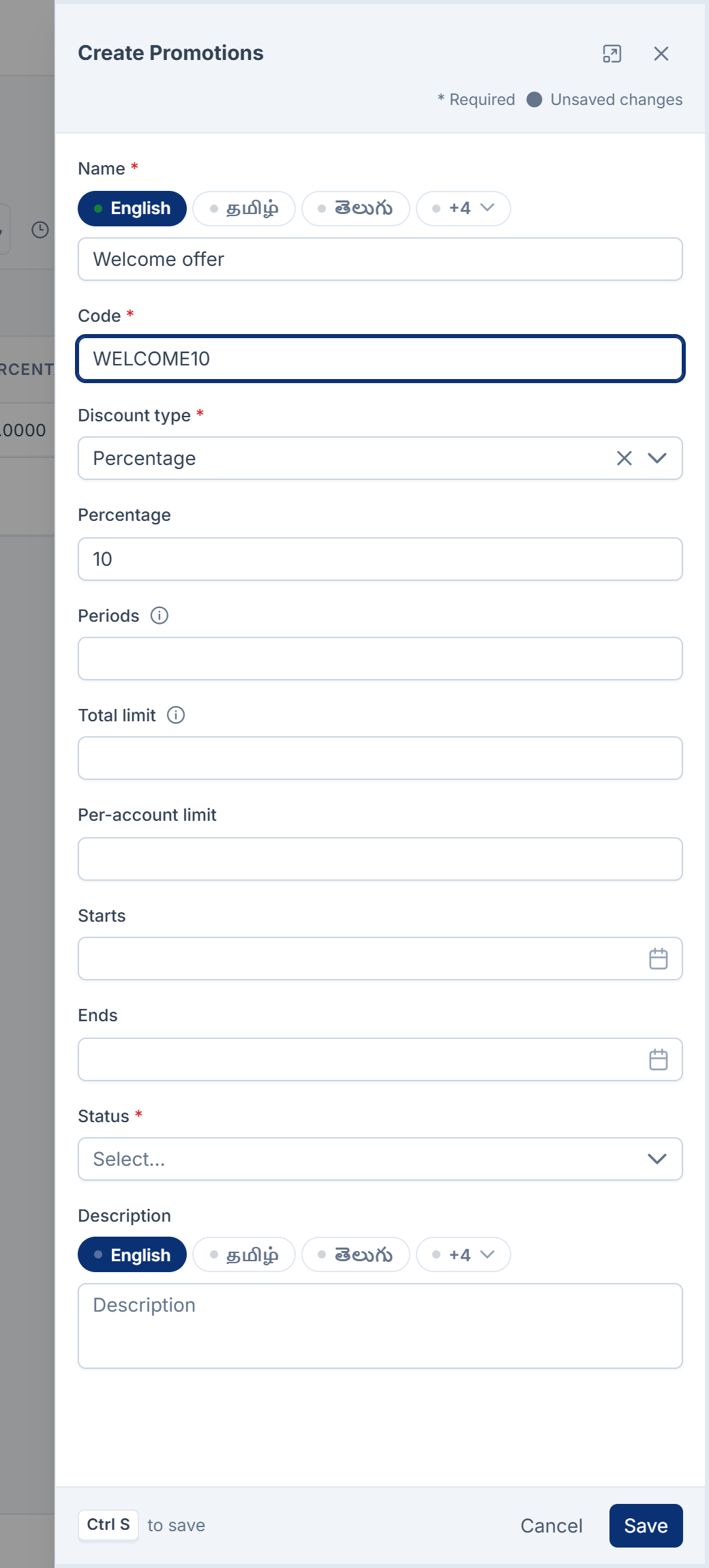
Select New Promotion.
-
In Name, enter a name your team will recognize, such as
Welcome offer. You can enter it in each of your languages. -
In Code, enter the code customers will type, up to 60 characters. Capitals don't matter when it's redeemed.
-
In Discount type, choose Percentage or Fixed amount.
-
For Percentage, enter the Percentage, from 0 to 100. For Fixed amount, enter the Amount and its three-letter Currency, such as
INR. -
Optional: in Periods, enter how many billing periods the discount lasts, from 1 to 120. Leave it empty for as long as the subscription runs.
-
Optional: in Total limit, enter how many times it can be redeemed in all. Leave it empty for no limit.
-
Optional: in Per-account limit, enter how many times one customer can redeem it.
-
Optional: set Starts and Ends. Ends can't be before Starts.
-
Leave Status as Active.
-
Select Save.
You see Promotion saved. The list's Redeemed column counts its redemptions.
A code is used once for good. In Monetization 3.0.0 the form refuses a code that any promotion has ever used, in any of your businesses, including deleted ones, with The code has already been taken.
Change a promotion
Changes apply to redemptions from then on. A customer who already redeemed it keeps the discount as it was when they did. Lowering Percentage doesn't lower anyone's existing discount.
To stop a promotion, set Status to Inactive, or set Ends to today.
When a code is refused
Whatever redeems a code gets one of these answers when it can't be used:
| Message | Why |
|---|---|
| No promotion is running with the code …. | No promotion in this business has that code. A code from another of your businesses is unknown here. |
| This promotion is not currently running. | Its Status is Inactive. |
| This promotion does not start until …. | Starts is in the future. |
| This promotion ended on …. | Ends has passed. |
| This promotion has been fully redeemed. | Total limit is reached. |
| This promotion can be redeemed … time(s) per account, and this account has used them. | Per-account limit is reached. |
Withdraw a redemption
Each redemption records which customer redeemed the code, the discount they got and how many periods are left. You can withdraw one, for example if it was given by mistake.
-
Open the promotion's Redemptions.
-
In the redemption's row, select Revoke.
-
In Reason, enter why.
-
Read Withdraw this redemption? It stops discounting anything further and frees the slot it occupied. The record that this account had the discount is kept. and confirm.
The redemption shows Revoked with the date, and it no longer counts against the limits. You need feature..
In Monetization 3.0.0 the Redemptions list has no link from the Promotions list or the menu. It's at /admin/, where <id> is the promotion's ID.
Delete a promotion
Select Delete on its row to put it in the trash. You can restore it.
A promotion that has ever been redeemed can't be removed for good. Laramin says This promotion has … redemption(s) and cannot be permanently removed. Those records explain why a customer was charged less. Its code also stays taken.
Thanks. That helps us decide what to write next.
Thanks for telling us what was missing.
You already answered for this article today. Thanks.
We got a lot of answers from your network just now. Try again in a few minutes.
We couldn't send that. Check your connection and try again.
Links in this article
Printed from help.laramin.in. The online article may have changed since.