Set up a sign-in provider
Register an app with Google, Apple, GitHub or another provider, give it your Laramin's callback address, then enter its credentials in Social Login and switch the provider on so its button appears on the Sign-In screen.
- Applies to
- Social Login 2.0 and later
- Who can do this
- Platform owner, Administrator
- Permission
feature.social. provider.edit - Where
- Social Login (Platform Administration)
On this page
Each provider needs an app registered in that provider's developer console. The app gives you an ID and a secret; your Laramin gives the app a callback address to send people back to.
Before you start
- Install and turn on the Social Login add-on. See Upload and install an add-on.
- You need Edit Provider (
feature.). To add a provider that isn't on the list yet, you also need Create Provider (social. provider.edit feature.).social. provider. create - Decide whether new people may sign up with a social account. If not, leave Allow public registration off in Configurations › Security › Security Settings: only people who already have an account can then use the buttons. See How social sign-in works.
- Your Laramin must be reachable at its public
https://address. Most providers refuse other callback addresses.
Find your callback address
Every provider needs this address, where <key> is the provider's Provider Key in lowercase:
Couldn't copy. Select the code and press Ctrl+C (⌘+C on a Mac).
https://<your Laramin's address>/auth/<key>/callbackReplace the highlighted values with your own.
For example, https://crm.example.com or https://crm.example.com. It doesn't include /admin. No screen shows the callback address, so build it from your site's address and the provider key.
If your mobile app uses social sign-in, also register https://<your Laramin's address>. See Social sign-in from a mobile app.
Steps
1. Register an app with the provider
- Open the provider's developer console, for example Google Cloud Console's Credentials page or GitHub's Developer settings.
- Create an OAuth app, or an OAuth client of type Web application for Google.
- Add your callback address as the app's redirect or callback URL.
- Copy the app's client ID and client secret. Keep the secret somewhere safe: some consoles show it only once.
2. Add the provider in your Laramin
Google, Facebook and LinkedIn are already on the list. For any other provider:
-
In the Platform Administration sidebar, select Social Login. The Social Login Providers list opens.
-
Select New Social Login Provider.
-
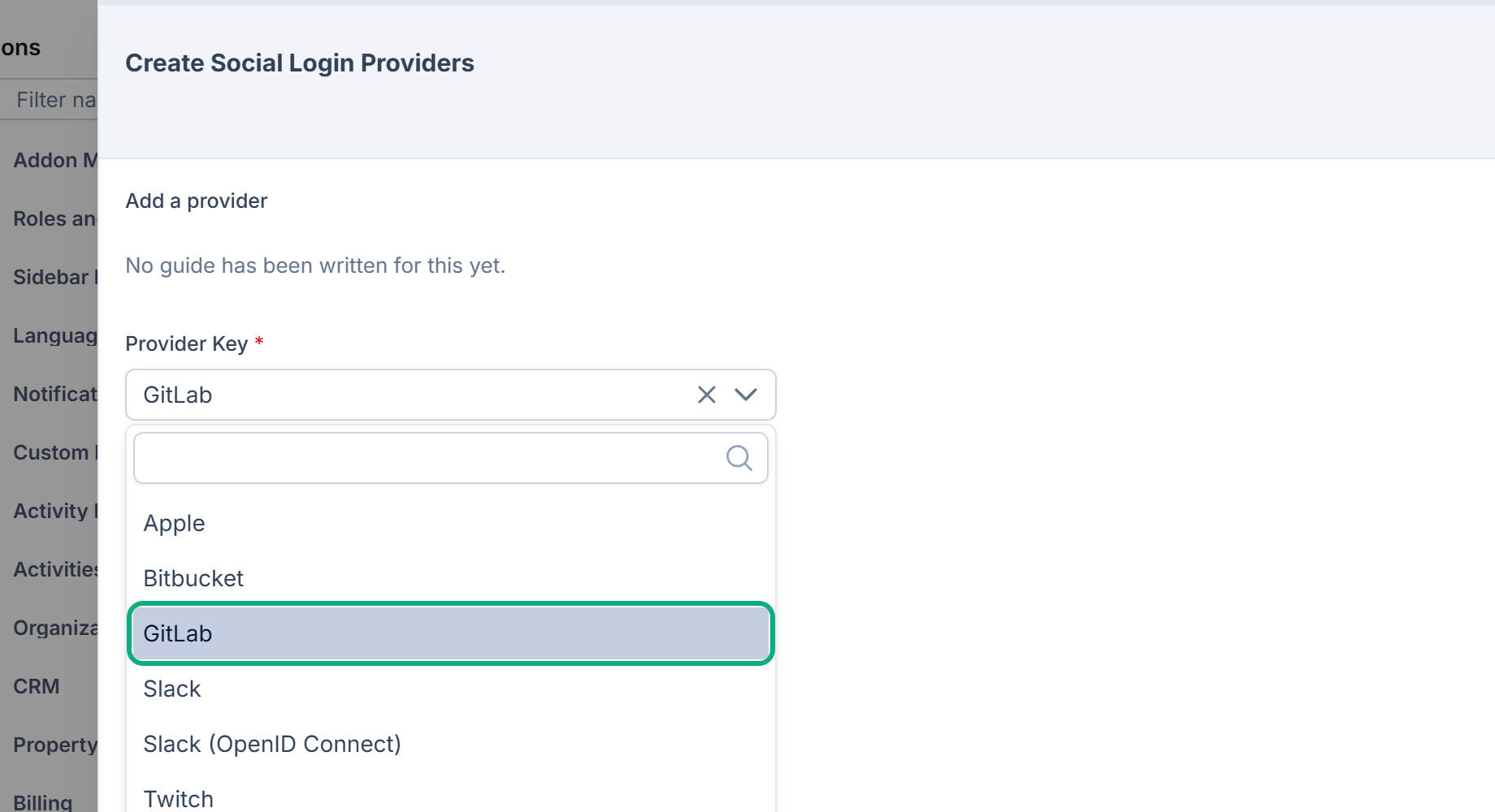
In Provider Key, choose the provider. Only providers not on the list yet are offered.
-
Select Save.
You see, for example, "GitHub added. Configure its credentials, then switch it on." The provider is added Inactive, with its name and logo filled in.
3. Enter the credentials and switch it on
- On the Social Login Providers list, open the provider's actions menu and select Edit.
- Optional: change the Display Name. It's the text on the sign-in button. If it's empty, the button shows the Provider Key, such as Linkedin.
- Under Credentials, paste the Client ID and Client Secret. Twitter (OAuth 1.0a) calls them Consumer Key and Consumer Secret. Apple needs different values: see Apple below.
- Leave Scopes empty to use the provider's standard ones, which ask for the person's name and email address.
- Set Status to Active.
- Select Save.
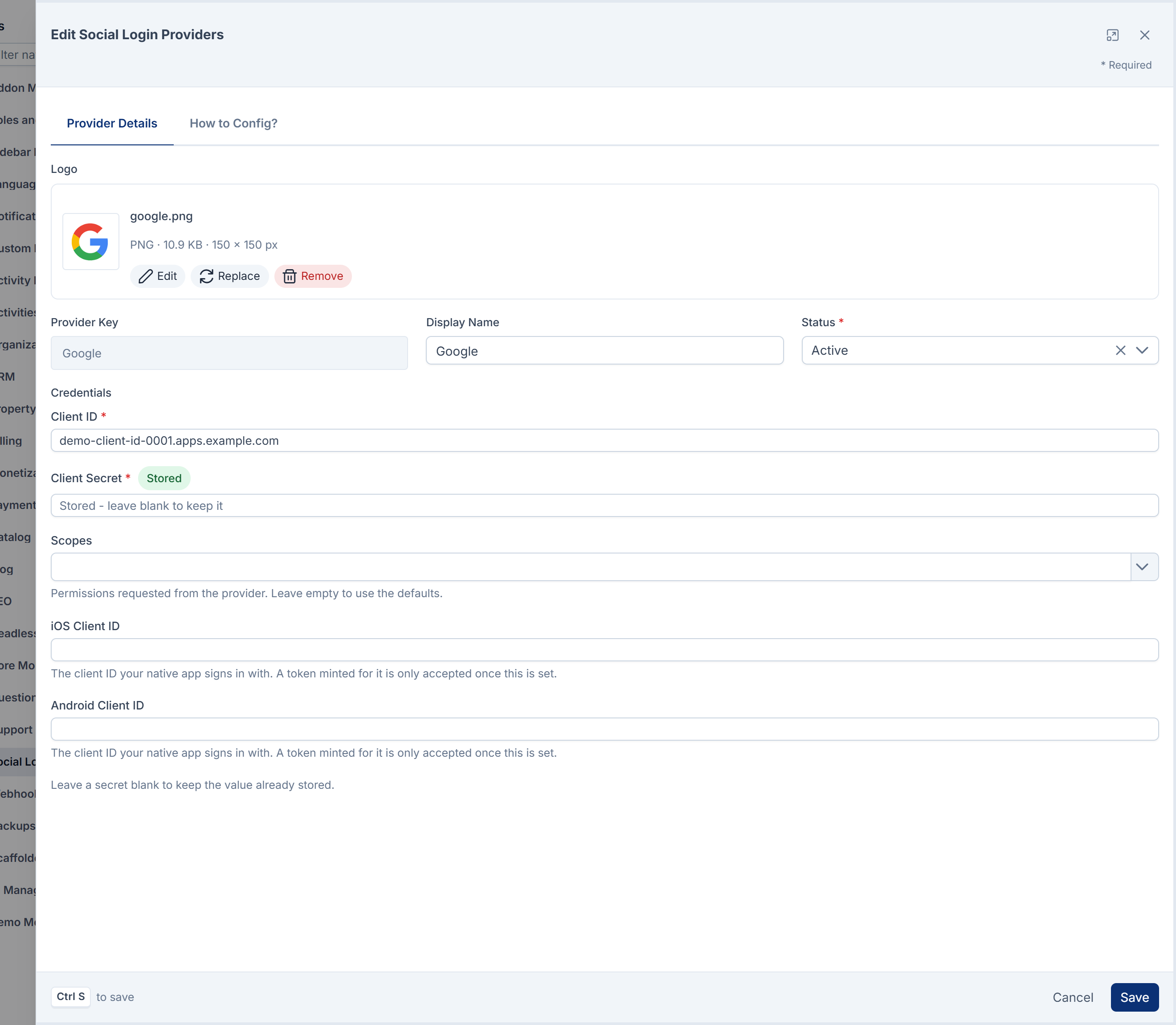
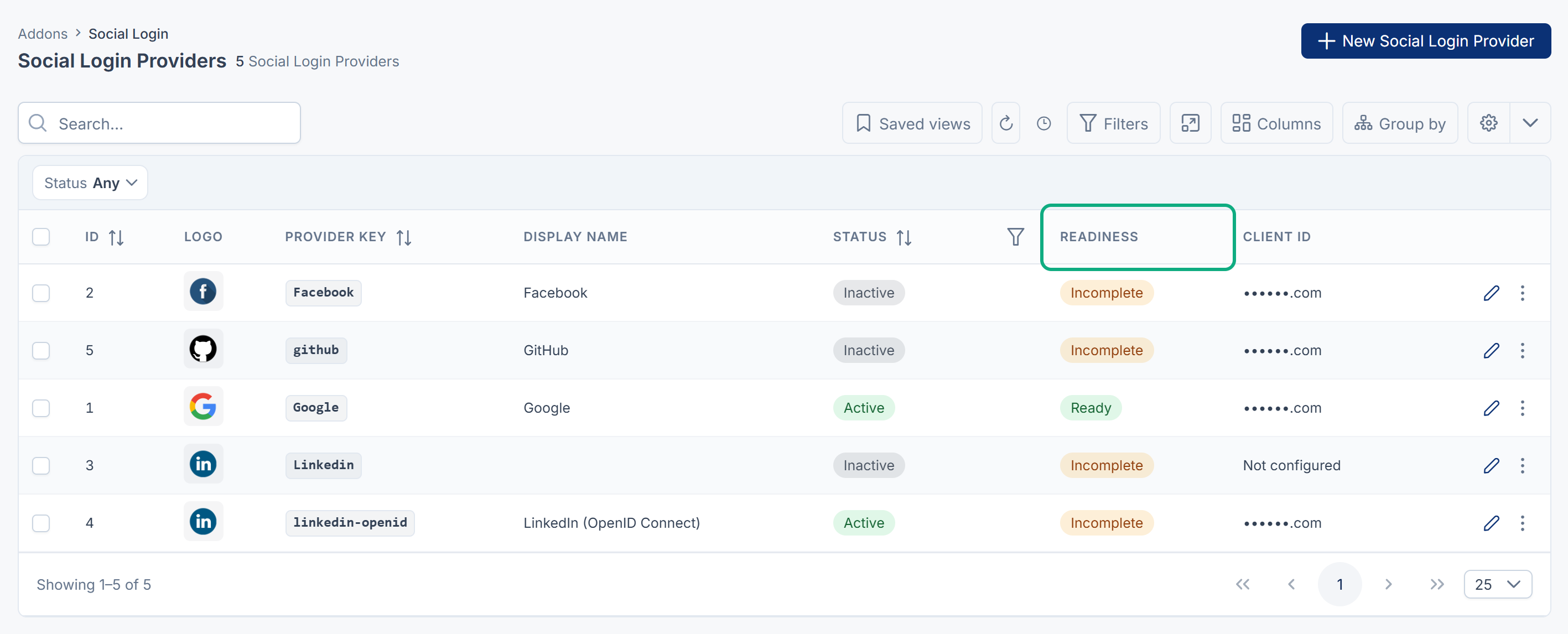
You see, for example, "Google updated successfully." On the list, Readiness shows Ready, and the button appears on the Sign-In screen. A stored secret is never shown again: to keep it, leave its box empty when you save.
If a required credential is missing, you see, for example, "Enter the Client Secret before activating this provider."
Tip: The How to Config? tab has step-by-step instructions for Google, Facebook and LinkedIn. For providers you add with New Social Login Provider, the tab is empty.
Apple
Sign in with Apple uses a key file instead of a client secret. In your Apple Developer account:
- Create a Services ID for your website, and turn on Sign in with Apple for it, with your callback address as the return URL.
- Create a key with Sign in with Apple turned on, and download its
.p8file. Apple lets you download it only once.
Then, on the Apple provider in your Laramin:
| Field | What to enter |
|---|---|
| Client ID | The Services ID. |
| Team ID | Your 10-character Team ID, shown at the top right of the developer portal. |
| Key ID | The 10-character ID of the key you downloaded. |
| Private Key (.p8) | The whole contents of the .p8 file, including the BEGIN and END lines. |
| iOS Client ID | Only if your iOS app signs in with Apple on the phone: the app's bundle ID. |
Google on a mobile app
If your mobile app uses Google's own sign-in on the phone, also fill in iOS Client ID and Android Client ID with the client IDs you created for those apps in Google Cloud Console. Until each is set, sign-ins from that kind of phone are refused.
Choosing between similar providers
- LinkedIn (OpenID Connect) is for LinkedIn apps created today. LinkedIn, the one already on the list, only works for older LinkedIn apps, because LinkedIn no longer grants new apps the permissions it asks for.
- X and Twitter (OAuth 2) are for new X apps. Twitter (OAuth 1.0a) is for a Laramin already set up with OAuth 1.0a keys. X shares an email address only if your X app has permission to ask for it, and without one the sign-in is refused.
- Slack (OpenID Connect) is the newer of the two Slack options.
Careful: Never paste a client secret, private key or .p8 file into a ticket, email or chat. If one leaks, create a new one in the provider's console and replace it here.
What happens next
Sign out, then try the new button on the Sign-In screen. If it doesn't work, see Someone can't sign in with a social account.
Thanks. That helps us decide what to write next.
Thanks for telling us what was missing.
You already answered for this article today. Thanks.
We got a lot of answers from your network just now. Try again in a few minutes.
We couldn't send that. Check your connection and try again.
Links in this article
Printed from help.laramin.in. The online article may have changed since.