Upload and install an add-on
Upload an add-on's ZIP package to Laramin, install it, and get it running. Free add-ons start straight away, and paid add-ons then wait for their license.
- Applies to
- Core 12.0 and later
- Who can do this
- Platform owner
- Permission
feature.core. addon. install - Where
- Addons › Addon Management
On this page
Before you start
- You need
feature.. It isn't part of the standard Administrator role, so by default only super admins can install add-ons.core. addon. install - Have the add-on's package ready. It must:
- be a
.zipfile of 100 MB or less, - contain a valid
module.jsonmanifest, and - have a top folder named exactly like the module.
- be a
- Installation runs as a background job. Make sure your queue worker, or the
/tasks/queuecron job, is running. Queue & Worker Status on Extra Utilities shows the pending jobs. - If the add-on needs other add-ons, install and enable those first. Its Details lists them under Dependencies.
Careful: If an add-on with the same folder name is already on the server, Laramin treats the upload as an upgrade, not a new install. See Upgrade an add-on.
Upload the package
-
In the sidebar, open Addons › Addon Management.
-
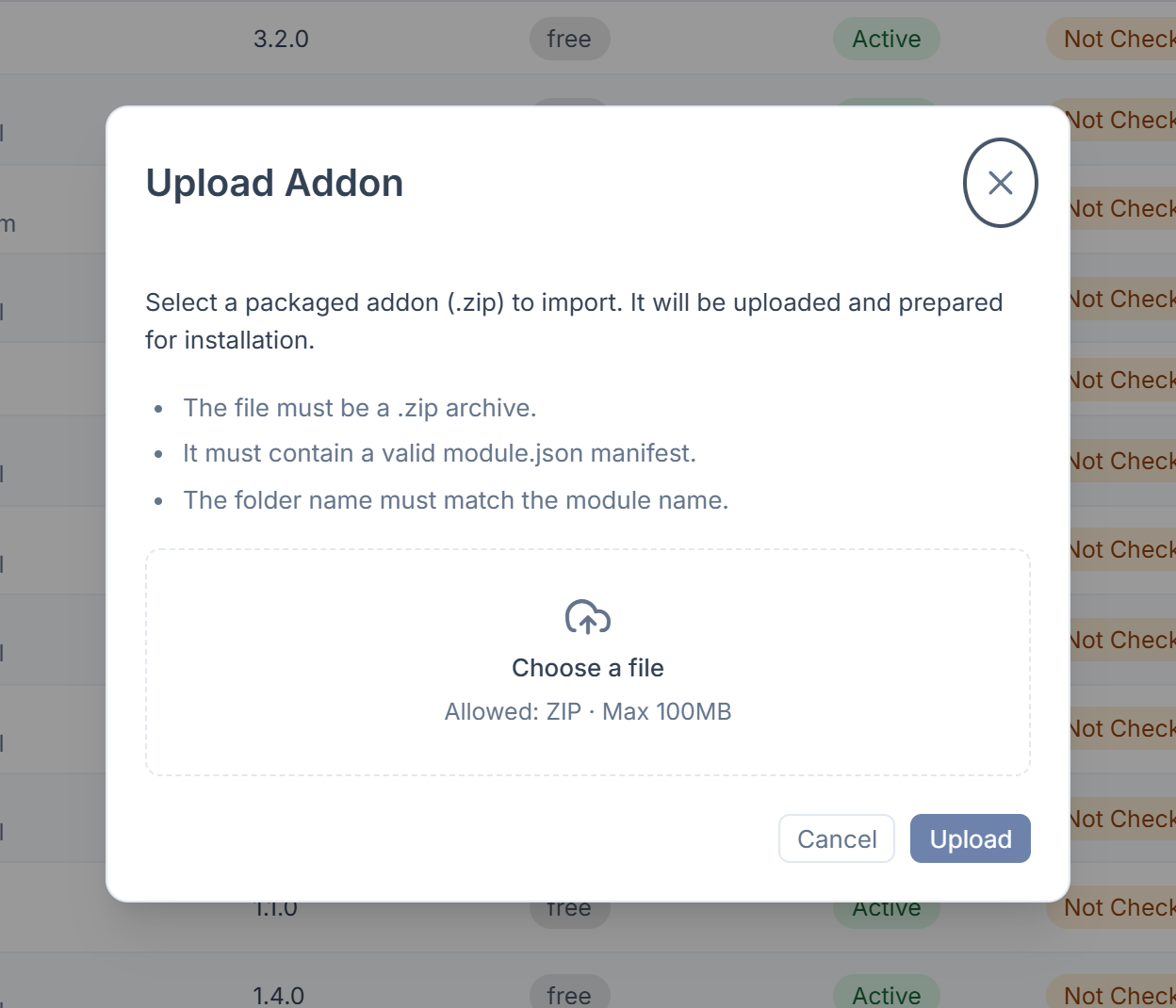
Select Upload Addon, or press the U key.
-
In Addon package, choose the ZIP file and wait for it to finish uploading.
-
Select Upload.
You see a message such as Addon Blog imported successfully. The add-on appears in the table with the status Imported. Nothing has been installed yet.
Install it
-
In the add-on's row, select Install (the download icon).
-
Wait while the status shows Installing. The table refreshes by itself every 3 seconds.
You see a message such as Installation of Blog started in the background. Laramin runs the add-on's database migrations and seeders, syncs its permissions, registers its menus and applies its default settings.
What happens next
- A free add-on becomes Active. Its menus appear in the sidebar.
- A paid add-on becomes License Pending. Activate it next: see Activate an add-on license.
- If the install fails, the status becomes Failed. Laramin undoes what the install did, including the database migrations it ran and the menus it added. Hover over Failed to read the error, fix the cause, then select Retry Install.
- If the status stays Installing for more than 2 minutes, see An add-on is stuck, failed or won't upgrade.
Thanks. That helps us decide what to write next.
Thanks for telling us what was missing.
You already answered for this article today. Thanks.
We got a lot of answers from your network just now. Try again in a few minutes.
We couldn't send that. Check your connection and try again.
Links in this article
Printed from help.laramin.in. The online article may have changed since.