Check what's new in each version
Use What's new to read every change to the platform and your modules, newest first. Filter by module, type of change or period, or open one module's full version history.
- Applies to
- Core 12.4 and later
- Who can do this
- Platform owner
- Permission
feature.core. addon.view - Where
- Addons › Addon Management › What's new
On this page
Before you start
- You need
feature.. It isn't part of the standard Administrator role, so by default only super admins see What's new.core. addon.view
Open What's new
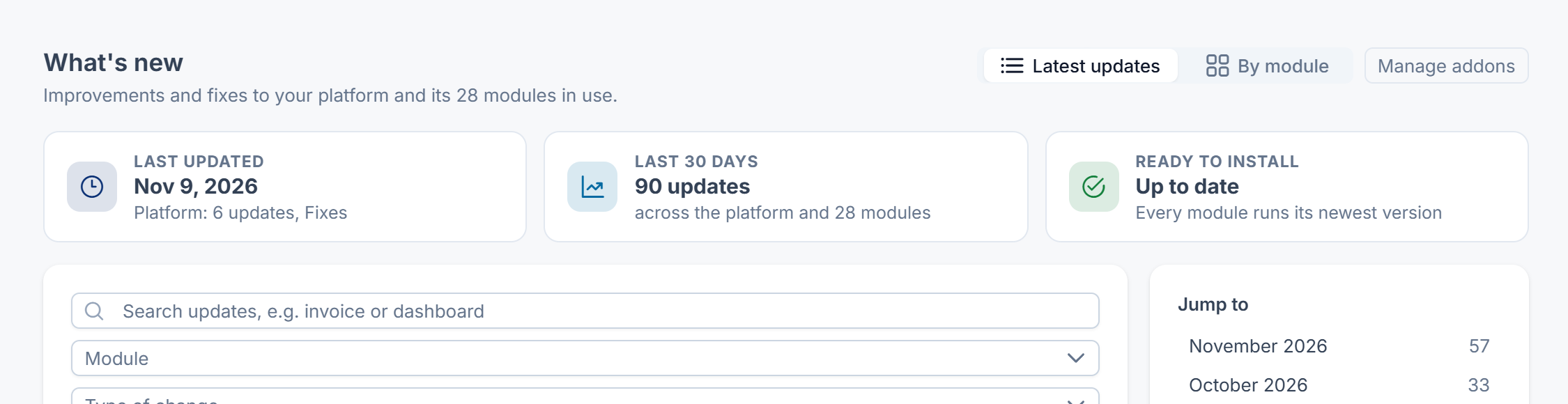
At the top, three tiles sum up recent activity:
- Last updated: the most recent update and which module it was for.
- Last 30 days: how many updates arrived, across the platform and how many modules.
- Ready to install: how many updates are waiting, or Up to date if every module runs its newest version.
Read the latest updates
- Choose Latest updates. You see one feed for the platform and every module in use, newest first and grouped by month.
- To narrow it down, type in Search updates, e.g. invoice or dashboard.
- Use Module to show one module, and Type of change to show only New, Improved, Fixed, Being retired, Removed or Security changes.
- Choose a period: Last 30 days, Last 90 days, This year or All time.
- To go further back, select Show earlier months.
What the labels mean explains each update's label:
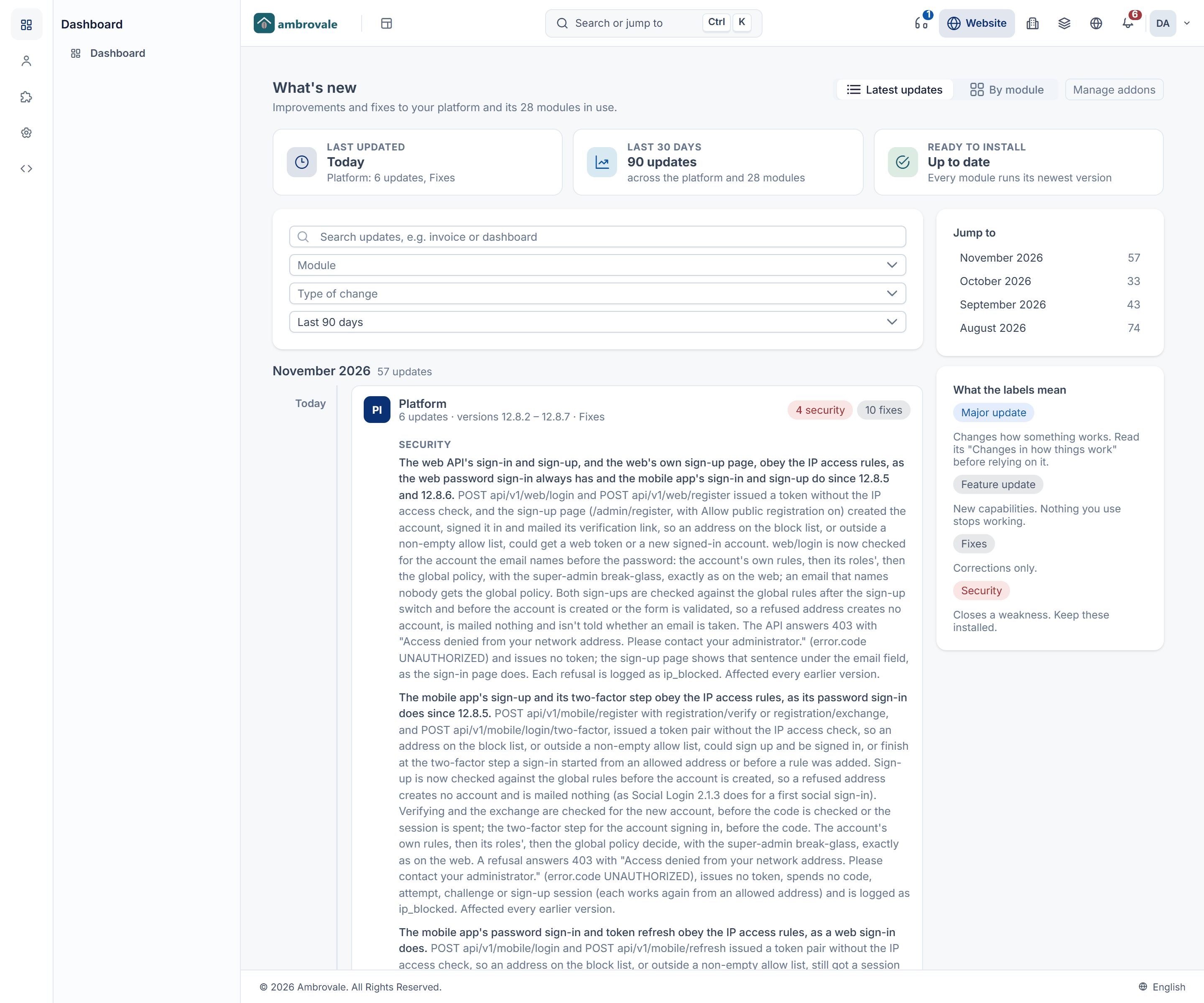
| Label | Meaning |
|---|---|
| Major update | Changes how something works. Read its "Changes in how things work" before you rely on it. |
| Feature update | New capabilities. Nothing you use stops working. |
| Fixes | Corrections only. |
| Security | Closes a weakness. Keep these installed. |
See one module's history
-
Choose By module.
-
Pick a module from the list, or type in Find a module. Platform is Laramin Core itself. Modules are grouped under Modules in use and Not in use. A module with Update ready has a newer version waiting.
-
Read its Installed version, the date it was Released, and its number of updates in the Last 90 days, followed by every version's changes.
If a newer version is waiting, you see Version … is ready to install. Select Review and update to go to Addon Management and upgrade it. See Upgrade an add-on. The button isn't shown for the platform, or if you can't upgrade add-ons.
What happens next
After you upgrade a module, its page can mark the versions you just installed as New for you, with a banner that sums up the change, for example "Blog was updated from 1.2.0 to 1.3.0". Select Show full history to see every version again. This view only opens from a link that carries the version you upgraded from, and in Core 12.7 no screen gives you that link: Addon Management doesn't open it after an upgrade, and its What's new button opens the page without it. So you won't see the New for you marks.
Thanks. That helps us decide what to write next.
Thanks for telling us what was missing.
You already answered for this article today. Thanks.
We got a lot of answers from your network just now. Try again in a few minutes.
We couldn't send that. Check your connection and try again.
Links in this article
Printed from help.laramin.in. The online article may have changed since.