An add-on is stuck, failed or won't upgrade
An add-on stays in Installing or Deleting, shows Failed, License Pending or Invalid License, or refuses to upgrade. Find the cause and get it working again.
- Applies to
- Core 12.0 and later
- Who can do this
- Platform owner
- Permission
feature.core. addon. manage
On this page
Symptom
On Addons › Addon Management, an add-on shows one of these:
- Installing, Updating or Deleting for minutes, with the warning One or more addons are stuck in a transient state. Your queue worker may not be running — use Reset to recover.
- Failed.
- License Pending or Invalid License, so the add-on won't run.
- A grayed-out Install, Enable, Disable or Delete button.
- An upgrade that stops with an error.
Find your symptom below.
Check these, in order
1. It's stuck in Installing, Updating or Deleting
How installs and uninstalls run depends on Connection in Developer Tools › Developer Settings › Queue Settings:
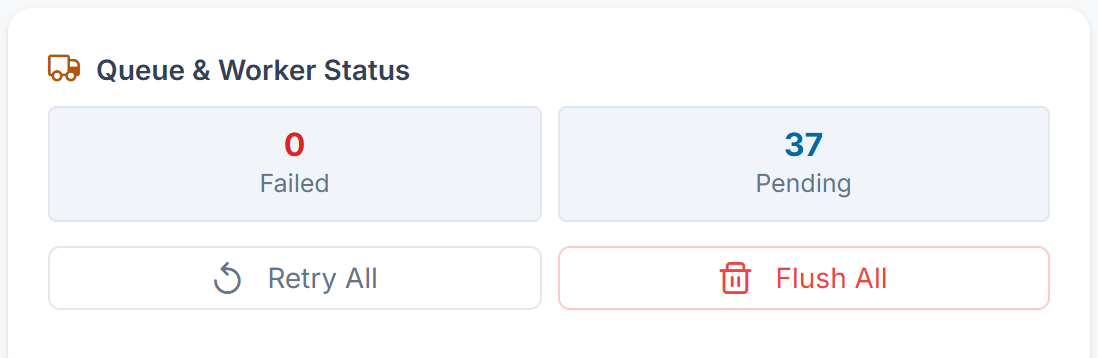
- Database or Redis: they run as background jobs. If nothing works through the queue, the job never starts. Open Extra Utilities: a Pending count under Queue & Worker Status that keeps growing means the queue isn't being worked through. Unless your server runs a separate queue worker, the queue is worked through by your Laramin's scheduled jobs, so check those too. Scheduler Heartbeat can't tell you: a single Run Now makes it show Active. Look at Last Run on Developer Tools › Scheduler instead.
- Sync, where a new installation starts: they run straight away, while you wait. No worker is involved, so recover the add-on as below and try again.
Fix: For Database or Redis, ask whoever manages your server to start a queue worker, or get scheduled jobs running. See Scheduled jobs don't run. Then recover the add-on:
-
After 2 minutes, the row offers Reset (the replay icon). Select it and confirm Reset “Blog” from its stuck state so it can be retried? A message confirms what changed, for example Reset Blog from installing to imported., or Removed the record of Blog: its files were already gone.
-
After 10 minutes, Laramin resets the add-on by itself the next time the list loads.
-
With server access, run
php artisan addon:reconcile. Add the add-on's name to reset only that one.
A reset puts the add-on back where it was. Installing goes back to Imported. Updating goes back to active. Deleting goes back to Active or Imported, or the row is removed if the files are already gone. You can then try again.
2. It shows Failed
Hover over Failed to read the error. You can also select Details, where the error appears under Operation Failed.
A failed install is rolled back, so nothing is half-installed. Common causes are a missing dependency and a database migration error.
Fix: Deal with the cause in the error, then select Retry Install (the download icon). If you no longer want the add-on, select Delete.
3. It shows License Pending
A paid add-on is installed but not licensed yet, so it can't be enabled.
Fix: Select Activate and enter its purchase email and license key. See Activate an add-on license. If you see Connection to licensing server failed: …, your server can't reach the licensing server over HTTPS.
4. It shows Invalid License
Either the daily license check was rejected, or the licensing server couldn't be reached for more than 7 days. Laramin turned the add-on off.
This can also happen after you move Laramin to a new address or change its application key, because the license is tied to both.
Fix: Select Activate and enter the license again. Then select Enable. If the licensing server keeps rejecting the key, contact the add-on's seller.
5. A button is grayed out
Hover over it to see why:
- Its dependencies are not satisfied: … The add-on needs other add-ons that are missing, disabled or at the wrong version. Details lists each one under Dependencies, marked Not installed, Disabled or Incompatible version. Install or enable those first.
- Required by … - disable those first. Other enabled add-ons depend on this one. Disable them first.
6. The upgrade stops with an error
| Message | What to do |
|---|---|
| Upgrade blocked: an active licence is required for this add-on. | A paid add-on's license isn't active. Activate it, then try the upgrade again. Free add-ons are never blocked by this. |
| Uploaded version (…) is not newer than current version (…). | The ZIP holds the same or an older version. Get the newer package. |
| Addon upgrade requires system version … or higher. | Upgrade Core first. See Run a system upgrade. |
| This upgrade conflicts with a dependency | Upgrade or disable the add-ons listed, then try again. |
| The installed version (…) is already up to date. | There's nothing to upgrade. |
| Upgrade failed. System was rolled back. Error: … | A ZIP upgrade failed. Laramin restored the old files and version. Fix the cause in the error, then upload again. |
| Upgrade failed: … | An upgrade of files already on the server failed. Laramin undid the database changes this upgrade made and kept the old version. Fix the cause in the error, then select Upgrade again. |
If you're on a version older than 12.3.1, Upgrade failed could appear even though the upgrade had worked. Check the Version column. If it shows the new version, the upgrade completed.
Still not working?
Raise a ticket from Support Center in your Laramin app. Include this page's link, the add-on's name and version, its status, and the exact error you see.
Thanks. That helps us decide what to write next.
Thanks for telling us what was missing.
You already answered for this article today. Thanks.
We got a lot of answers from your network just now. Try again in a few minutes.
We couldn't send that. Check your connection and try again.
Links in this article
Printed from help.laramin.in. The online article may have changed since.