Scheduled jobs don't run
Reminders, renewals, backups, scheduled articles or queued emails never happen. Check Developer Tools › Scheduler, then work through the causes, from an older Blog or AI Manager to a missing cron entry.
- Applies to
- Core 12.7 and later
- Who can do this
- Platform owner
- Where
- Developer Tools › Scheduler
On this page
Symptom
Something that should happen on its own didn't. For example:
-
A task reminder never arrived, or a scheduled blog article still says Scheduled.
-
Scheduled backups don't appear, or subscription renewals and payments stay Pending.
-
Emails and notifications aren't sent, and nothing shows in Notification Manager's logs.
-
An add-on stays in Installing, with One or more addons are stuck in a transient state. Your queue worker may not be running — use Reset to recover.
No error appears on screen.
How your Laramin runs background work
Two kinds of work happen in the background:
- Scheduled jobs run at set times: reminders, renewals, payment checks, scheduled publishing, backups, license checks and clean-ups. They need one cron entry on your server that runs your Laramin's scheduler every minute.
- Queued work, such as emails, notifications, webhooks and add-on installs, depends on Connection in Developer Tools › Developer Settings › Queue Settings:
- Sync: the work runs straight away, while the person who caused it waits for the screen. No worker is needed. A new installation starts on Sync, even when the server's settings file says
QUEUE_, because the setting saved in Laramin wins.CONNECTION=database - Database or Redis: the work waits in a queue until something works through it. Unless whoever runs your server keeps a separate queue worker running, the scheduler does it: once a minute, it works through the queue for up to 50 seconds. So when scheduled jobs stop, queued work stops too.
- Sync: the work runs straight away, while the person who caused it waits for the screen. No worker is needed. A new installation starts on Sync, even when the server's settings file says
Where to look
Open Developer Tools › Scheduler. Only super admins can open it. For each job it lists the Schedule, the Status and the Last Run. Under Crontab Entry it shows the exact cron line for your server.
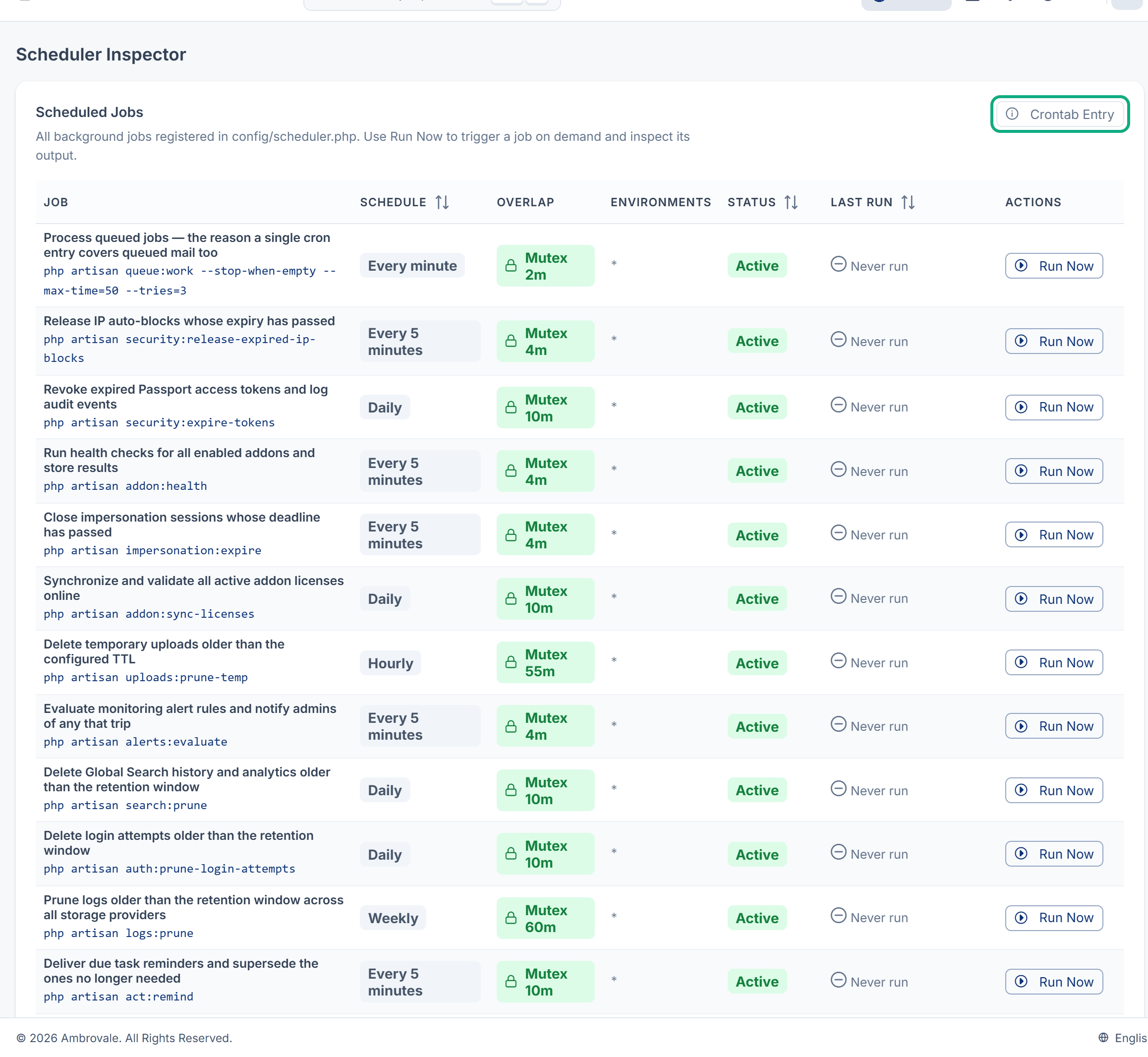
- Every Last Run says Never run, or all of them are old: scheduled jobs aren't running. Work through the checks below.
- One job's Schedule says Not scheduled: invalid frequency (Core 12.8.1 or later): Laramin skips that job and runs the others. The server's log has a line that starts
[scheduler] Skipped. Update the add-on that the job belongs to. - Run Now runs one job straight away and shows its output. Use it to catch up on a job you need now. It doesn't fix the cause.
Careful: Don't rely on Scheduler Heartbeat on Extra Utilities or the Scheduler heartbeat card on the dashboard. They show Active when any job logged a successful run in the last 15 minutes, and a Run Now counts, so they can say Active with no cron entry at all. They also read the server's time in your browser's time zone. If your browser's time zone is behind the server's, they can show Active for hours. If it's ahead, they can show Inactive although jobs just ran.
Check these, in order
1. An older Blog or AI Manager stops every job (Core 12.8.0 or earlier)
On Core 12.8.0 or earlier, with Blog 2.0.0 to 2.4.0 or AI Manager 2.1.0 to 2.3.0 turned on, no scheduled job runs, and neither does the scheduler's queue work, even though the cron entry is fine. Each of these versions adds a daily job written in a form that Core 12.8.0 and earlier can't read. Core 12.8.1 and later read that form, so there these versions do no harm.
On Addons › Addon Management, check the Version of both. On Developer Tools › Scheduler, every Last Run stops, and the add-on's job shows the raw schedule dailyAt:03:20 or dailyAt:04:10. Whoever runs your server can confirm it: this command fails with dailyAt:03:20 is not a valid CRON expression (or dailyAt:04:10).
Couldn't copy. Select the code and press Ctrl+C (⌘+C on a Mac).
php artisan schedule:listAn HTTP cron call to /tasks/schedule answers with the same text.
Fix: update Blog to 2.4.1 and AI Manager to 2.3.1. That's enough on its own, on every Core version from 12.7, and their daily jobs then run at the same times as before. See Upgrade an add-on. Updating Core to 12.8.1 or later also fixes it, and stops any one bad schedule from blocking the others in future. See Run a system upgrade.
If you can't update straight away, turn off Blog and AI Manager on Addons › Addon Management. The scheduler runs again while they're off. Use this only until you can update, then turn them back on. See Disable or delete an add-on.
2. There's no cron entry
Without it, nothing scheduled runs. Ask whoever runs your server to check that the crontab has the line shown under Crontab Entry on Developer Tools › Scheduler. It looks like this, with your own path:
Couldn't copy. Select the code and press Ctrl+C (⌘+C on a Mac).
* * * * * cd /path/to/laramin && php artisan schedule:run >> /dev/null 2>&1Replace the highlighted values with your own.
Fix: add the line so it runs every minute. In cPanel, use Cron Jobs. In Plesk, use Scheduled Tasks. After a few minutes, Last Run fills in for the jobs that were due.
If you can't edit the crontab, point an external cron service at this address once a minute, and see check 3:
Couldn't copy. Select the code and press Ctrl+C (⌘+C on a Mac).
https://crm.example.com/tasks/schedule?secret=<cron-secret>3. The HTTP cron call is refused
A cron service throws the answer away, so nobody sees a refusal. Open the address in a browser and read the answer:
| Answer | Fix |
|---|---|
Cron endpoints are disabled: set CRON_SECRET or CRON_ALLOWED_IPS in production. | Set CRON_SECRET to a long random value in the server's settings file, and add it to the address as ?secret=. |
Unauthorized: invalid or missing cron secret. | The secret in the address doesn't match CRON_SECRET. Copy it again. |
Forbidden: your IP is not in the allowed list. | The cron service's address isn't in CRON_ALLOWED_IPS. Add it there. |
"success":true | The call works. Look at the other checks. |
The web installer sets CRON_SECRET on its scheduling step. The command-line installer doesn't. After any change to the settings file, whoever runs the server runs php artisan config:clear. To find the right file, see A setting or a change to the settings file doesn't take effect.
There's also a /tasks/queue address. It works through only one queued item per call, so a busy queue falls far behind.
4. Queued work waits, with nothing to work through it
This applies only when Connection in Queue Settings is Database or Redis. Open Extra Utilities: a Pending count under Queue & Worker Status that keeps growing means nothing is working through the queue. On Sync, Pending stays at 0.
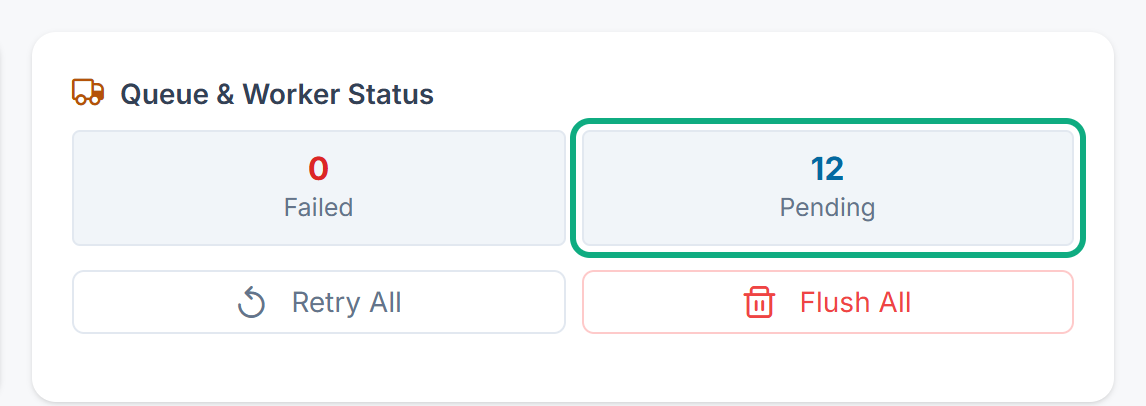
Fix: get scheduled jobs running (checks 1 to 3), or have whoever runs the server keep a queue worker running. A worker keeps running the code it started with, so after every Core or add-on upgrade they restart it:
Couldn't copy. Select the code and press Ctrl+C (⌘+C on a Mac).
php artisan queue:restart5. A worker runs, but not for every queue
Two add-ons put some work on a queue of their own, which the scheduler's queue work and a plain queue:work never touch. This matters only on Database or Redis:
- Headless CMS checks the existing entries on its
hcmsqueue when you change a field's rules on a schema with many entries. The field's drawer shows Processing… for ever, and the field doesn't change. - Question Bank reads exam paper pages on its
process_queue. See Paper Queue never reads a page, or reading fails.paper_ queue
Fix: whoever runs the server runs a worker that also listens to those queues:
Couldn't copy. Select the code and press Ctrl+C (⌘+C on a Mac).
php artisan queue:work --queue=default,hcms,process_paper_queue6. The job isn't in the list, or doesn't run here
On Developer Tools › Scheduler:
- A job is missing: it belongs to an add-on that's turned off. An add-on's jobs are listed and run only while it's on.
- Environments doesn't include your Laramin's environment, such as
production: the job runs only in the environments listed. - Status says Disabled: the job is switched off where it's defined, and doesn't run.
7. The jobs run, but fail
Failed under Queue & Worker Status on Extra Utilities is above 0, or Run Now shows Failed (exit …) with the job's output. The server's log has a line that starts [scheduler] Job failed: with the job's name.
Fix: deal with the cause in the output or the log. Then select Retry All on Extra Utilities to run the failed queued work again.
What stopped, and where to read more
Once scheduled jobs run again, most work catches up by itself. These articles cover what each add-on does afterwards:
| What you noticed | Read |
|---|---|
| Emails don't arrive | Emails from Laramin don't arrive |
| A notification has no row in the logs | A notification wasn't sent or didn't arrive |
| A task reminder didn't arrive | A task reminder didn't arrive |
| A scheduled article didn't go live | An article doesn't show on your website |
| Backups don't appear or stay in Processing | A backup or restore is stuck or failed |
| A payment stays Pending | A payment is stuck, or can't be refunded and Razorpay payments stay pending |
| A subscription didn't renew | A subscription didn't start or renew |
| Webhooks aren't delivered | Deliveries fail or a destination is suspended |
| Nothing appears in the activity log | Nothing appears in the Activity Log |
| Listing expiry alerts don't arrive | You aren't alerted to new inquiries |
| Monitoring alerts don't arrive | Set up monitoring alerts |
| An add-on is stuck in Installing | An add-on is stuck, failed or won't upgrade |
Still not working?
Raise a ticket from Support Center in your Laramin app. Include this page's link, your Core, Blog and AI Manager versions, a screenshot of Developer Tools › Scheduler, and what you checked.
Thanks. That helps us decide what to write next.
Thanks for telling us what was missing.
You already answered for this article today. Thanks.
We got a lot of answers from your network just now. Try again in a few minutes.
We couldn't send that. Check your connection and try again.
Links in this article
Printed from help.laramin.in. The online article may have changed since.