Disable or delete an add-on
Turn an add-on off while keeping its data, turn it back on, or uninstall it permanently along with its tables, settings, permissions and files.
- Applies to
- Core 12.0 and later
- Who can do this
- Platform owner
- Permission
feature.core. addon. delete - Where
- Addons › Addon Management
On this page
Before you start
- To disable you need
feature., to enablecore. addon. disable feature., and to deletecore. addon. enable feature.. By default only super admins have them.core. addon. delete - You can't disable or delete an add-on that other enabled add-ons depend on. Its button is grayed out with Required by … - disable those first. Disable those add-ons first.
Disable an add-on
Disabling hides the add-on's menus and screens. Its data stays, so you can turn it back on later.
-
In the sidebar, open Addons › Addon Management.
-
In the add-on's row, select Disable (the ban icon).
-
Confirm. The message reads: Disable “Blog”? Its data is preserved and it can be re-enabled later.
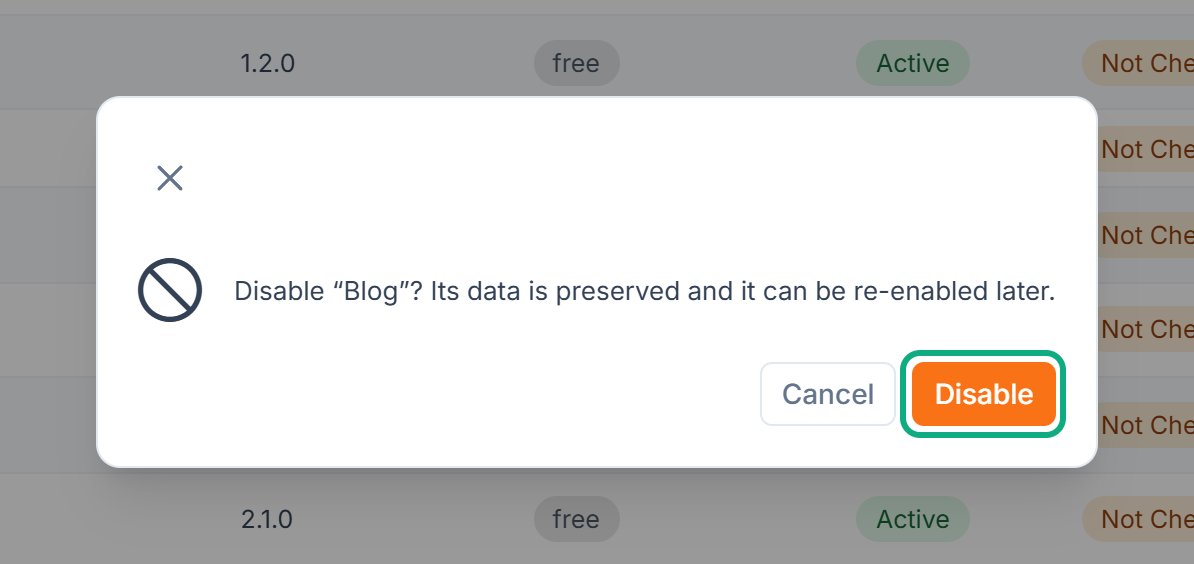
The page reloads and the add-on's status is Disabled.
Enable it again
- In the add-on's row, select Enable (the check icon).
Laramin runs any database migrations the add-on still needs, syncs its permissions and menus, and reloads the page. The status changes to Active. If Enable is grayed out with Its dependencies are not satisfied: …, enable the add-ons it lists first. A paid add-on also needs an active license.
Delete an add-on
Danger: Deleting permanently uninstalls the add-on, and you can't undo it. Laramin rolls back its database migrations, which drops its tables and everything in them. It also removes the add-on's settings, static fields, permissions and their role assignments, notification events, its custom fields and its files. Back up your database first if you might need the data again.
Delete appears only when the add-on isn't running: for example, when its status is Disabled, Imported, License Pending, Invalid License or Failed. Disable an active add-on first.
-
In the add-on's row, select Delete (the bin icon).
-
Read the warning: This permanently uninstalls “Blog” — its tables, settings and files are removed.
-
Type the add-on's name, exactly as shown, to confirm.
-
Select Delete.
You see a message such as Deletion of Blog started in the background. The status shows Deleting until the job finishes. The row then disappears.
If the uninstall is refused
Some add-ons check before they let themselves be uninstalled. If one refuses, you see Uninstall refused with the add-on's reason, and Nothing was changed. The module is still enabled and its data is untouched.
- Under Choose what to do so the uninstall can go ahead, tick the options you accept.
- Select Uninstall with these choices.
If no options are offered, deal with the reason the add-on gives first, then try again.
Archived tables
An add-on can declare that its data is archived on uninstall. Laramin then exports its tables before removing anything, to storage/ on the server. The export includes a manifest.json, the table definitions in schema.sql, and one .jsonl file of rows for each table. If the export can't be written, the uninstall stops and nothing changes.
What happens next
A deleted add-on is gone from the table and from the sidebar. To use it again, upload and install it from scratch. See Upload and install an add-on.
Thanks. That helps us decide what to write next.
Thanks for telling us what was missing.
You already answered for this article today. Thanks.
We got a lot of answers from your network just now. Try again in a few minutes.
We couldn't send that. Check your connection and try again.
Links in this article
Printed from help.laramin.in. The online article may have changed since.