Razorpay payments stay pending
A payer paid through Razorpay, but your Laramin still shows the payment as waiting, or the payment failed at the start. Find the cause and fix it.
- Applies to
- Razorpay 1.0 and later
- Who can do this
- Platform owner, Administrator
- Permission
feature.pg. gateway.edit - Where
- Payment Gateway › Payment Gateways
On this page
Symptom
One of these:
-
Razorpay's dashboard shows a payment as captured, but your Laramin still shows it as waiting.
-
Payments stay Authorized and never become paid.
-
A payment fails as soon as the payer chooses Razorpay.
If payers aren't offered Razorpay at all, see A gateway isn't offered or won't switch on instead.
Check these, in order
1. The keys are missing or wrong
The Razorpay gateway Payment Gateway sets up at install is already Active, with no keys. Its Availability shows Ready anyway, because it doesn't check the keys. Without them, every payment fails at the start.
Fix: In Payment Gateway › Payment Gateways, edit Razorpay. Check that Key Secret shows Stored, and paste Key ID and Key Secret again from your Razorpay dashboard if you're not sure. Your Laramin doesn't test the keys when you save. See Set up Razorpay.
2. Webhook Secret is empty or doesn't match
Your Laramin acts on a Razorpay message only when its signature matches Webhook Secret. If the field is empty, or holds a different value from the secret on Razorpay's webhook, every message is kept but ignored.
Your Laramin still tells Razorpay each message was received, so Razorpay's dashboard can show the deliveries as successful.
Fix: In the Razorpay dashboard, open the webhook under Settings › Webhooks and set a new secret. Enter the same value in Webhook Secret on the Razorpay gateway, and select Save.
3. The webhook address or events are wrong
In the Razorpay dashboard, open the webhook and check:
-
Its address is exactly the Callback URL shown on your Razorpay gateway, including the code at the end.
-
It's turned on, and includes
payment.,authorized payment.captured,payment.failed,order.paid,refund.processedandrefund.failed. -
It's in the same mode as your keys. A webhook added in test mode doesn't send live payments, and the other way round.
An older address without the code at the end works only while your Laramin has a single Razorpay gateway. Replace it with the Callback URL.
Fix: Correct the webhook in the Razorpay dashboard.
4. Background and scheduled jobs aren't running
Even a webhook that arrives with the right signature is applied in the background. When a webhook is missed, Billing asks Razorpay about waiting payments every 15 minutes, as a scheduled task. If background and scheduled jobs don't run, payments stay waiting whatever Razorpay says. See also A payment is stuck, or can't be refunded.
Fix: see Scheduled jobs don't run. The cause isn't always a missing cron job. Waiting payments move on once the jobs run again.
5. Billing or Razorpay is turned off
Billing receives Razorpay's messages, and the Razorpay add-on reads them. While either is off, messages aren't acted on.
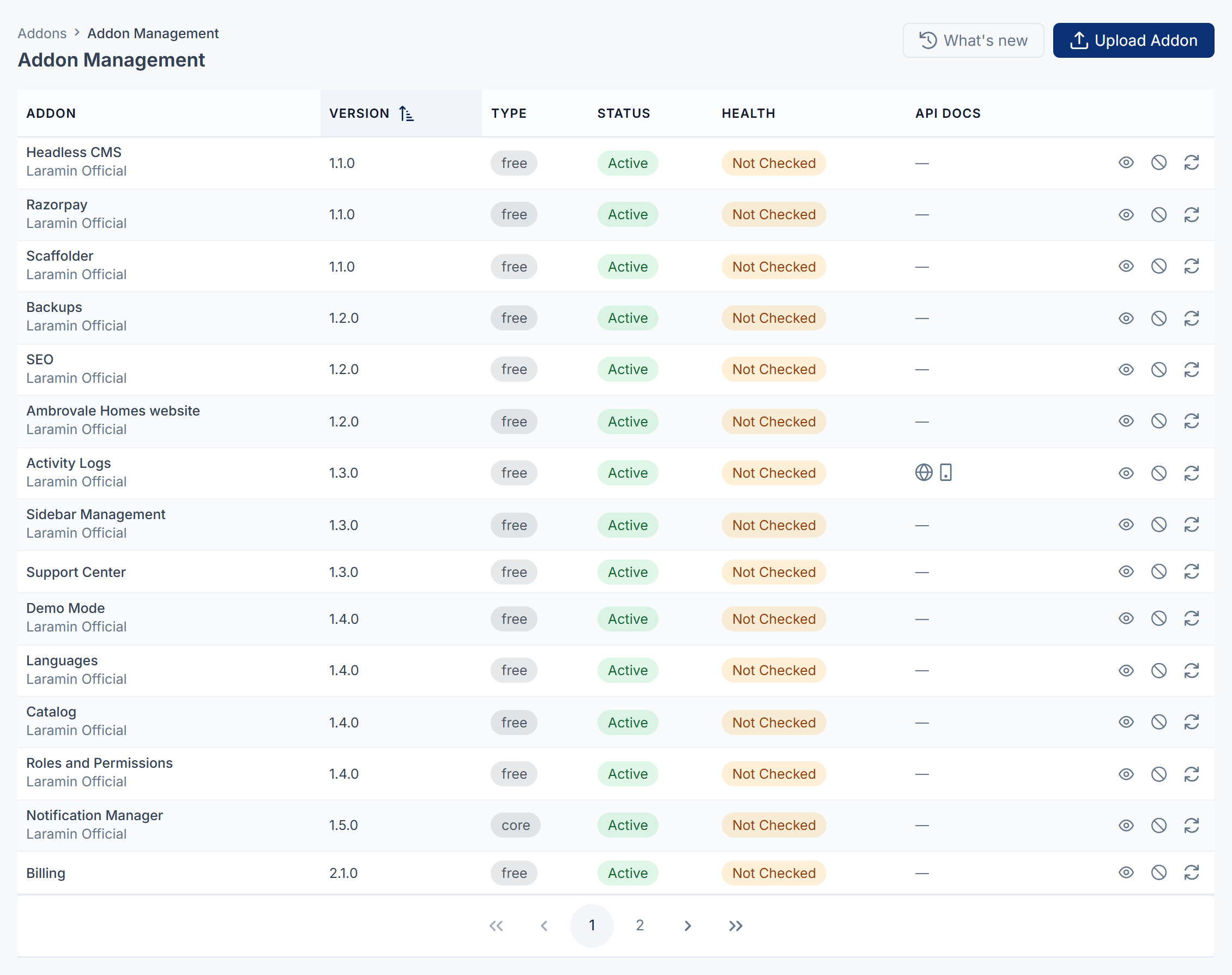
Fix: In Addons › Addon Management, make sure Billing and Razorpay are installed and turned on. Before Razorpay 1.1.0, or on Laramin earlier than 12.4, Razorpay is listed as PgRazorpay.
6. Payments are only authorized
Authorized means Razorpay is holding the money but hasn't taken it. Your Laramin doesn't capture payments itself.
Fix: Capture the payment in the Razorpay dashboard. To stop it happening again, set your Razorpay account to capture payments automatically.
7. You switched from test keys to live keys
Your Laramin checks each payment with the keys saved now. A test payment still waiting when you switched to live keys can't be found with them.
Fix: Let such payments run out. New payments use the live keys.
Still not working?
Raise a ticket from Support Center in your Laramin app. Include this page's link, the time of the payment, its Razorpay payment or order reference, and whether your keys start with rzp_test_ or rzp_live_. Never send your Key Secret or Webhook Secret.
Thanks. That helps us decide what to write next.
Thanks for telling us what was missing.
You already answered for this article today. Thanks.
We got a lot of answers from your network just now. Try again in a few minutes.
We couldn't send that. Check your connection and try again.
Links in this article
Printed from help.laramin.in. The online article may have changed since.