Test a webhook destination
Send one payload to a destination straight away with the Test Console, and see the exact headers that were sent, the response code, the response and how long it took.
- Applies to
- Webhook Engine 2.2 and later
- Who can do this
- Platform owner, Administrator, Developer
- Permission
feature.webhook. destination.test - Where
- Webhook Engine › Destinations
On this page
Use the Test Console after you add a destination, after the receiver changes, or when deliveries fail and you want to see the receiver's answer for yourself.
Before you start
- You need Send Test Payload (
feature.) and List Destination (webhook. destination.test feature.).webhook. destination.list - A test is a real request to the receiving system, signed with the destination's real secret. Tell the receiver's owner if a test message could trigger something on their side.
Steps
-
In the sidebar, open Webhook Engine › Destinations.
-
In the destination's row, select Test Console.
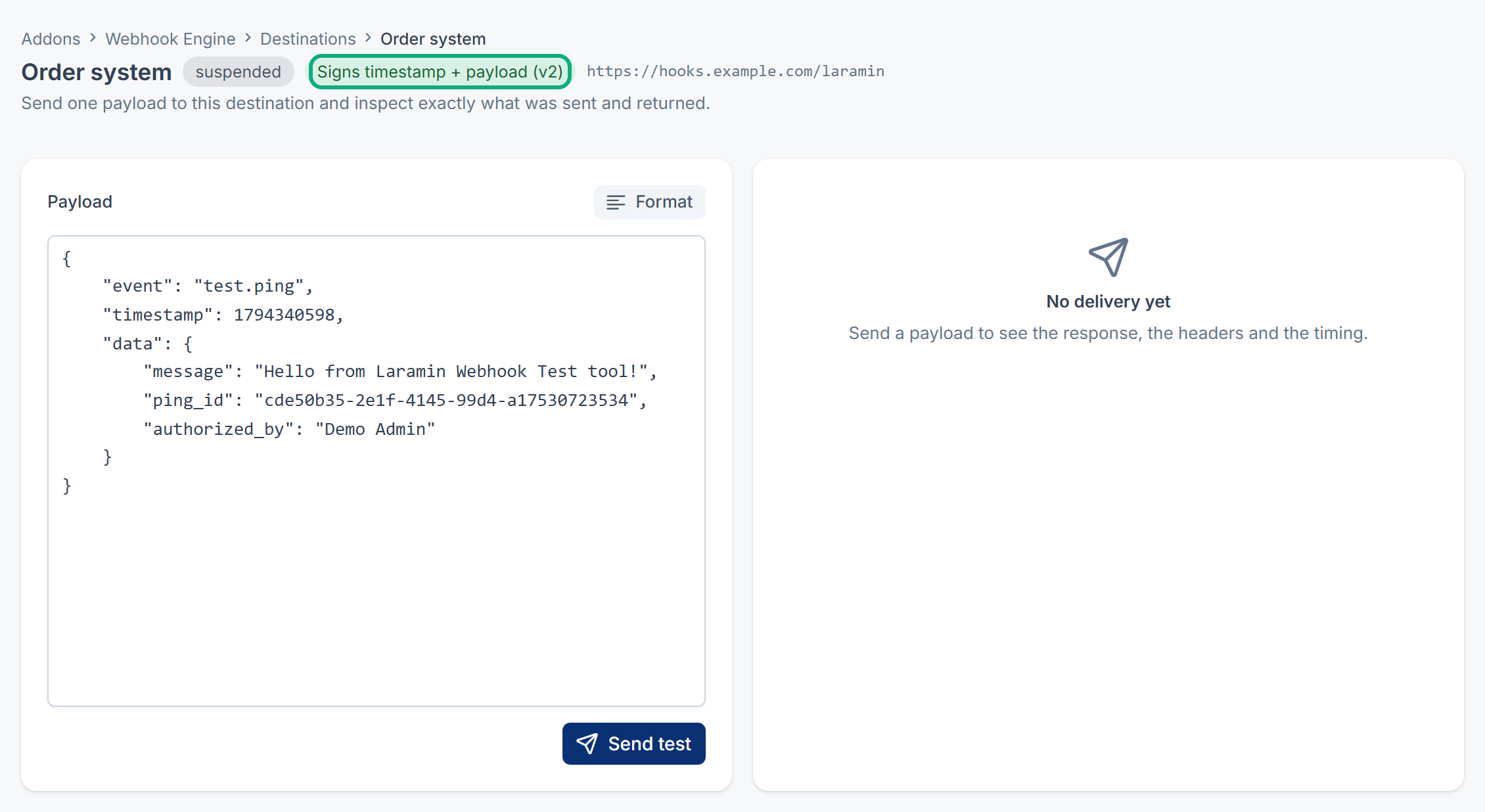
The Test Console opens. Beside the destination's status, it shows how the test is signed: Signs timestamp + payload (v2) or Signs payload only (v1), following the destination's Sign the timestamp setting.
-
In Payload, keep the sample or paste your own JSON. The sample is a
test.pingevent with a randomping_idand your name inauthorized_by. -
Optional: select Format to tidy the JSON. If it isn't valid JSON, you see This is not valid JSON, so it cannot be sent.
-
Select Send test.
The result appears in three tiles and three tabs:
| Part | What it shows |
|---|---|
| Outcome | Delivered when the receiver answered at all, Failed when it couldn't be reached or didn't answer within 10 seconds. |
| HTTP status | The receiver's response code, such as 200 or 401. |
| Round trip | How long the request took. |
| Response body | What the receiver sent back. |
| Request headers | Every header that was sent, including the signature headers and your custom headers. The signing secret itself is never shown. |
| Response headers | The headers the receiver sent back. |
Careful: Outcome shows Delivered even when the receiver answers with an error, such as 401 or 500. Always read HTTP status: only a 2xx code would count as success for a real delivery.
What a test does and doesn't do
- It's sent at once, even if the destination is Inactive or Suspended, and even if its rate limit would delay a real delivery.
- It isn't written to the delivery log and doesn't change Consecutive Failures.
- It's sent once. A failed test isn't retried.
- Its
User-Agentheader isLaramin-, so the receiver can tell tests apart. Real deliveries sayWebhookEngine- Test/ 2.2.0 Laramin-.WebhookEngine/ 2.2.0 - The payload doesn't have to look like a real event. To check how the receiver handles a real one, paste a payload copied from a delivery in Webhook Engine › Delivery Logs.
Reading the result
| You see | Likely cause |
|---|---|
HTTP status 200 to 299 | The receiver accepted it. |
401 or 403 | The receiver rejected the signature or a missing header. Check the receiver has the right secret and checks the right version. See Verify webhook signatures and handle retries. |
404 or 405 | The Endpoint URL is wrong, or the receiver doesn't accept POST. |
500 or higher | The receiver had an error. Its owner should check their logs. |
| Failed with no status | The address couldn't be reached or took longer than 10 seconds. Check the address, and that the receiving server is up and reachable from your Laramin's server. |
For more causes, see Deliveries fail or a destination is suspended.
Thanks. That helps us decide what to write next.
Thanks for telling us what was missing.
You already answered for this article today. Thanks.
We got a lot of answers from your network just now. Try again in a few minutes.
We couldn't send that. Check your connection and try again.
Links in this article
Printed from help.laramin.in. The online article may have changed since.