Create a team and add members
Set up a workgroup inside a workspace and choose who is in it.
Why this step
Team: A group of people inside one workspace. group people inside a Workspace: One business inside Laramin, such as Ambrovale Realty., so you can share views and give work to a group.
Today you only need:
- Applies to
- Core 12.0 and later
- Who can do this
- Administrator, Platform owner
- Permission
feature.core. team. create - Where
- Users Accounts › Teams
Before you start
- You need Create Team (
feature.). To add people, you also need Create Team Member (core. team. create feature.).core. team_member. create - Switch to the workspace the team belongs to. A team is created in the workspace you're working in, and you can't move it later. If you're in All Workspaces, Laramin says A team belongs to one workspace. Switch to a single workspace before creating one. See Switch workspace.
- Everyone you add must already be an active member of that workspace. See Create a workspace.
Steps
Create the team
-
In the menu, open Users Accounts › Teams.
-
Select New Team.
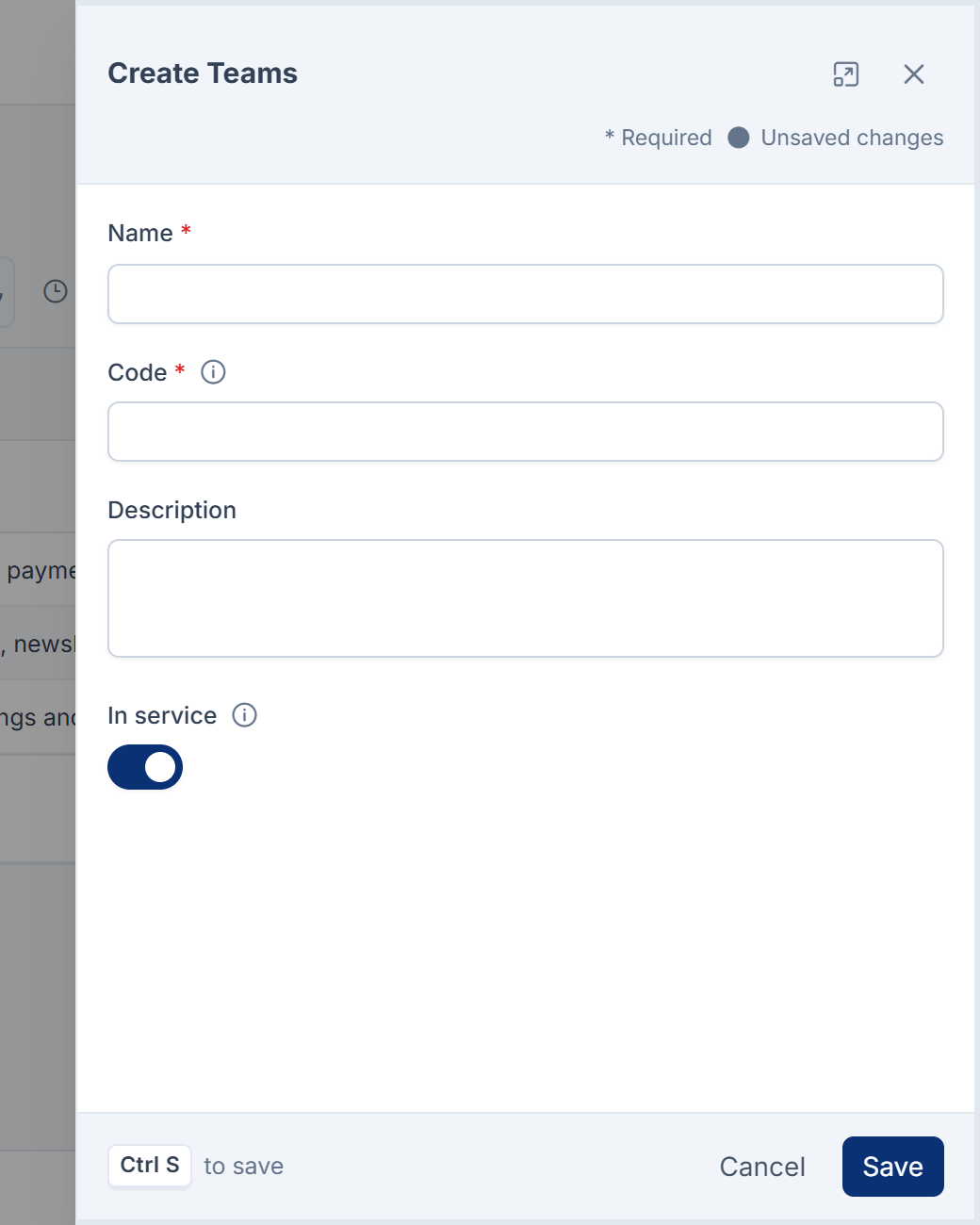
-
Enter a Name, up to 191 characters.
-
Enter a Code, up to 64 characters. Use letters, numbers, dots, hyphens and underscores only. No other team on the installation can have the same code.
Careful: You can't change a team's code after you create it, because imports and other modules use it.
-
Optionally, add a Description of up to 500 characters.
-
Leave In service set to Active.
-
Select Save.
Add members
-
In Users Accounts › Teams, open the team's row actions menu (Row actions) and select Team members.
-
Select New Member.
-
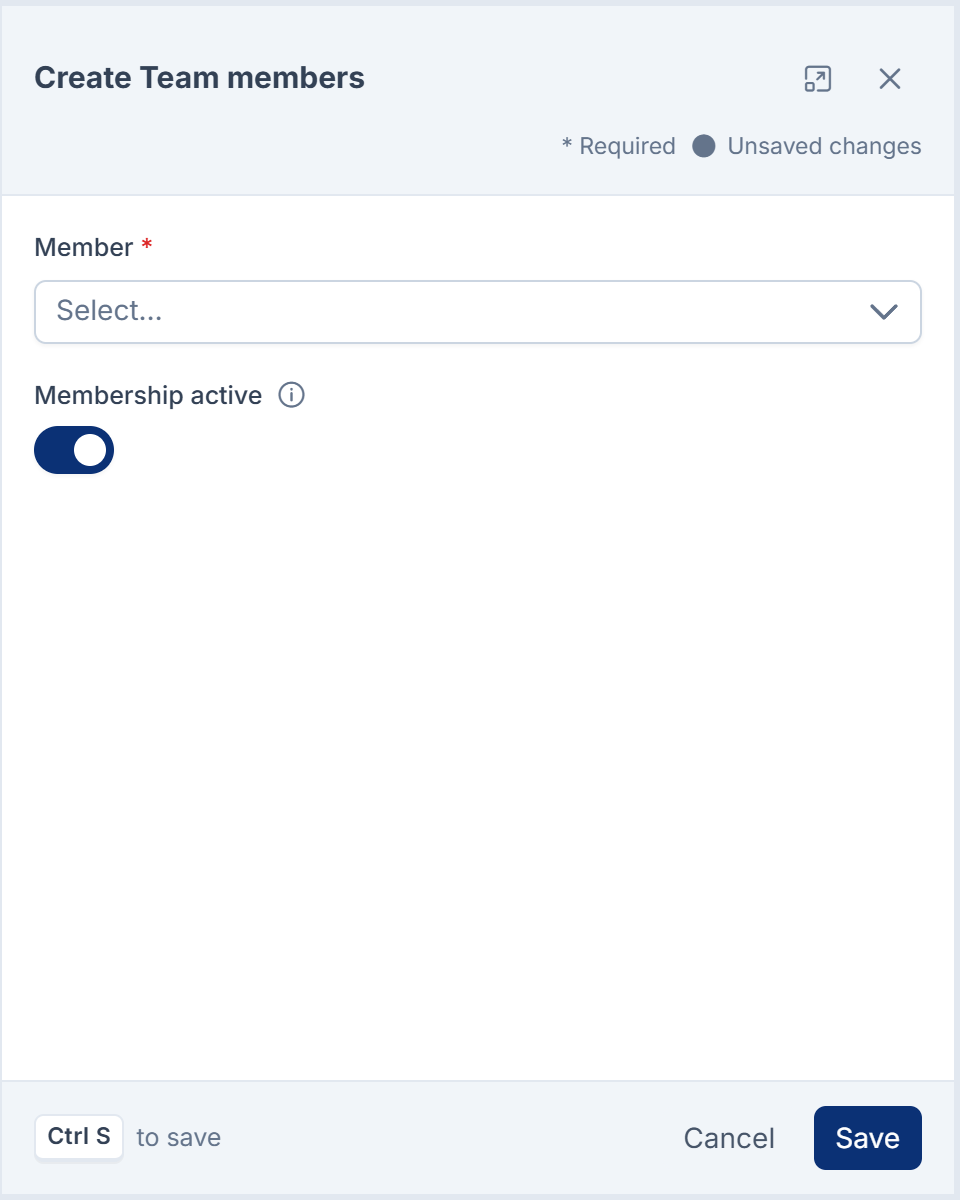
In Member, choose the person. The list shows only members of the team's workspace who aren't already in the team, up to 500 people.
-
Leave Membership active set to Active.
-
Select Save.
Laramin confirms with "Added … to the team."
What happens next
Members can now choose the team from the Team switcher in the header. Roles that apply only inside this team are given in the Roles & Permissions module. See Give someone a role. Being a member doesn't give anyone extra permissions on its own.
- To pause someone's membership but keep them on the team, set Membership active to Dormant. A dormant member can't work in the team.
- To take the team out of service, edit it and set In service to Archived. An archived team keeps its members and grants, but nobody can work in it.
- If you remove someone from the workspace, their team memberships there stop working, but they aren't deleted. They work again if you add the person back to the workspace.
Links in this article
Printed from help.laramin.in. The online article may have changed since.