Connect an email, SMS, WhatsApp or push provider
Enter your SMTP, AWS SES, Twilio, Msg91, Meta WhatsApp or Firebase details, test the connection, and switch the provider on so notifications go out on that channel.
Why this step
Invitations, password resets and alerts are sent by email. Without a Delivery provider: The service that actually sends Laramin's emails, such as your email host or AWS SES. they never arrive.
Have ready: your email provider's sending details.
Don't have Notification Manager? Install it first: Upload and install an add-on.
Today you only need:
- Applies to
- Notification Manager 1.4 and later
- Who can do this
- Platform owner
- Permission
feature.nm. provider.edit - Where
- Notification Manager › Settings › Email Settings
Before you start
- You need Edit Providers & Settings (
feature.). Super admins have it.nm. provider.edit - Have your account details from the provider ready. Each channel's fields are listed in Notification Manager settings.
- Your server must be able to connect out to the provider.
Careful: Out of the box, SMTP is switched on with placeholder details that point at a local test mailbox (127.0.0.1, port 1025) and the address noreply@company.com. Until you replace them, emails from your Laramin don't reach anyone.
Steps
1. Open the channel's settings
-
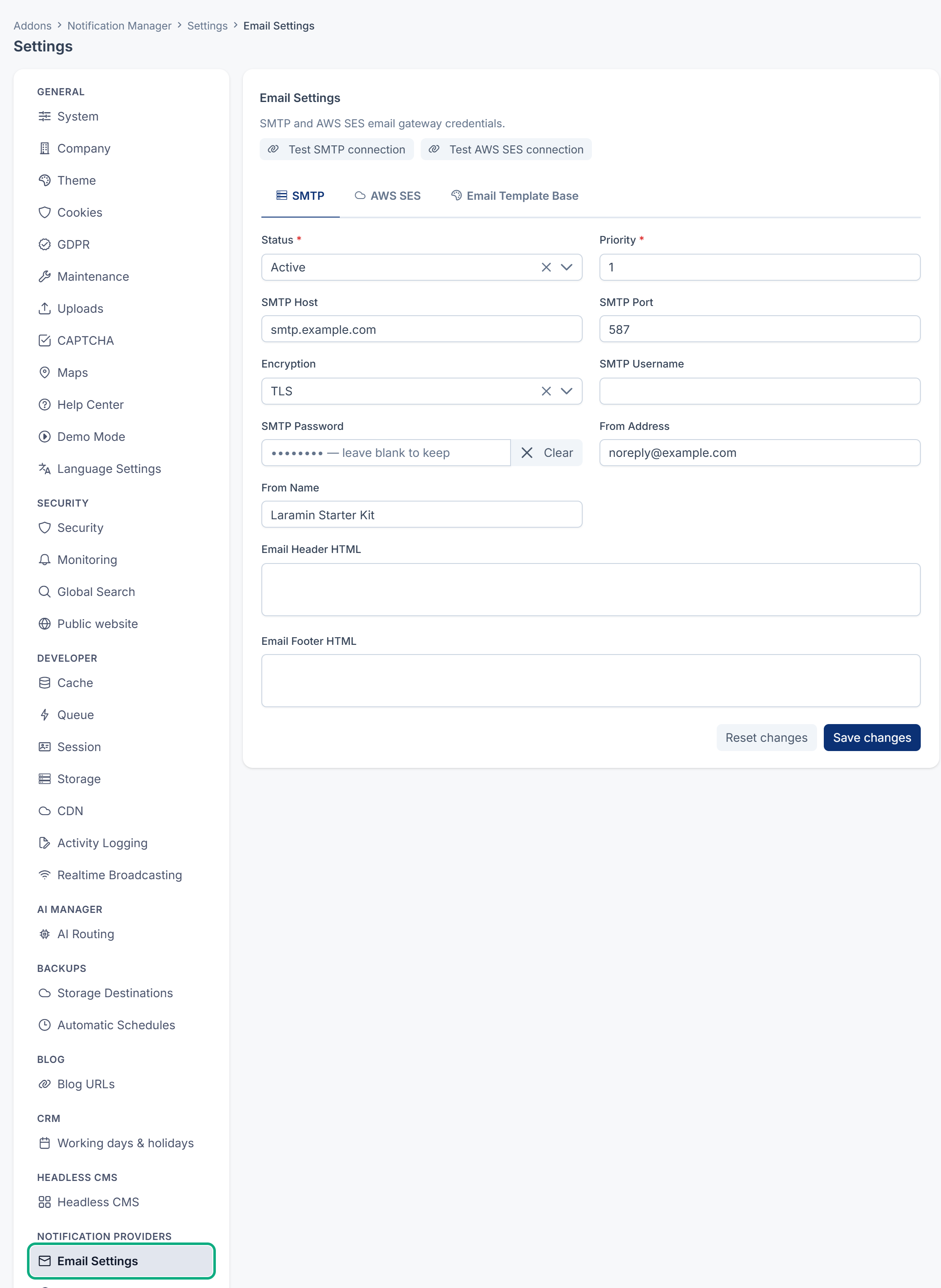
In the sidebar, open Notification Manager › Settings.
-
Select the channel: Email Settings, SMS Settings, WhatsApp Settings or Push Settings.
The panel opens in the Settings hub, under Notification Providers.
-
Open the tab for your provider. Email Settings has SMTP and AWS SES. SMS Settings has Twilio and Msg91. WhatsApp Settings and Push Settings have one provider each.
2. Enter the details
Fill in the provider's fields. For example, for SMTP:
- SMTP Host: for example
smtp.example.com. - SMTP Port: usually
587with TLS, or465with SSL. - Encryption: TLS or SSL.
- SMTP Username and SMTP Password: from your mail provider.
- From Address: for example
notifications@example.com. Use an address your mail provider lets you send from. - From Name: the name people see, for example your business name.
For the other providers:
- AWS SES: AWS Access Key ID, AWS Secret Access Key, AWS Region (for example
eu-west-1), From Address and From Name. - Twilio: Account SID, Auth Token and From Number, the Twilio number messages come from, for example
+15550100000. - Msg91: Auth Key and Sender ID, the approved sender name, for example
EXMPLE. - WhatsApp: Access Token, Phone Number ID and App Secret from your Meta app. The App Secret is under App settings › Basic. Without it, messages are still sent, but Meta's delivery reports are refused.
- Push: paste the Firebase Service Account JSON. Leave FCM Server Key empty. [Confirm: when both are filled in, sending uses the old server key, which Google no longer accepts, while the test checks the service account.]
Password, token and key fields never show the saved value. Leave one empty to keep what's saved.
3. Test the connection
-
Select the test button for the tab, for example Test SMTP connection or Test Twilio connection.
-
Wait for the result.
The test uses what's typed on screen, and the saved value for any secret you left empty. You see Connection successful — the gateway responded correctly., or Connection failed: followed by the provider's reason. A successful test doesn't send a message to anyone.
4. Switch the provider on
-
Set Status to Active.
-
Set Priority. When a channel has two active providers, Laramin tries the lower number first.
-
Select Save changes.
When you switch a provider on, or change the details of an active one, Laramin tests the connection before it saves. If the test fails, nothing is saved and you see Cannot activate SMTP — its connection test failed: followed by the reason. Fix the details, or set Status to Inactive.
Careful: SMTP and Twilio are each their channel's default provider. While active, they're always tried first, whatever their Priority. [Confirm: Priority only orders the other providers in Notification Manager 1.5.0.]
5. For email: set the layout (optional)
Every email is wrapped in your email layout before it's sent.
-
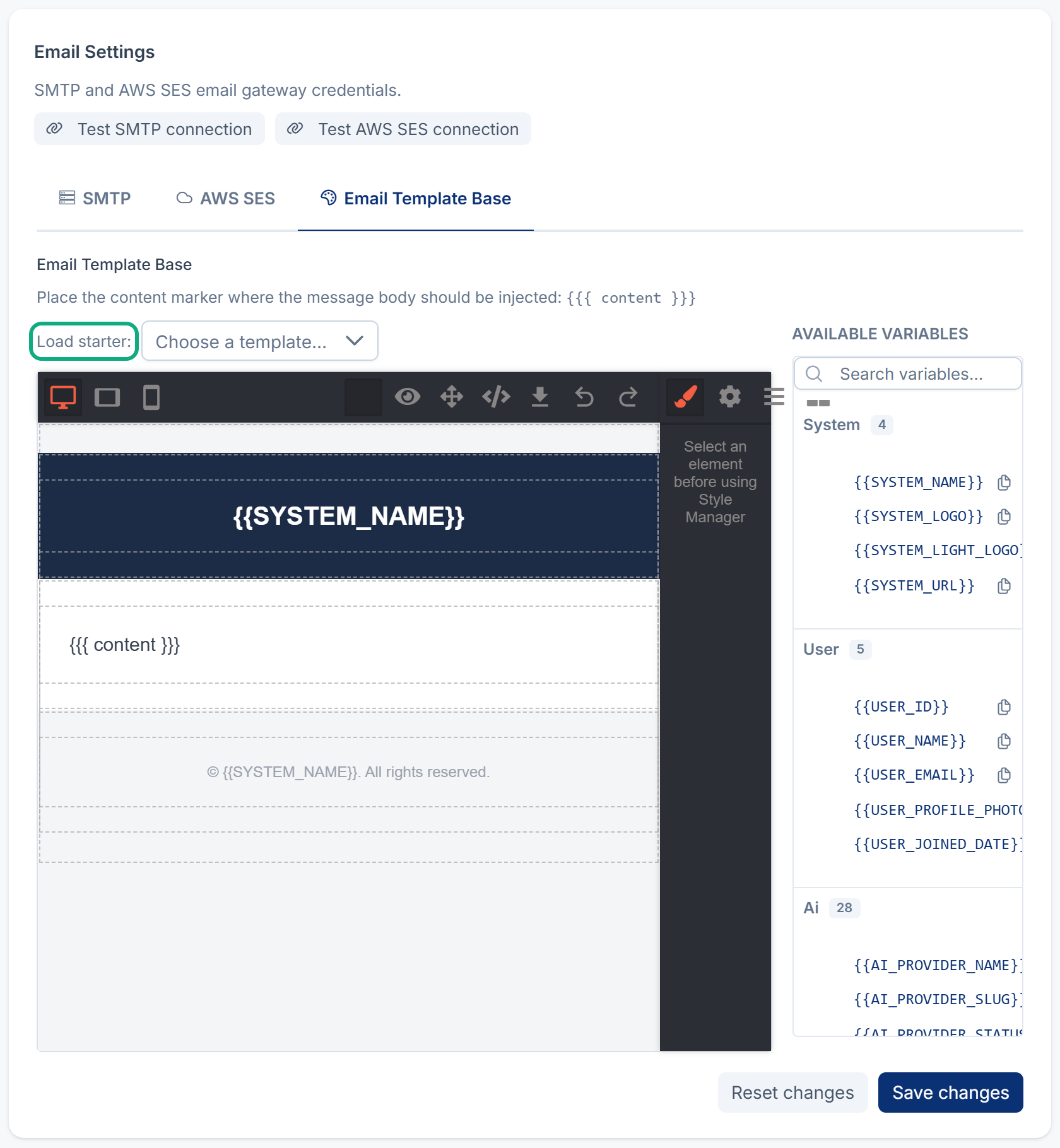
On Email Settings, open the Email Template Base tab.
-
Design the layout with the visual builder, or choose a design in Load starter:.
-
Keep the content marker
{{{ content }}}where each message's text should go. If it's missing, Laramin adds the message at the end. -
Select Save changes.
If you leave the layout empty, Laramin uses Email Header HTML and Email Footer HTML from the SMTP tab instead. The layout is used for emails sent through AWS SES too.
What happens next
- Notifications on that channel now go through the provider. Each one appears in Delivery Logs. See Check what was sent.
- If the provider fails, Laramin tries the channel's next active provider. When all fail, the log row shows Failed and the last provider's error.
- To see delivered and read receipts for SMS and WhatsApp, set up your provider's delivery reports. See Check what was sent.
- To send from more than one name or number, add a sender ID.
Links in this article
Printed from help.laramin.in. The online article may have changed since.