Notification Manager settings
Every field on the Email, SMS, WhatsApp and Push settings panels, the Sender IDs and Business Events forms, the Webhook Center, and the permissions that control each screen.
- Applies to
- Notification Manager 1.4 and later
- Who can do this
- Platform owner
- Where
- Notification Manager › Settings
On this page
The four provider panels open in the Settings hub, under Notification Providers. To see them you need View Providers & Settings (feature.), and to change them Edit Providers & Settings (feature.). Select Save changes to save a panel. See How the settings hub works.
Password, token and key fields never show the saved value. Leave one empty to keep it.
Fields on every provider tab
| Field | What it does | Notes |
|---|---|---|
| Status | Active sends this channel's messages through the provider. Inactive doesn't use it. | Switching to Active, or changing an active provider's details, runs a connection test first. If it fails, nothing is saved. |
| Priority | The order Laramin tries a channel's active providers in, lowest number first. | At least 1. SMTP and Twilio are their channel's default and are always tried first while active. [Confirm: Priority doesn't move them in 1.5.0.] |
Each tab has a test button, such as Test SMTP connection. It checks the details typed on screen, and the saved value for any secret left empty. It doesn't send a message.
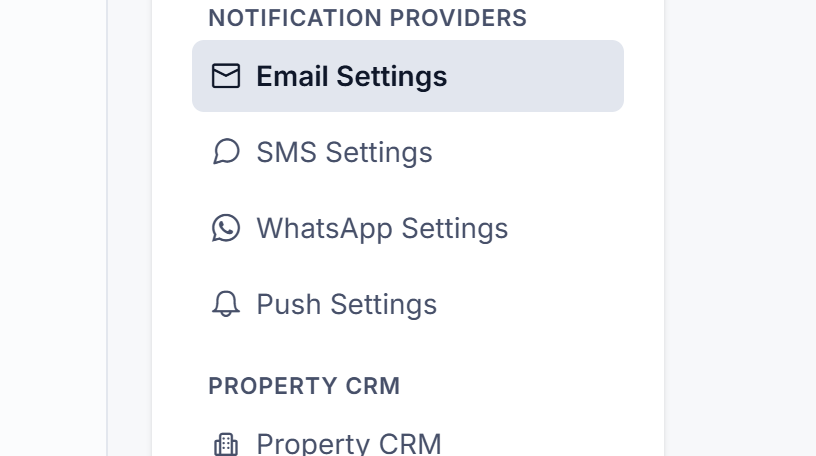
Email Settings
Out of the box, SMTP is Active with placeholder details (127.0.0.1, port 1025, from noreply@company.com), and AWS SES is Inactive with Priority 2.
SMTP
| Field | What it does | Default |
|---|---|---|
| SMTP Host | Your mail server, for example smtp.example.com. Required to test. | |
| SMTP Port | The server's port. | 587 when empty |
| Encryption | TLS or SSL. | TLS when empty |
| SMTP Username | The user to sign in as. | |
| SMTP Password | That user's password. | |
| From Address | The address emails come from, for example notifications@example.com, unless a sender ID says otherwise. | no- when empty |
| From Name | The name emails come from. | Your Laramin's app name when empty |
| Email Header HTML | HTML put before every email's body. | Used only when Email Template Base is empty |
| Email Footer HTML | HTML put after every email's body. | Used only when Email Template Base is empty |
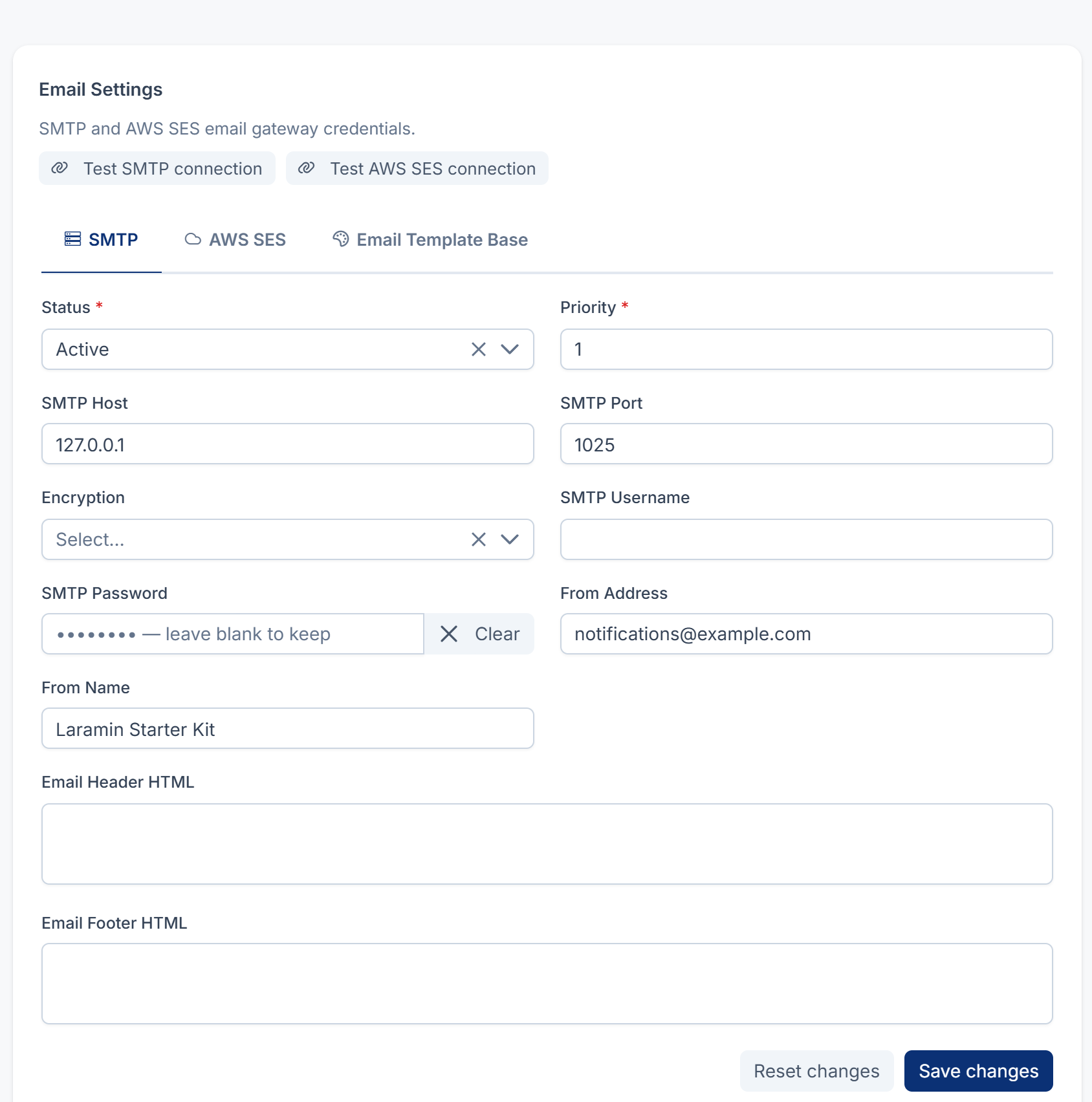
AWS SES
| Field | What it does | Default |
|---|---|---|
| AWS Access Key ID | The access key of an AWS user that may send with SES. Required. | |
| AWS Secret Access Key | Its secret. Required. | |
| AWS Region | The SES region, for example eu-west-1. | us-east-1 when empty |
| From Address | The verified address emails come from. | no- when empty |
| From Name | The name emails come from. | Your Laramin's app name when empty |
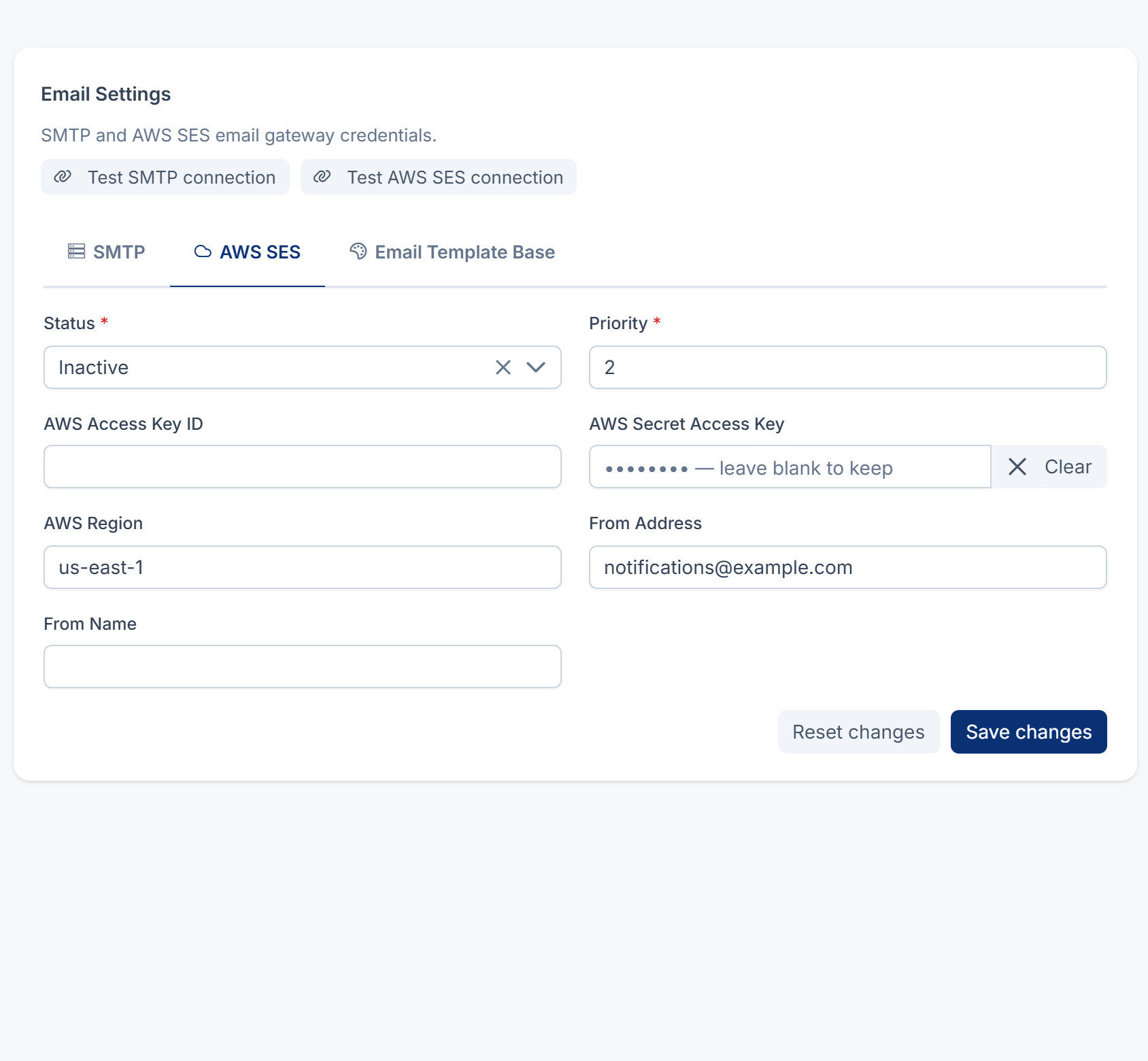
Email Template Base
A visual builder for the layout every email is wrapped in, for SMTP and SES alike. Load starter: replaces your design with a ready-made one, after asking Load this starter template? It will replace your current design. Put the content marker {{{ content }}} where each message's body goes. If it's missing, the body is added at the end. You can use variables such as {{SYSTEM_NAME}} in the layout.
SMS Settings
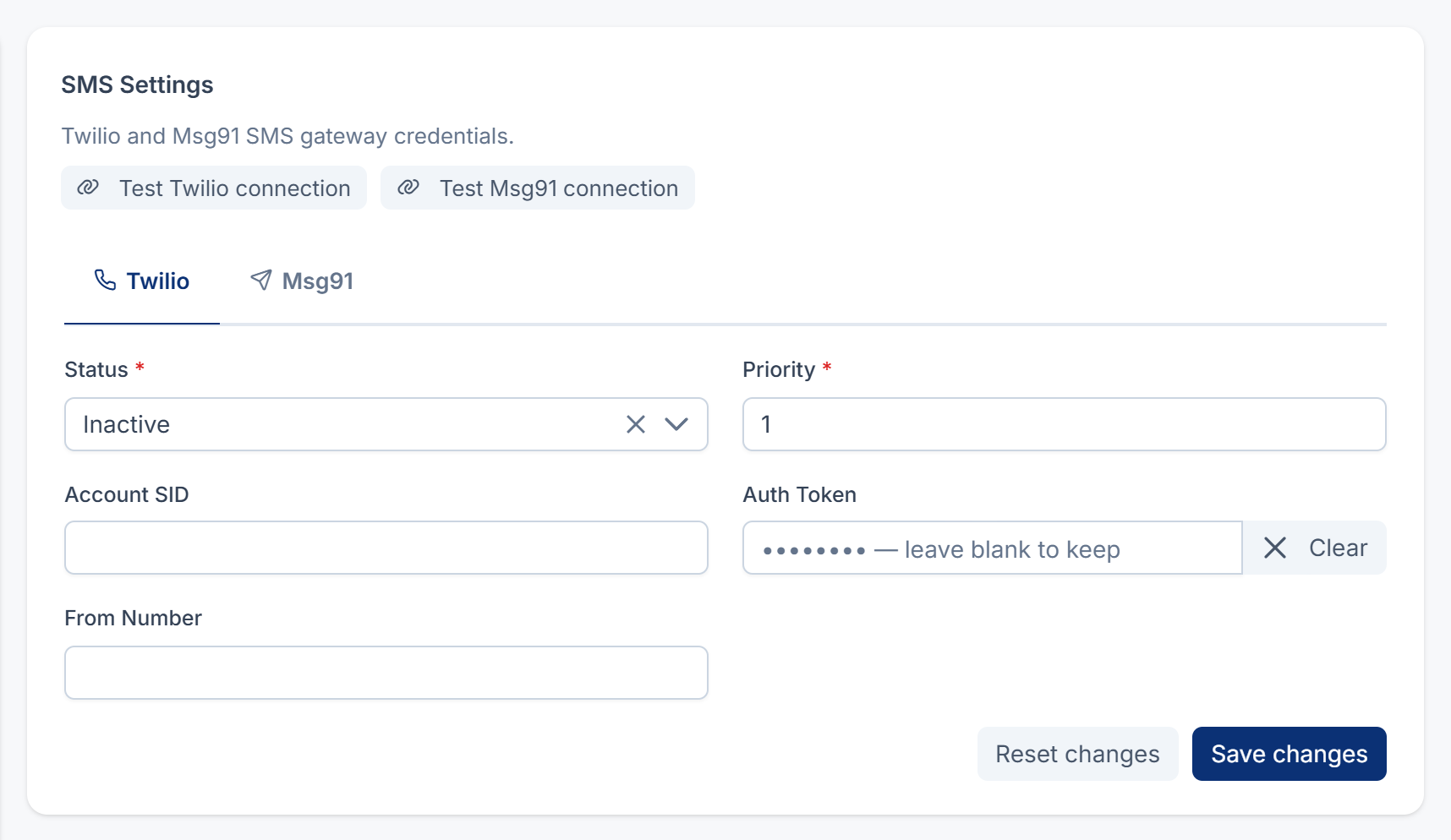
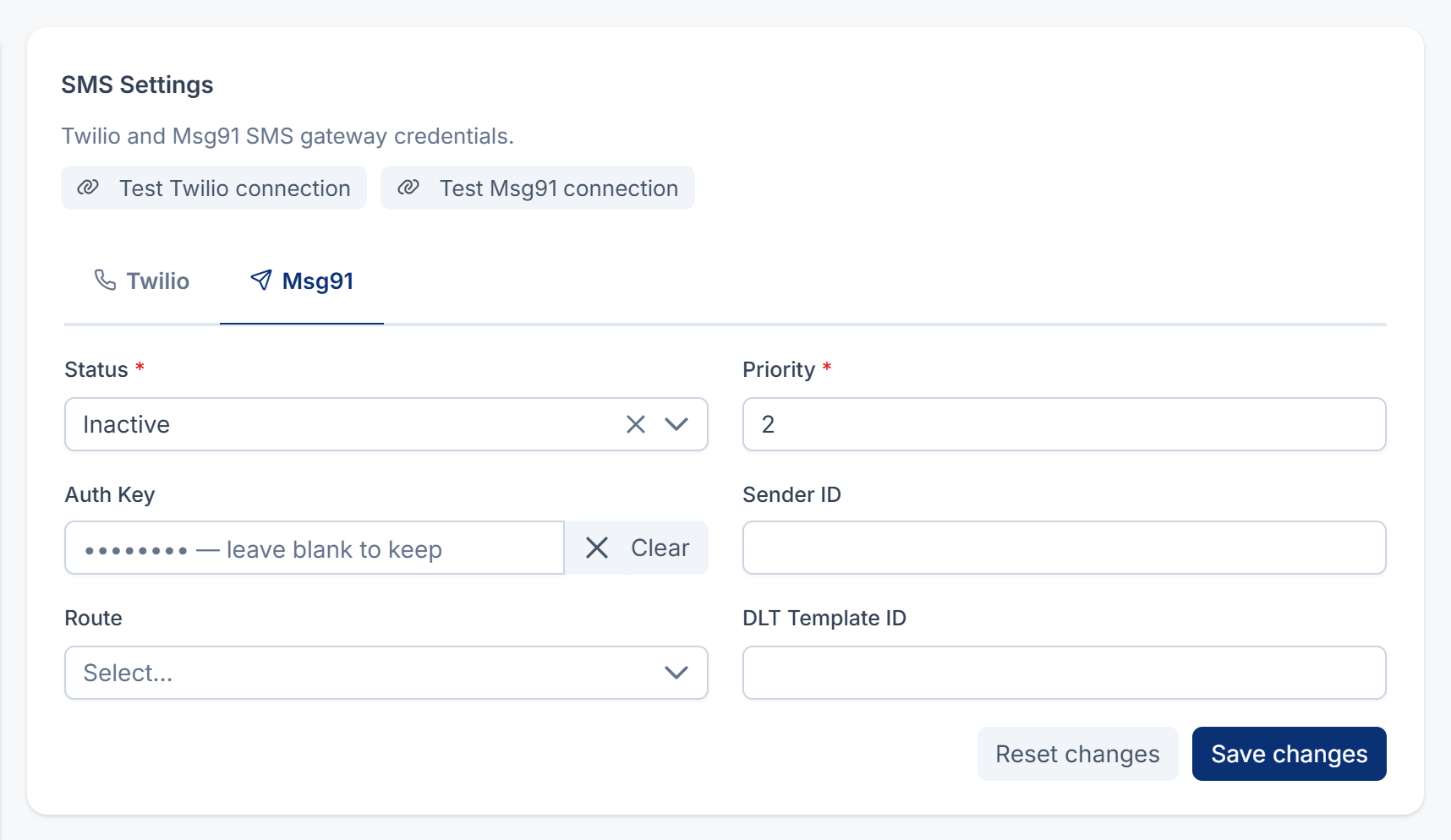
Both providers start Inactive: Twilio with Priority 1, Msg91 with Priority 2.
Twilio
| Field | What it does |
|---|---|
| Account SID | Your Twilio account SID. Required. |
| Auth Token | Its auth token. Required. Also used to check that delivery reports really come from Twilio. |
| From Number | The Twilio number messages come from, for example +15550100000, unless a sender ID says otherwise. |
Msg91
| Field | What it does | Notes |
|---|---|---|
| Auth Key | Your Msg91 auth key. Required. | |
| Sender ID | The approved sender name, unless a sender ID or template says otherwise. | |
| Route | Transactional (4) or Promotional (1). | [Confirm: 1.5.0 always sends as transactional.] |
| DLT Template ID | A DLT template ID. | [Confirm: not used in 1.5.0. Set the DLT template per template, in the Template Builder.] |
WhatsApp Settings
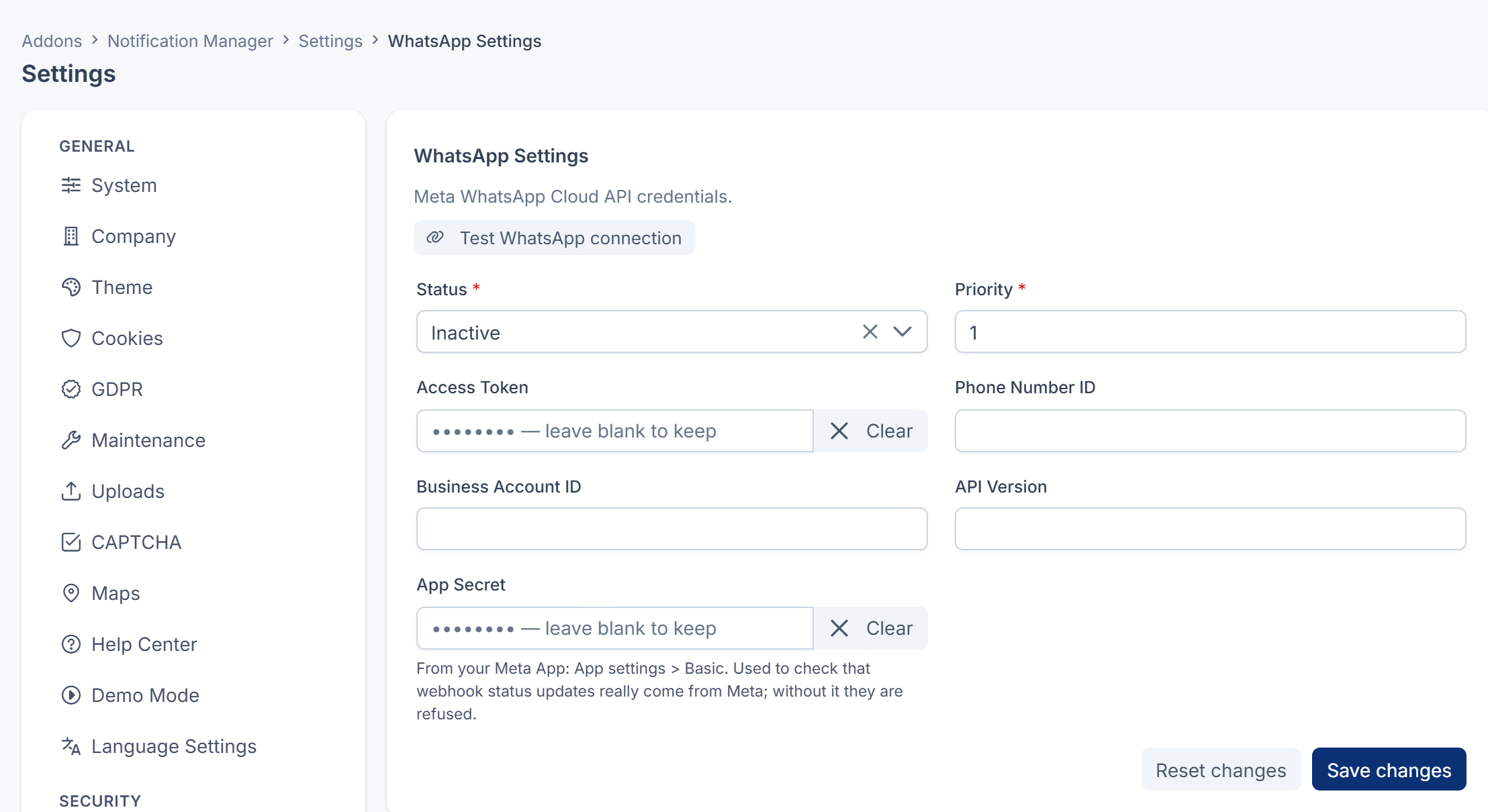
The Meta WhatsApp Cloud API provider starts Inactive.
| Field | What it does | Notes |
|---|---|---|
| Access Token | A Meta access token that may send WhatsApp messages. Required. | |
| Phone Number ID | The ID of your WhatsApp business phone number in Meta. Required. | |
| Business Account ID | Your WhatsApp Business Account ID. | [Confirm: saved, not used in 1.5.0.] |
| API Version | The Meta Graph API version. | [Confirm: 1.5.0 always uses version 17.0.] |
| App Secret | Your Meta app's secret, from App settings › Basic in your Meta app. | Used to check that delivery reports really come from Meta. Without it, Meta's delivery reports are refused. Sending works either way. |
Push Settings
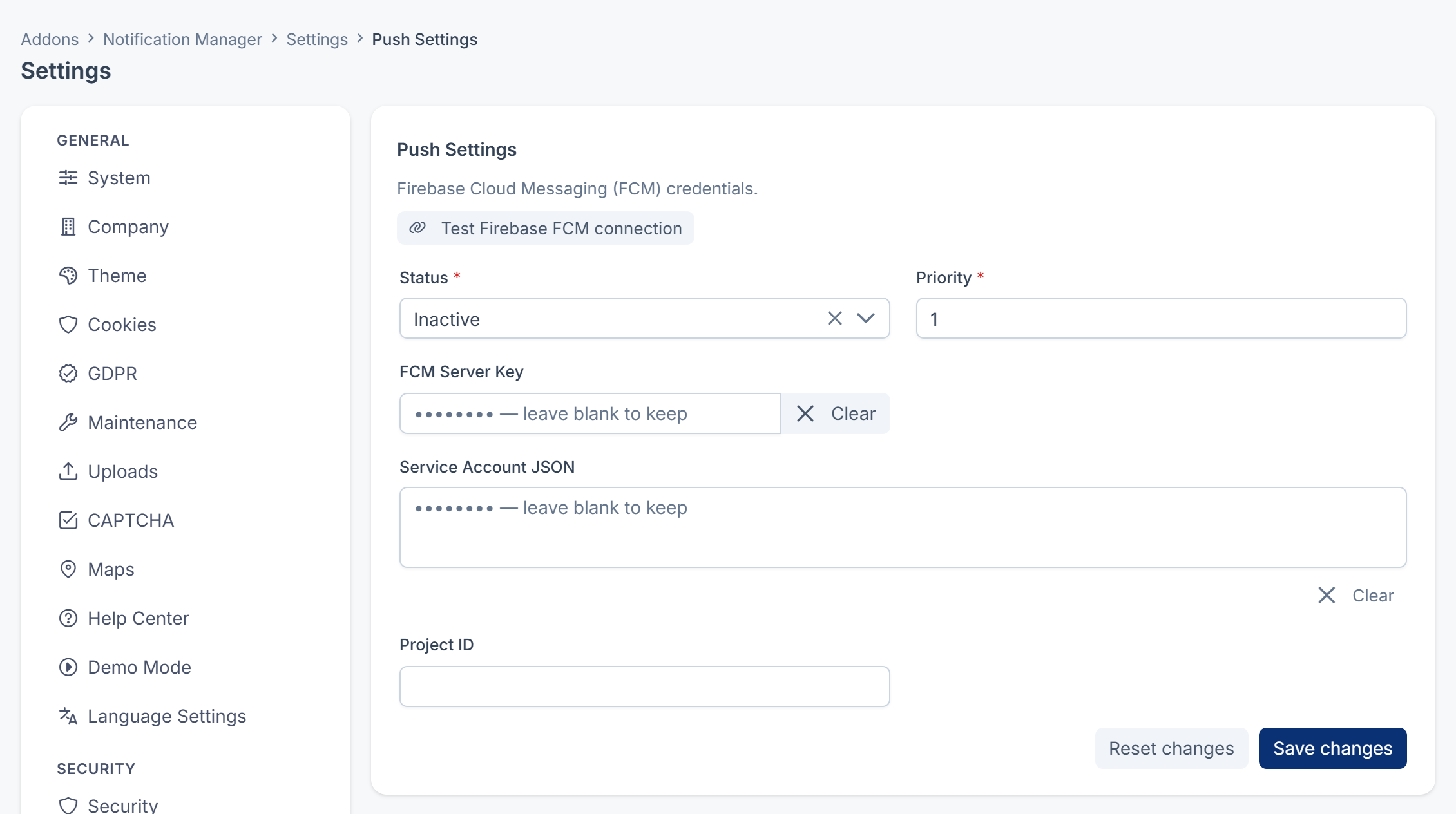
The Firebase Cloud Messaging provider starts Inactive.
| Field | What it does | Notes |
|---|---|---|
| FCM Server Key | A key for Firebase's old (legacy) sending method. | Leave it empty. When it's filled in, Laramin sends with it, even if the service account is also set. |
| Service Account JSON | The JSON key of a Firebase service account. Paste the whole file. | Laramin reads the project ID from it. |
| Project ID | Your Firebase project ID. | [Confirm: not used in 1.5.0. The project ID comes from the service account.] |
Push messages go to the device token Laramin holds for the person.
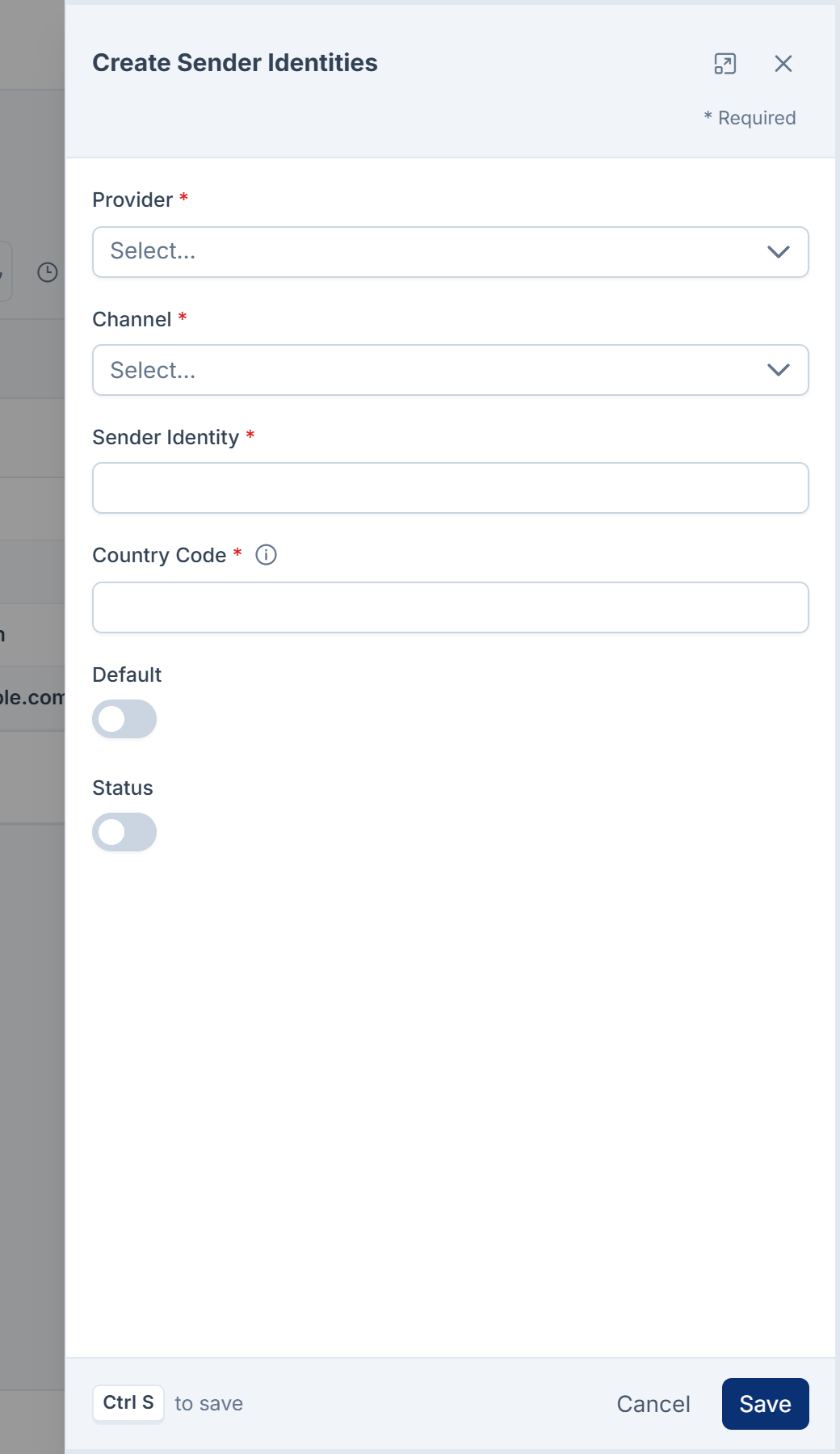
Sender IDs
Notification Manager › Settings › Sender IDs. See Add a sender ID.
| Field | What it does | Rules |
|---|---|---|
| Provider | The provider the sender belongs to. | Required |
| Channel | Email, SMS or WhatsApp. | Required |
| Sender Identity | The address, sender name or number. | Email: an email address. SMS: 3 to 11 letters and digits. WhatsApp: a phone number, for example +15550100000. |
| Country Code | US, IN and so on, or * for all. | Required. [Confirm: not used to pick a sender in 1.5.0.] |
| Default | Makes it the first choice for its provider and channel. | |
| Status | Only active senders are used. |
Business events
Notification Manager › Business Events. Core and your add-ons add their events for you. New Business Events adds your own, which is only useful if something in your Laramin fires that event key.
| Field | What it does | Notes |
|---|---|---|
| Event Key | The key that fires the event, for example user.. | Must be unique. Can't be changed later. |
| Name | The name people see, in lists and in Notification Preferences. | Required |
| Category | A group, such as Security. | Required |
| Module | Core, or the add-on the event belongs to. | The event isn't sent while that add-on is turned off. |
| Description | What the event is for. | |
| Provider Parameter Sets | The groups of variables the Template Builder offers, such as User Parameters. | |
| Default Channels | A list of channels. | Saved, but not used for sending. The channels sent are the ones with a template that has Enable Dispatch on. |
| Required Variables | Variables the event should always supply, such as USER_NAME. | A missing one is noted in the server's log and left blank. The message is still sent. |
| Status | On sends the event. Off stops it on every channel. | See Turn a notification on or off. |

The fields of each template are listed in Edit a message template and send a test.
Webhook Center
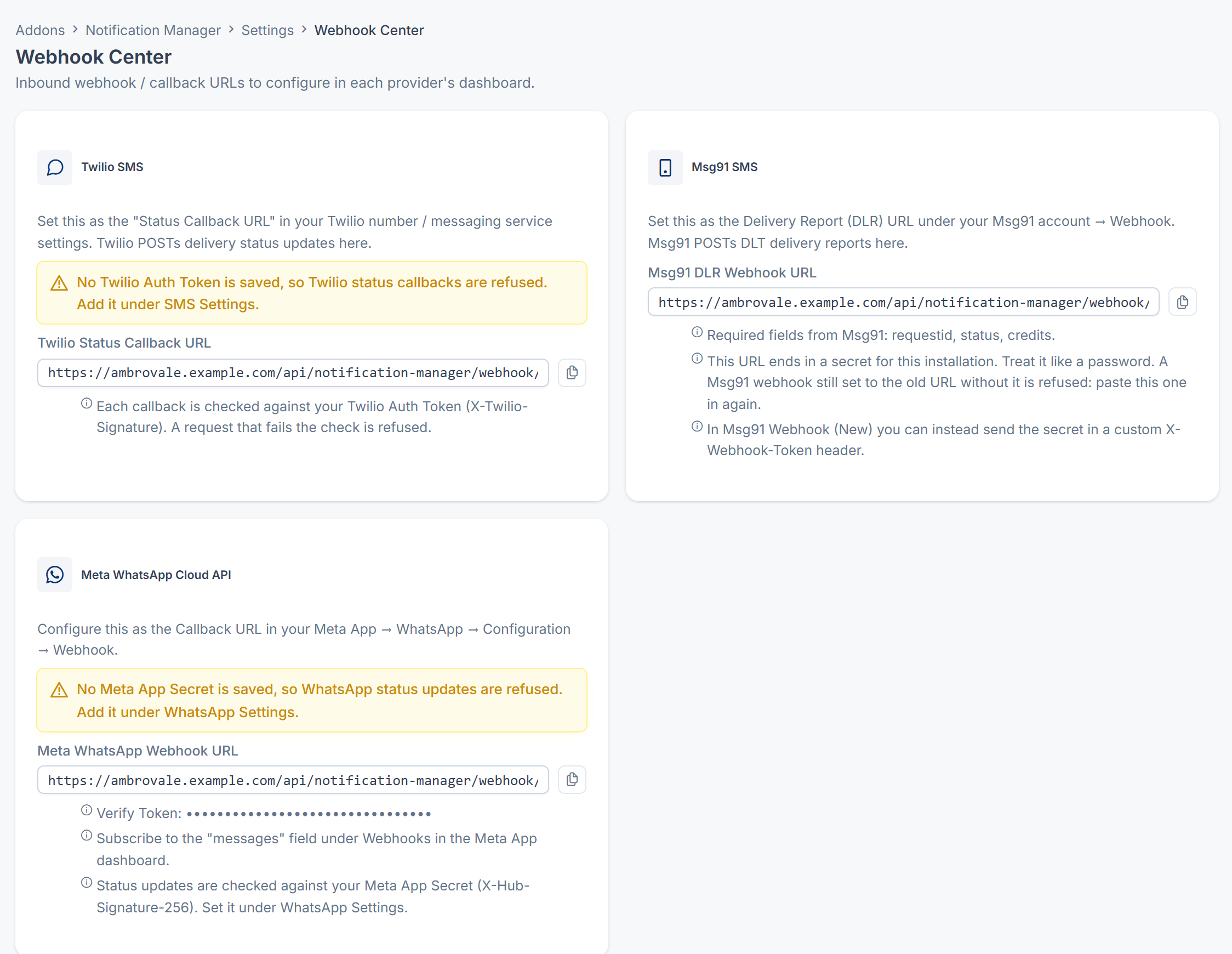
Notification Manager › Settings › Webhook Center lists the addresses your SMS and WhatsApp providers send delivery reports to: Twilio Status Callback URL, Msg91 DLR Webhook URL and Meta WhatsApp Webhook URL, each with Copy URL and setup notes. See Check what was sent.
- The Msg91 address ends in a secret for your Laramin. Treat it like a password.
- The Meta card shows your Laramin's own verify token.
- A card shows a warning while that provider's reports are refused: No Twilio Auth Token is saved, so Twilio status callbacks are refused. Add it under SMS Settings., or No Meta App Secret is saved, so WhatsApp status updates are refused. Add it under WhatsApp Settings.
A delivery report that fails the check is refused and changes nothing.
Permissions
| Permission | Allows |
|---|---|
feature. | List Notification Events: opening Business Events. |
feature. | View Notification Event: opening an event, and the Dashboard. |
feature. | Create Notification Event. |
feature. | Edit Notification Event, including its Status. |
feature. | Delete Notification Event (to the deleted list). |
feature. | Restore Notification Event. |
feature. | Permanently Remove Notification Event. |
feature. | Edit Templates (Builder): opening the Template Builder, saving and submitting templates. |
feature. | Send Test Notification: tests from the Template Builder and the Test Center. |
feature. | Approve / Reject Templates. |
feature. | View Providers & Settings: the four provider panels and the Webhook Center. |
feature. | Edit Providers & Settings: changing and testing providers, and the email layout. |
feature. | List Sender Identities: opening Sender IDs. |
feature. / .create / .edit / .delete / .restore / .remove | Viewing, adding, changing, deleting, restoring and permanently removing sender IDs. |
feature. | List Notification Logs: opening Delivery Logs and a log's details. |
feature. | View Notification Logs. |
feature. | Clear Notification Logs. |
feature. | Manage Notification Preferences. Not checked: everyone can set their own preferences. |
To give them, see Give someone a role.
Thanks. That helps us decide what to write next.
Thanks for telling us what was missing.
You already answered for this article today. Thanks.
We got a lot of answers from your network just now. Try again in a few minutes.
We couldn't send that. Check your connection and try again.
Links in this article
Printed from help.laramin.in. The online article may have changed since.