Edit a message template and send a test
Open an event in the Template Builder, write its email, SMS, WhatsApp, push or in-app message in each language, insert variables, switch the channel on, and send yourself a test.
- Applies to
- Notification Manager 1.4 and later
- Who can do this
- Platform owner
- Permission
feature.nm. template.edit - Where
- Notification Manager › Business Events
On this page
Before you start
- You need List Notification Events (
feature.) to see the events, and Edit Templates (Builder) (nm. event.list feature.) to open the Template Builder.nm. template.edit - To send a test, you also need Send Test Notification (
feature.), and the channel's provider must be active. See Connect an email, SMS, WhatsApp or push provider.nm. template.send - For WhatsApp, the template must already be approved in your Meta Business account. For SMS in India, have your DLT template ID ready.
Careful: Saving sets the template back to Draft, and a draft isn't sent. If you edit a template that is in use, that channel stops sending until the template is approved again. Plan the approval straight after your change. See Submit, approve or reject a template.
Steps
1. Open the Template Builder
-
In the sidebar, open Notification Manager › Business Events.
-
Find the event, for example Lead Assigned. You can search by Name or Event Key.
-
In the event's row, select Template Builder.

The Translation Coverage table shows one row per language and two columns per channel:
- Status: On or Off for sending, or Not created.
- Approval: Draft, In Review, Approved, Rejected, or a dash when there's no template.
2. Open the template you want
- Select the cell for the language and channel, or select Open editor.
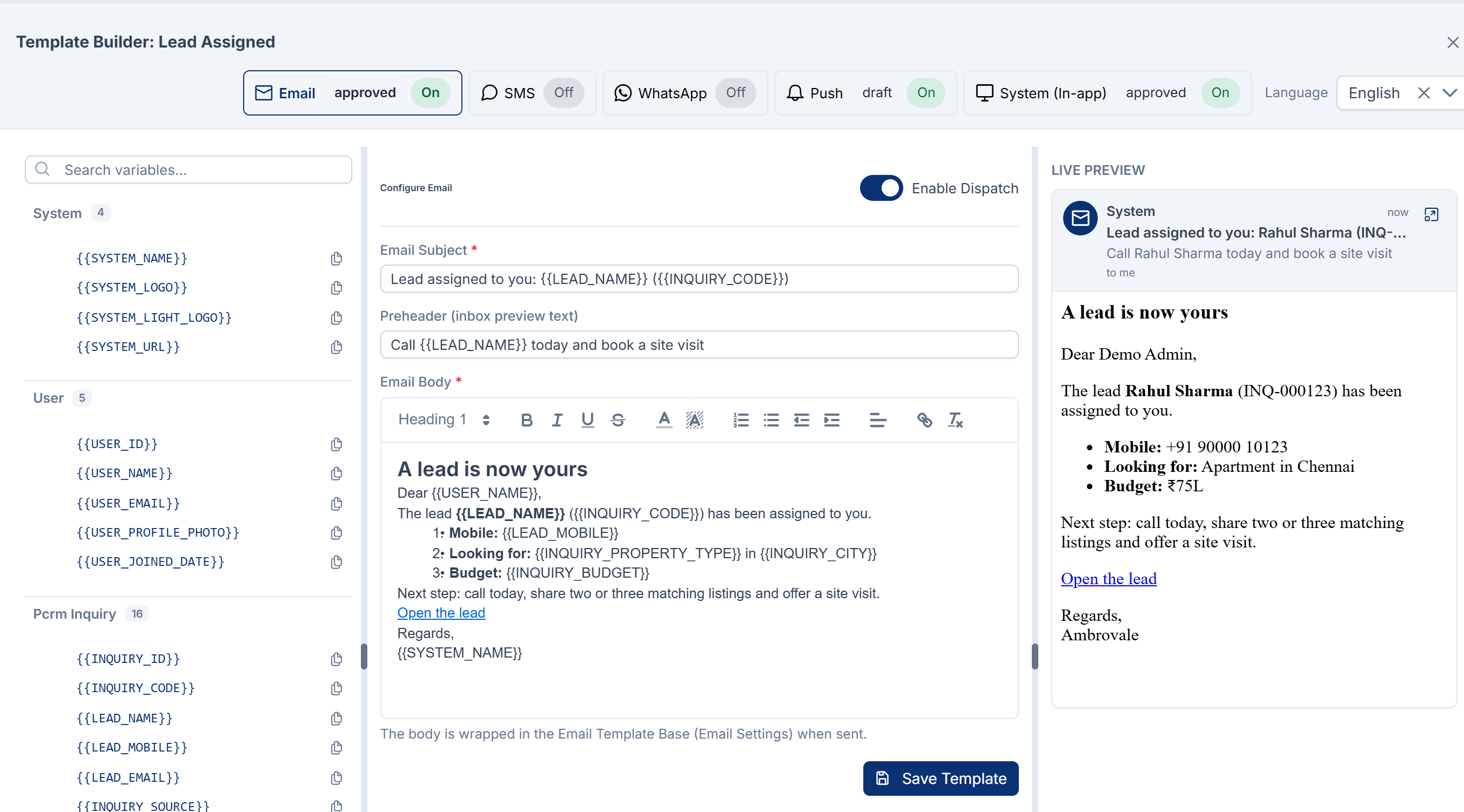
The editor opens in a wide panel. At the top you switch channel and Language. Below are three panes: Available Variables, Configure and the channel's name, and Live Preview.
3. Write the message
Fill in the channel's fields:
| Channel | Fields |
|---|---|
| Email Subject, Preheader (inbox preview text) and Email Body. The body is wrapped in your email layout when it's sent. | |
| SMS | Message Body. A counter shows the characters and the number of SMS parts. Characters outside basic Latin, such as Tamil, use 70 characters per part instead of 160. |
| Meta Approved Template Name (required), Header Type, Header Text or Header Media URL, Message Body, Footer Text and Quick Reply / URL Buttons. | |
| Push | Notification Title, Notification Body, Banner Image URL (optional), Deep Link / Click Action and Custom Data Payload (JSON). |
| System (In-app) | Notification Title, Notification Message and Action URL (opened on click), for example dashboard or https://example.com. |
Live Preview shows how the message looks, with sample values filled in from your own account.
Insert variables
Variables are placeholders, such as {{USER_NAME}} or {{LEAD_NAME}}, that Laramin fills in when it sends the message.
- Click in the field where the variable should go.
- In Available Variables, select the variable. It's added where your cursor was.
The list depends on the event's Provider Parameter Sets. If it says No variable providers assigned. Edit the event to add provider scopes., edit the event and choose them. A variable with no value is left blank.
SMS: DLT and sender
- DLT Template ID (Flow ID): with Msg91, when you fill this in, Laramin sends through that Msg91 template and passes it the variables, instead of sending the Message Body.
- DLT Entity PE ID: your DLT entity ID. [Confirm: Notification Manager 1.5.0 saves it but doesn't send it to Msg91.]
- Sender Identity (optional): a sender ID for this template. See Add a sender ID.
WhatsApp: match your Meta template
WhatsApp only delivers templates approved in Meta. Laramin sends the template's name, its language code (for example en), the header, and the values of the variables in the body. The text, footer and buttons you type here are for your preview. Meta uses the ones it approved.
- Enter the name exactly as in Meta, in Meta Approved Template Name, for example
lead_assigned. - In Message Body, put the variables in the same order as Meta's
{{1}},{{2}}and so on. For example, if Meta's text is "Hello {{1}}, your lead {{2}} is waiting", writeHello {{USER_NAME}}, your lead {{LEAD_NAME}} is waiting. [Confirm: if you type Meta's numbered placeholders here instead, Notification Manager 1.5.0 fills them from an unpredictable list of values.] - WhatsApp Business Account (WABA) ID: saved with the template for your reference. [Confirm: not sent to Meta in 1.5.0.]
- Sender Number (optional): a WhatsApp sender ID for this template.
4. Switch the channel on and save
- Turn on Enable Dispatch next to Configure.
- Select Save Template.
You see, for example, Email template saved for Lead Assigned. The template's approval is now Draft.
If you switch channel or language before saving, Laramin asks You have unsaved changes that will be lost. Continue without saving?
5. Add other languages (optional)
- Choose another language in Language.
- For a language with no template yet, the English text is filled in for you. On a language that already has one, select Copy from English to start again from the English text.
- Translate the text, and select Save Template.
Laramin sends each person the template in their own language, and English when there's none in theirs with Enable Dispatch on. A translation that is on but not yet approved stops that channel for people in that language, so get it approved soon after you switch it on.
6. Send a test
-
Under Send Test, enter where to send it. The box asks for a Recipient email, a Recipient phone with country code (for example
+15550100000), a Device token for push, or a User ID for in-app. -
Select Test.
You see Test email dispatched successfully (status: sent). for example, or Test email failed: with the reason, and See Delivery Logs.
A test is sent even though the template isn't approved yet, so you can check a draft. It uses the template as last saved, not what's still unsaved on screen, and only while Enable Dispatch is on. With it off, the test uses another language's template for that channel, or sends nothing. Variables about you and your Laramin are filled in. Variables about a record, such as a lead's name, are blank.
What happens next
- Submit the template for review, so it can be approved and sent. See Submit, approve or reject a template.
- To stop a channel without deleting its template, turn off Enable Dispatch and save. See Turn a notification on or off.
Thanks. That helps us decide what to write next.
Thanks for telling us what was missing.
You already answered for this article today. Thanks.
We got a lot of answers from your network just now. Try again in a few minutes.
We couldn't send that. Check your connection and try again.
Links in this article
Printed from help.laramin.in. The online article may have changed since.