Add a sender ID
Add the email address, SMS sender name or WhatsApp number that messages come from, make one the default for a provider, and pick a different one for a single template.
- Applies to
- Notification Manager 1.4 and later
- Who can do this
- Platform owner
- Permission
feature.nm. sender_identity. create - Where
- Notification Manager › Settings › Sender IDs
On this page
A sender ID is who a message comes from: an email address, an SMS sender name or a WhatsApp number. You don't need one: without it, Laramin uses the From Address, From Number or Sender ID saved in the provider's settings. Add sender IDs when you want a different sender than those, or more than one.
Before you start
- You need Create Sender Identity (
feature.). To change one later, Edit Sender Identity (nm. sender_identity. create feature.).nm. sender_identity.edit - Register the sender with your provider first. Your provider must allow the address, name or number, or it refuses the message.
Steps
-
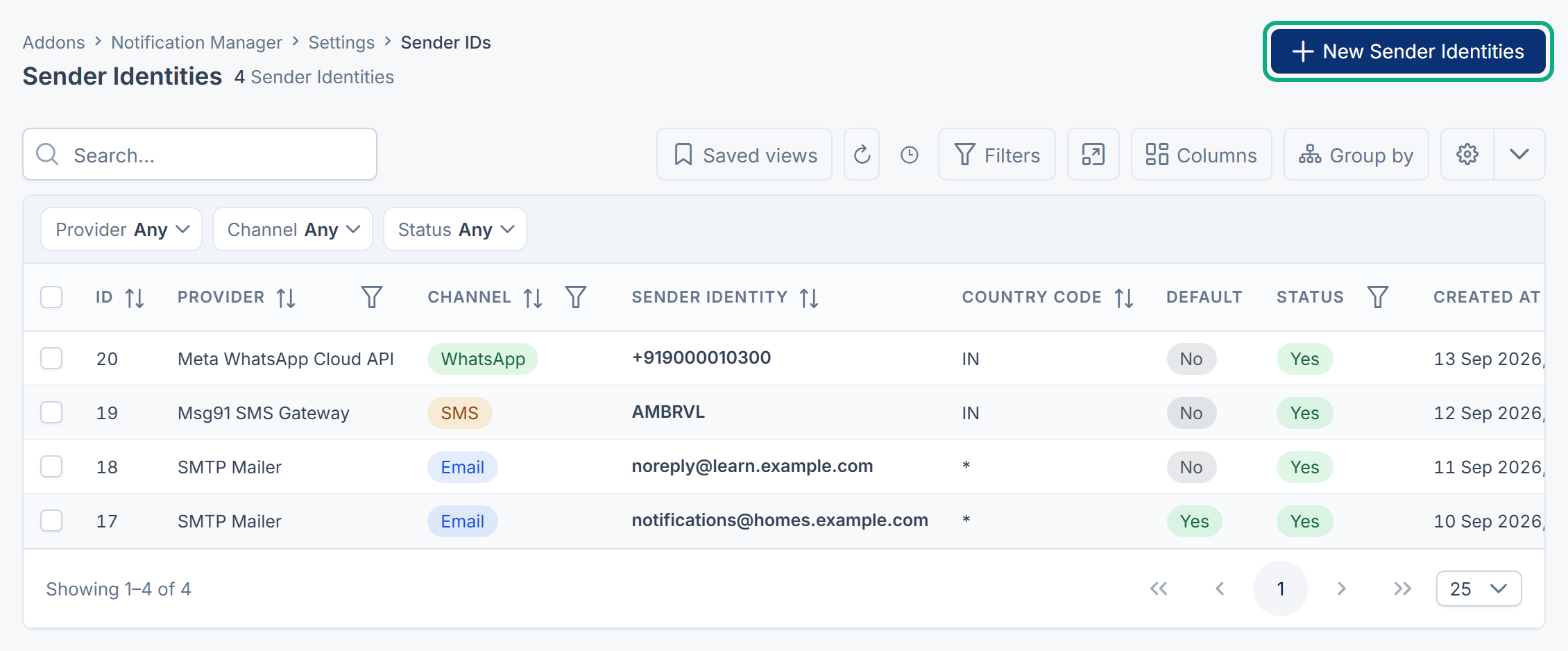
In the sidebar, open Notification Manager › Settings › Sender IDs.
-
Select New Sender Identities.
-
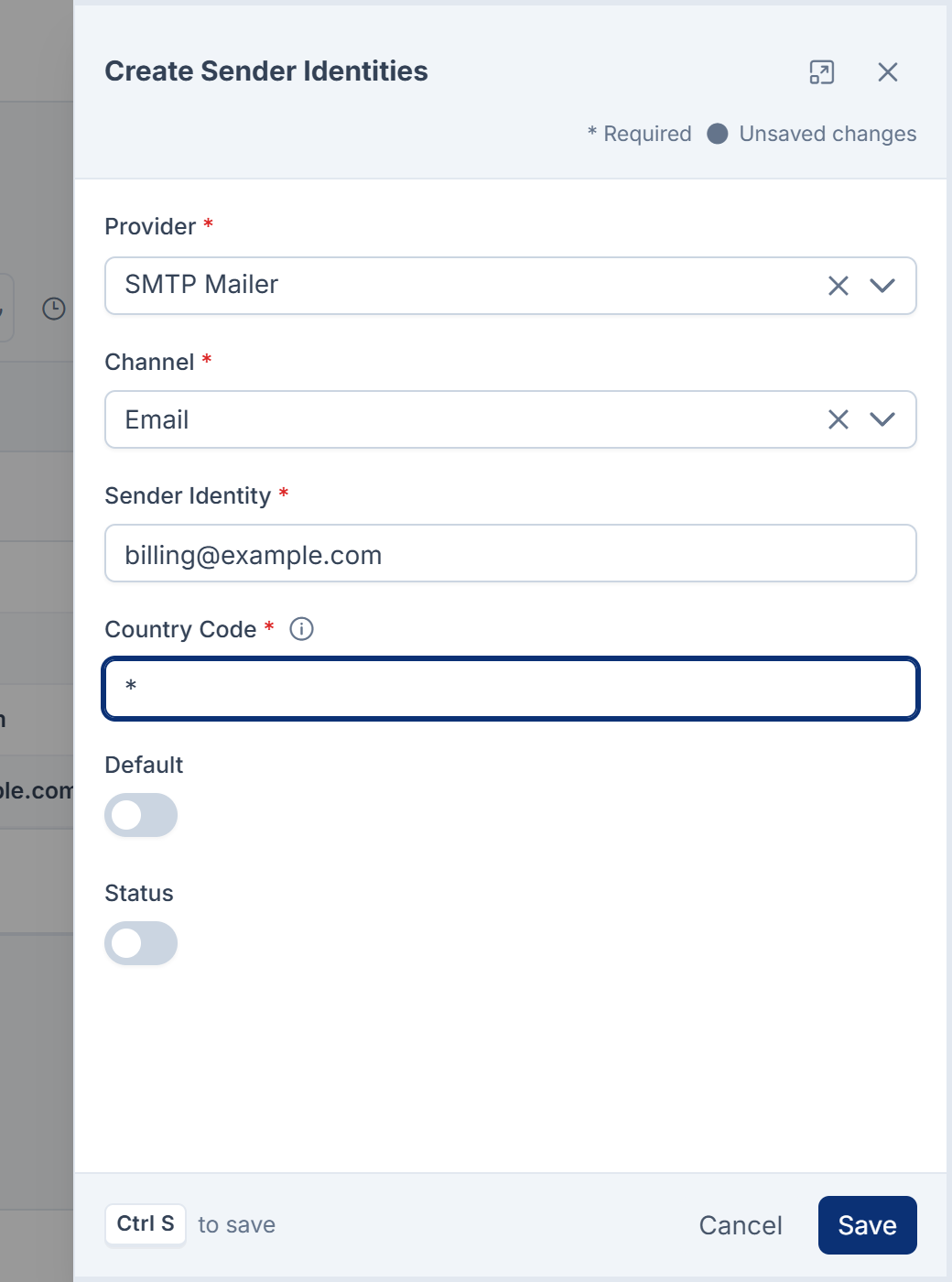
In Provider, choose the provider this sender belongs to. Providers are listed by name, for example SMTP (or SMTP Mailer before you first save Email Settings) or Twilio SMS.
-
In Channel, choose Email, SMS or WhatsApp.
-
In Sender Identity, enter the sender. It must fit the channel:
- Email: an email address, for example
billing@example.com. - SMS: a sender name of 3 to 11 letters and digits, with no spaces, for example
EXMPLE. - WhatsApp: a phone number in international format, for example
+15550100000.
- Email: an email address, for example
-
In Country Code, enter a two- or three-letter country code, such as
USorIN, or*for all countries. [Confirm: Notification Manager 1.5.0 saves the country code but doesn't use it to choose a sender.] -
Turn on Default to make this the sender for its provider and channel.
-
Leave Status on.
-
Select Save.
You see Sender identity added successfully.
How Laramin picks the sender
For each message, Laramin uses the first of these that applies:
- The sender chosen in the template, for SMS and WhatsApp. See Edit a message template and send a test.
- An active sender ID for the provider that is sending and the channel. A Default one wins over the others.
- The From Address, From Number or Sender ID in the provider's settings.
So a sender ID belongs to one provider. If Laramin moves on to the channel's next provider, it uses that provider's sender instead.
Tip: Twilio usually sends from a phone number, and the SMS channel here only accepts sender names. To send from a Twilio number, set it in From Number on SMS Settings.
What happens next
- To stop using a sender for a while, edit it and turn off Status.
- Delete in the row actions menu moves a sender to the deleted list, where you can restore it. Deleting it there for good can't be undone.
Thanks. That helps us decide what to write next.
Thanks for telling us what was missing.
You already answered for this article today. Thanks.
We got a lot of answers from your network just now. Try again in a few minutes.
We couldn't send that. Check your connection and try again.
Links in this article
Printed from help.laramin.in. The online article may have changed since.