A delivery provider won't switch on
Saving an email, SMS, WhatsApp or push provider fails with Cannot activate … its connection test failed. Read the reason at the end of the message and fix the details it points to.
- Applies to
- Notification Manager 1.4 and later
- Who can do this
- Platform owner
- Permission
feature.nm. provider.edit - Where
- Notification Manager › Settings
On this page
Symptom
You select Save changes on a provider's tab, and nothing is saved. You see a message such as:
Cannot activate SMTP — its connection test failed: Connection failed: … followed by Fix the credentials (or use Test Connection), or leave it inactive.
Laramin tests the connection whenever you switch a provider to Active, or change the details of a provider that's already active. If the test fails, the whole save is refused. The text after Connection failed: is the provider's own reason, so read it first.
Check these, in order
1. A required field is empty
For some providers, the reason names what's missing:
| Reason | Fill in |
|---|---|
| SMTP host is required. | SMTP Host |
| AWS access key and secret are required. | AWS Access Key ID and AWS Secret Access Key |
| Twilio Account SID and Auth Token are required. | Account SID and Auth Token |
| Msg91 Auth Key is required. | Auth Key |
| Access Token and Phone Number ID are required. | Access Token and Phone Number ID (WhatsApp) |
| Service Account JSON is incomplete or invalid. | The whole Firebase Service Account JSON (Push) |
Fix: Fill in the fields and select Save changes again. Password, token and key fields never show the saved value. If you aren't sure one is saved, type it again.
2. SMTP: the port and encryption don't match
SSL connects encrypted from the start, which mail servers offer on port 465. TLS starts unencrypted and then switches, which they offer on port 587. With the wrong pair, the reason is usually a connection or timeout error, such as Connection could not be established with host and your host and port.
Fix: Use SMTP Port 465 with Encryption SSL, or 587 with TLS. Check your mail provider's help for the pair they support.
3. SMTP: the user name or password is refused
The reason is an error about authenticating. Many mail providers, such as Gmail and Microsoft 365, don't accept your normal sign-in password from other apps.
Fix: Create an app password or SMTP password with your mail provider, and enter it in SMTP Password. Check that SMTP Username is the full address your provider expects.
4. Your server can't reach the provider
The reason is a connection error or a timeout, even with the right port and encryption. Some hosts block outgoing mail ports, especially 25, 465 and 587.
Fix: Ask whoever runs your server, or your hosting company, to allow outgoing connections to your provider's host and port. If they won't open mail ports, use AWS SES, which connects over the web instead.
5. You changed the placeholder SMTP provider
Out of the box, SMTP is already Active, with placeholder details for a local test mailbox (127.0.0.1, port 1025). Because it's active, any change you save is tested at once. If you change only some fields, the test runs with the rest of the placeholder details and fails.
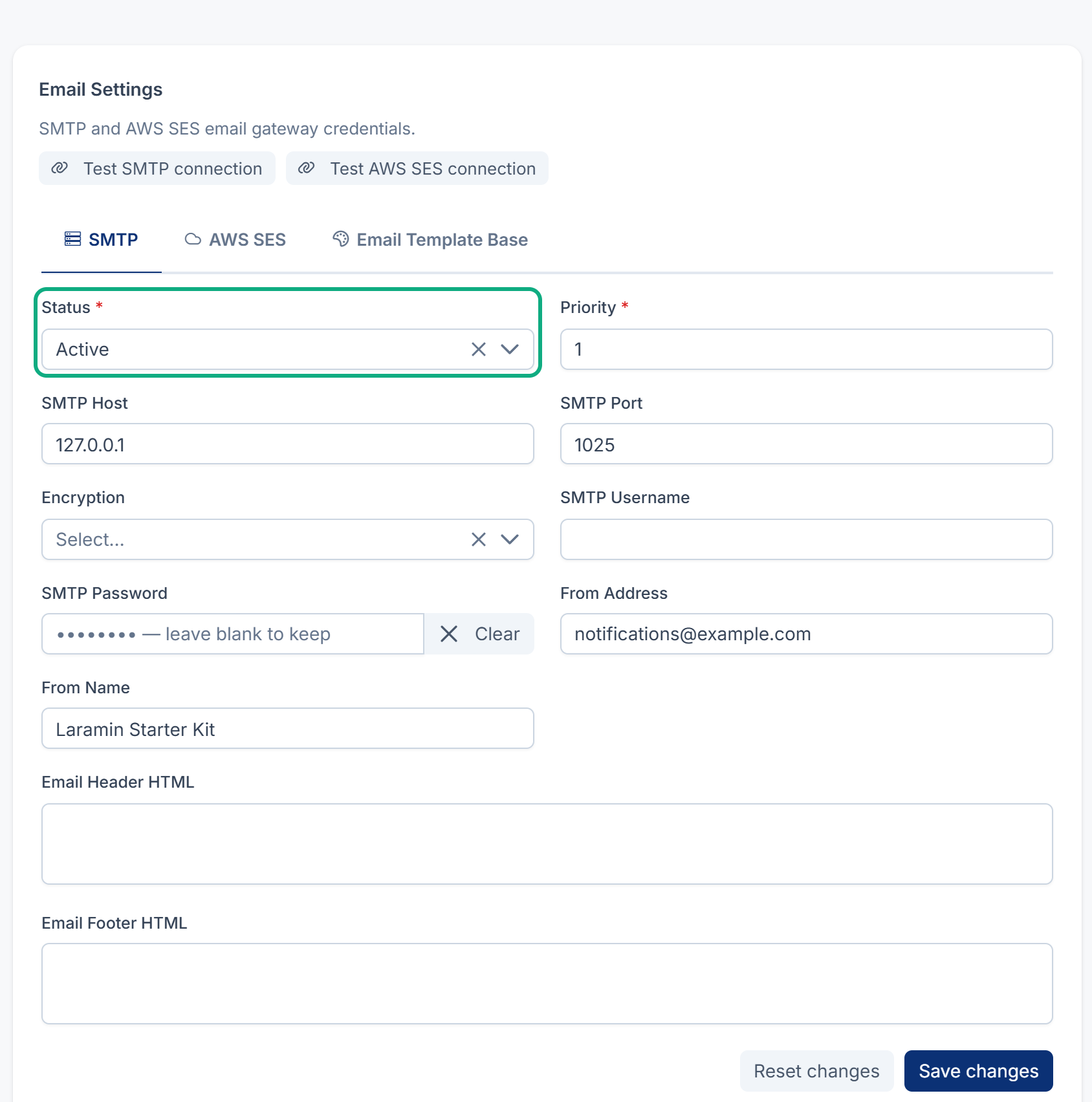
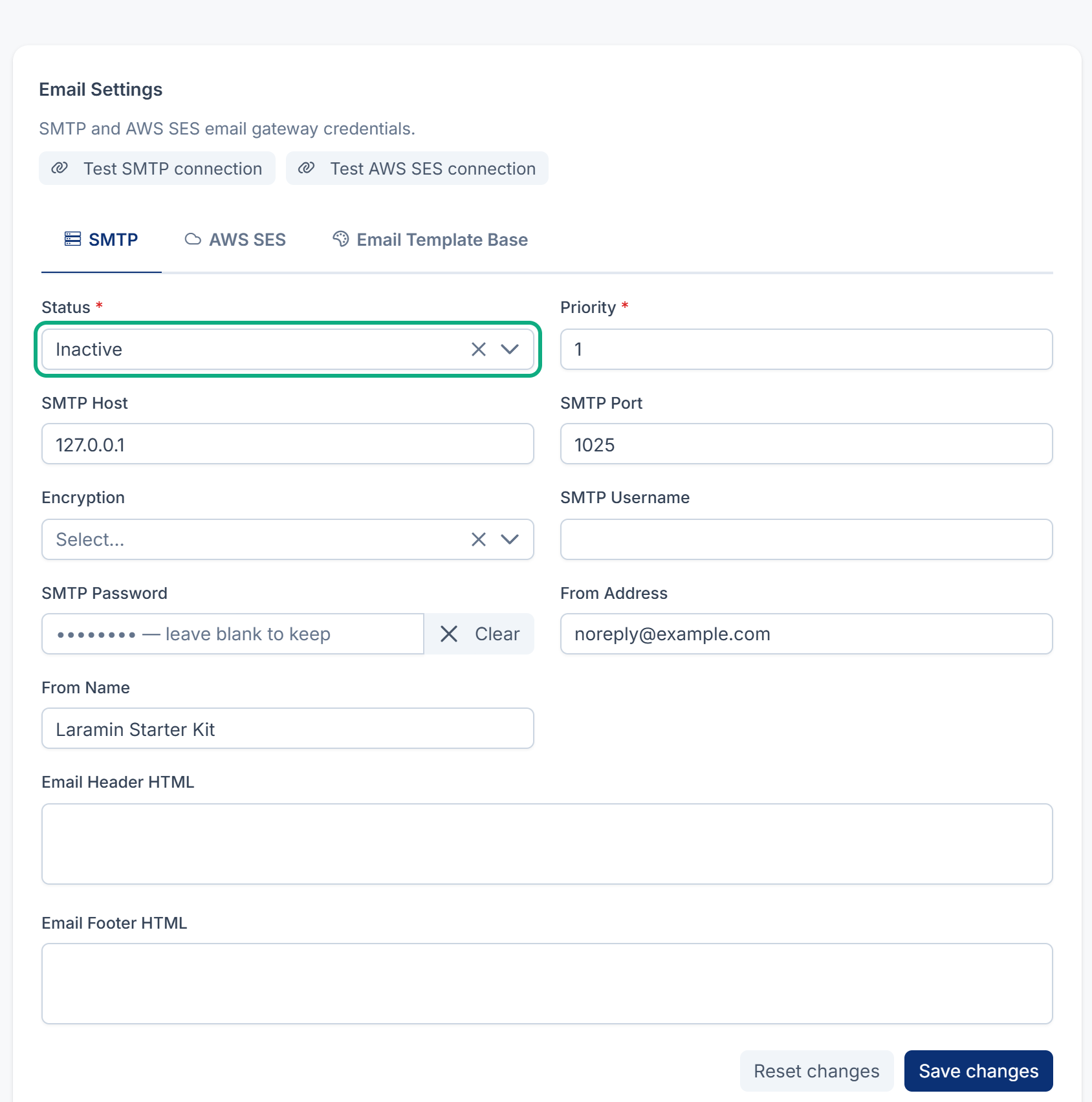
Fix: Enter all your real details, including SMTP Password, and save them in one go. Or set Status to Inactive, save your details, select Test SMTP connection, and set it back to Active once the test says Connection successful — the gateway responded correctly.
If your Laramin was installed with Core 12.8.1 or earlier, the SMTP fields may look empty although Status shows Active, because the saved details can't be read. The same fix applies: fill in every field, including SMTP Password. See Emails from Laramin don't arrive for the server check that lists every unreadable value.
6. SMS, WhatsApp or Push: the provider refuses the details
The reason is the provider's own message, or an HTTP code.
- Twilio: check the Account SID and Auth Token in your Twilio console.
- Msg91: check the Auth Key.
- WhatsApp: check that the Access Token hasn't expired, and that the Phone Number ID belongs to it.
- Push: Failed to obtain a Google access token from the service account. means Google refused the service account. Download a new key for it in the Firebase console, and paste the whole JSON file.
Fix: Correct the details, run the tab's test button, then switch the provider on.
You need the provider off while you fix it
Set Status to Inactive and save. No test runs for an inactive provider, so you can save half-finished details. While it's inactive, that channel uses its other active providers, or sends nothing. To find out why emails don't arrive even with an active provider, see Emails from Laramin don't arrive.
Still not working?
Raise a ticket from Support Center in your Laramin app. Include this page's link, the provider, and the full message, without any password, token or key.
Thanks. That helps us decide what to write next.
Thanks for telling us what was missing.
You already answered for this article today. Thanks.
We got a lot of answers from your network just now. Try again in a few minutes.
We couldn't send that. Check your connection and try again.
Links in this article
Printed from help.laramin.in. The online article may have changed since.