Turn a notification on or off
Stop a notification completely with the event's Status, stop it on one channel with Enable Dispatch, or leave it to each person's preferences. Here's which to use and what each one does.
- Applies to
- Notification Manager 1.4 and later
- Who can do this
- Platform owner
- Permission
feature.nm. event.edit - Where
- Notification Manager › Business Events
On this page
There are three switches. Pick the one that matches what you want to stop:
| To stop… | Use | Who can |
|---|---|---|
| An event on every channel, for everyone | The event's Status | People with Edit Notification Event |
| An event on one channel, in one language, for everyone | Enable Dispatch on that template | People with Edit Templates (Builder) |
| An event on one channel, for one person | That person's Notification Preferences | Each person, for themselves |
Before you start
- To change an event's Status, you need Edit Notification Event (
feature.).nm. event.edit - To change Enable Dispatch, you need Edit Templates (Builder) (
feature.).nm. template.edit
Steps
Turn an event off or on
-
In the sidebar, open Notification Manager › Business Events.
-
Find the event, and select Edit in its row actions menu.
-
Turn Status off to stop the event, or on to start it again.

-
Select Save.
You see Business event updated successfully. While the event is off, Laramin sends nothing for it on any channel, and nothing appears in Delivery Logs.
When an upgrade changes the list of events that comes with an add-on, Notification Manager resets every add-on's events, not only that add-on's, to their own name, category and Status. So an event you turned off can come back on, even if its own add-on wasn't upgraded. After any add-on upgrade, check the Status of the events you turned off.
Turn one channel off or on
-
Open the event in the Template Builder. See Edit a message template and send a test.
-
Open the channel and language.
-
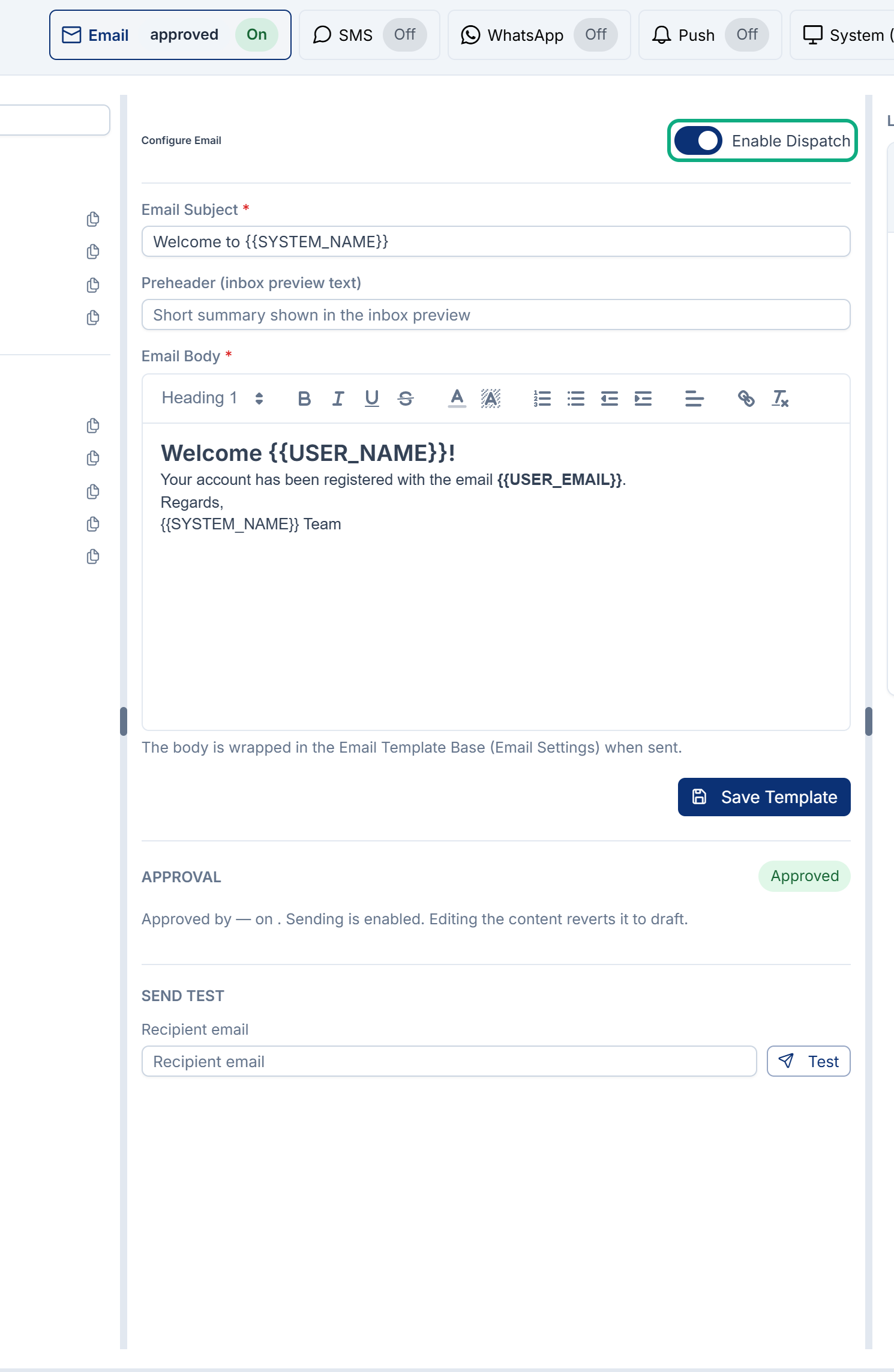
Turn Enable Dispatch off or on.
-
Select Save Template.
Careful: Saving puts the template back to Draft. That's fine when you switch a channel off. When you switch one back on, submit and approve the template again, or it still isn't sent. See Submit, approve or reject a template.
In Translation Coverage, the channel's Status shows On or Off for each language.
Let each person choose
You don't need to do anything. Everyone can turn notifications off for themselves, channel by channel, in Notification Preferences. See Choose how Laramin notifies you. You can't see or change other people's preferences.
What happens next
- Messages already waiting in the queue are checked again when they're sent. A template that has been switched off or isn't approved by then isn't sent.
- An event also stops while the add-on that owns it is turned off. It starts again when the add-on is turned back on.
Tip: Don't delete an event to stop it. Use Status. Deleting it moves it to the deleted list, and Laramin then can't send it or add it again until you restore it.
Thanks. That helps us decide what to write next.
Thanks for telling us what was missing.
You already answered for this article today. Thanks.
We got a lot of answers from your network just now. Try again in a few minutes.
We couldn't send that. Check your connection and try again.
Links in this article
Printed from help.laramin.in. The online article may have changed since.