Customize the columns in a list
Show, hide, reorder, resize and freeze the columns of any list, and set its density, gridlines and other display settings. Your choices are kept for you on this browser.
- Applies to
- Core 12.0 and later
- Who can do this
- Administrator, Team member
On this page
Before you start
- Column and display settings are personal. Nobody else sees your changes, and you don't need a permission to make them.
- They are kept per list, in your browser. To keep an arrangement on every device, or to share it, save it as a view. See Save and share a view.
Show, hide or reorder columns
-
In the list's toolbar, select Columns. The panel says how many columns are shown, for example "6 of 9 shown".
-
Turn a column's switch off to hide it, or on to show it. To find a column, type in Search columns.
-
To reorder, drag a column by its handle. You can also drag a column heading in the table itself.
-
To show every column again, select Show all. Hide all hides them, and Reset puts the list's standard columns back.
Freeze a column
- In the Columns panel, select the pin on a column, Freeze as the first column. The column moves to Frozen left and stays in place while you scroll sideways.
- To release it, select the pin again, Stop freezing. The column keeps its place.
A column has to be shown before you can freeze it. Frozen columns are turned off on narrow screens, such as a phone, where the list is shown as cards.
Resize a column
Drag the edge of a column heading.
Change the display settings
-
Select the gear (⚙) button at the end of the toolbar.
-
Choose a Density: Comfortable, Compact or Large.
-
Under Display, set:
- Striped rows
- Gridlines: None, Rows or Grid
- Row detail (expand), which adds an expandable panel under each row
- Freeze first column
- Freeze actions column
-
If the list has filters, choose a Filters style: Inline puts filter boxes under the headings, Menu puts a funnel in each heading.
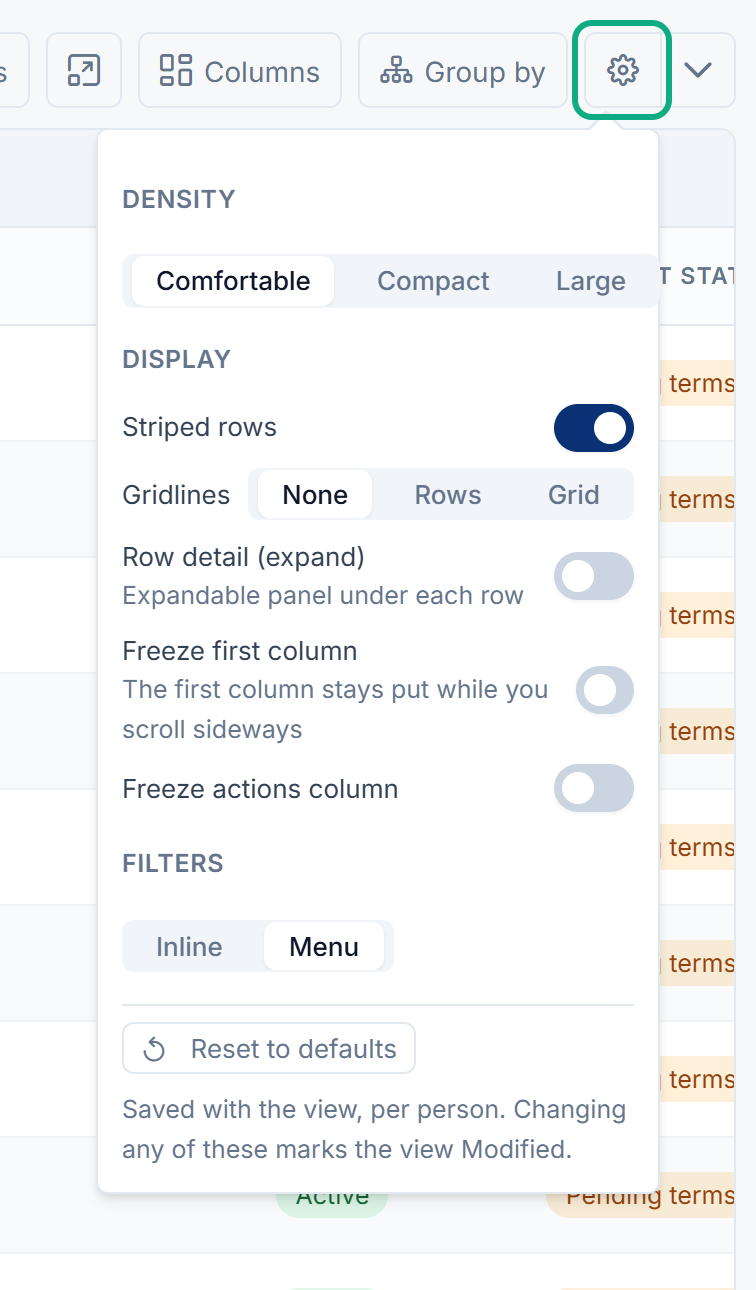
To undo all of these, select Reset to defaults at the bottom of the menu.
Group rows
Where a list offers it, select Group by in the toolbar and choose a column. Clear grouping removes it. Counts and subtotals cover the rows on the current page only.
What happens next
The list keeps your arrangement the next time you open it in this browser. If a saved view is applied, any change here marks the view Modified, with Reset and Save as view in the views strip. See How saved views work.
Tip: Hiding a column doesn't remove it from an export. Export CSV includes every column the list defines. See Export a list to CSV.
Thanks. That helps us decide what to write next.
Thanks for telling us what was missing.
You already answered for this article today. Thanks.
We got a lot of answers from your network just now. Try again in a few minutes.
We couldn't send that. Check your connection and try again.
Links in this article
Printed from help.laramin.in. The online article may have changed since.