Go back to an earlier version of an article
Every save keeps a version of the article. See who changed what, compare two versions side by side, and restore an earlier one.
- Applies to
- Blog 2.3 and later
- Who can do this
- Administrator, Team member
- Permission
feature.blog. post. restore_version - Where
- Blog › Articles, the row's Version history link
On this page
Blog keeps a copy of the article each time it's saved from the form or given a new address. You can look back through them, compare any two, and put an earlier one back.
Before you start
- To see the history, you need View Post or View Post (Own) (
feature.).blog. post.view - To restore a version, you also need Restore Version Post (
feature.). Without it, there's no Restore this version button.blog. post. restore_version
Steps
-
In Blog › Articles, find the article.
-
In the row's actions, select Version history. The page shows Versions on one side and Changes on the other.
-
Select a version in Versions. Each shows its number, when it was saved and who saved it, or System when no one was signed in. The newest is marked Current.
-
To compare it with another version, select Compare against this on the other one. Changes shows each field that differs, with This version and Compared with side by side. If nothing differs, you see These two versions are identical.
-
To put the selected version back, select Restore this version.
-
Confirm Restore this version?
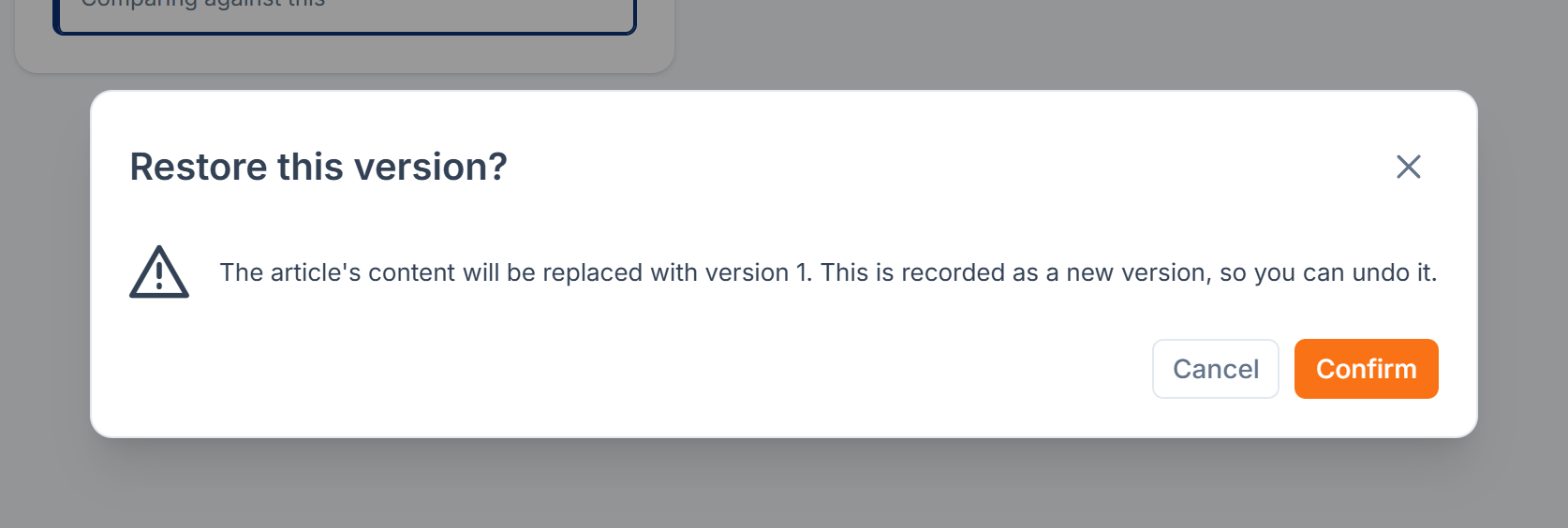
You see Version 4 restored. (with the version's number), and the article now matches that version.
What a restore brings back
- Brought back: the article's text in every language, its category, byline, tags and links.
- Left as they are: the article's status, visibility and gallery.
- On a published article: its address stays where it is, even if the older version had another one.
A restore is saved as a new version, so you can undo it by restoring the version before it.
Good to know
- Blog keeps the newest 50 versions of each article. Older ones are deleted for good as new ones are saved.
- If the history won't load, you see The version history could not be loaded. Select Try again.
- To go back to the list, select Back to articles in the page's breadcrumbs.
Thanks. That helps us decide what to write next.
Thanks for telling us what was missing.
You already answered for this article today. Thanks.
We got a lot of answers from your network just now. Try again in a few minutes.
We couldn't send that. Check your connection and try again.
Links in this article
Printed from help.laramin.in. The online article may have changed since.