Review and publish an article
Send a draft for review, approve it or send it back with a reason, publish it now or schedule it, and later take it down or archive it. Each step has its own permission.
- Applies to
- Blog 2.3 and later
- Who can do this
- Administrator, Team member
- Permission
feature.blog. post. publish - Where
- Blog › Articles, the row's actions menu
On this page
Publishing steps are actions on the article's row in Blog › Articles, not fields on the form. You only see the actions your permissions allow for the article's current status.
Before you start
Each step needs its own permission, in the Blog Content group:
| Step | Permission |
|---|---|
| Submit for review | Edit Post (feature.) |
| Approve and publish | Approve Post (feature.) |
| Reject | Reject Post (feature.) |
| Schedule | Schedule Post (feature.) |
| Publish now | Publish Post (feature.) |
| Unpublish a live article | Unpublish Post (feature.) |
| Archive | Archive Post (feature.) |
Edit Post (Own) isn't enough for Submit for review. In Blog 2.4.1 the workflow steps check the full permissions only, so someone who may edit only their own articles sees no workflow actions.
Send an article for review
- In Blog › Articles, find the draft.
- Open the row's actions menu and select Submit for review.
- Confirm Send this article to the review queue?
The status changes to Pending Review.
Approve or send back an article
-
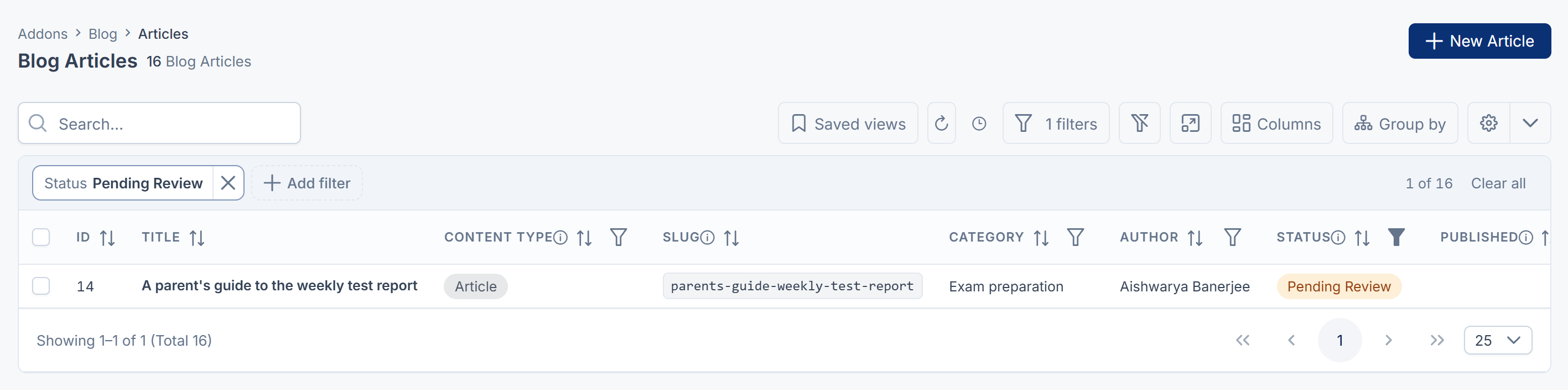
Filter the list by Status to find articles that are Pending Review.
-
Open the article to read it. Close it without saving.
-
In the row's actions menu, choose one:
- Approve and publish, then confirm Approve and publish this article now? The article goes live at once.
- Reject, then write the Reason so the writer knows what to change, and confirm. The status changes to Rejected.
A rejection needs a reason. Without one, you see Give a reason so the writer knows what to change.
The writer can fix the article and select Submit for review again.
Publish now or schedule
On a draft:
- Publish now, then confirm Publish this article now? Its address will be fixed from this moment.
- Schedule, then choose Scheduled for, a time in the future, and confirm. The status changes to Scheduled, and the article goes live within a minute of that time.
The first time an article is published, Published is set to that moment. From then on, its Slug and Content type can't be changed on the form. See Change a published article's address.
Tip: Approve and publish and Publish now both put the article live. On a draft or scheduled article, people with Publish Post see both. On an article pending review, people with Approve Post see both. Either one works.
Take an article down
On a published article:
- Unpublish, then confirm Take this article off the site? Its address becomes editable again, so any existing link may break. The article goes back to Draft. Its Published date is kept, so if you publish it again it keeps its original date.
- Archive, then confirm Archive this article? It leaves the site but keeps its address reserved. The status changes to Archived. To bring it back, select Unpublish to return it to Draft, then publish it again.
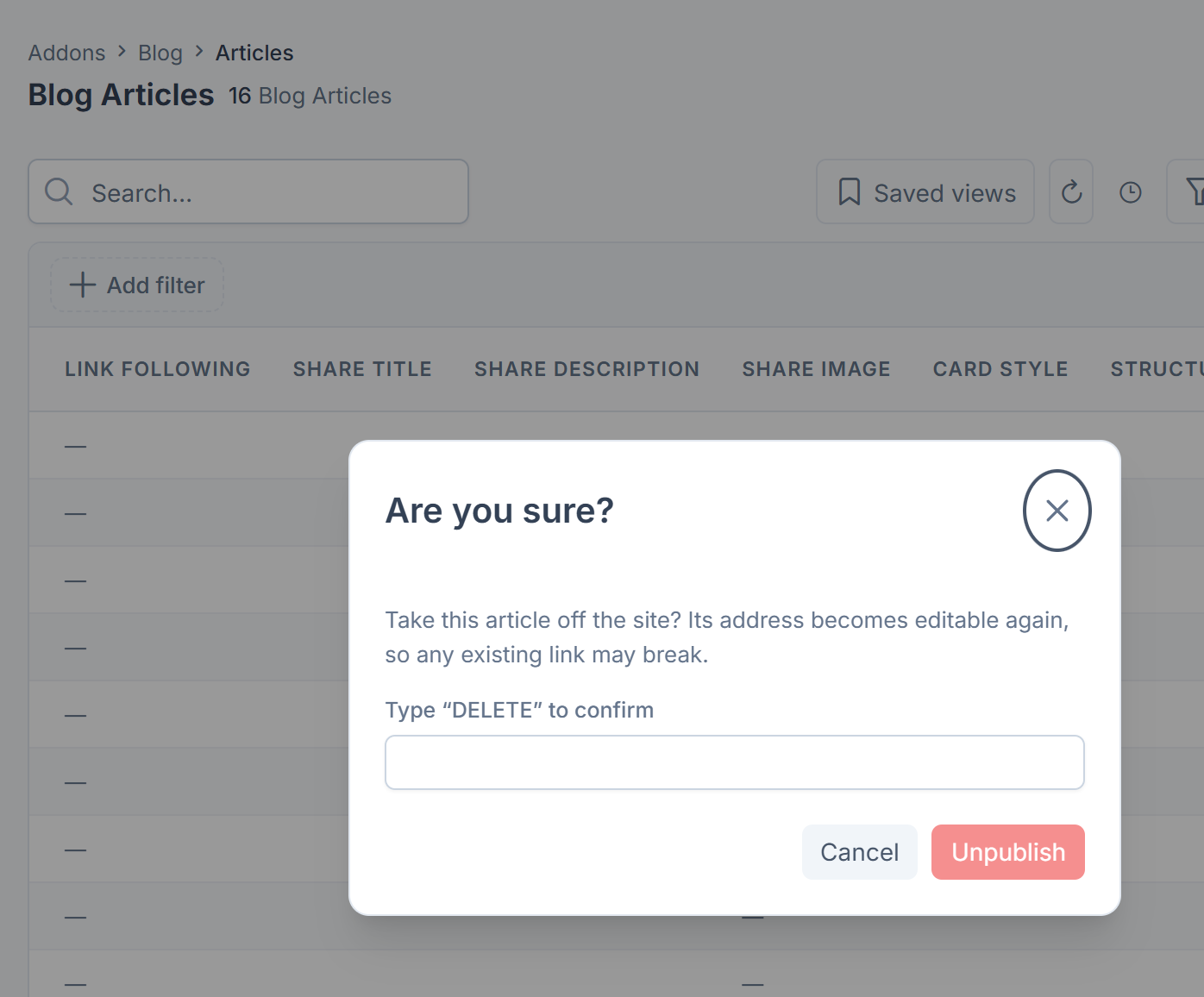
Prefer Archive when people may have linked to the article: its address stays reserved. Once an article is a draft again, someone can change its slug, and old links stop working.
Take an article back to draft before it's live
On an article that's Pending Review, Rejected or Scheduled, the action that returns it to Draft is also labelled Unpublish, with the same warning about taking it off the site. It needs only Edit Post. Nothing is live yet, so nothing comes off your website. Blog 2.4.1 simply reuses the Unpublish label and message for this. On a scheduled article, this cancels the schedule.
The Status field on the form
While an article isn't published, its form has an editable Status field, and saving it moves the article to that status. Once the article is published or archived, Status is read-only and only the actions above can change it.
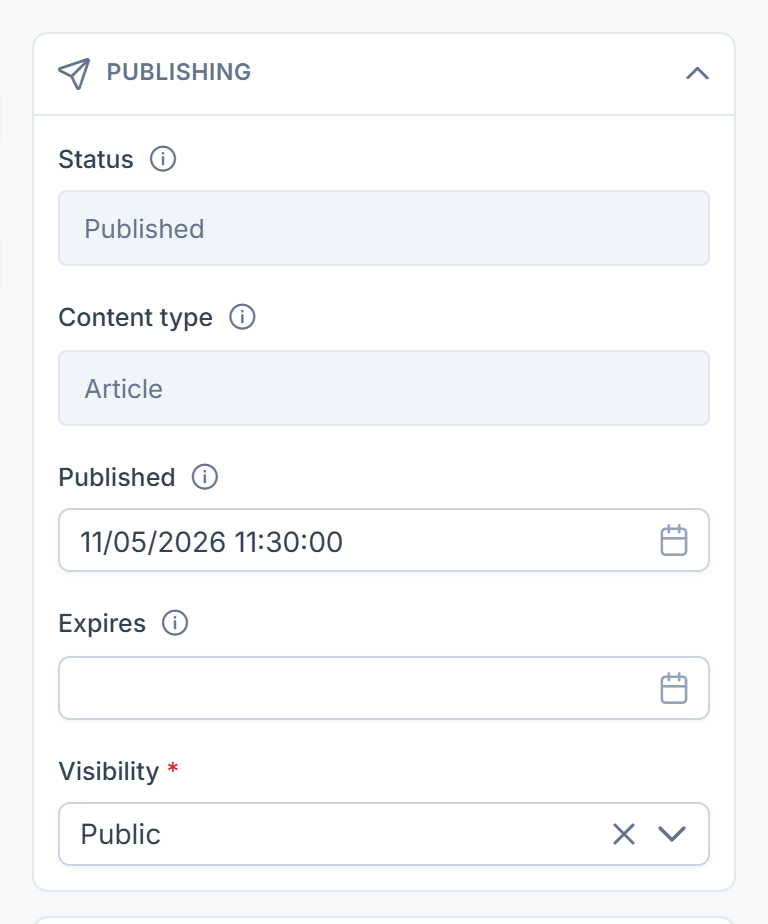
Careful: Choosing Published in the Status field of a draft and saving publishes it, for anyone who can edit the article, without the publishing permissions. The writer isn't notified either. In Blog 2.4.1 the Status field isn't limited by the workflow permissions: even Edit Post (Own) is enough to publish your own draft this way.
What happens next
- With Notification Manager on, the person who created the article is told when it's published (Your article is live) and when it's sent back (Your article was sent back, with your reason). They're the ones notified, not the byline's author. In Blog 2.4.1 the reason is shown only in that notification, not on the article. The Your article is live notification has no link to the article, and the Read it on the site link in its email has no address. To turn these messages on or off, see Turn a notification on or off.
- A published article appears on your website the next time your website reads it. See An article doesn't show on your website.
- An article with an Expires date leaves your website as soon as that date passes, and is archived within the hour.
- If a step is refused, you may see An article cannot move from Published to Scheduled. (that move doesn't exist; take the article down first) or You do not have permission to move this article to Published.
Thanks. That helps us decide what to write next.
Thanks for telling us what was missing.
You already answered for this article today. Thanks.
We got a lot of answers from your network just now. Try again in a few minutes.
We couldn't send that. Check your connection and try again.
Links in this article
Printed from help.laramin.in. The online article may have changed since.