Custom field types, settings and permissions
Every field type and how it appears on a form, every setting on the Add field panel, the columns of the field manager, and the permissions that control each screen.
- Applies to
- Custom Fields 2.0 and later
- Who can do this
- Platform owner, Administrator, Developer
- Where
- Custom Field › Custom Fields › Manage fields
On this page
Field types
Choose the type in Field Type when you add a field. It can't be changed afterwards.
| Field Type | On the form | Checked when saved |
|---|---|---|
| Form Group Label | A heading for the fields you put inside it, as their own section or step. Nothing to fill in. | |
| Text Input | A one-line text box. | Up to Max Length characters |
| Textarea | A text box of several lines. | Up to Max Length characters |
| Tags Input | A box where people type tags. Its Options are saved but not offered as suggestions. | |
| Email Input | A text box for an email address. | Must be an email address, up to Max Length characters |
| Date Picker | A date. | Must be a date |
| Time Picker | A time. | |
| DateTime Picker | A date and time. | Must be a date |
| Number Input | A number. | Must be a number |
| Color Picker | A color. | |
| Select Box | A drop-down list. One choice. | Must be one of Options |
| Multiselect Box | A list where people pick several. | Each must be one of Options |
| Radio Button | A drop-down list. One choice. | Must be one of Options |
| Checkbox | A list where people pick several. | Each must be one of Options |
| Image Cropper | An image upload, with cropping and rotating. | |
| File Upload | A file upload. | |
| Editor | A rich text editor, with formatting. |
Uploads follow your Laramin's upload settings. See File upload settings.
The Add field and Edit field panels
| Setting | What it does | Shown for |
|---|---|---|
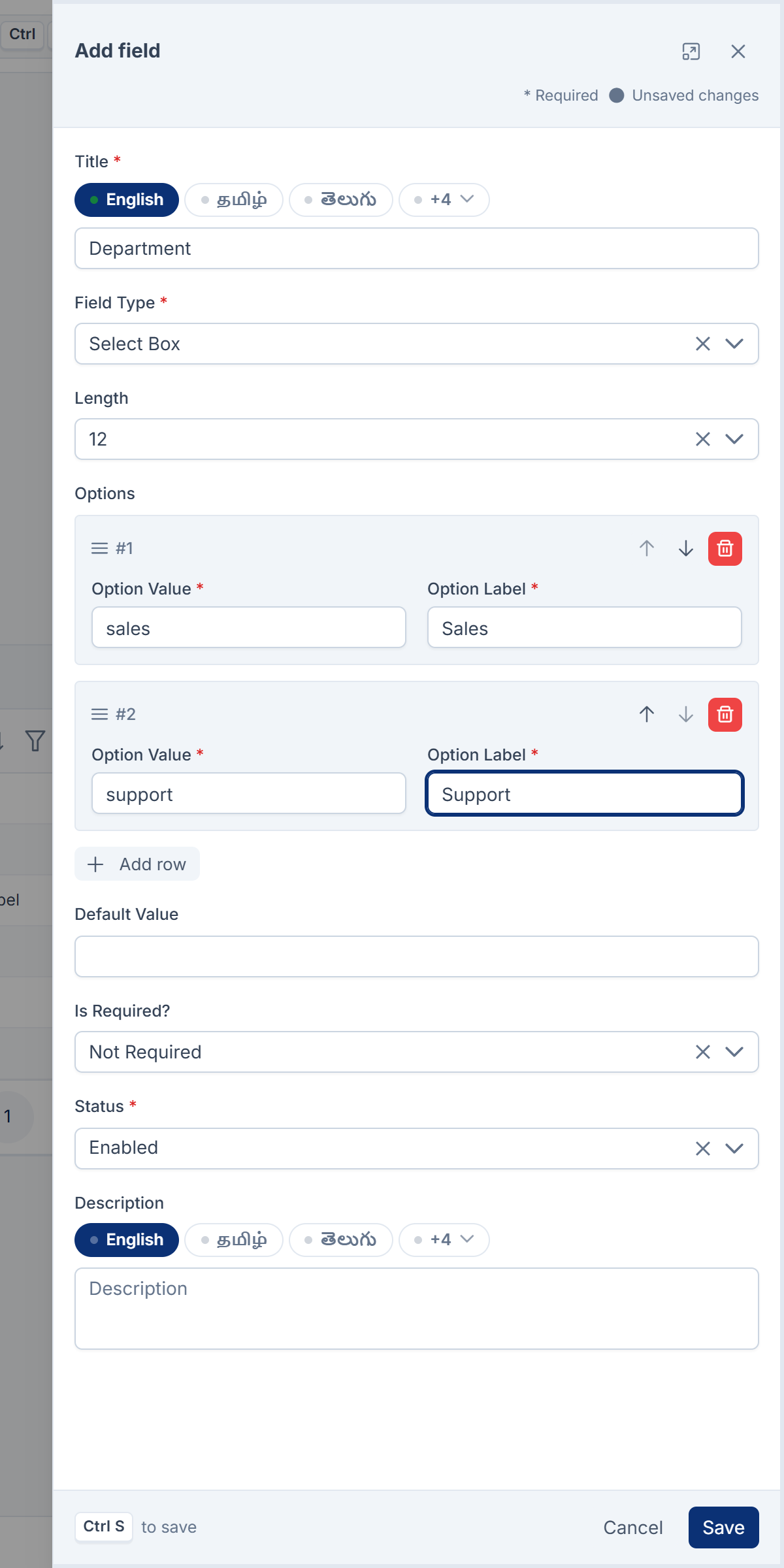
| Title | The field's label on the form. You can enter it in each language. The field's name is made from it when you create the field, for example employee_id from Employee ID. | Every type |
| Field Type | See the table above. Locked once the field exists. | Every type |
| Length | A width from 1 to 12. Forms don't use it: the field keeps its usual width. | Every type |
| Options | The choices, one row each: Option Value is saved, Option Label is shown. Up to 190 characters each. Drag rows to order them. | Select, multiselect, radio, checkbox and tags types |
| Default Value | A value for records that don't have one. The form doesn't show it: the box starts empty. If you leave it empty and save a new record, the record gets the default value. | Every type except Form Group Label, Image Cropper, File Upload and Editor |
| Max Length | The most characters allowed, from 1 to 65,535. | Text Input, Textarea, Email Input |
| Is Required? | Required means the form can't be saved without a value. Not Required is the default. | Every type except Form Group Label |
| Status | Enabled shows the field on forms. Disabled hides it and keeps its values. | Every type |
| Description | A hint shown as a tooltip beside the field. For a group, the text under its heading. You can enter it in each language. | Every type |
Two fields on one entity can't have the same name. The check only looks at fields at the same level, though, so a field inside a group and one outside it can share a name. The form then shows a single box for both, inside the group, and they share one value.
The field manager
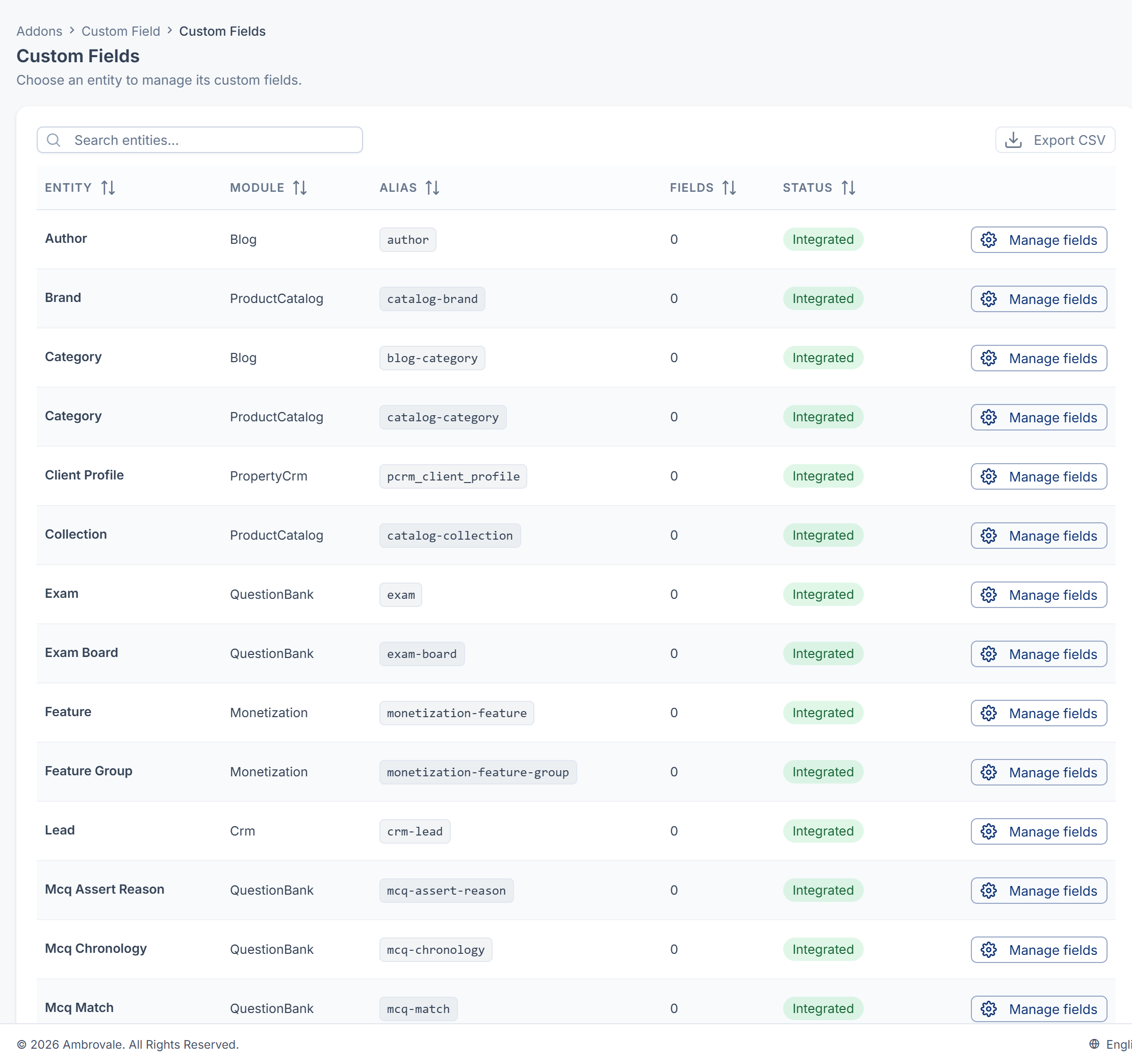
Custom Field › Custom Fields lists entities with Entity, Module, Alias, Fields and Status, a search box and Export CSV. Manage fields opens one entity.
The entity's field list shows ID, Title, Name, Field Type and Status. You can filter it by Field Type and Status, save views, export it, and open the Trashed view. Beside it, Live preview shows the fields as the form gets them. Select the refresh button to update it.
Permissions
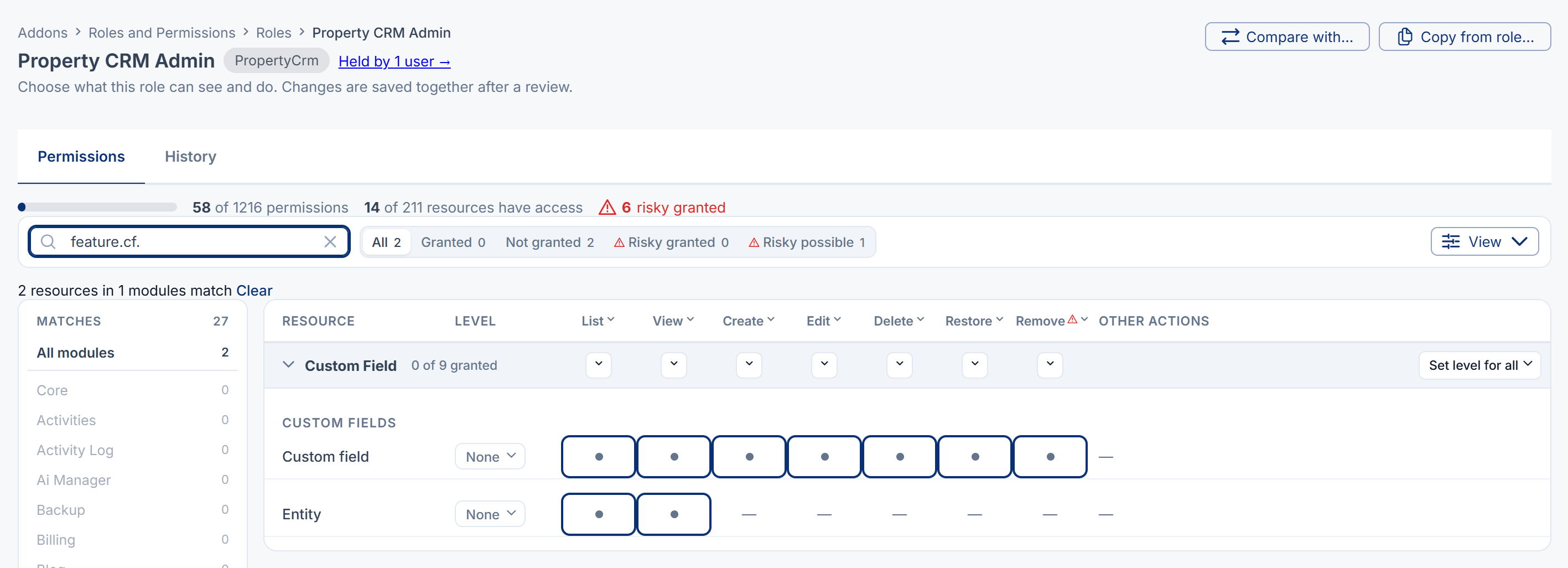
In the role editor, these are under Custom Fields.
| Permission | Label | Allows |
|---|---|---|
feature. | List Entity | Opening Custom Field › Custom Fields and exporting the entity list. |
feature. | View Entity | Opening an entity's field manager and its live preview. |
feature. | List Custom Field | Seeing the entity's fields. |
feature. | View Custom Field | Opening one field. |
feature. | Create Custom Field | Adding fields. The Create field button also needs Edit Custom Field. |
feature. | Edit Custom Field | Changing fields, and Reorder fields. |
feature. | Delete Custom Field | Moving fields to the trash. |
feature. | Restore Custom Field | Bringing fields back from the trash. |
feature. | Remove Custom Field | Deleting fields for good. |
Filling in custom fields on a record needs no Custom Fields permission, only permission to edit that record. To give these permissions, see Give someone a role.
For developers
An app signed in to the API can read an entity's field definitions, without any values, from /api/, for example /api/. Use it to build forms that match.
Thanks. That helps us decide what to write next.
Thanks for telling us what was missing.
You already answered for this article today. Thanks.
We got a lot of answers from your network just now. Try again in a few minutes.
We couldn't send that. Check your connection and try again.
Links in this article
Printed from help.laramin.in. The online article may have changed since.