How custom fields work
Custom fields let you add your own fields, like a Department or an Employee ID, to users and to records from your add-ons, with no coding. Learn which records can have them, where they show, and what happens to the values.
- Applies to
- Custom Fields 2.0 and later
- Who can do this
- Platform owner, Administrator
On this page
In short
Every Laramin form has the fields its makers chose. With the Custom Fields add-on you add more of your own, such as Department on every user or Customer since on every party. You pick the kind of record, called an entity, and add fields to it. The fields then appear on that entity's form, for everyone who fills it in, and the values are saved with each record.
How it works
Entities
An entity is a kind of record that can hold custom fields. Custom Field › Custom Fields lists every entity in your Laramin, with:
| Column | What it shows |
|---|---|
| Entity | The kind of record, such as User, Party or Post. |
| Module | Core, or the add-on it belongs to. Two entities can share a name, such as Party from Organization and Party from Crm. This column tells them apart. |
| Alias | Laramin's internal name for the entity, such as user. Developers use it. |
| Fields | How many custom fields it has. |
| Status | Integrated: values are saved when the form is saved. Capable: fields can be defined, but values aren't saved yet, because a developer still has to connect the entity. |
Entities from an add-on appear only while that add-on is turned on. Its fields come back when you turn it on again.
Where the fields show
Custom fields appear on the entity's create and edit forms, after the form's own fields, and on the record's details page. They're not list columns. A few examples:
| Entity | Where your fields appear |
|---|---|
| User (Core) | The Profile step of the user form. See Create a user. |
| Party (Organization) | Under Additional on the party form |
| Lead, Opportunity, Party, Quote (Crm) | On each form |
| Post, Category, Author (Blog) | On each form |
| Client Profile (PropertyCrm) | On the client form. Property CRM properties don't take custom fields. |
A few listed entities, such as Product Catalog's Variant, Payment Gateway's Payment Gateway and Question Bank's question parts, have no form that shows custom fields. Fields you add to them don't appear anywhere.
Groups
A field of type Form Group Label is a group. Put fields inside it, and they appear together under the group's title, as their own section after the form's other fields. On a form that works in steps, a group becomes its own step. See Group and reorder custom fields.
Names and values
Each field has a Title, which people see, and a Name, which Laramin makes from the title when you create the field: Employee ID becomes employee_id. The name is where the value is stored on each record, so it never changes, even if you change the title. Neither does the field's type.
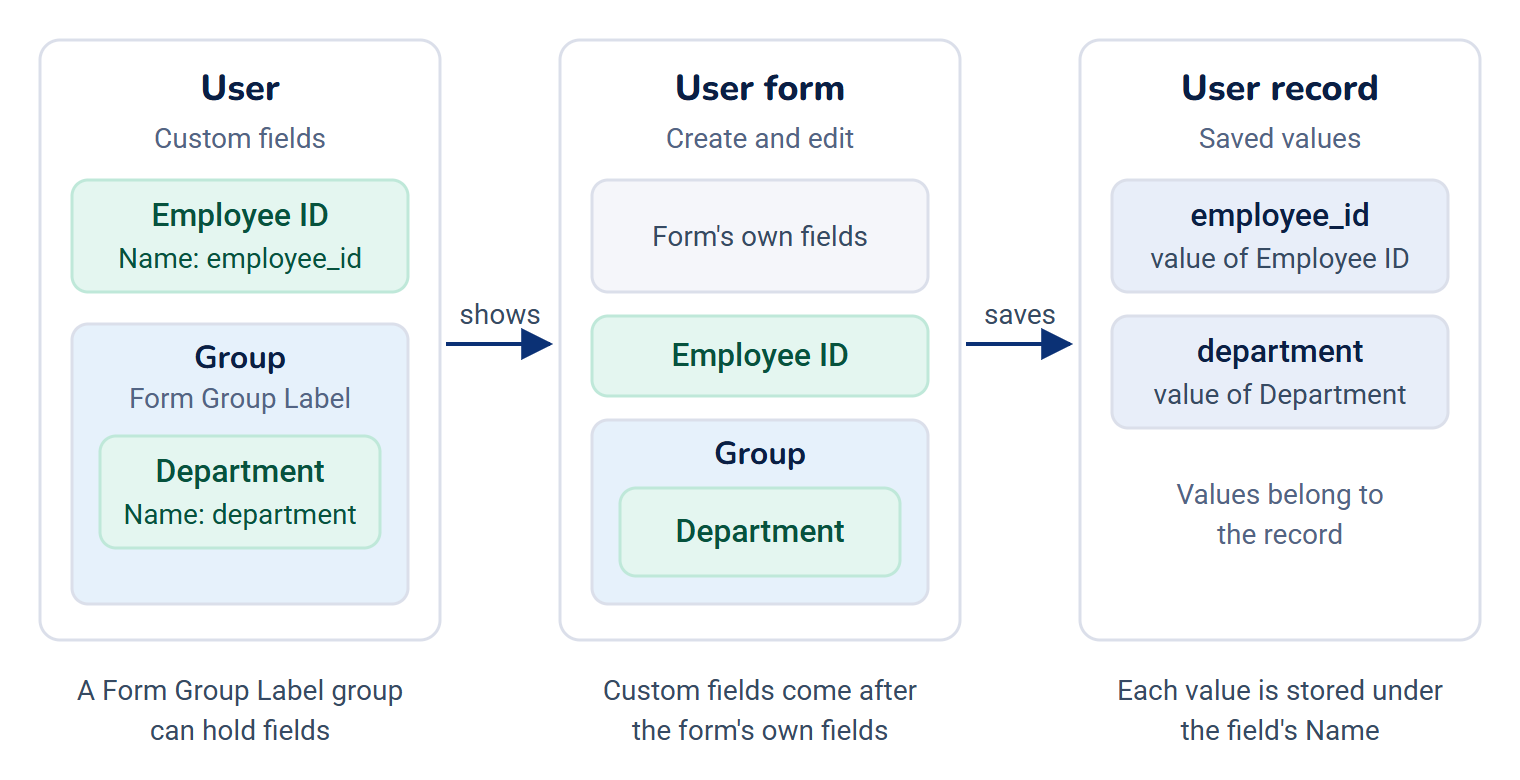
Values belong to the records, not to the field. So:
- Disabled hides a field from forms. The values stay, and show again when you enable it.
- Delete moves a field to the trash. The values stay, and show again if you restore it.
- Delete forever removes the field. The values stay stored on the records but no longer show. A new field with the same name later picks them up again.
Without the add-on
If Custom Fields is turned off, the fields disappear from every form. The values stay with the records and show again when you turn it back on. Before you delete the add-on, read Disable or delete an add-on.
How it relates to
- Static fields. Core's static fields and options are different: they're the fixed lists of choices that dropdowns across Laramin use. See Manage static fields and their options.
- Languages. A field's title and description can be entered in each language your Laramin uses.
- Workspaces. Custom fields are shared by your whole Laramin. A field you add to User appears for users in every workspace.
- Permissions. See Custom field types, settings and permissions.
Next steps
Thanks. That helps us decide what to write next.
Thanks for telling us what was missing.
You already answered for this article today. Thanks.
We got a lot of answers from your network just now. Try again in a few minutes.
We couldn't send that. Check your connection and try again.
Links in this article
Printed from help.laramin.in. The online article may have changed since.