Translate content into your other languages
Switch an entry to another language, copy the default language's text to start from, translate it, and publish that language on its own. Find what's missing or out of date, and understand fallback.
- Applies to
- Headless CMS 1.0 and later
- Who can do this
- Team member, Administrator
- Permission
feature.hcms. entry.edit - Where
- Headless CMS › Content
On this page
Before you start
- The content space must offer more than one language. An administrator adds them on the space's page. See Set up a content space and deliver your first content.
- The schema must have at least one Translatable field. If none is, the entry has one copy for every language and there's nothing to translate.
- You need the same permissions as for writing: Edit to save drafts, and Publish to publish a language. See Write and publish content.
Which fields are translated
| Field | In each language |
|---|---|
| Text, Textarea, Rich text, Email, URL, Image, File and JSON marked Translatable | Its own value. |
| The same types, not marked Translatable | One value, shared by every language. |
| Select and Multi-select | One choice, shared. Only the choices' labels are translated, by the administrator. |
| Integer, Decimal, Boolean, Date, Date-time and Reference | Always shared. |
The entry's address and channels are shared too. Shared fields are marked as such in the form, and editing one changes it for every language.
Steps
1. Switch the form to the language
- Open the entry. See Write and publish content.
- Use the language switcher at the top of the form to choose the language, for example Hindi. Alt+L moves to the next language.
The state chips beside each language say where it stands: published, draft, changed, missing or out of date.
2. Start from the default language (optional)
-
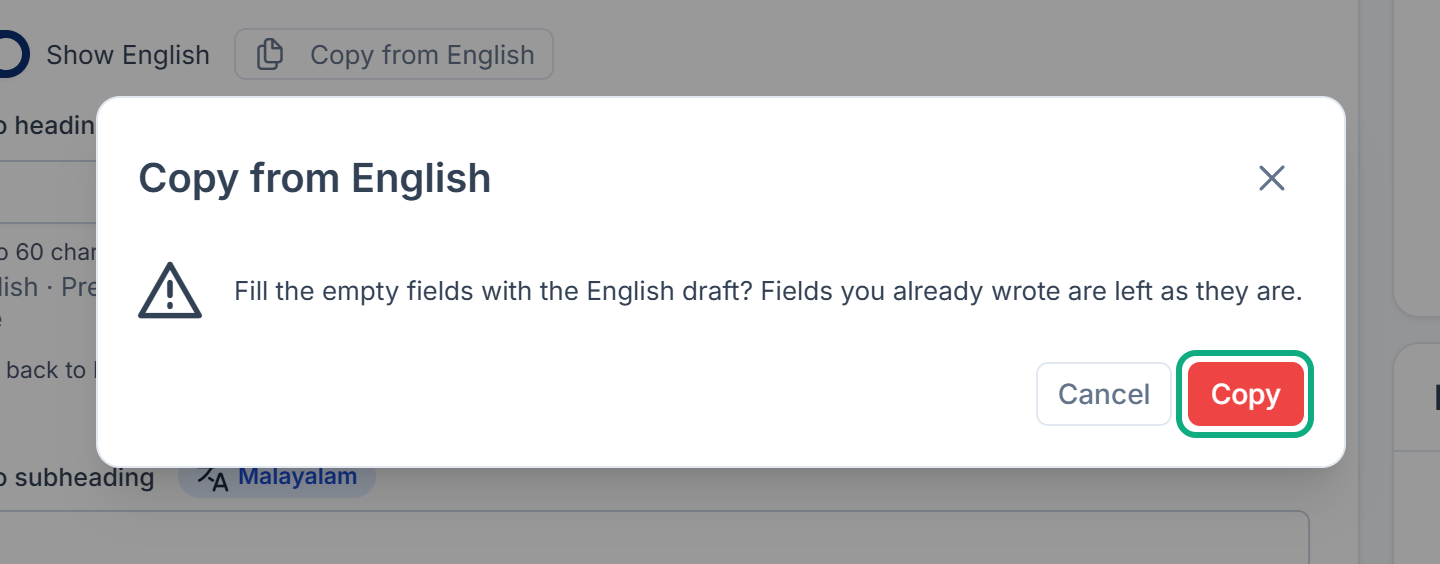
Select Copy from English (your default language's name).
-
In the question that opens, select Copy. Only empty fields are filled. Fields you already wrote stay as they are, and images and files aren't copied.
-
Select Save draft to keep the copied text.
Each copied field is marked Copied from English — not translated yet until you change it. You can also copy one field at a time with Copy field from English.
3. Translate
Type the translation in each translatable field. To see the default language's text while you work, select Show English.
In Hindi, Tamil, Telugu, Kannada, Malayalam and other languages with their own script, you can type phonetically in Latin letters and the editor writes the script. Press Ctrl+G to switch this off while typing. An administrator can turn it off for everyone in Headless CMS settings.
4. Save and publish the language
- Select Save draft.
- Select Publish Hindi (the language you're on), check what changes, and select Publish.
Each language is published on its own. Publishing Hindi doesn't publish another language's draft, but it does publish the entry's shared values for every language, and the check says so.
Required fields in other languages
By default, required fields must be filled in only in the space's default language. Other languages may leave them empty and fall back. An administrator can change this to Every language, globally or for one space. Then publishing a language checks its own translatable values.
If the default language isn't published yet, publishing another language checks the required fields in that language.
How fallback works
While Fall back to the default language is on (it is by default):
- A language with nothing published receives the default language's published copy instead. The response says it fell back.
- An empty translatable field in a published language receives the default language's value. The form shows this as Falls back to English: and the value.
Fallback uses only what's published in the default language. If the default language is unpublished, nothing falls back to it, and readers asking for that language get "not found" until it's published.
When fallback is off, an empty field stays empty, and a language with nothing published gets "not found".
Keep translations up to date
When the default language changes after a translation was written, the translated field is marked English changed date**, after this was translated**. Update it, or select Keep as is to clear the mark.
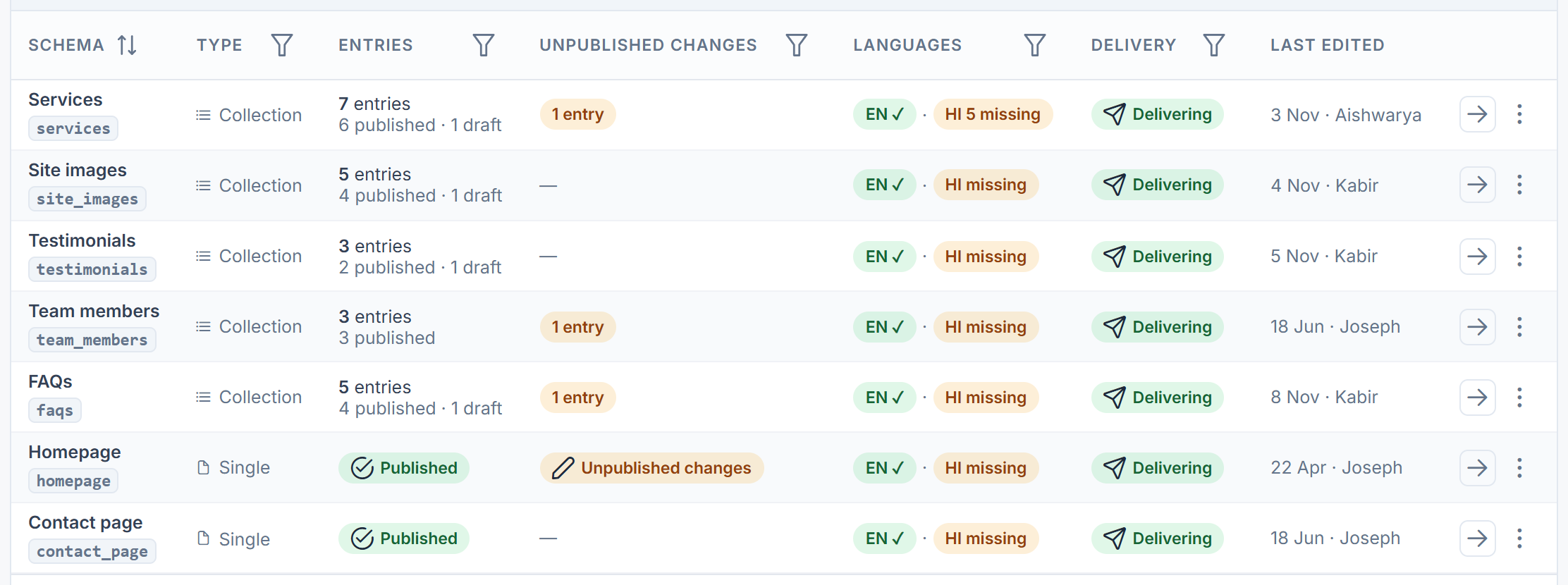
To find work across a list, use the saved views Missing a translation and Translation out of date on a Collection's list. On the Content home, the Languages column shows how many entries are missing or out of date per language.
What happens next
Applications that ask for the language with ?locale=, for example ?locale=hi, receive your translation from their next request. A request that names no language receives the space's default language.
Thanks. That helps us decide what to write next.
Thanks for telling us what was missing.
You already answered for this article today. Thanks.
We got a lot of answers from your network just now. Try again in a few minutes.
We couldn't send that. Check your connection and try again.
Links in this article
Printed from help.laramin.in. The online article may have changed since.