Create segments and groups
Create segments, the labels you sort parties by, and groups, such as a household or a buying group, ready for the parties they'll hold.
- Applies to
- Organization 3.1 and later
- Who can do this
- Administrator
- Permission
feature.org. segment. create - Where
- Organization › Segments
On this page
Before you start
- To create segments you need
feature.. To create groups you needorg. segment. create feature.. In the role editor they're Create on the Segment and Party group rows.org. party_group. create - Segments and groups are shared by your whole Laramin. Every business sees the same list.
- Know the difference:
- A segment is a label, such as
VIPorWholesale. Each business decides for itself which parties it tags with a segment. - A group on the Groups screen is a named collection, such as a household, a buying group or a committee.
- A party whose Type is Group is different again: it's one record that stands for several people, such as a family that pays one bill. You add it as a party. See Add a person or company.
- A segment is a label, such as
Careful: In this version you can create segments and groups, but you can't tag parties with a segment or add parties to a group from Organization's screens. Segments a party already has, for example from an import, show on its Party 360.
Create a segment
-
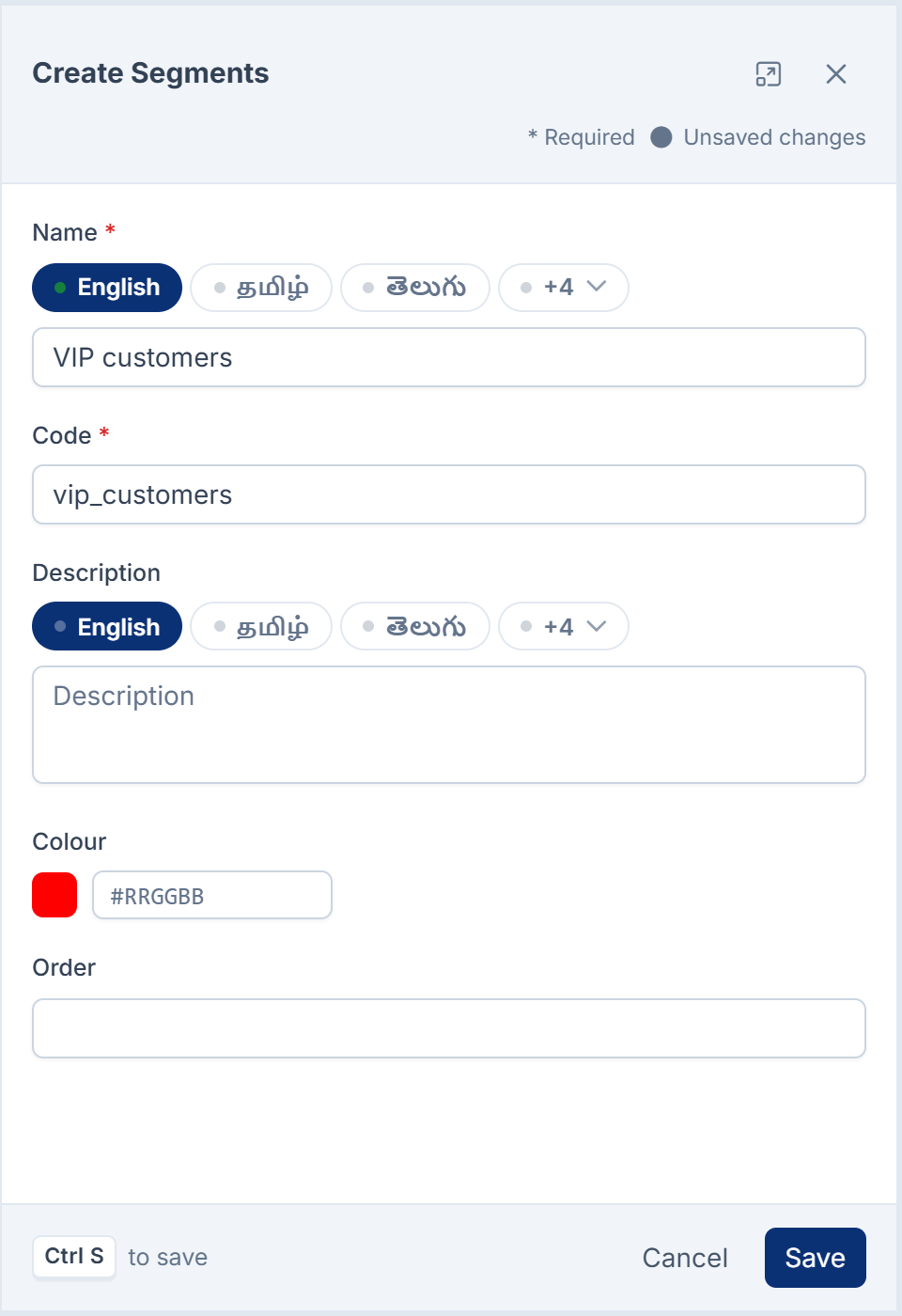
Open Organization › Segments.
-
Select New Segment.
-
Enter the Name, such as
VIP customers. -
Enter the Code: a short key that reports and exports use, such as
vip. Use lowercase letters, digits, hyphens and underscores only. You can't change the code after saving. -
Add a Description if the name needs explaining.
-
Choose a Colour for the segment's chip.
-
Select Save.
Laramin says Segment created.
If the code has other characters, Laramin says A code may contain only lowercase letters, digits, hyphens and underscores, followed by why. Each code can be used once.
Create a group
-
Open Organization › Groups.
-
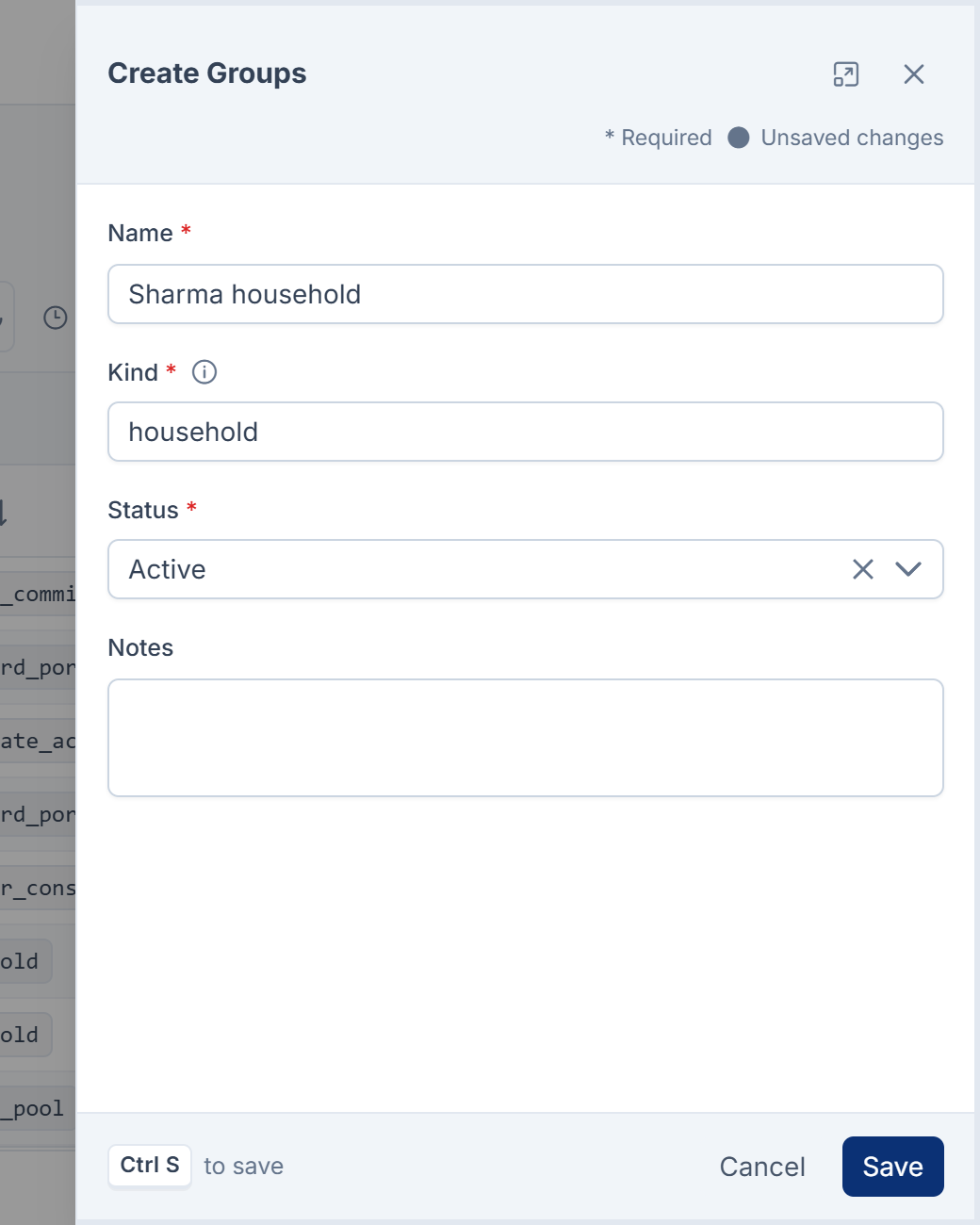
Select New Group.
-
Enter the Name, such as
Sharma household. -
Enter the Kind: what sort of group it is, in your own words, such as
household,buying grouporclass. You can filter the list by kind later. -
Leave Status at Active.
-
Add any Notes.
-
Select Save.
Laramin says Group created.
What happens next
Segments and groups appear in their lists, where you can edit or delete them. Origin on the Segments list says whether a segment was Created here or Registered by a module.
When a merge combines two parties, their segments and group memberships move to the record you keep. See Merge two records for the same person or company.
Thanks. That helps us decide what to write next.
Thanks for telling us what was missing.
You already answered for this article today. Thanks.
We got a lot of answers from your network just now. Try again in a few minutes.
We couldn't send that. Check your connection and try again.
Links in this article
Printed from help.laramin.in. The online article may have changed since.