Set a page's search and share details
Write the title and description a blog article or property shows in search results, choose the picture shown when it's shared, and keep a page out of search results or the sitemap.
- Applies to
- SEO 1.1 and later
- Who can do this
- Administrator, Team member
- Permission
feature.seo. meta.edit - Where
- The SEO section of a Blog article or a Property CRM property
On this page
Each blog article and each property can have its own search title, description and share preview. Anything you leave empty is filled from your site-wide defaults, so you only need to fill in what should differ.
Before you start
- You need Edit SEO metadata (
feature.), and permission to edit the article or property itself. Without Edit SEO metadata, the form has no SEO section.seo. meta.edit - Set up your site-wide defaults first. See Set up your SEO defaults.
Steps
-
Open the page's form:
- For a blog article, open the article to edit it. The SEO section is at the end of the form.
- For a property, open it to edit, or add a new one. SEO is the last step. See Add a property.
-
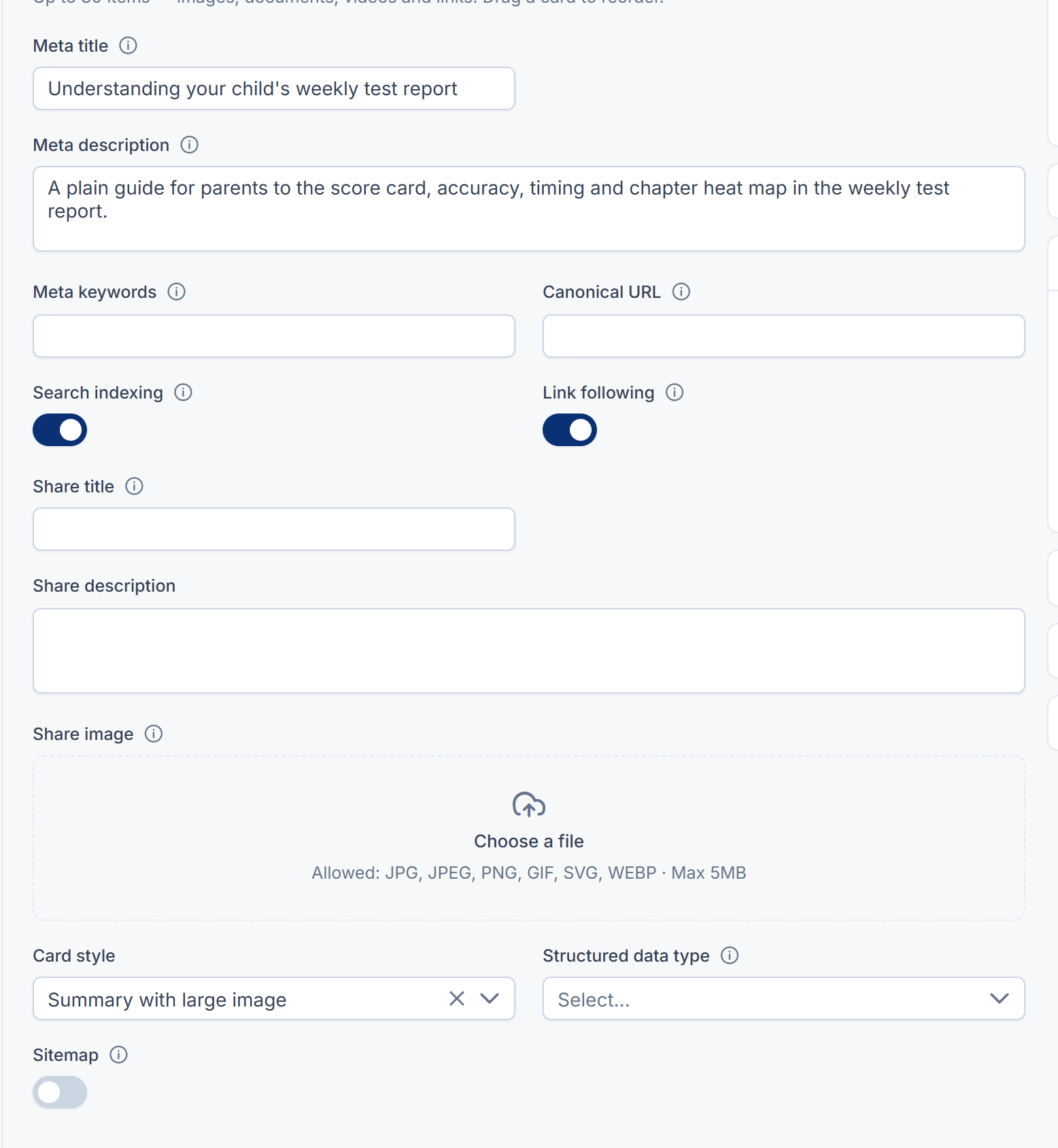
In Meta title, write the headline for search results. Keep it to about 60 characters. Leave it empty to use the page's own title.
-
In Meta description, write the summary shown under the title, about 155 characters.
-
Fill in Share title, Share description and Share image only if the page should look different when shared on social apps. Each falls back to the meta title, the meta description and your default social image. An image of 1200 x 630 pixels works best.
-
In Card style, choose how the picture appears on X: Summary with large image or Summary.
-
In Structured data type, choose what the page is, such as Blog post or Property listing. This helps search engines show richer results. Left empty, it's treated as Article.
-
Leave Canonical URL empty, unless the same content is also at another address you want search engines to prefer. Then enter that full address.
-
Save the article or property as usual.
The SEO details are saved with the page. Your website shows them the next time it reads the page from your Laramin.
Keep a page out of search results or the sitemap
On the same SEO section:
- To keep the page out of search results, set Search indexing to Not indexed. The page also leaves the sitemap.
- To stop search engines following the page's links, set Link following to Not followed.
- To leave the page out of the sitemap but still let search engines index it, set Sitemap to Excluded. People can still visit the page.
Careful: For blog articles, Not indexed and Excluded don't take the article out of the sitemap in SEO 1.2.0 with Blog 2.4.1. A blog article marked Not indexed still reaches your website, with Not indexed in its search details.
What happens next
- The Meta keywords field is there for older tools. Most search engines ignore it.
- If the page's address changes later, see Add a redirect, so old links keep working.
- Without Edit SEO metadata, other people can still edit and save the page. Its SEO details stay as you left them.
Thanks. That helps us decide what to write next.
Thanks for telling us what was missing.
You already answered for this article today. Thanks.
We got a lot of answers from your network just now. Try again in a few minutes.
We couldn't send that. Check your connection and try again.
Links in this article
Printed from help.laramin.in. The online article may have changed since.